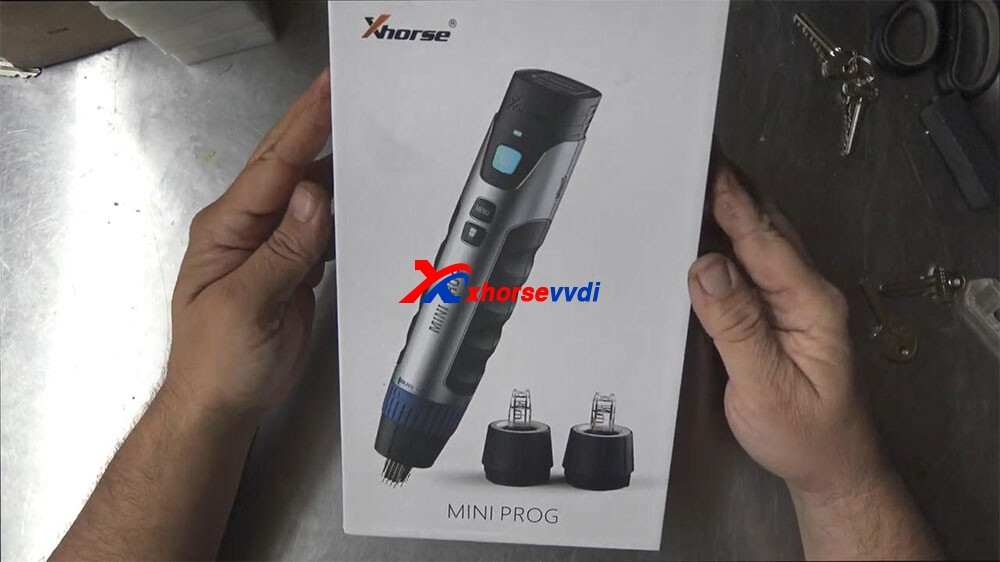
Welcome to another article about Xhorse VVDI Mini Prog Programmer, this has arrived and we don’t get anything for any of these tools that we review for free, we actually buy them, the reason we bought Mini Prog is because we have the other Xhorse key tool and it pairs up with it and it’s worthwhile to see if this tool will do what it’s meant to do, in the states they had a number of devices like this even going back for some time now, but they were really only suitable for American cars, they only came with the American software, now Xhorse has brought this one out here which is very interesting, it runs off Bluetooth it talks to the key programmer, it has different heads on it.
And this is a pick chip or soic chip, this little tiny chip right here on the board so that last little one right up there on the end there, alright, that’s what that is.
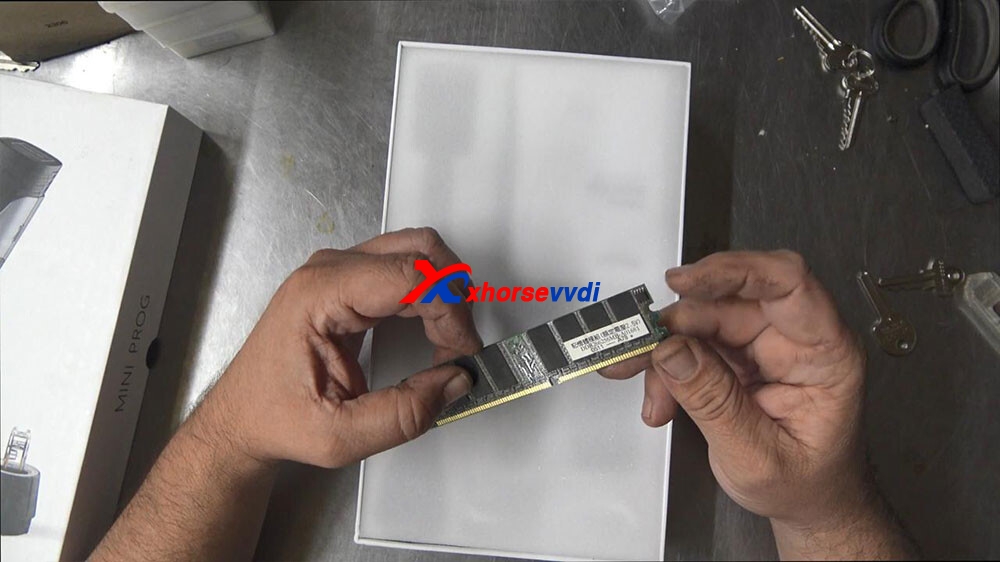
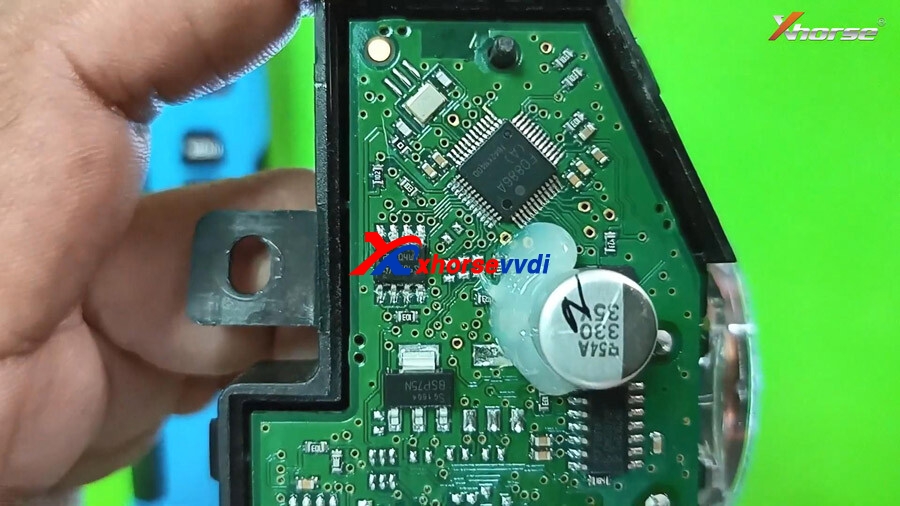
And what that is inside immobilizers speedoes, they’re in all sorts of electronics these days where memories being stored and for us locksmiths, we need to read that chip and actually take the code out of it and put it back into a transponder chip which the car can read, so this is like the brain that holds the code and the car transponder chip is the actual bit that has to have the right code to match with this, in short term.
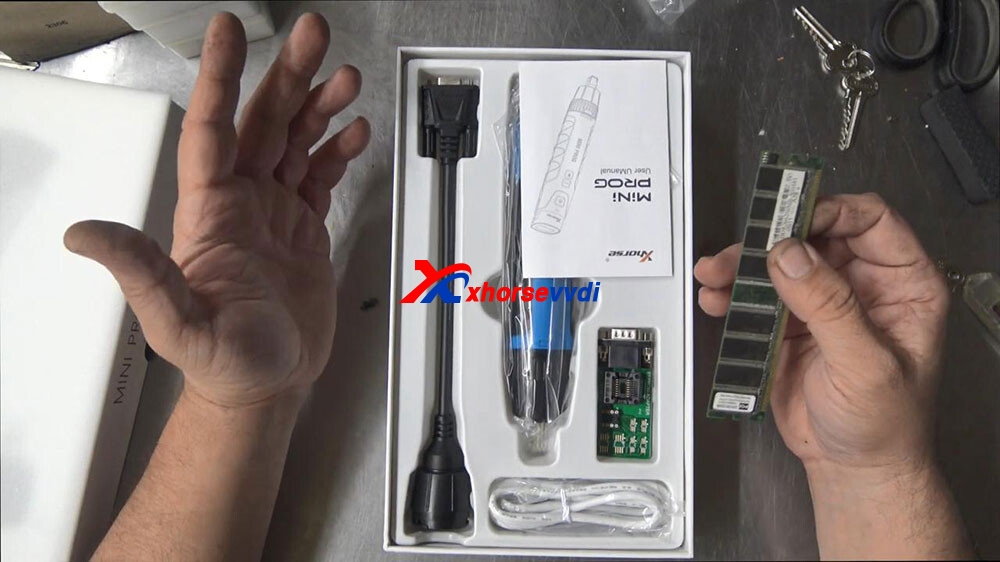
so I thought I’d just give you a quick little unboxing on this one here we’ve got the instructions here.
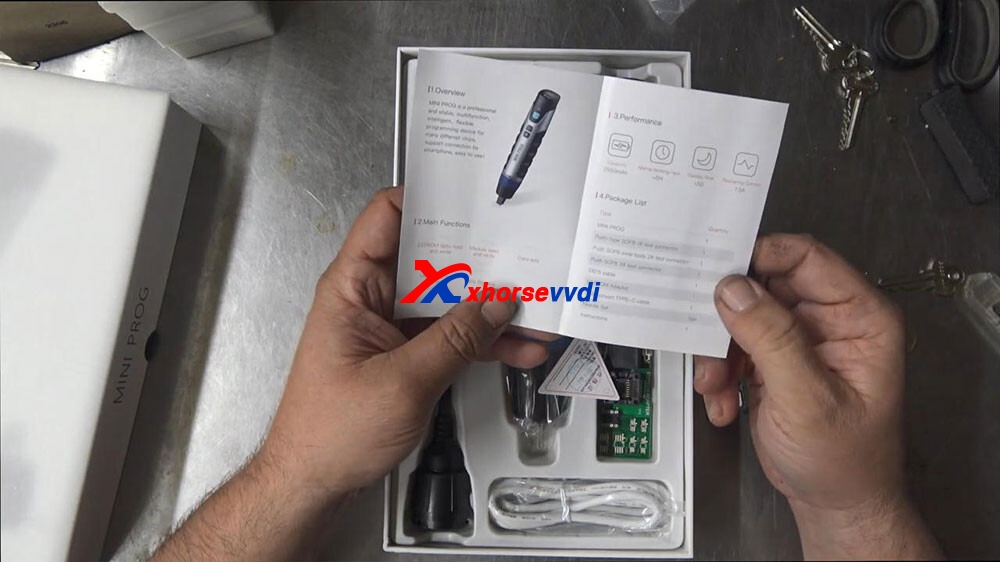
Capacity 200 and 2550 milliamps normal work time, five hours standby time, five days recharge current 1.5 amp, we’ve look at that in the sec, main functions: eeprom data read write, module read and write, data edit mcu, data read write, data storage, so, we’ve got a couple of different adapters here, type mini prog that’s this here, push type SOP8 one tester which I believe is on it, type 2 which would be a one of these ones, type 3 a DB15 cable which will probably be that one or this one eeprom adapter, which is this one right here and a usb and a needle set, we don’t have that and instructions okay, so this right here, dongle I don’t think that’s all that I think that is separate that’s a something else, I’ve just put it in there so it doesn’t get lost.
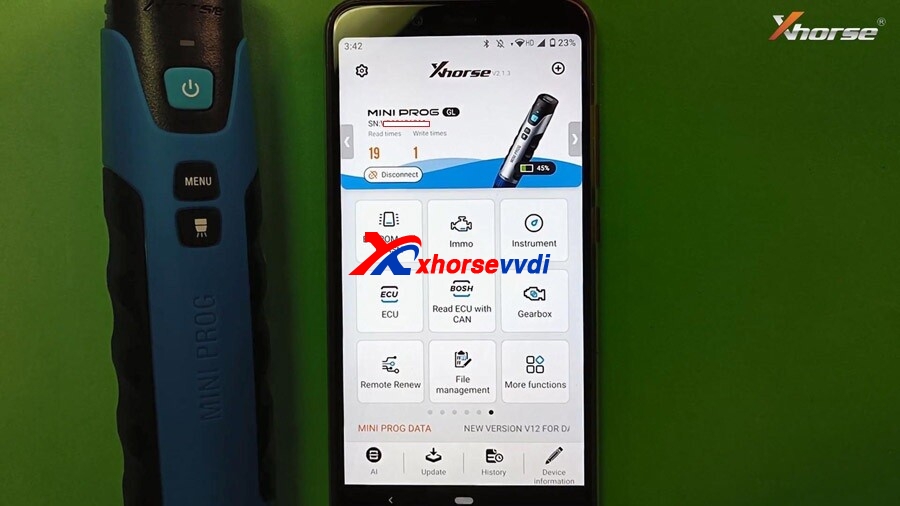
Alright flicking through now, we have the lead on the top, we have a light indicated tell is on we have it on and off button, a page turning button and a light button, so if this has a light on the front of it, that would be really cool, a start stop button, lithium battery button and a type c charging port on the side of the device, so obviously we would need to use it either with an APP we use it with our other xhorse tool, a key tool Max or Key Tool plus and that should be able to.
So let’s go through and have a look now.
so the design of it is it’s a series of gold pins behind almost like an acrylic front owner and on the back here we can see a row of pins so there’s definitely some sort of push function happening, if I just push this down here you can see that those pins actually come through, if you can see that.
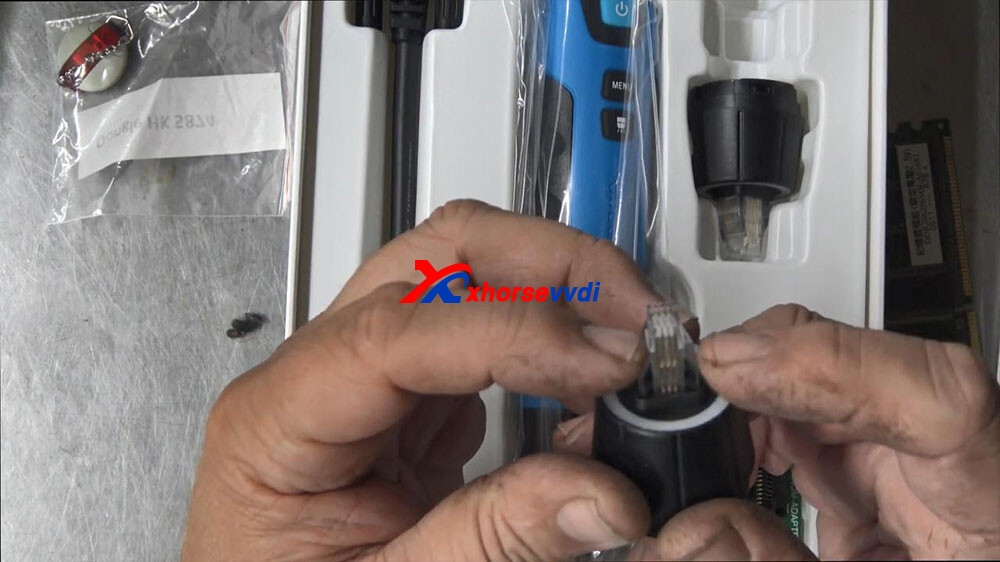
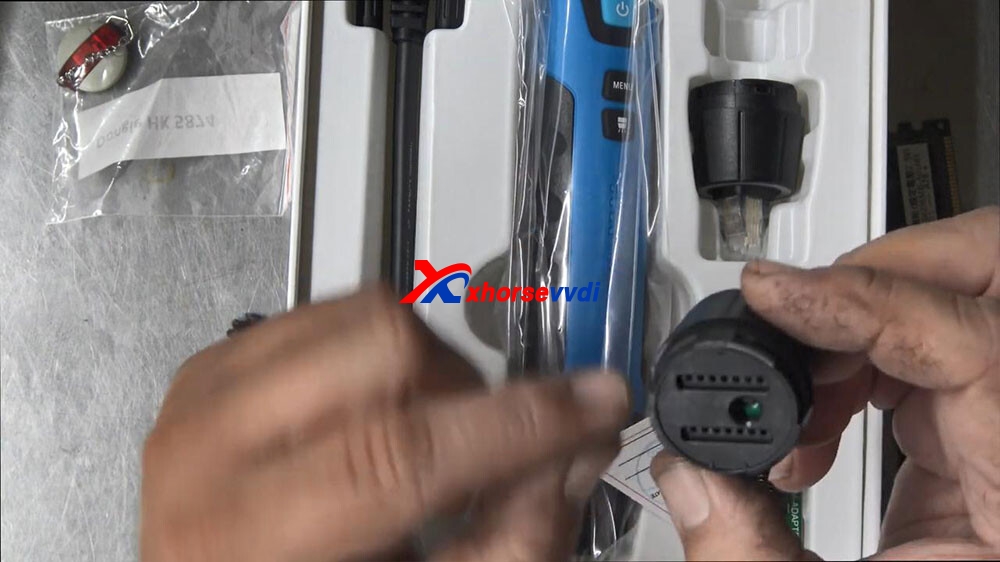
okay that’s how that was working and we’ve got multiple sizes here.
So for my example here, if I was to check this against this,we would come up over the top and push on that and that’s quite a nice push.
Like I can see that that’s good one thing here is I’m not saying I’m not seeing any red spike on the identifying number one leg, on this chip I can clearly see here on the left-hand side but on this ,I can’t see I can only see number three on the front, so and on the back, so I can’t identify number one straight off the BAT which is a little bit unusual gonna push that over the top, so it does fit straight over the top real nice real snug and bang. You can read that chip
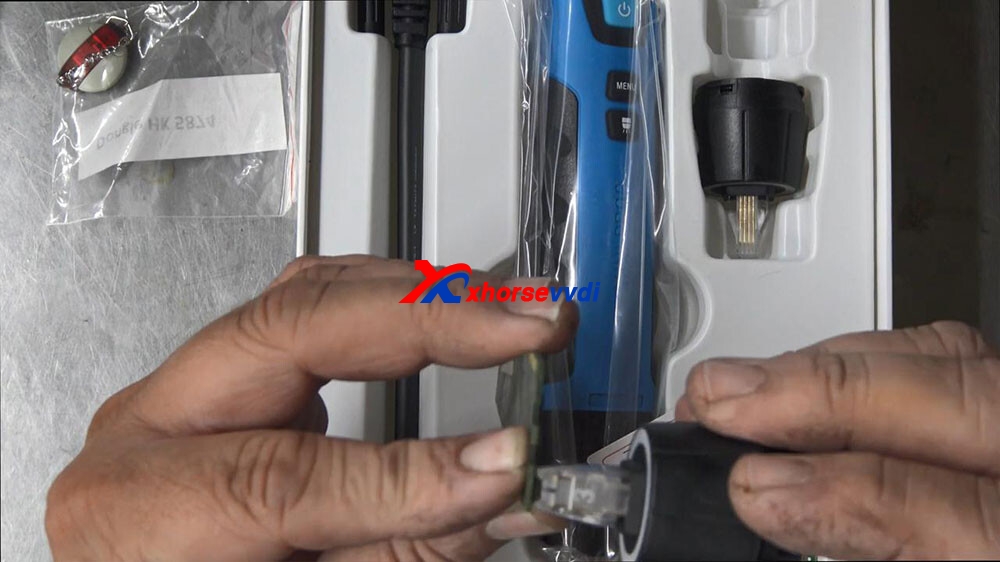
If you’ve got that why do you need this, and this is the question, I’ve been curious about why would you need this, so what you normally do here is you plug this into your computer and you bring up like a little soic program and you would solder on the chips onto here and then you could read it that way, perhaps that’s like a backup plan in case you can’t. You can’t get with this tool.
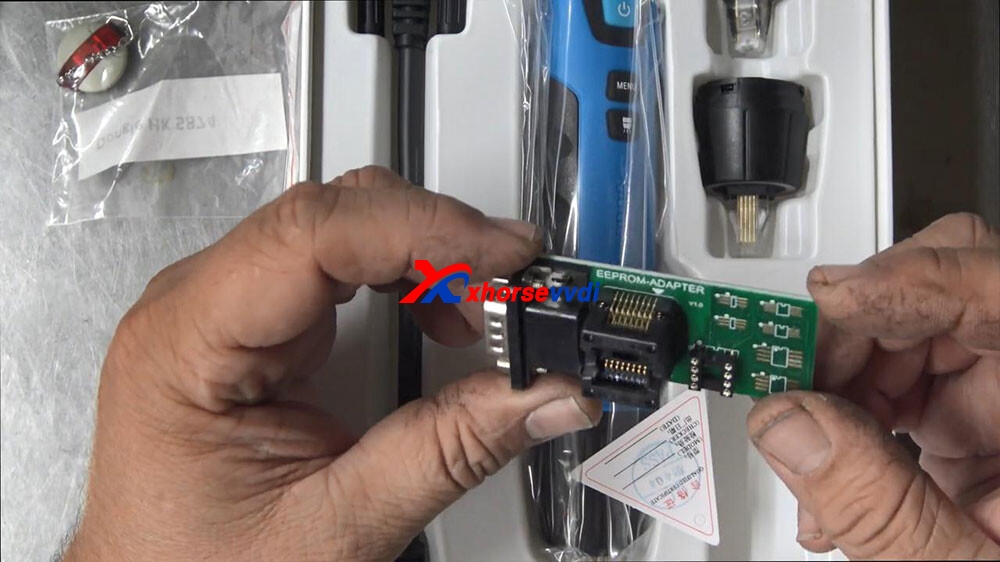
But I would have thought with this tool, you wouldn’t need that isn’t that the whole idea, now this thing does look like a big Ding Dong, but I think for us locksmiths might be a cool tool to have right there, it is there once again that’s for those larger chips that’s there let’s see how hard it is to swap the heads out slight twist and putting on the new head, now there is a center locating golden link in the middle there, so I’m going to push it on top.
Push it on top, push it down push it on top.
No okay push it on top and then twist it around, and now it’s secure, so the battery is located in here that’s fairly straightforward start button to push that on there, holding down the start button three two one nine okay so the start but needs to do the reading obviously.
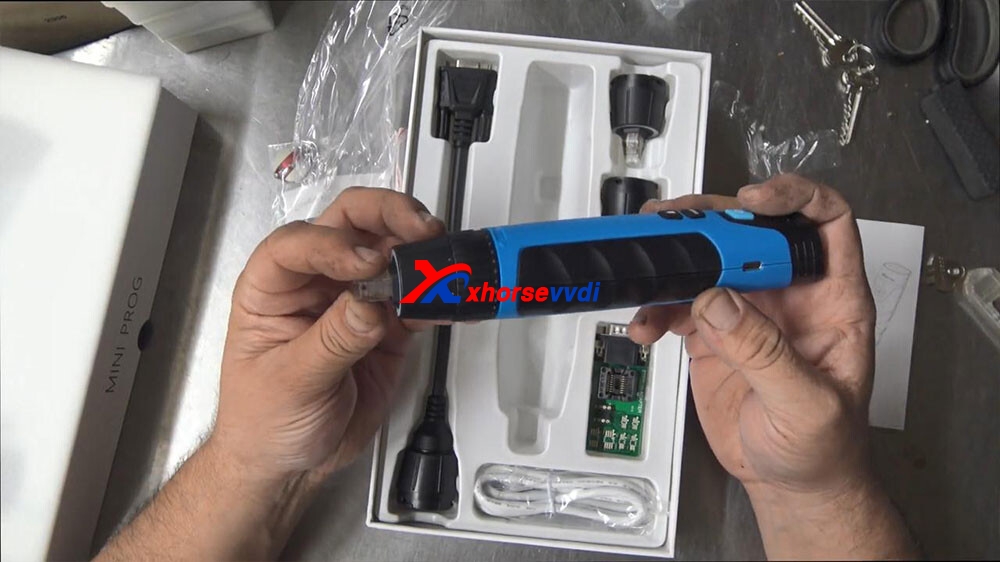
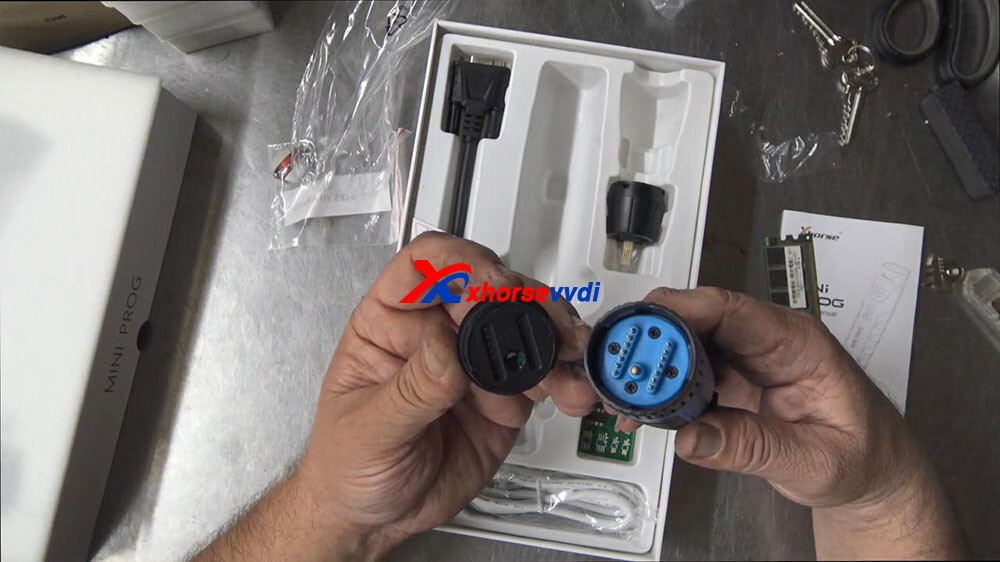
Okay, now we got power on top looks a little LCD screen on there too, which has a QR code for the APP to download before you can start to use it, battery status on how much battery a wi-fi and Bluetooth indicator there as well.
Now it’s got manual here.
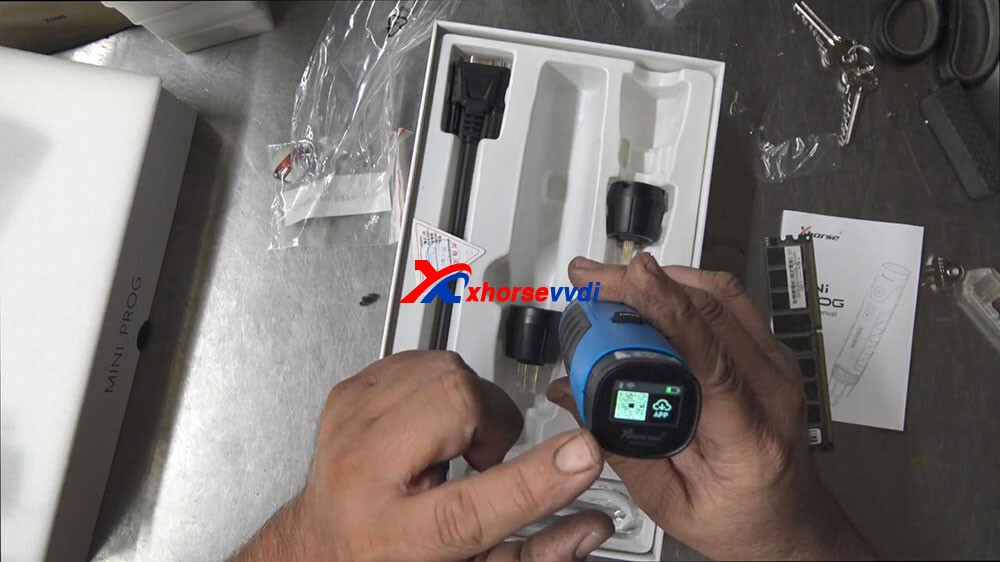
Mini prog version number V0.2.5
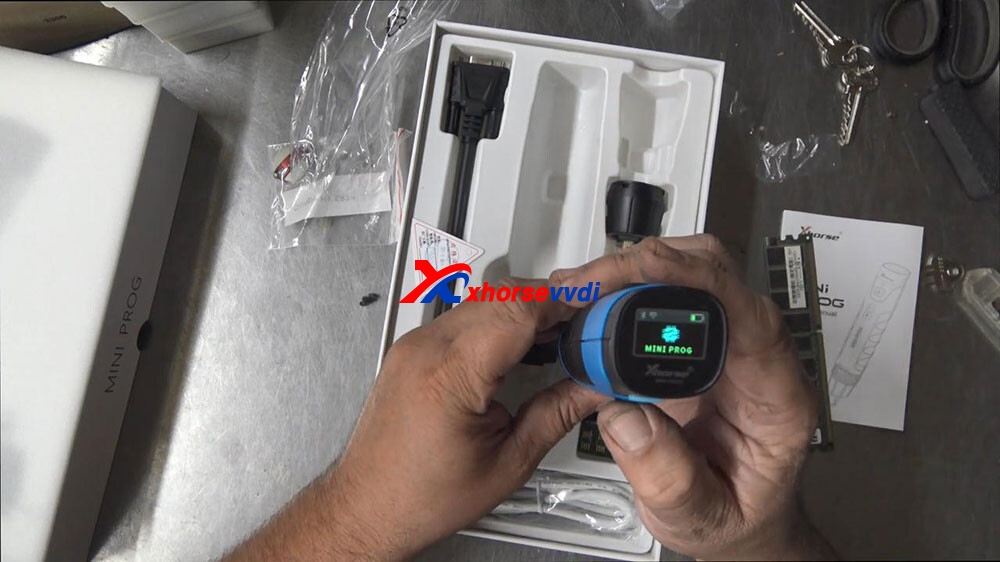
So we’ll probably know more about that later let’s try the light, but now I’ll look at that that’s cool I like that.
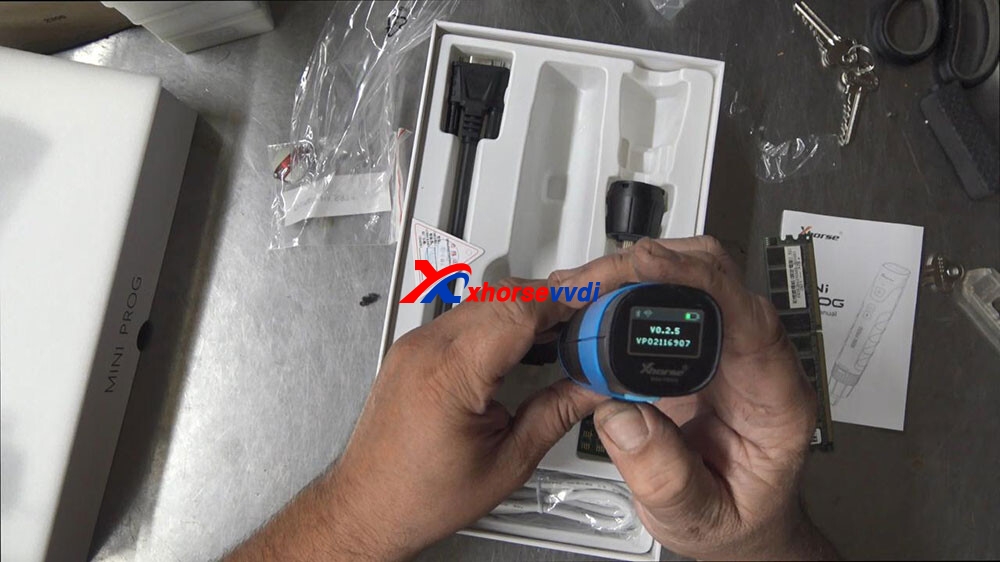
Let’s just try that on to a chip now, so that right there is if you can see it.
So the right way around.
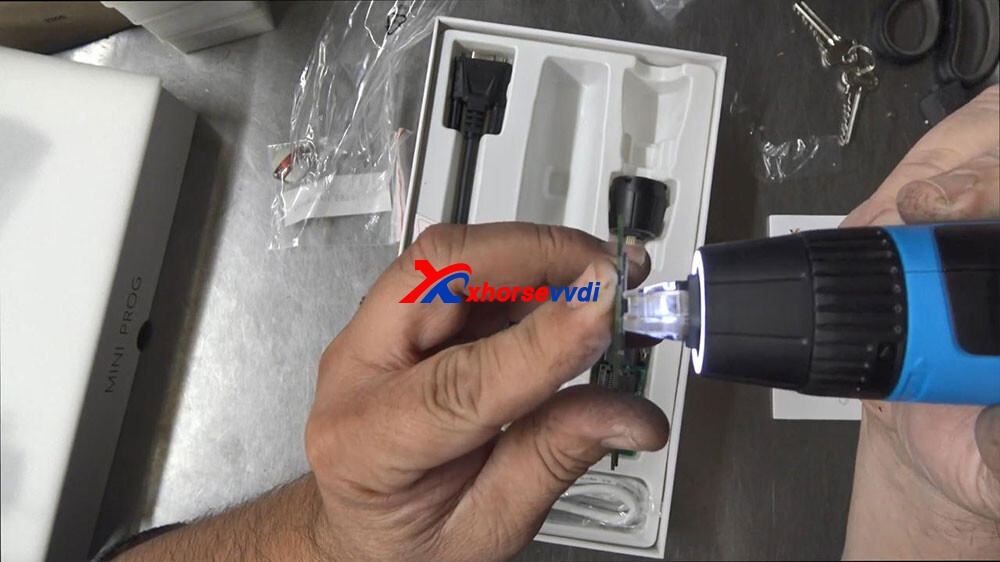
You know that looks good have a look at it from this side that light is pretty cool
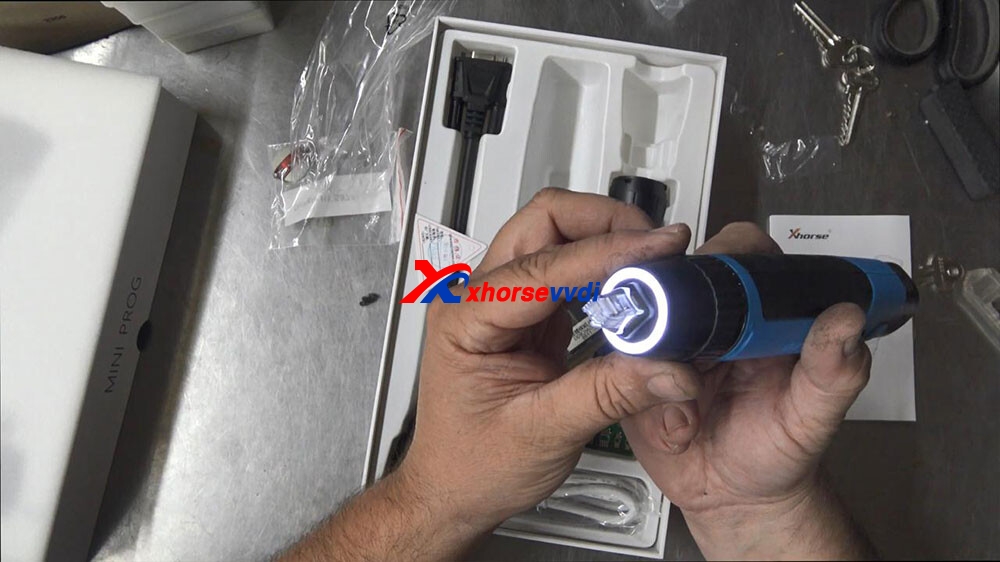
I’m impressed with the menu of the little LCD screen as well I’m impressed with the C connection is what most more modern phones are using now.
The weight of 300 grams, length of it like you know it’s good a 180 long and it’s probably about 40 mil wide all the way around so interesting tool.
So I would really like to see this out in the field and just basically hooking it up and putting it on a chip and seeing if I can get a key from it and I’m just going to turn it off now give it a good charge overnight, hold the switch button for 8 seconds.
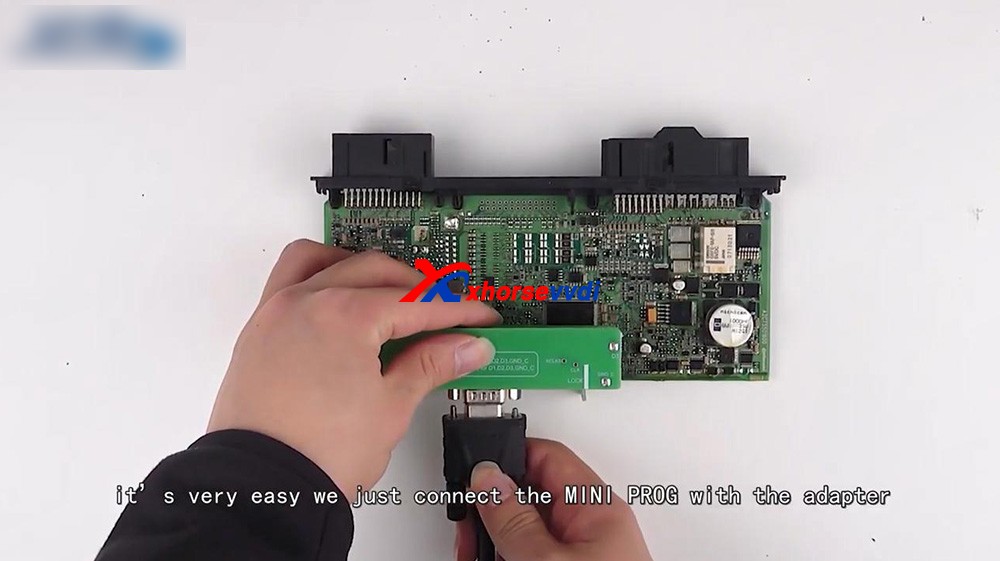
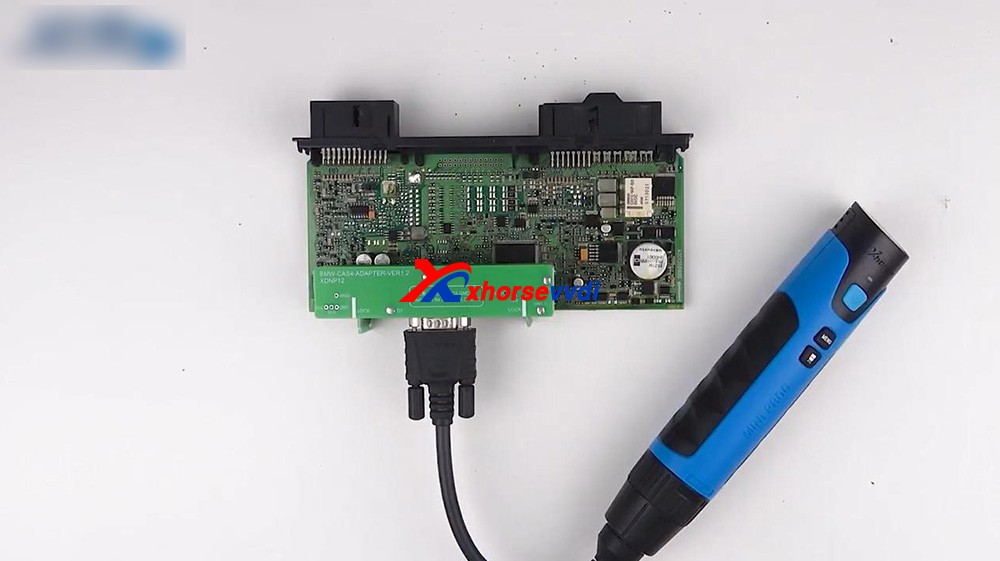
There’s your cable on this side which is to fit this adapter, just like a comms port.
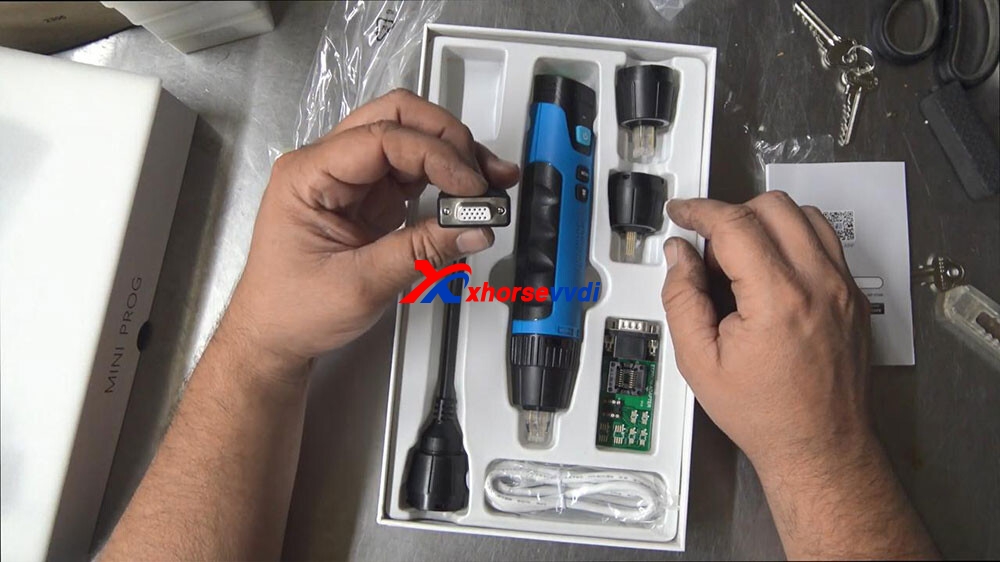
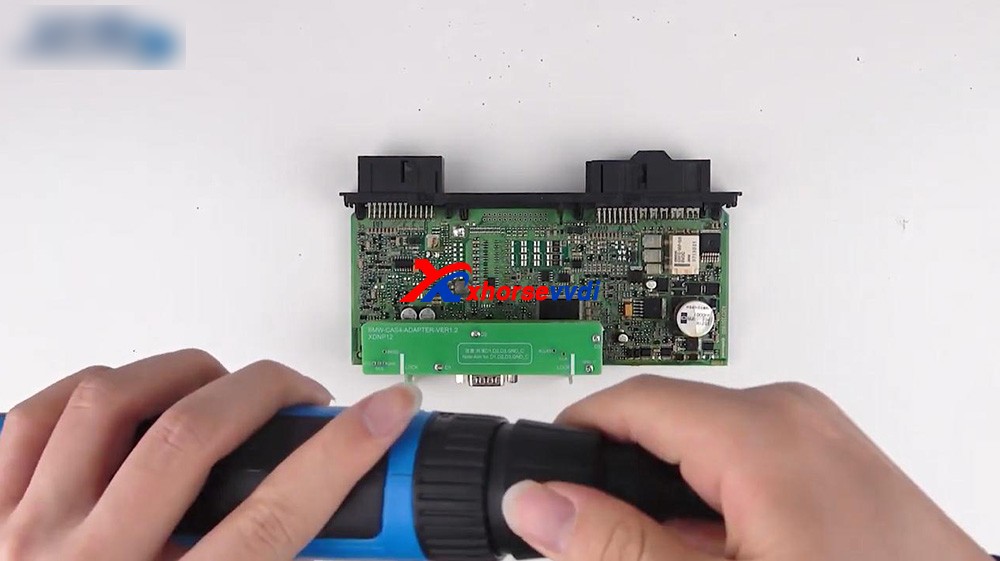
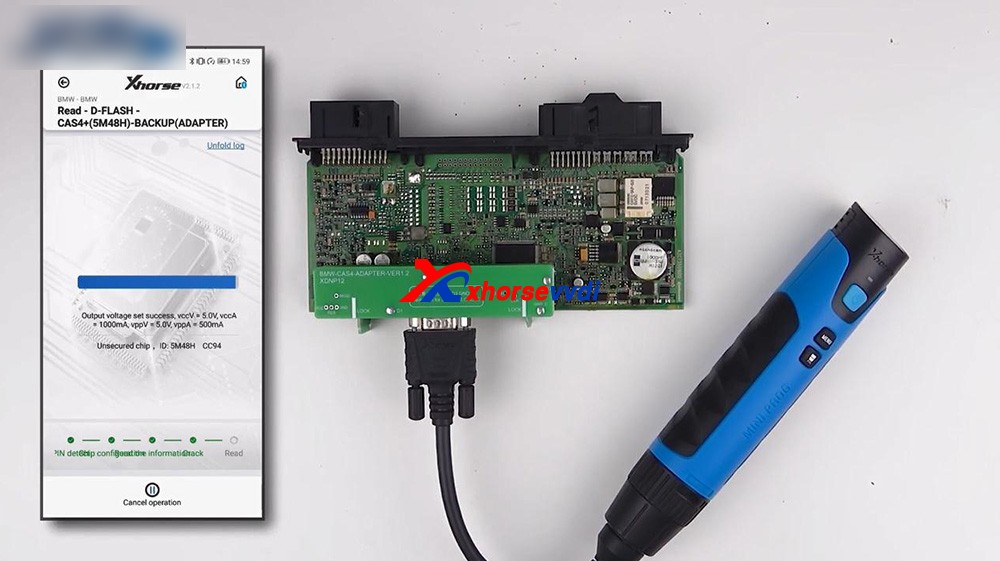
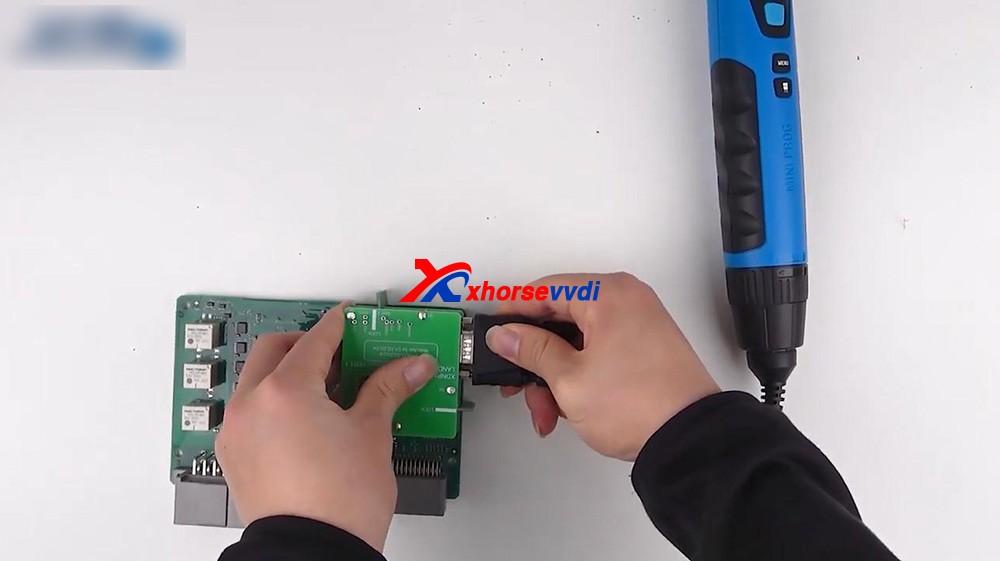
If you want to use this adapter, here you actually have to plug this in like this, twist this on so it’s connected.
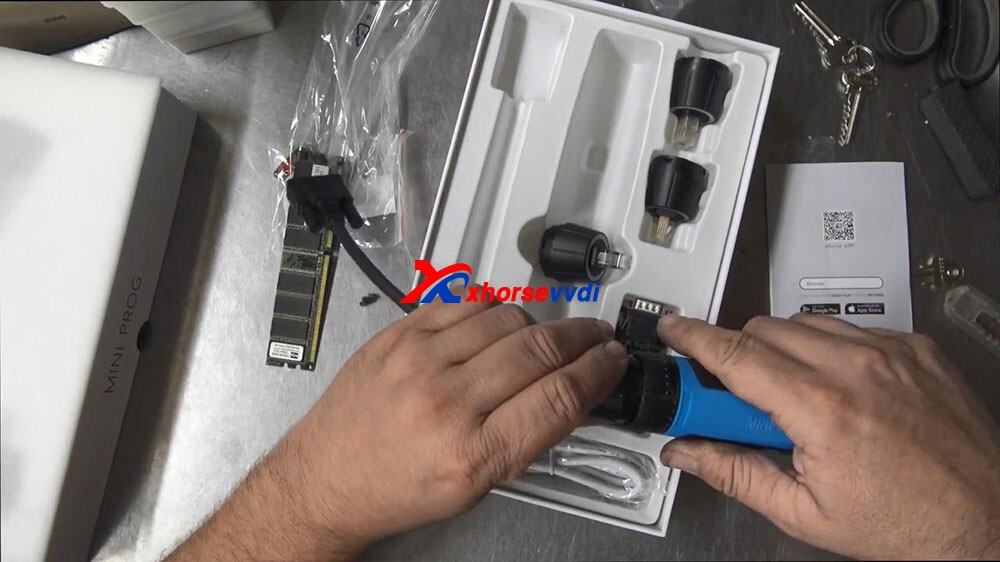
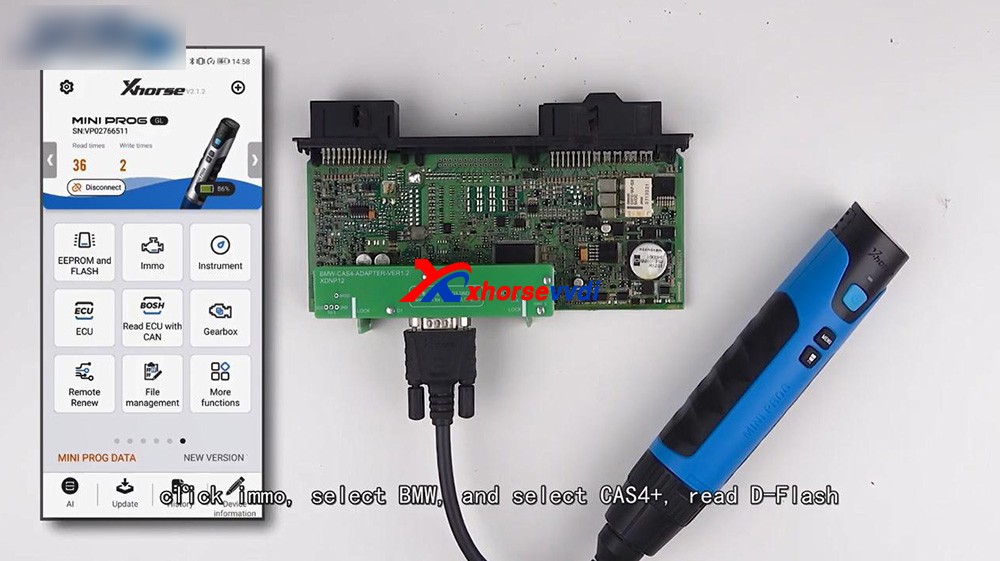
Okay, and then we would have to plug this in like so.
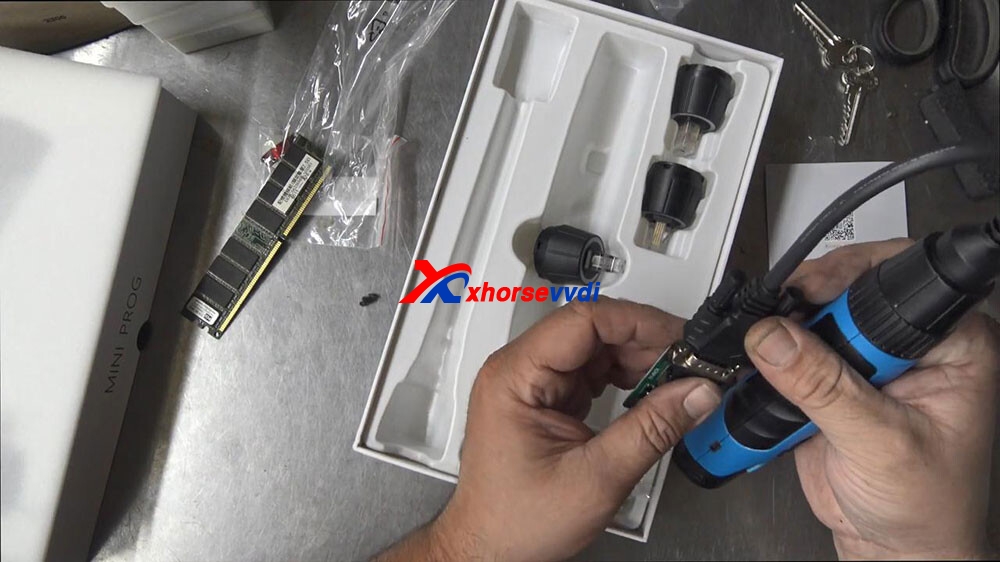
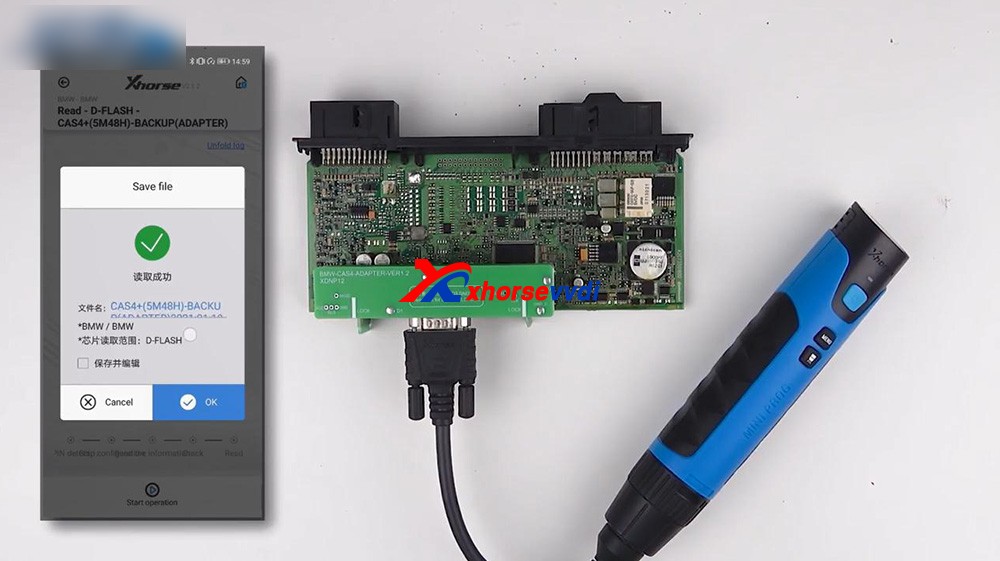
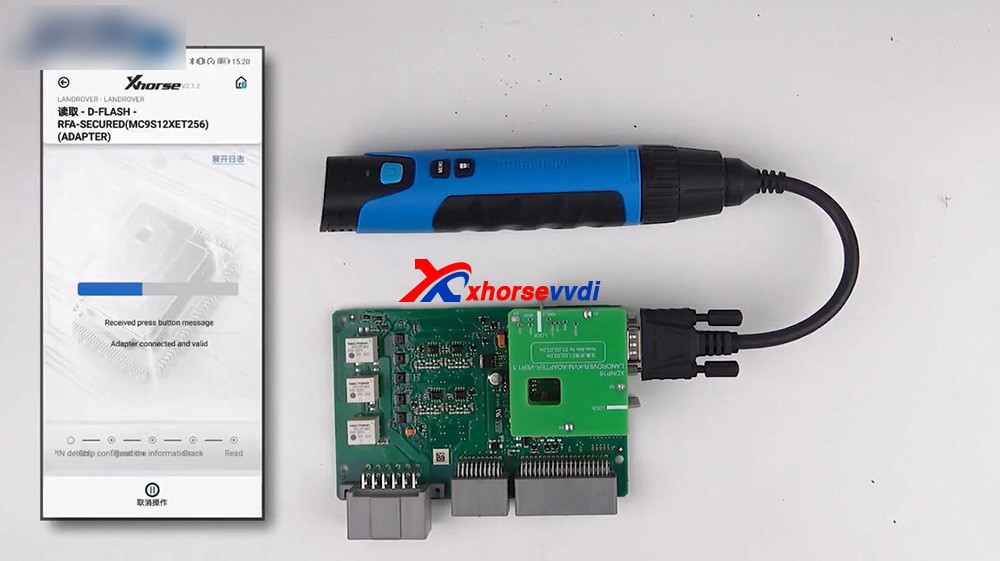
Okay, then we would have to solder or use a clamp or one of these feelings or push the chip in there then we would actually have to push the button on the back and then hopefully that should send the information back to our Xhorse VVDI Smart Tool.
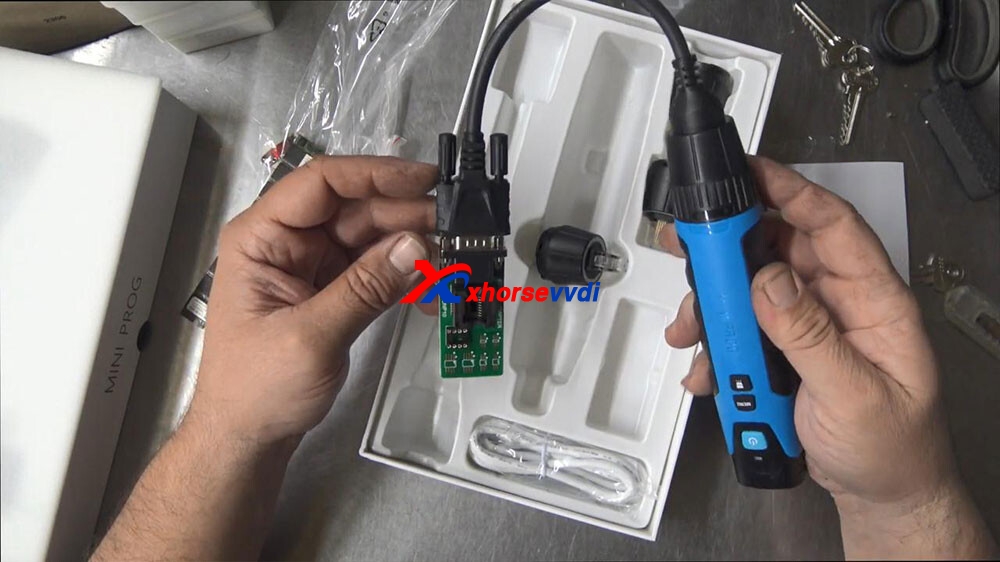
anyway, that’s Xhorse Mini Prog the quick look over it, so that’s just basically what’s in the box.
Video:https://www.youtube.com/embed/jW9jEwUbyVc
Source:http://blog.xhorsevvdi.com/xhorse-vvdi-mini-prog-programmer-soic-quick-overlook/
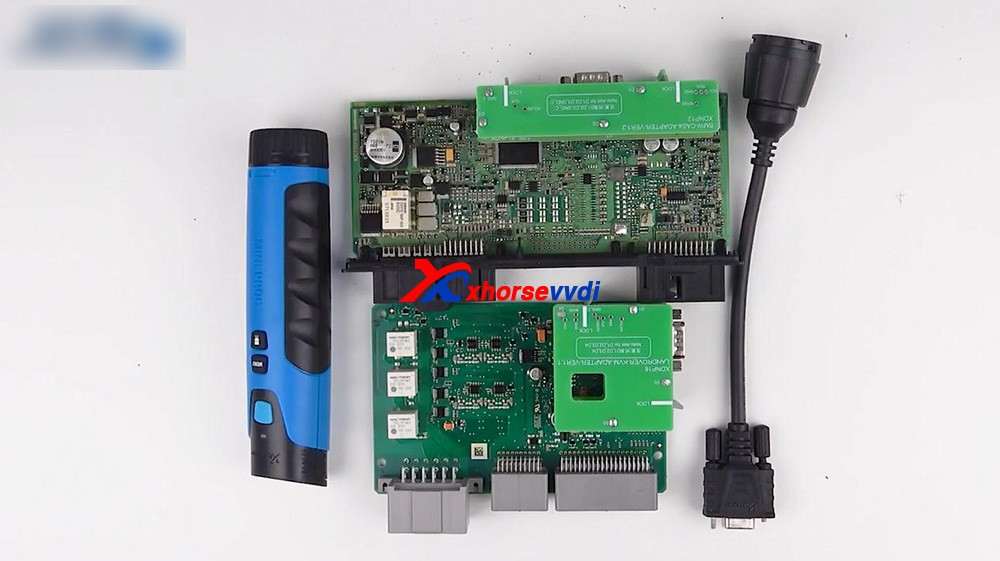

 xhorse vvdi key tool max