Program BMW 520D CAS4 All Key lost with Xhorse VVDI Key Tool Plus

Look here, Tutorial of 2011 BMW 520D CAS4 All Keys Lost- OBD programming with Xhorse VVDI Key Tool Plus Pad


Main steps:

1. Enter Key Tool Plus to select BMW 520D 2011 CAS4 information

2. Read key information

3. Unlock CAS4 / CAS4+

4. Make dealer key Via OBD

5. Learn key

6. Read key information

7. Check if the key works


In details…

Hook VVDI Key Tool Plus tablet up the vehicle, turn on the ignition.

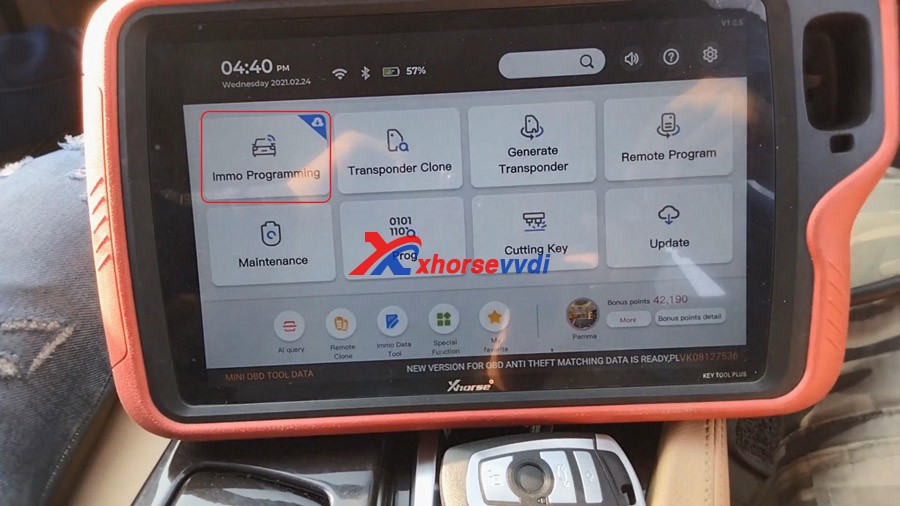
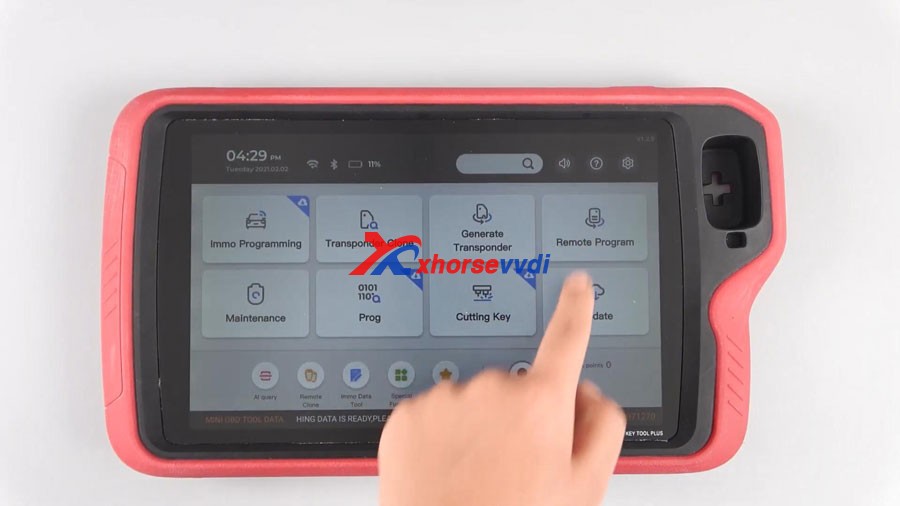
On the tablet, tap “Immo programming”.


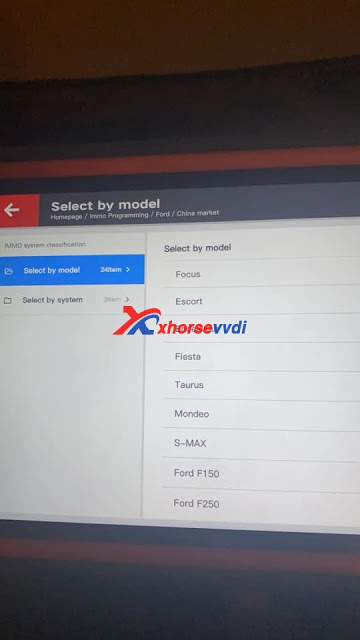
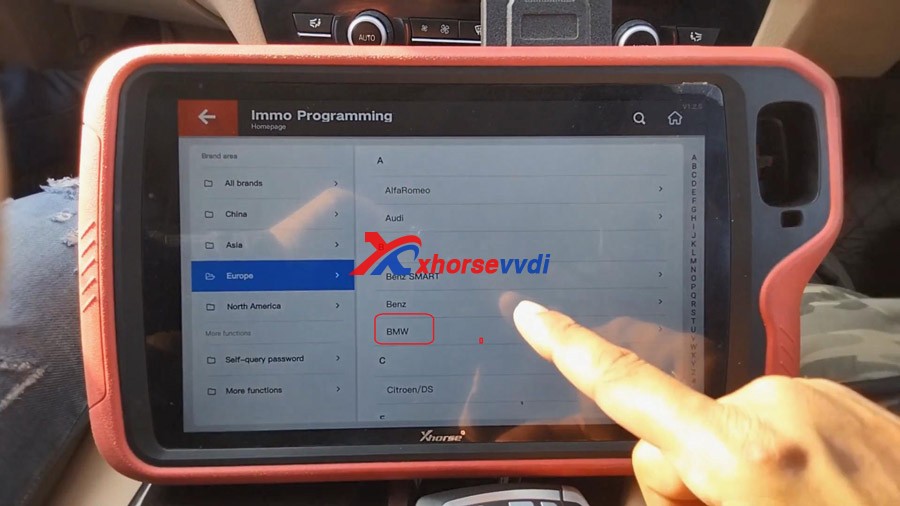
Tap “Europe” and then “BMW”


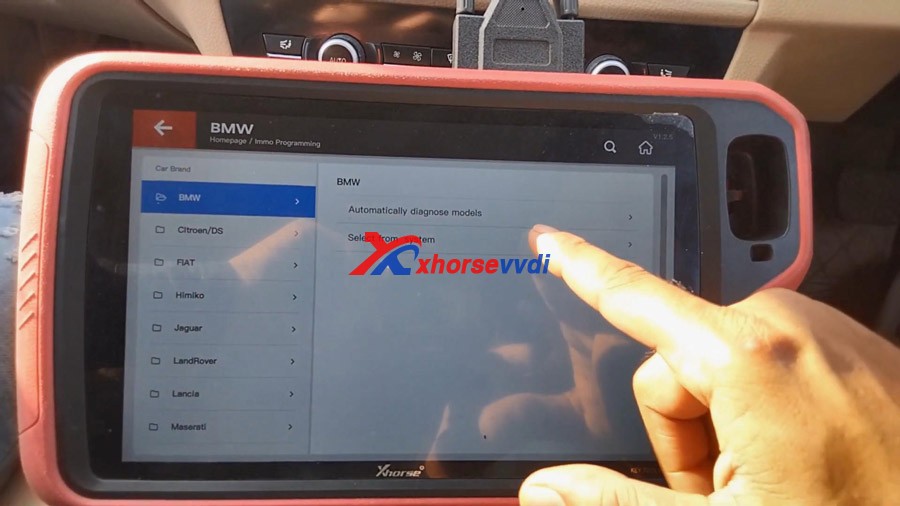
Tap “Select from system”


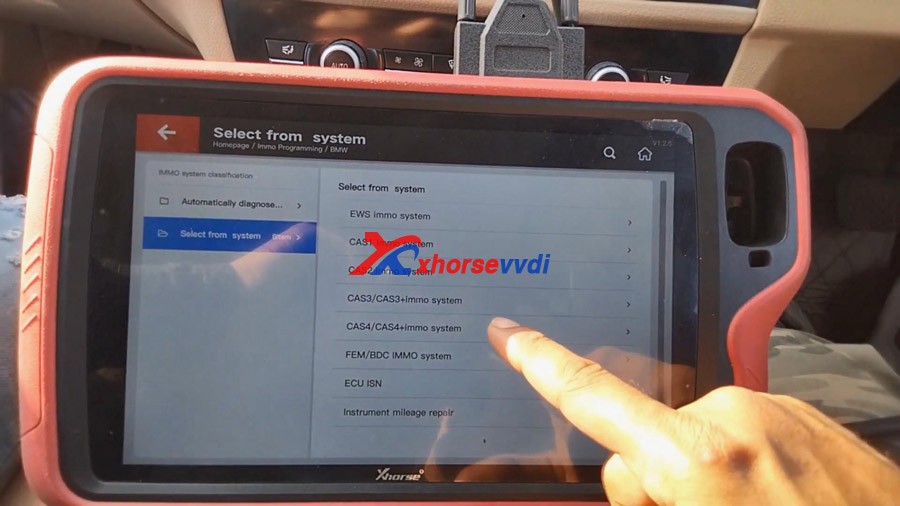
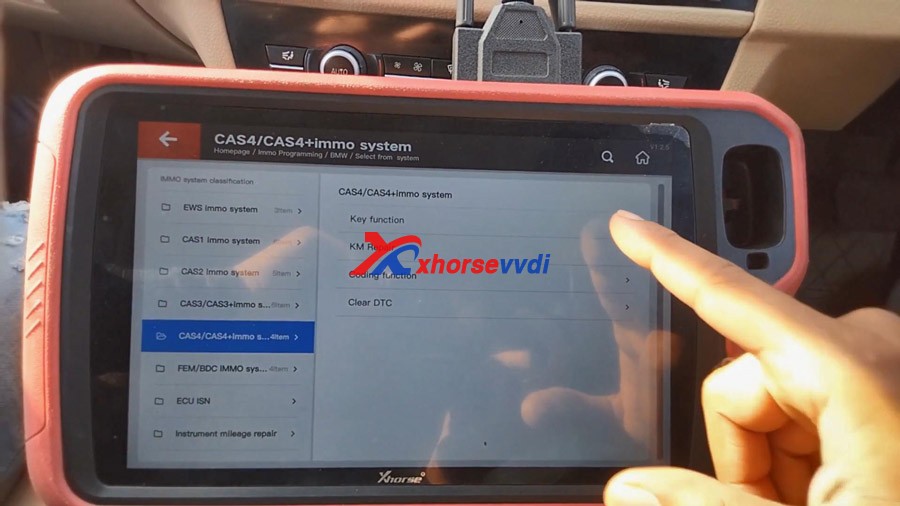
Tap “CAS4 / CAS4+ immo system”


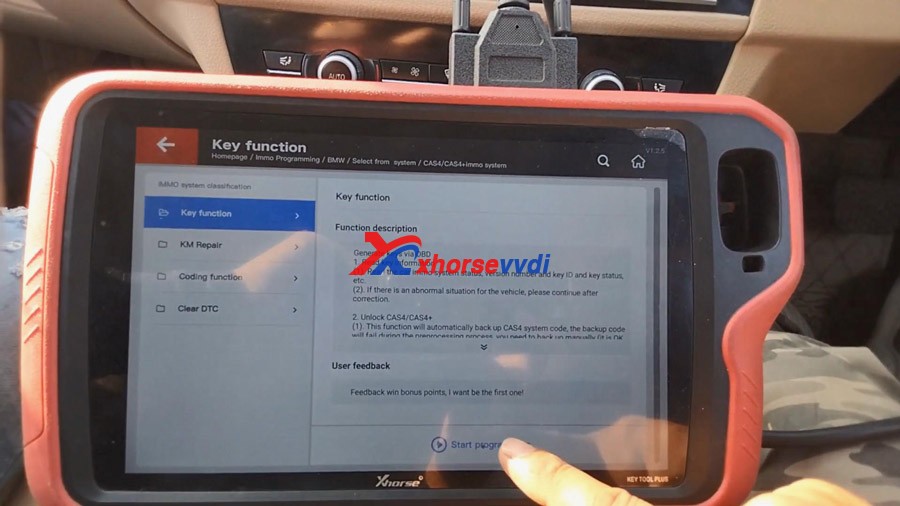
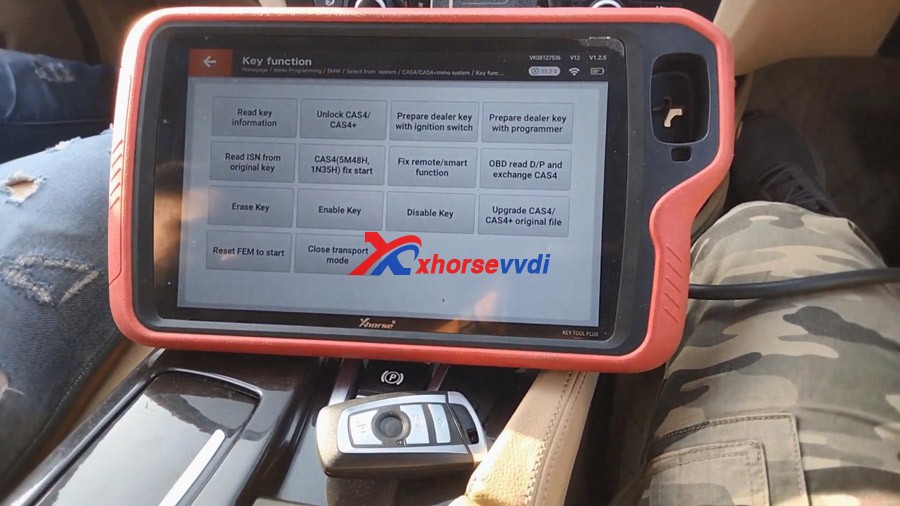
Tap “Key function”.


Tap “Start Programming”.


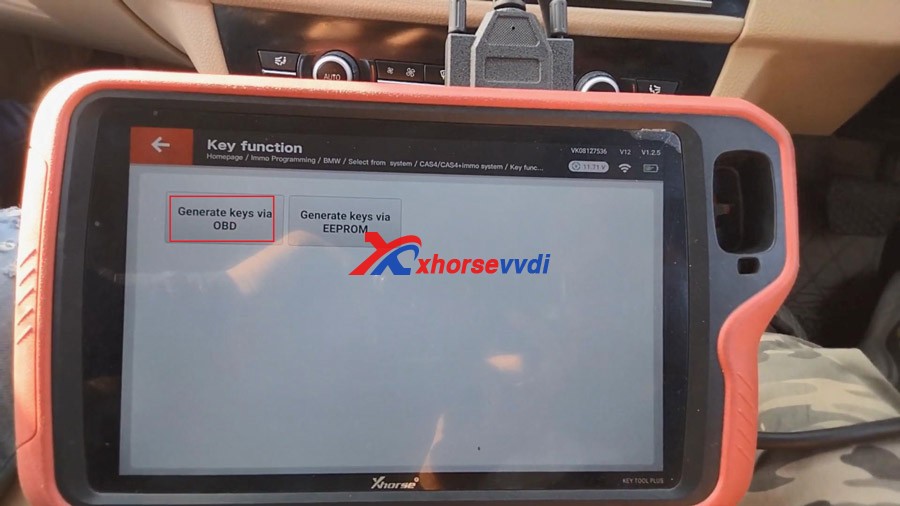
Generate key via OBD.


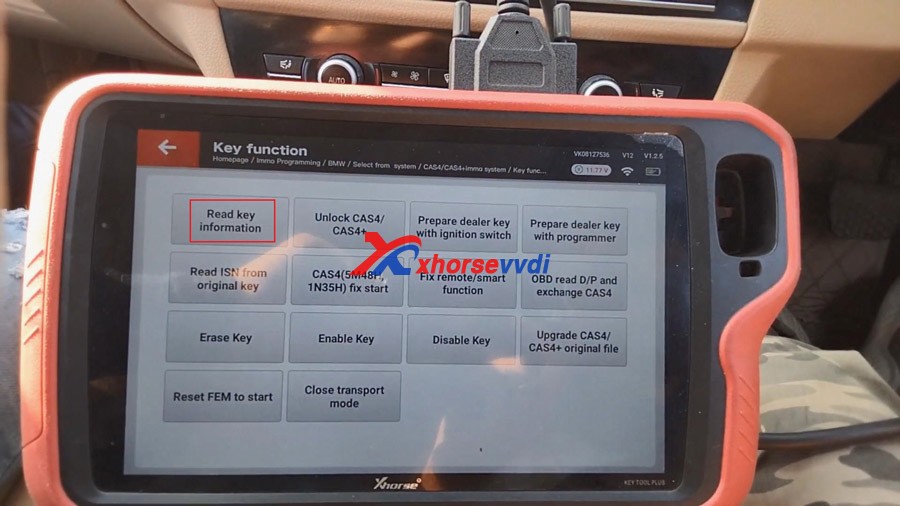
Tap “Read key information”.

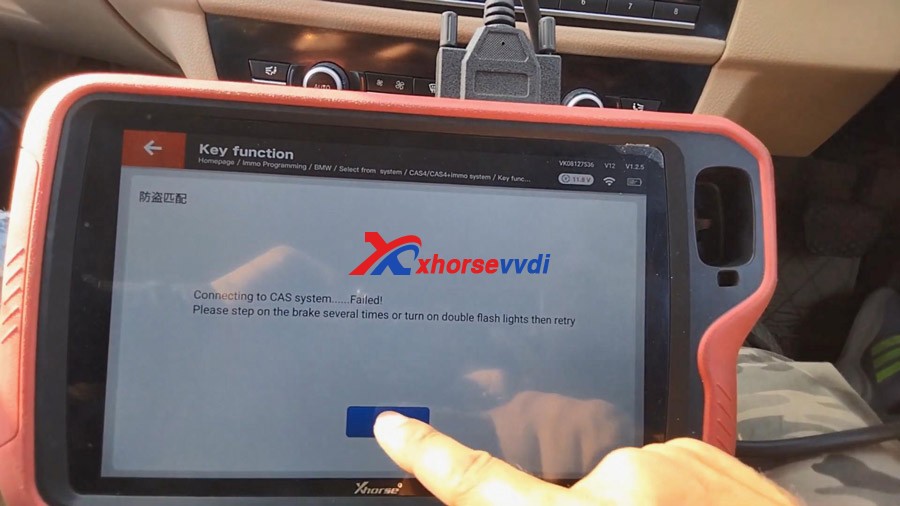
Connecting to CAS system… if it failed, please step on the brake several times or turn on double flash lights then retry. 


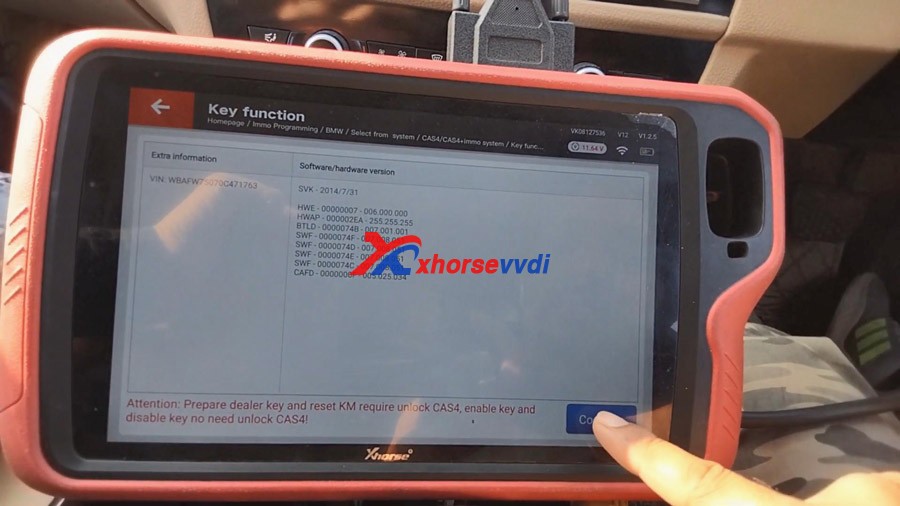
After doing that, we can read key information successfully.

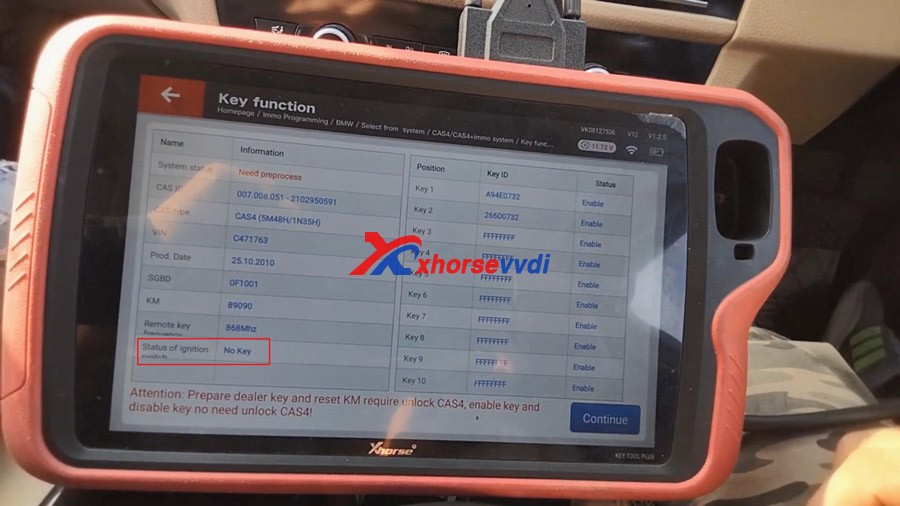
Attention: Prepare dealer key and reset KM required unlock CAS4, enable key and disable key no need unlock CAS4!


Status of ignition switch: No Key

Tap “Continue”.


Tap “Unlock CAS4 / CAS4+”.

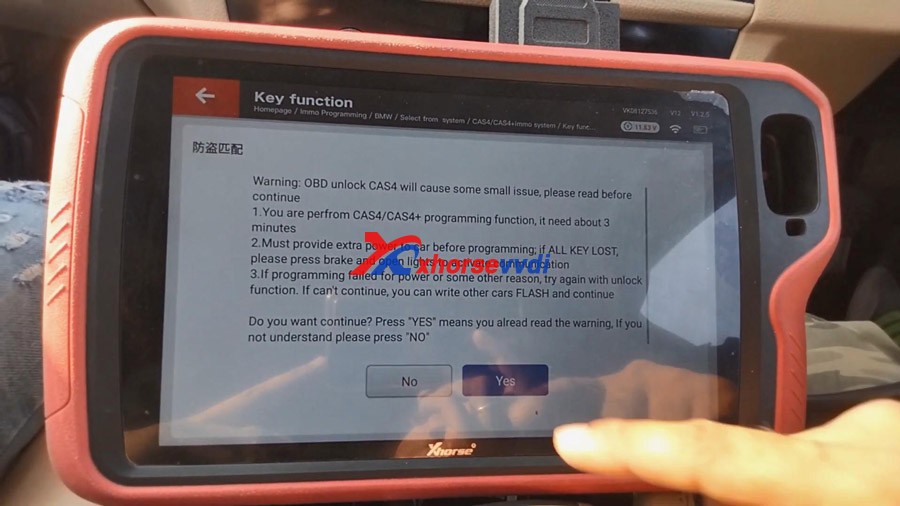
And after that, we get warning, just read it carefully.


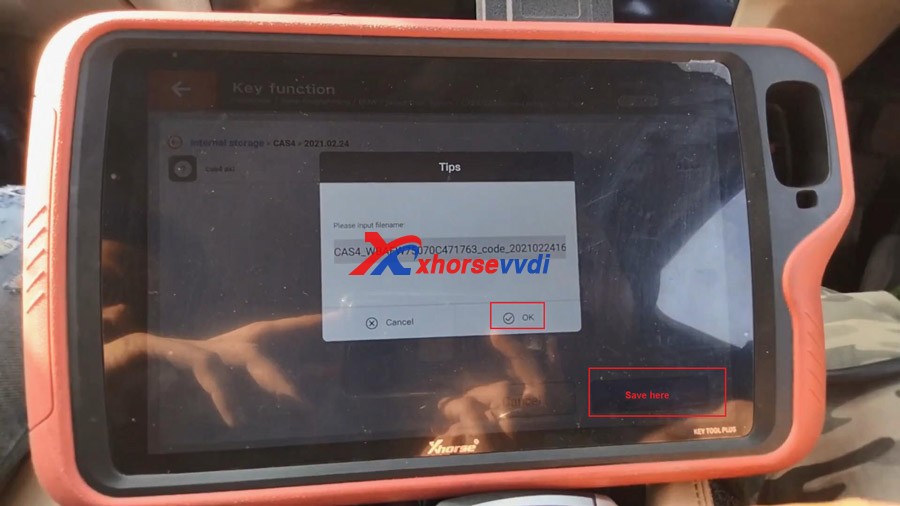
Tap “Save here” and then “Yes” to input filename.

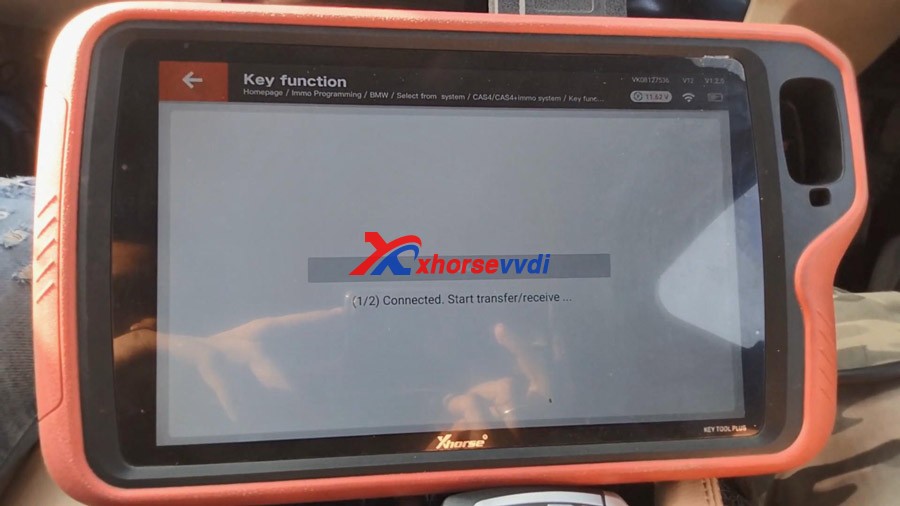
Connected. Start transfer /receive…

Start security login…

Updating flash…(Please don’t touch any button on the car!)

Connected. Start transfer /receive…

Start security login…

Enter programming session…

Updating flash…(Please don’t touch any button on the car!)

Connected. Start transfer /receive…

***All of the above action will be done automatically, you do not need do anything. 


Writing coding…


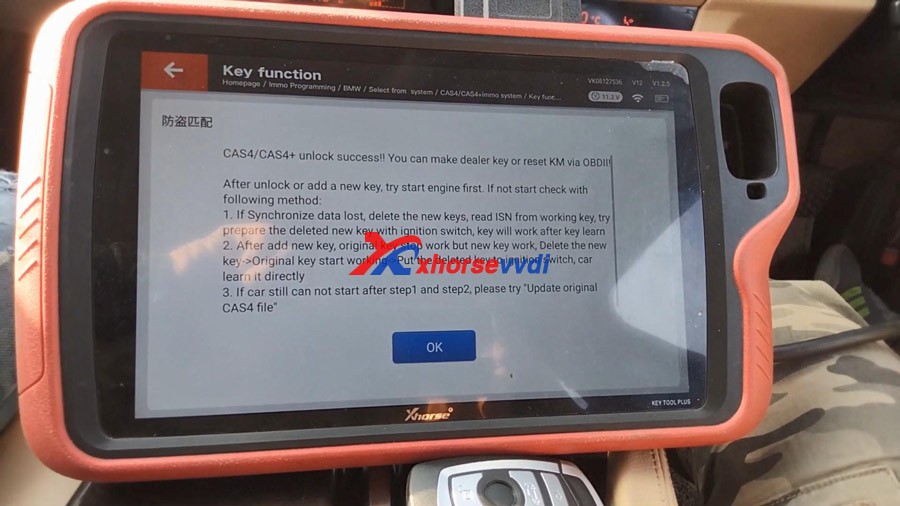
Alright, CAS4/CAS4+ unlock success! you can make dealer key or reset KM via OBD!


After unlocking or adding a new key, try start engine first. If not start check with following method:

1.If Synchronize data lost, delete the new keys, read ISN from working key, try prepare the deleted new key with ignition switch, key will work after key learn

2.After the new key is added, original key stop working but new key will work, Delete the new key -> Original key start working->Put the deleted key to ignition switch, car learn it directly.

3. If car still cannot start after step 1 and step 2, please try “Update original CAS4 file”.


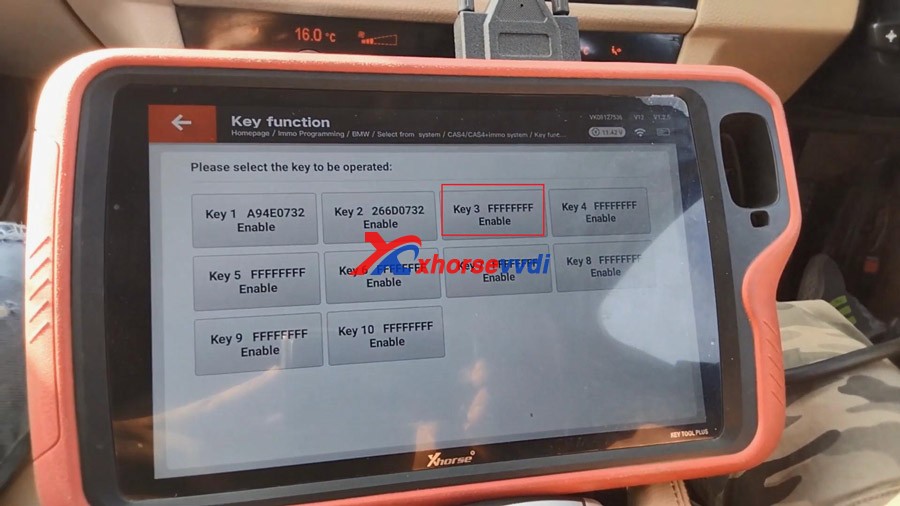
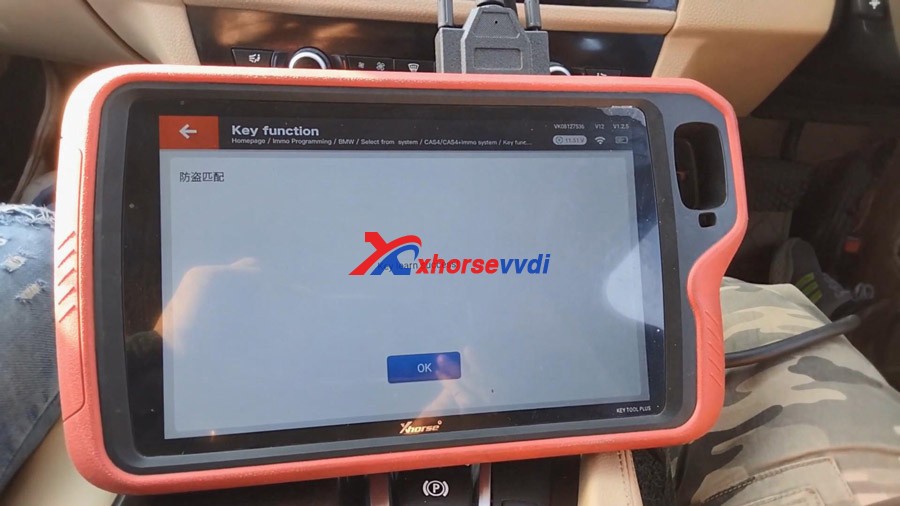
Tap “Prepare dealer key with ignition switch”.

Please select the key to be operated, here select “Key 3 FFFFFFFF Enable”.


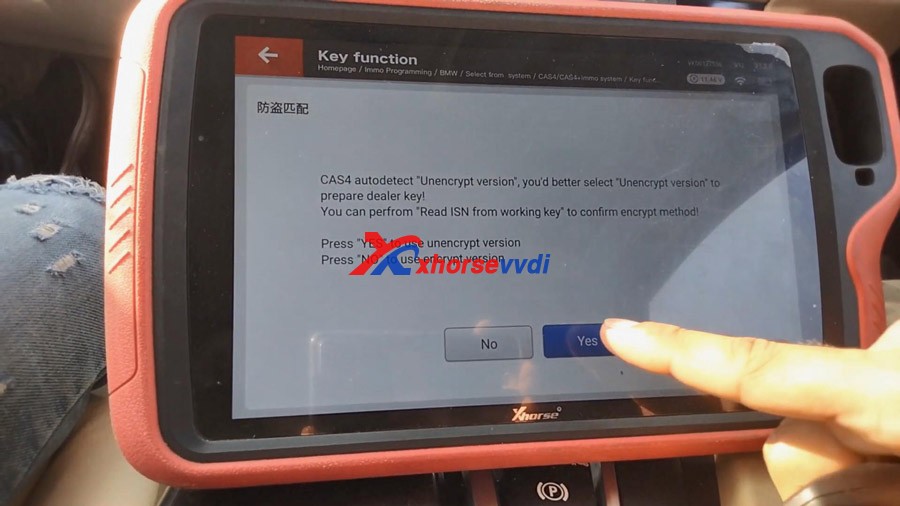
Press “Yes” to use unencrypted version to prepare dealer key.


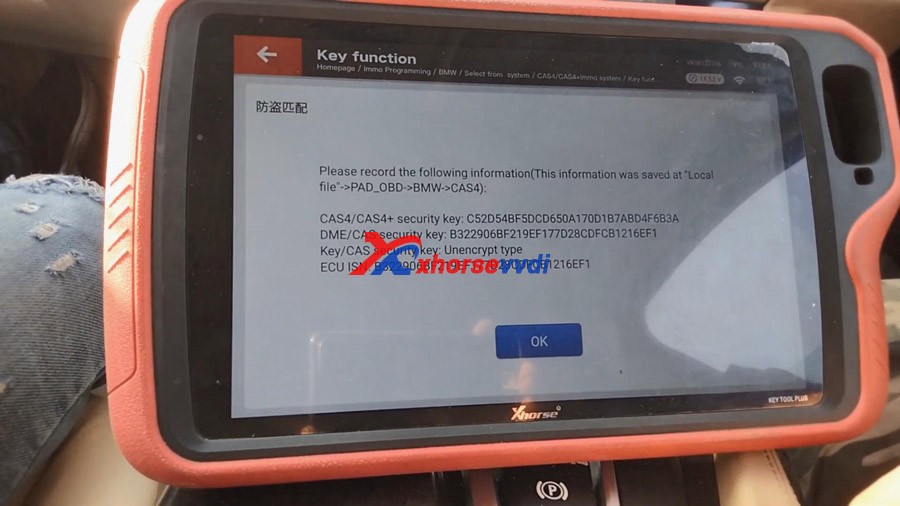
Please record the following information including CAS4/CAS4+ security key, DME/CAS security key, Key/CAS security key, ECU ISN etc.


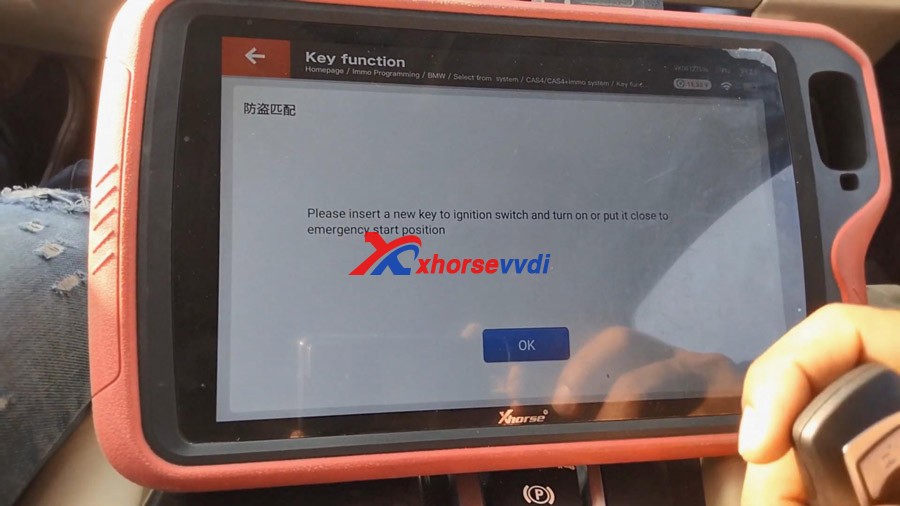
Learn key.

Please insert a new key to ignition switch and turn on or put it close to emergency start position.


Okay, learning key now…

Soon, Key learn success.


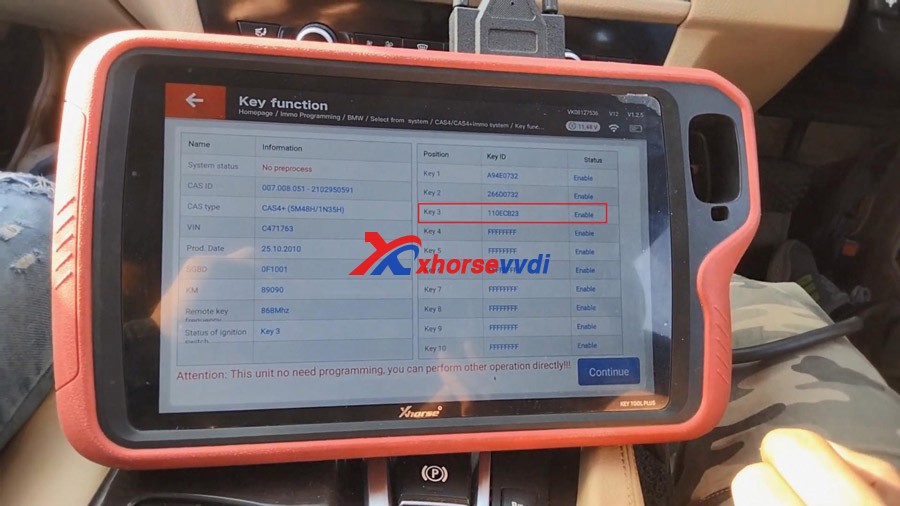
Tap “Read key information” to ensure if the new key is learned successfully.

As you can see, Key3 is Enable, and status of ignition switch: key 3


Back to the BMW car, press the Start /Stop button for 3 times.

Then press the BMW lock / unlock key to check if it work, perfect, the new key works.


Job is done!


Look at my new toy VVDI key tool plus and the new key. Life is amazing.


Enjoy! Related:
  1. VVDI Key Tool Plus Toyota 8A Smart Key OBD programming 
  2. Where are Xhorse VVDI Key Tool Plus bonus points gone? 
  3. Xhorse VVDI Key Tool Plus Range Rove Evoque 2018 AKL Success 
  4. VVDI Key Tool Plus Program MB W169 Class A OK 
  5. Xhorse VVDI Key Tool Plus: In stock, ship from Czech Warehouse 

Where is Xhorse VVDI Key Tool Plus bonus points gone?

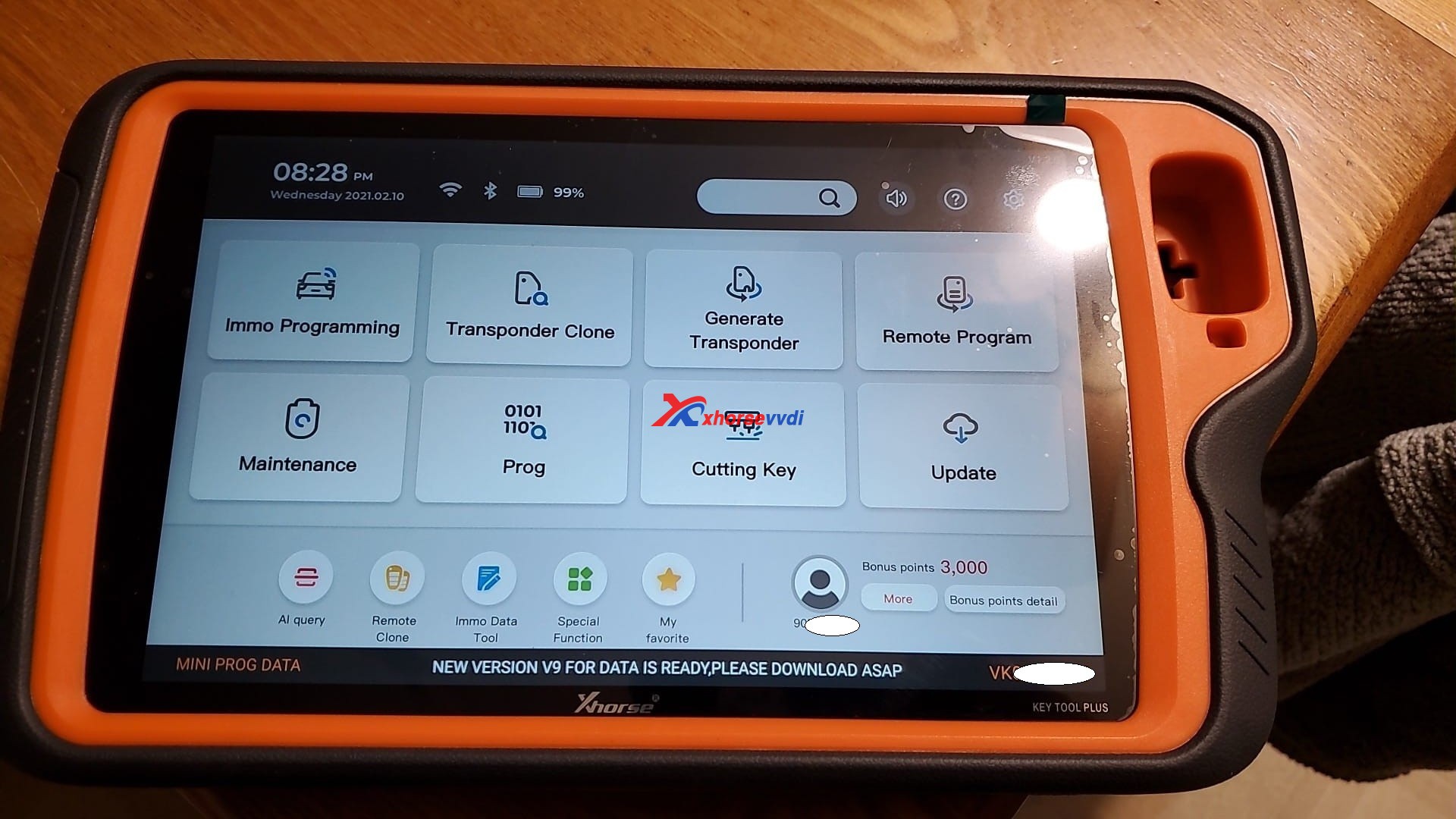
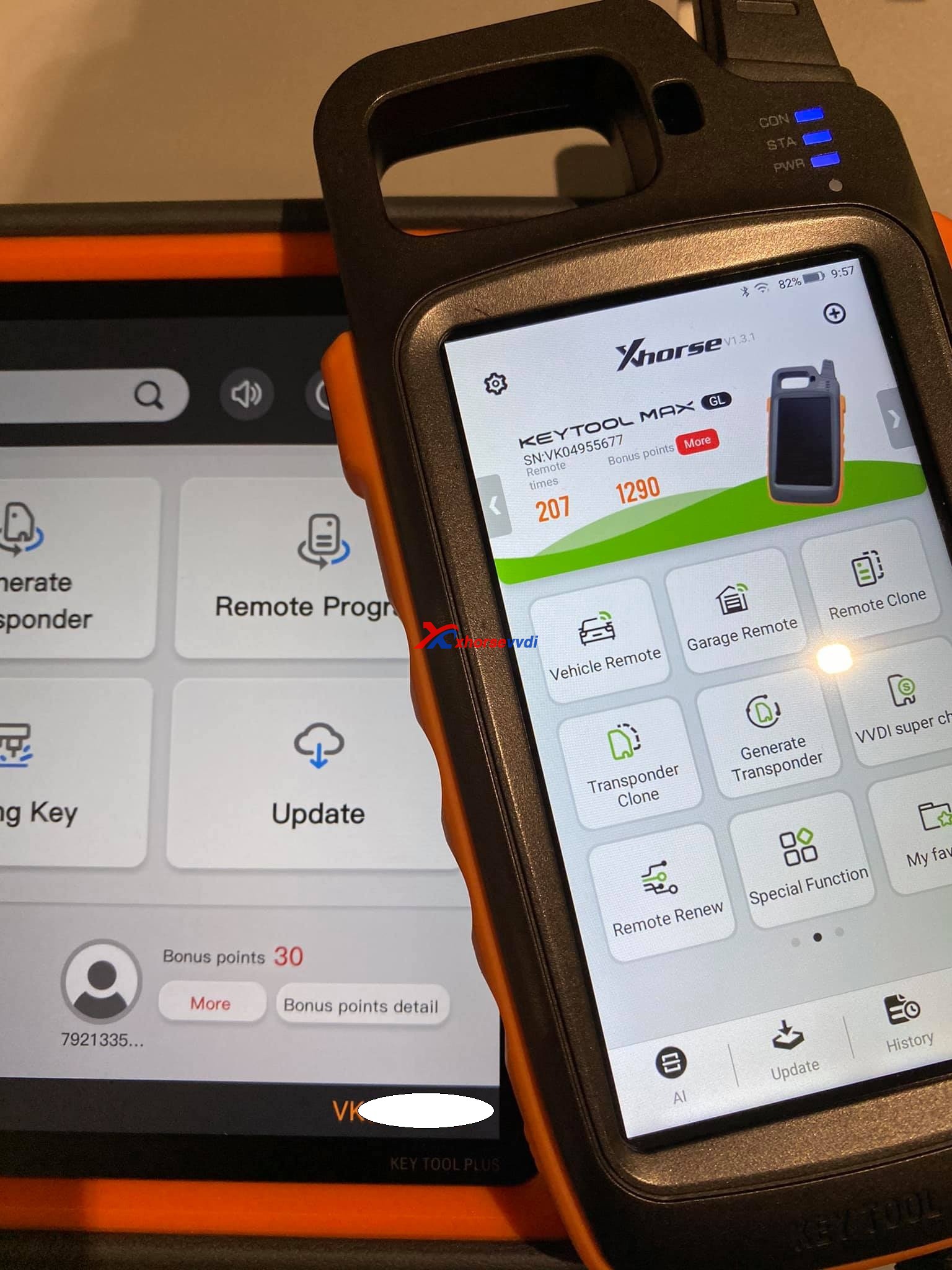
Just got mine XhorseVVDI Key Tool Plus and setting up. I’ve got my first problem. where is my bonus points gone. I did not even have my first keytool combined to my account.

Xhorse VVDI Key Tool Plus Bonus Points  01

Answer:

Synchronize , if you register with your account, but first update all

Look at the following image, the 3K points are from syncing my other xhorse tools on my account.

Xhorse VVDI Key Tool Plus Bonus Points  02

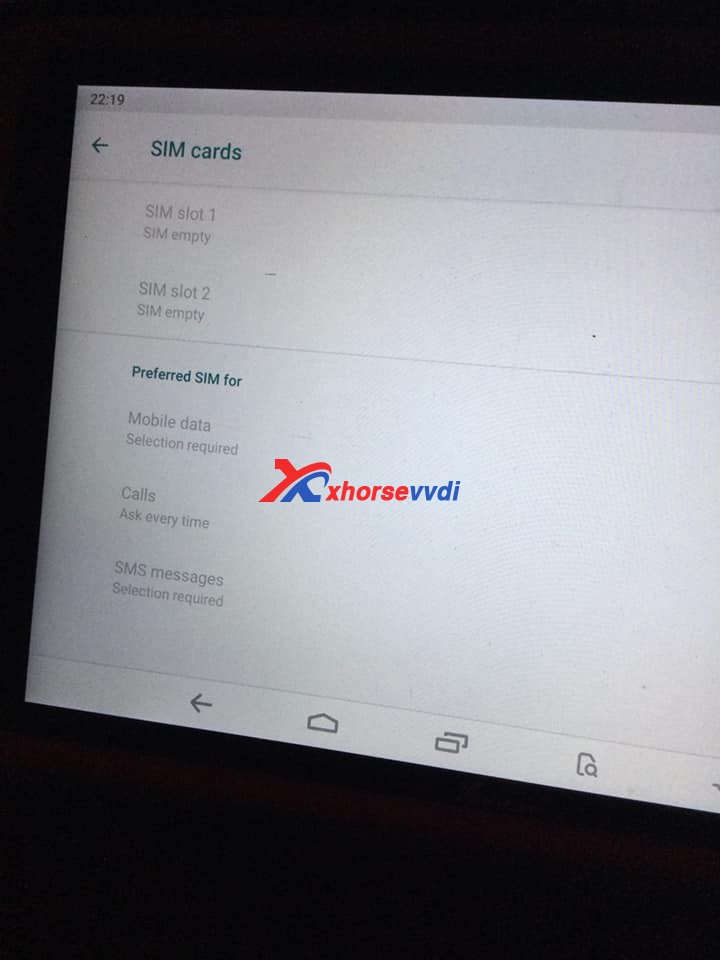
Another question: Also, where are the SIM slots? It lists SIM slots 1+2 but I can’t find any? I think they have blocked it from downloading too. Tried to down load google play store for InstaCode, won’t do it?

Xhorse VVDI Key Tool Plus Bonus Points  03
Xhorse VVDI Key Tool Plus Bonus Points  04

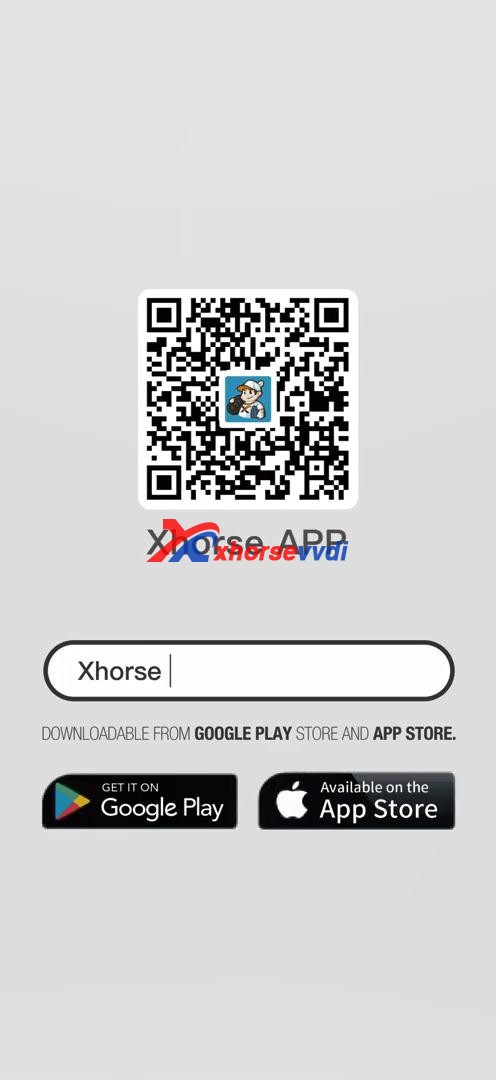
It is a good way to find Xhorse technical support on Xhorse APP. How to? please watch this tutorial.

1. Download Xhorse APP from Google Play store and APP store by searching “Xhorse”.

Xhorse VVDI Key Tool Plus Bonus Points  06

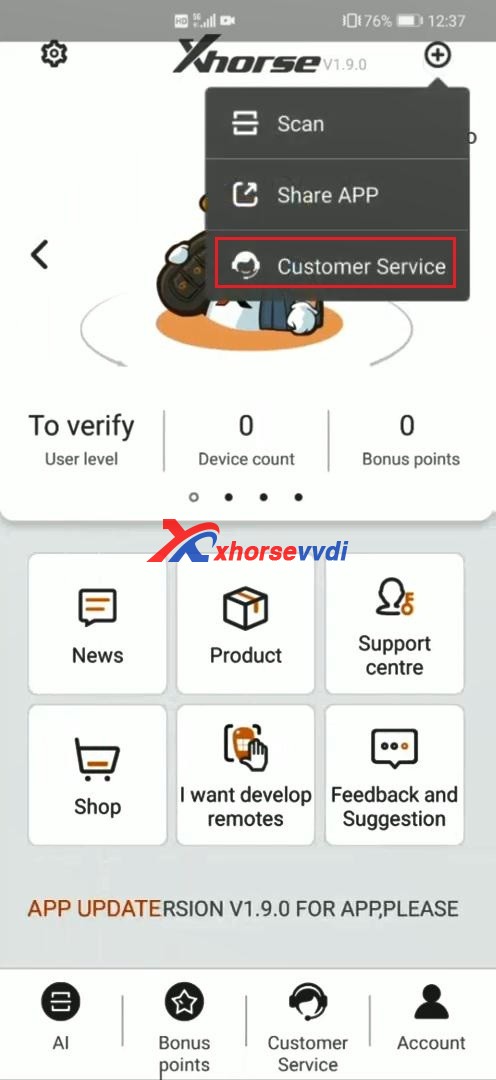
2. At the upper right corner of Xhorse APP, select “Customer Service”.

Xhorse VVDI Key Tool Plus Bonus Points  07

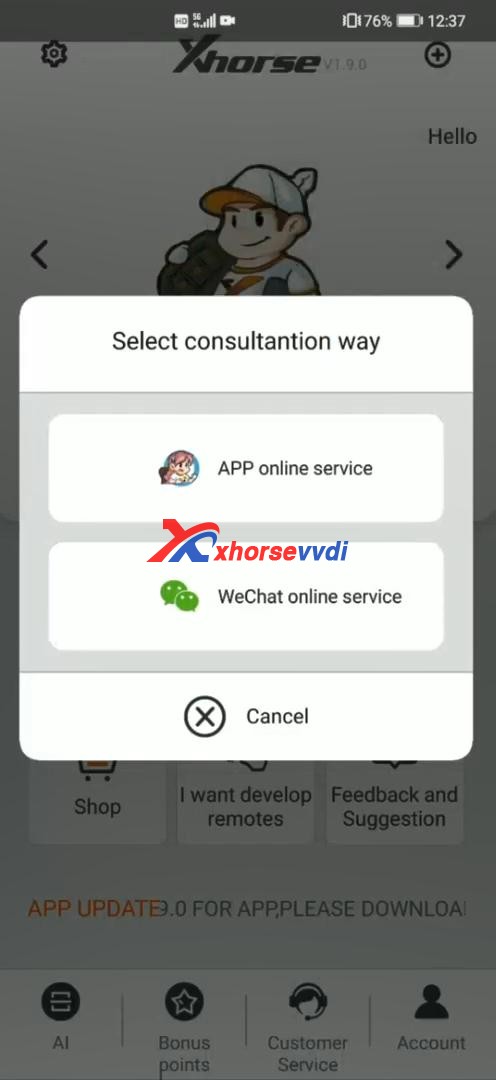
3. Select consultation way.

Xhorse VVDI Key Tool Plus Bonus Points  08

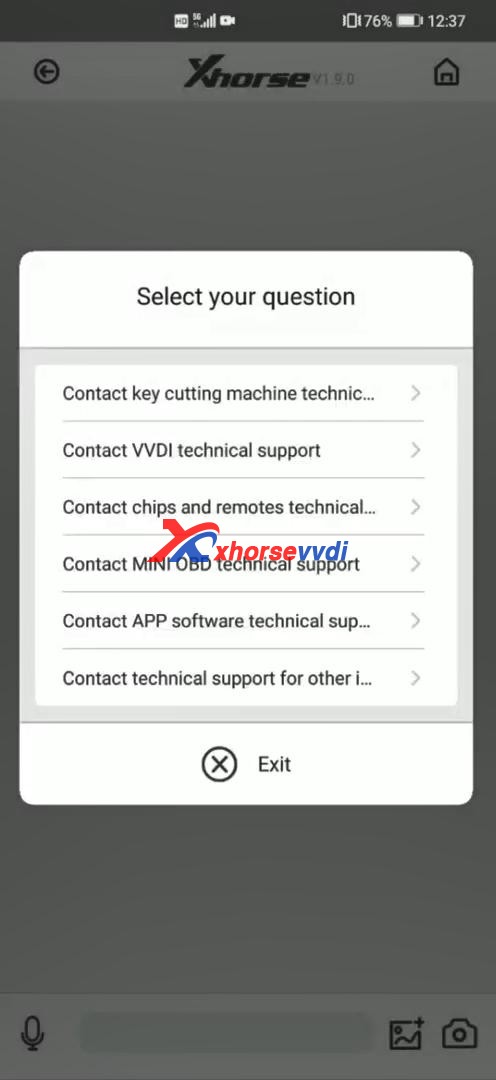
4. Select your question.

Xhorse VVDI Key Tool Plus Bonus Points  09

 Information from Xhorsevvdi.com official blog

How to use Key Tool Plus Remote Online-cloud recognition

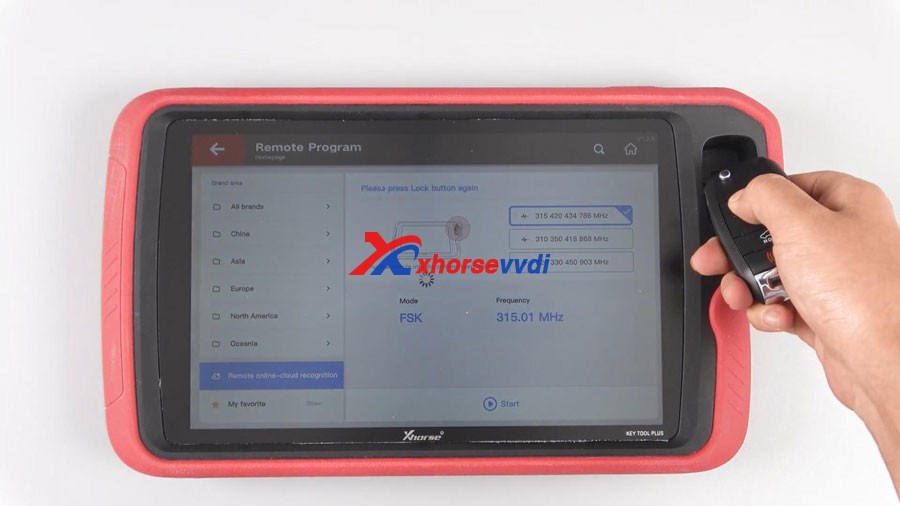
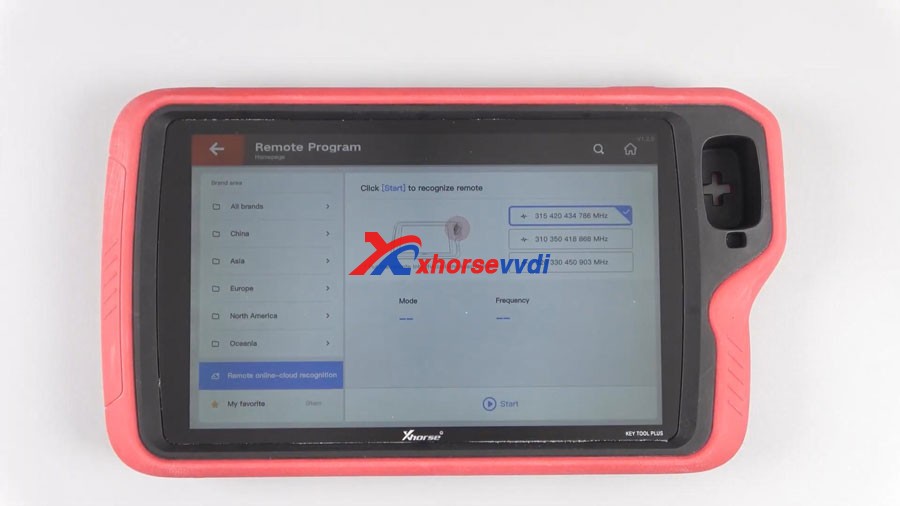
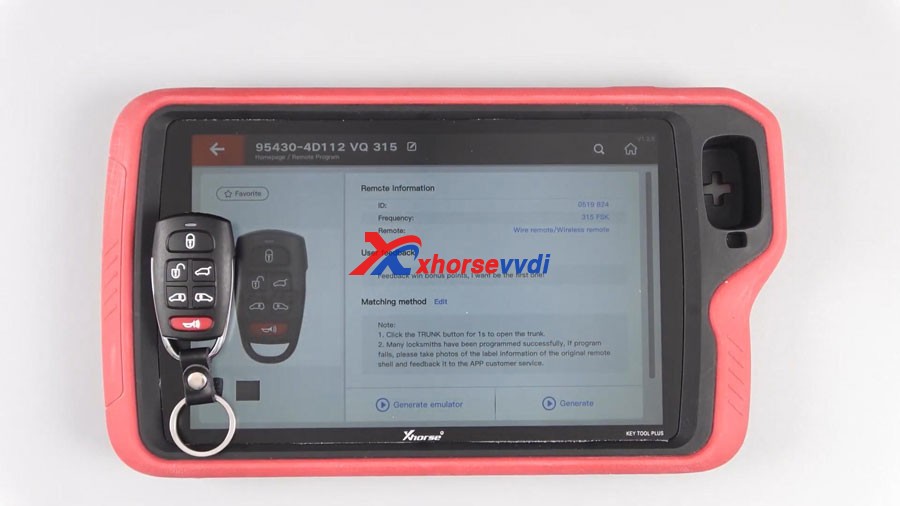
Good news!Xhorse VVDI Key Tool Plus Pad added a new function “Remote Online-cloud Recognition”, which can help you quickly and accurately to recognize your remote.


How to use this function?
Main step:
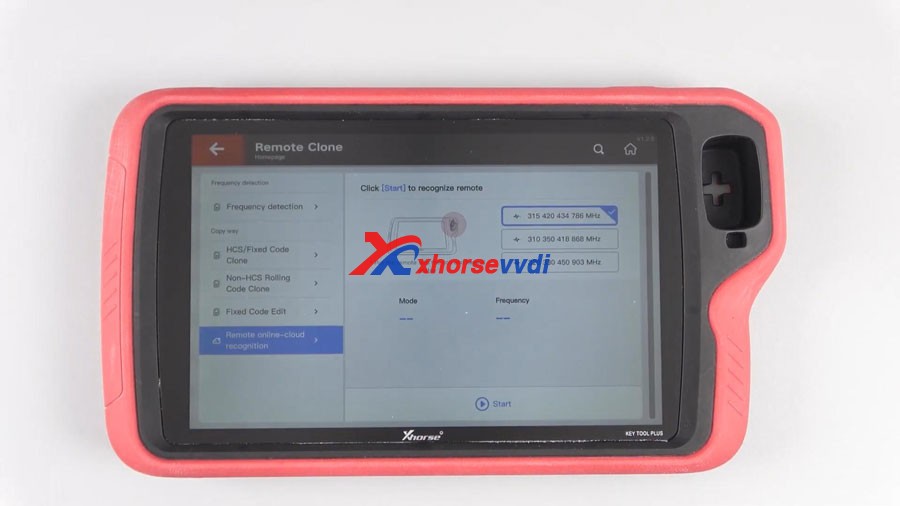
Click Remote Program or Remote Clone
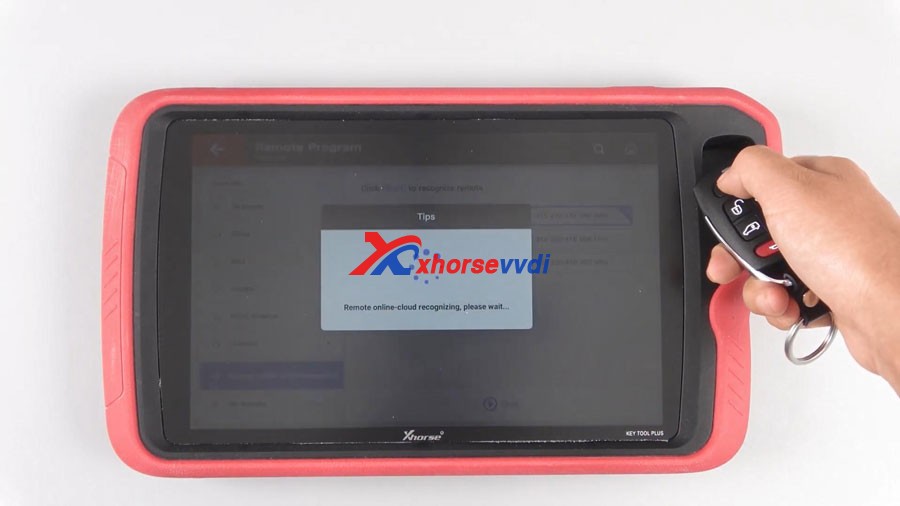
Click Start, your remote can be easily recognized.
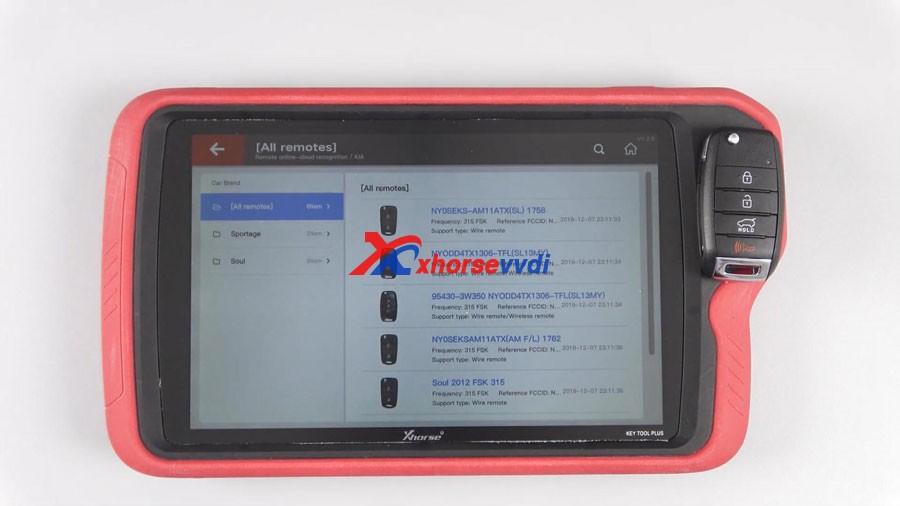
Sometimes, users need to choose the appropriate remote when multiple possible remotes are recognized.
Step-by-step:

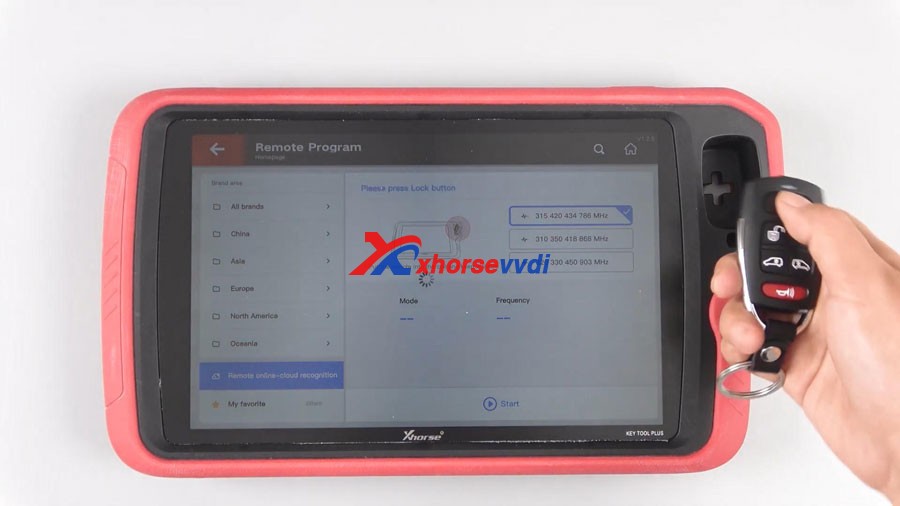
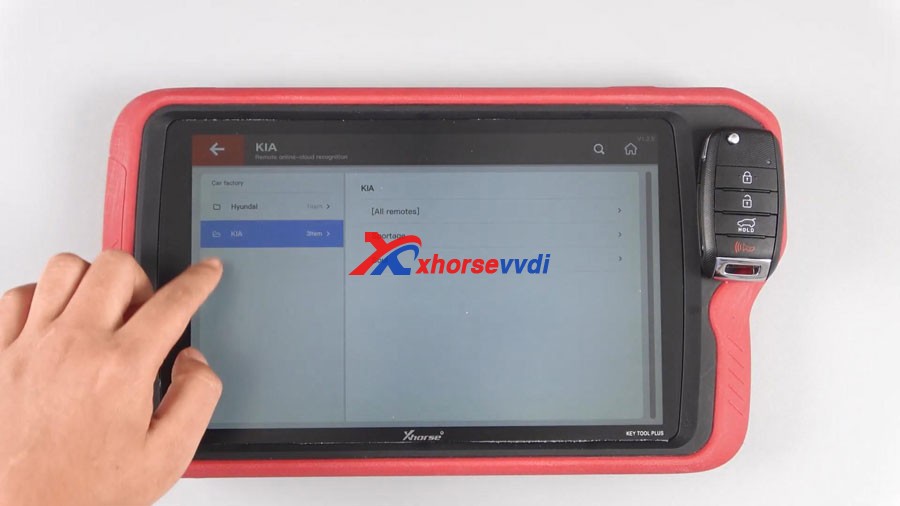
Tap “Remote Program” and then “Remote online-cloud recognition”.


Tap “Remote Clone” and then “Remote online-cloud recognition”.


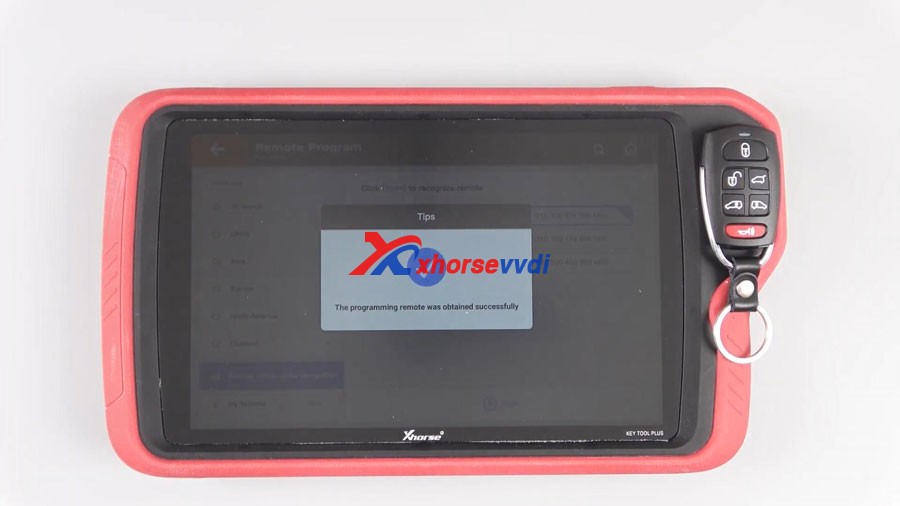
Click “Start” and your remote can be easily recognized. 

KEY TOOL PLUS Remote Online-cloud Recognition 04


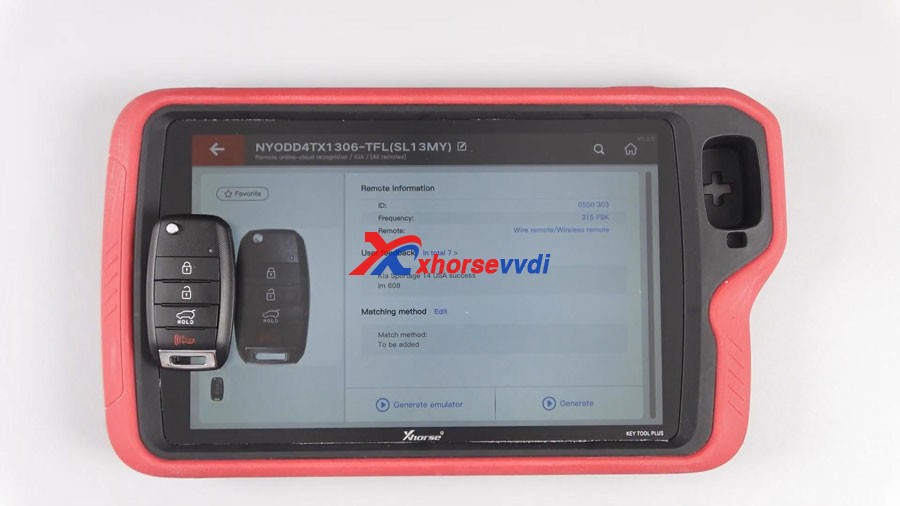
Finally, have remote information including ID, frequency, remote type, matching method etc.


Sometimes, users need to choose the appropriate remote when recognizing multiple possible remotes. 

KEY TOOL PLUS Remote Online-cloud Recognition 08
KEY TOOL PLUS Remote Online-cloud Recognition 09


Enjoy!

video :

https://www.youtube.com/embed/XnoNRVi6S3I

Order Xhorse VVDI Key Tool Plus here:

https://www.xhorsevvdi.com/wholesale/xhorse-vvdi-key-tool-plus.html

xhorse OBD2 tools tech support: chttps://xhorsesupport.blogspot.com

Program Range Rove Evoque 2018 All Keys Lost with VVDI Key Tool Plus Pad

Tested VVDI Key Tool Plus on one Range Rove Evoque 2018 with KVM locked, all keys lost and add new keys successfully.

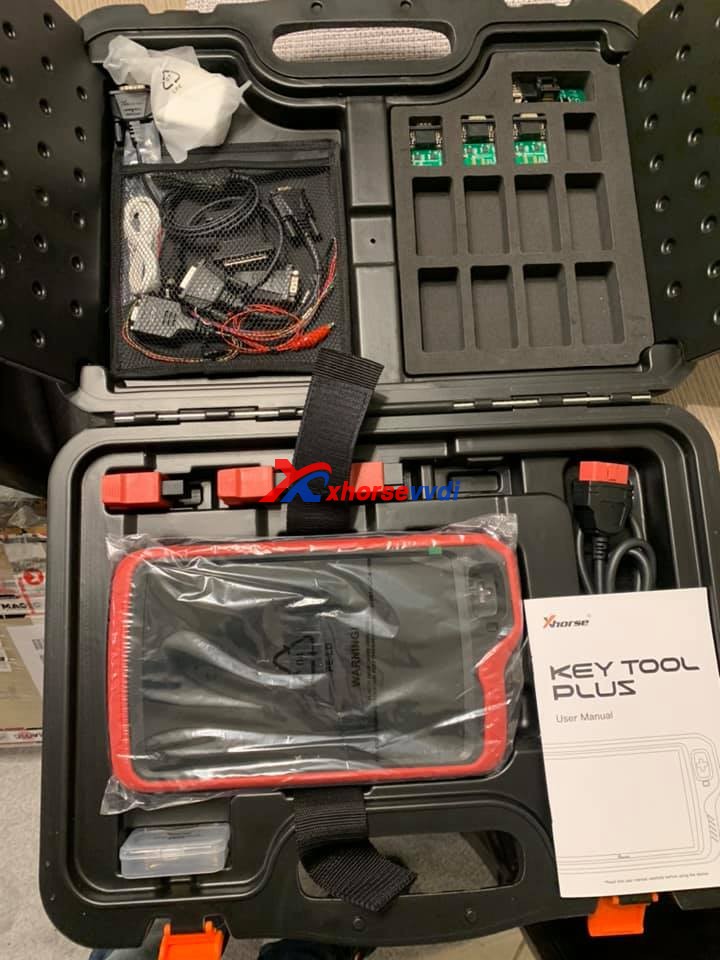
Image 1: open the package and have one tablet, user manual, adapters and cables.

xhorse  VVDI Key Tool Plus package

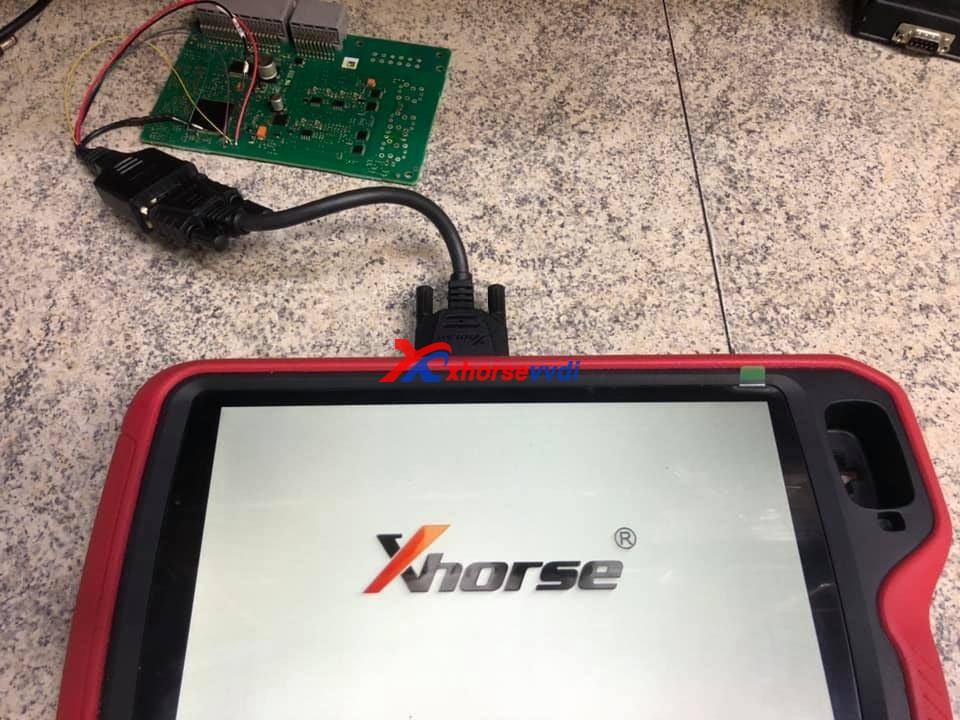
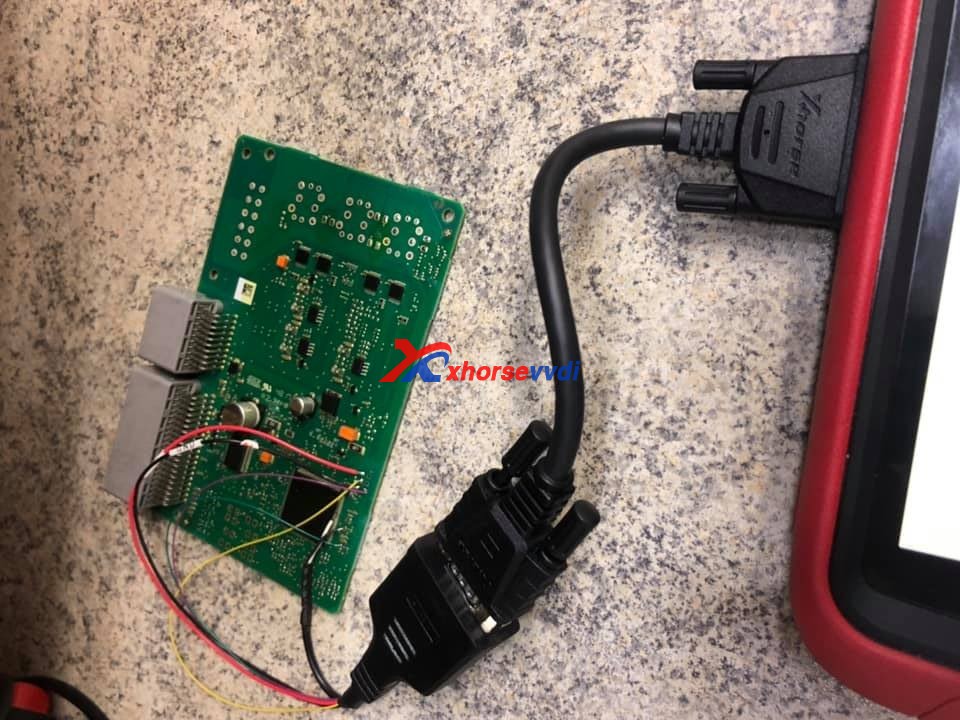
Connect the Pad to the KVM module on bench.

program-prangerove-evoque-all-key-lost-with-vvdi-key-tool-plus-01

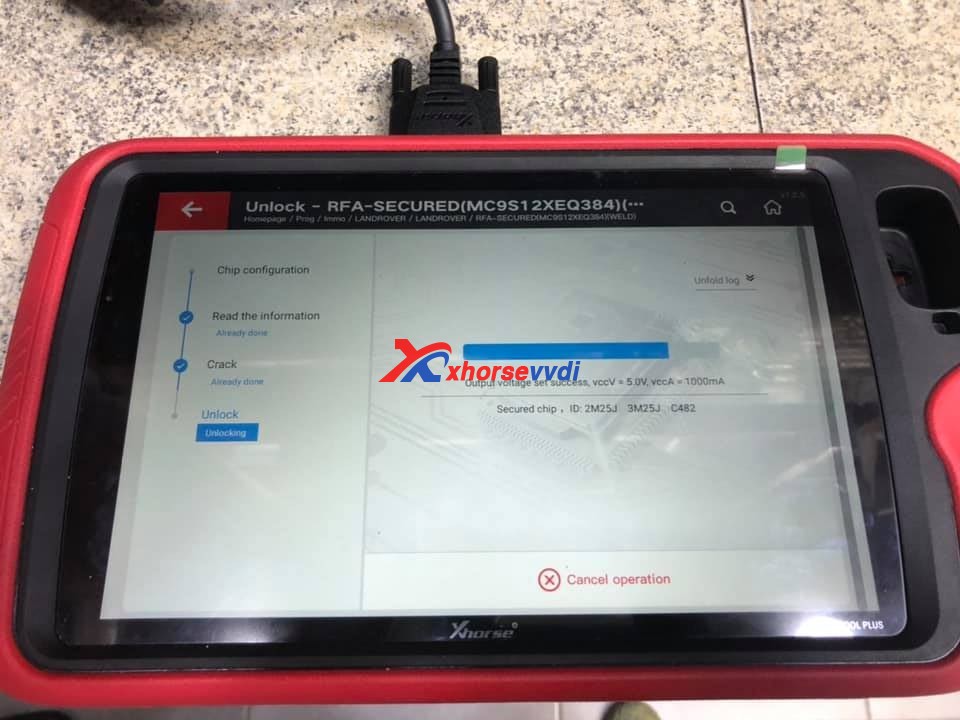
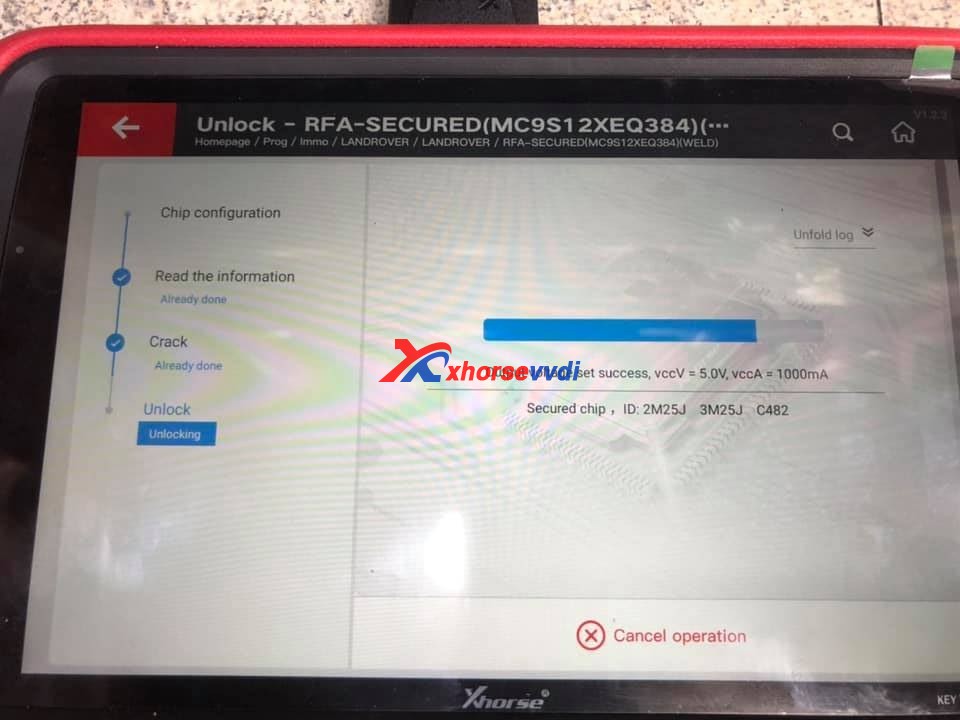
Unlock.

program-prangerove-evoque-all-key-lost-with-vvdi-key-tool-plus03
program-prangerove-evoque-all-key-lost-with-vvdi-key-tool-plus-04

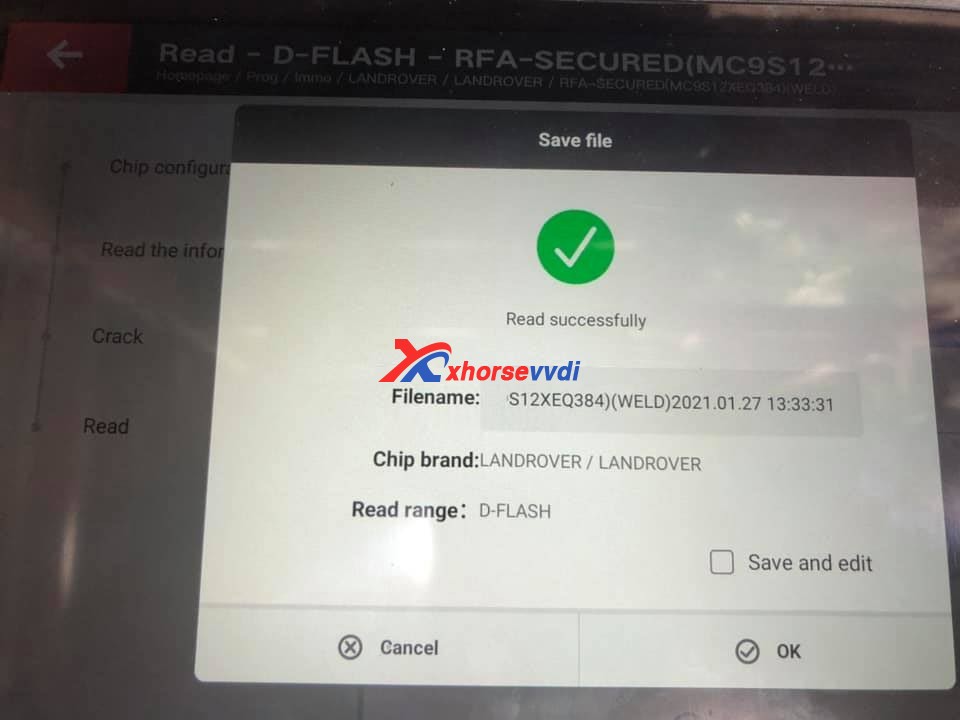
Save D-Flash file.

program-prangerove-evoque-all-key-lost-with-vvdi-key-tool-plus05

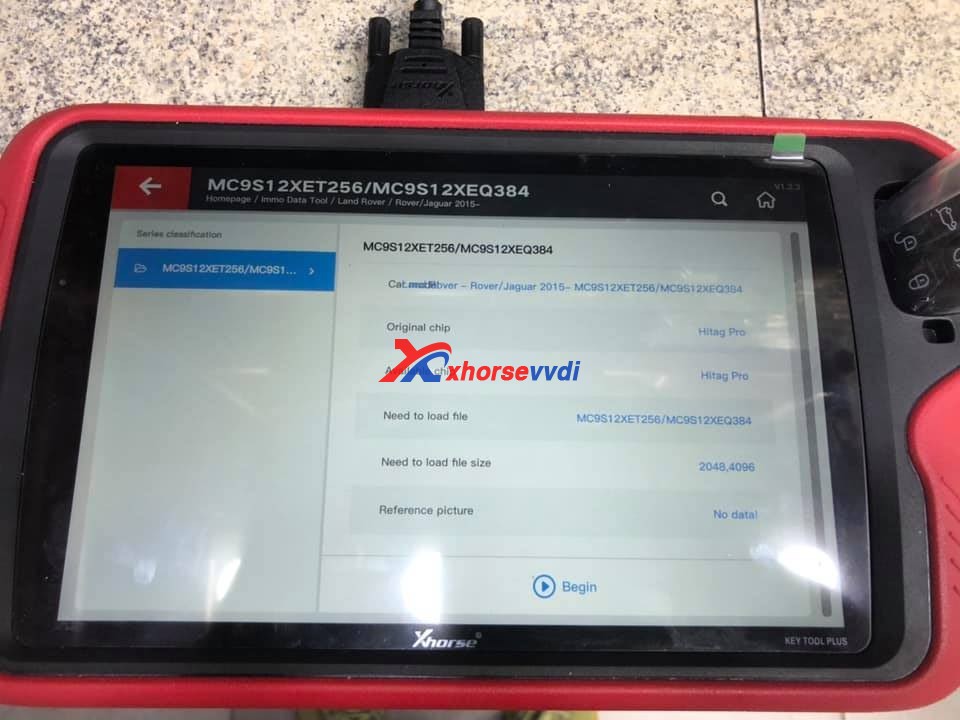
Immo Data Tool > Land Rover -> Jaguar 2015 -> MC9S12XET256 /MC9S12XEQ384.

program-prangerove-evoque-all-key-lost-with-vvdi-key-tool-plus-06

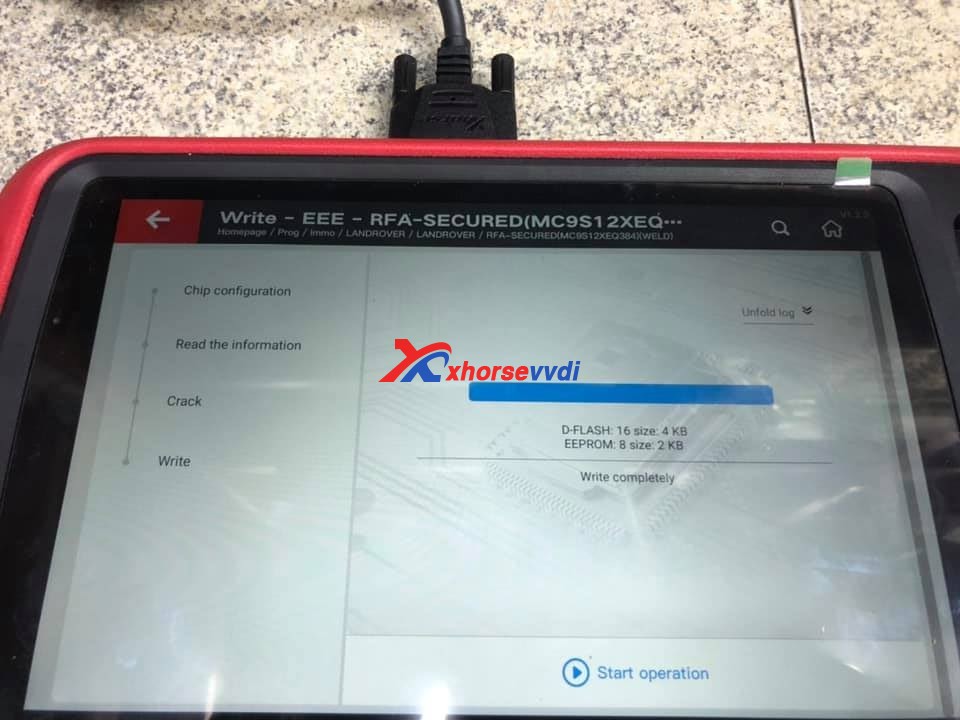
Write completely for D-flash and eerom.

program-prangerove-evoque-all-key-lost-with-vvdi-key-tool-plus-07

Enjoy

http://blog.xhorsevvdi.com/

Xhorse VVDI Key Tool Plus program VVDI Toyota 8A Smart Card

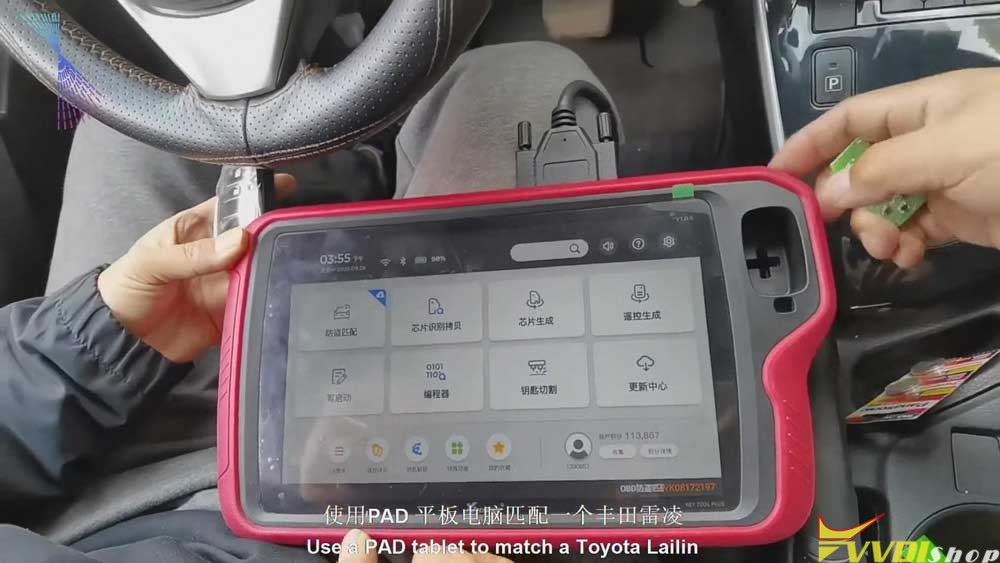
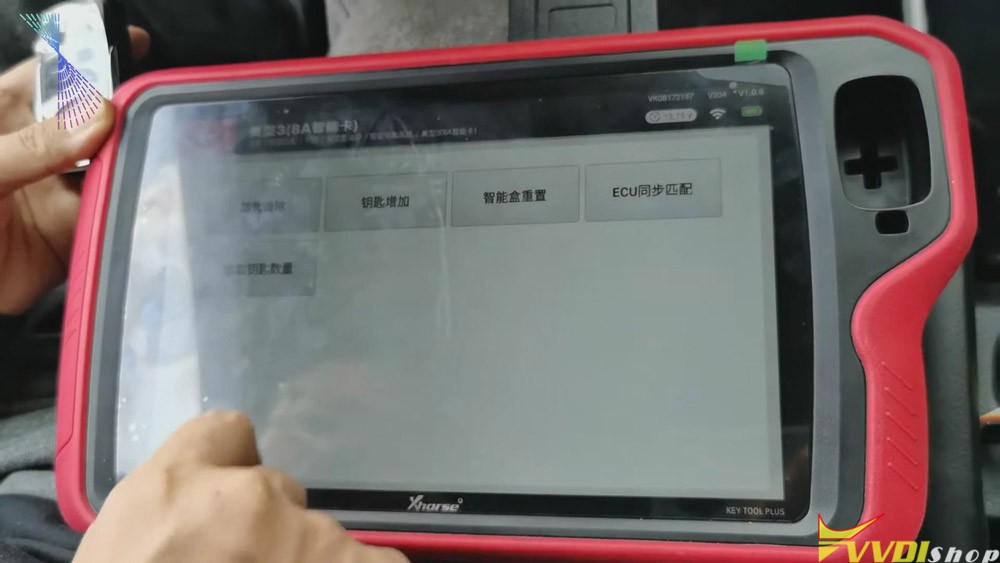
Xhorse VVDI Key Tool Plus is coming soon! Today, I’ll show you how to use this PAD tablet to match a Toyota Ralink.

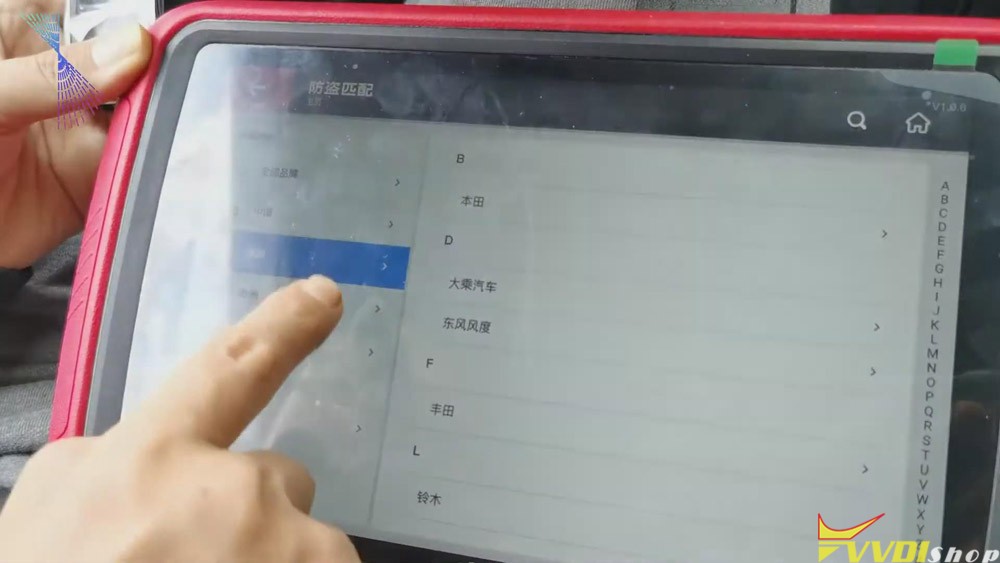
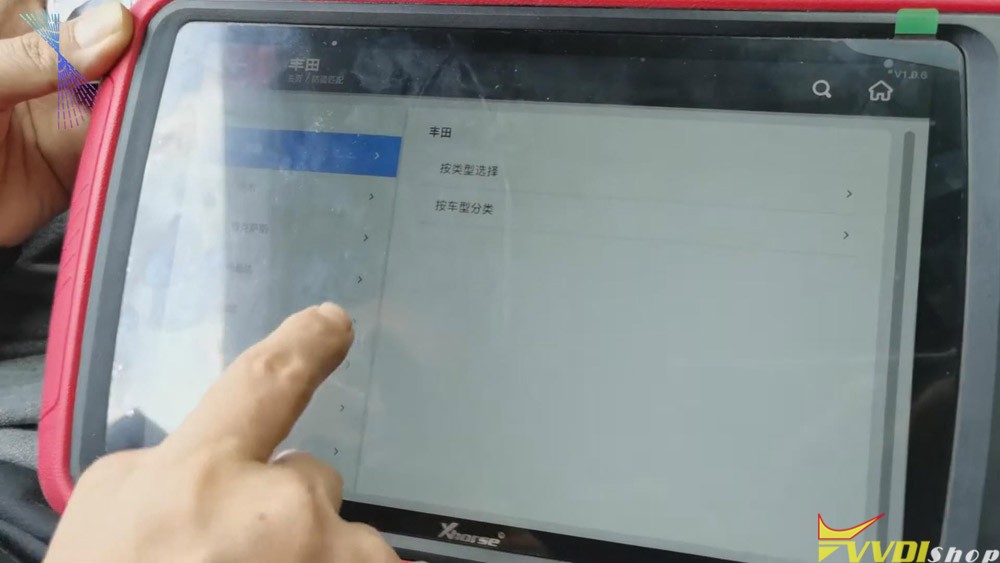
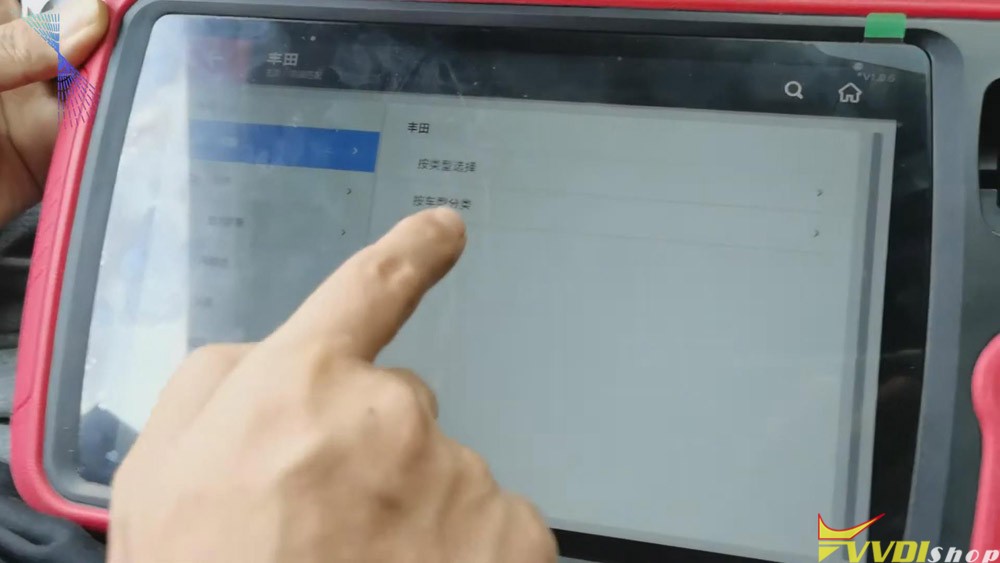
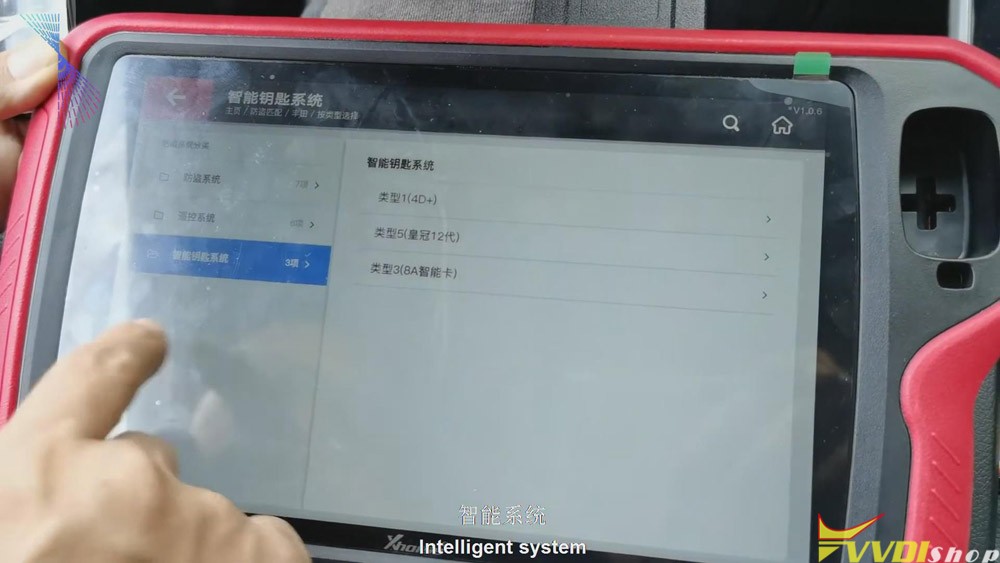
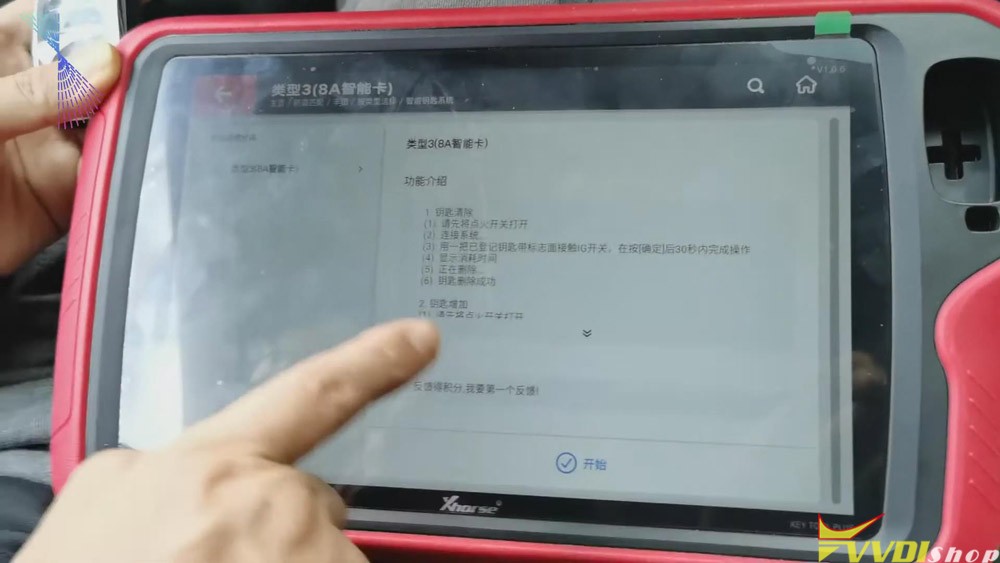
  1. Click “Immo match”>>“Asia”>>“Toyota”>>“Select by type”>>“Intelligent key

system”>>“8a smart card”>>“start”>>“Add key” .

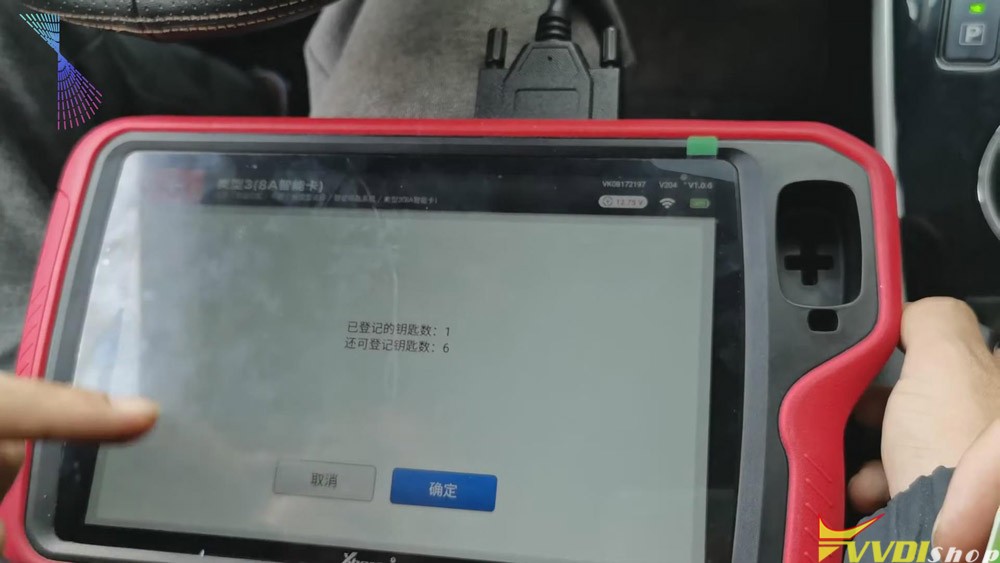
vvdi-key-tool-plus-add-keys-for-toyota-8a-smart-card-1
vvdi-key-tool-plus-add-keys-for-toyota-8a-smart-card-2
vvdi-key-tool-plus-add-keys-for-toyota-8a-smart-card-3
vvdi-key-tool-plus-add-keys-for-toyota-8a-smart-card-4
vvdi-key-tool-plus-add-keys-for-toyota-8a-smart-card-8
vvdi-key-tool-plus-add-keys-for-toyota-8a-smart-card-4
vvdi-key-tool-plus-add-keys-for-toyota-8a-smart-card-9

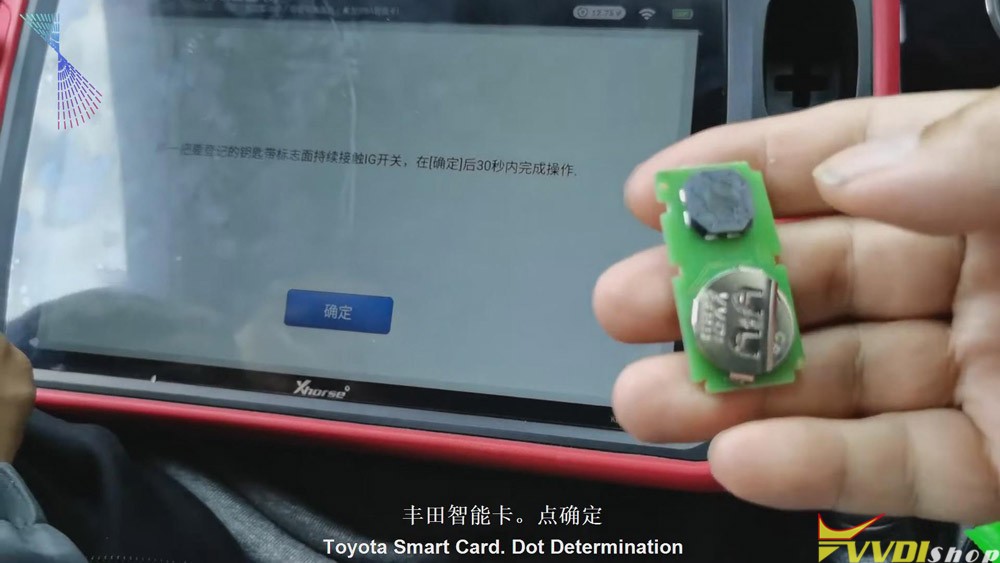
2.Follow the tablet guide to turn on the ignition of the vehicle, attach the original VVDI Toyota 8A smart card to the start button, and then click on “Confirm” on the tablet.

vvdi-key-tool-plus-add-keys-for-toyota-8a-smart-card-8
  • After hearing the sound, it will prompt to attach a new card to the start button of the vehicle. Then attach a new VVDI Toyota smart card to the start button of the vehicle. And then click “Confirm”.
vvdi-key-tool-plus-add-keys-for-toyota-8a-smart-card-9
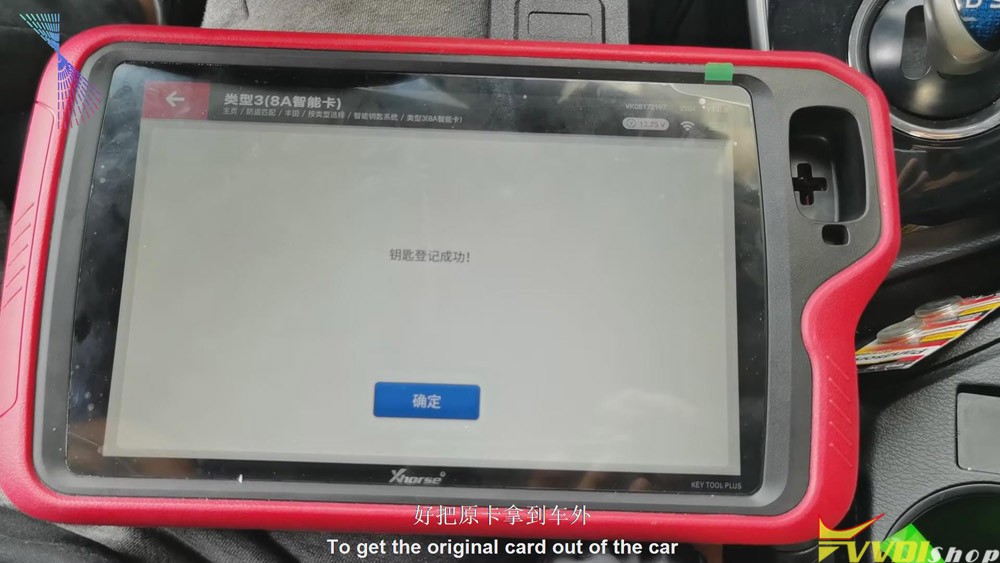
  • After the registration step is finished, take the original VVDI Toyota 8A card out of the car. Turn the ignition off and click “Confirm”. We’ll have to click “Confirm” for several times. And it should be a synchronization process. Click “Confirm” twice.
vvdi-key-tool-plus-add-keys-for-toyota-8a-smart-card-10

From the steps above we can easily see that it is quick and convenient for you to use Xhorse VVDI Key Tool Plus to match VVDI Toyota 8A smart card. Thumb up Xhorse VVDI Key Tool Plus!

https://www.vvdishop.com/service/vvdi-key-tool-plus-add-keys-for-toyota-8a-smart-card.html

Design a site like this with WordPress.com
Get started