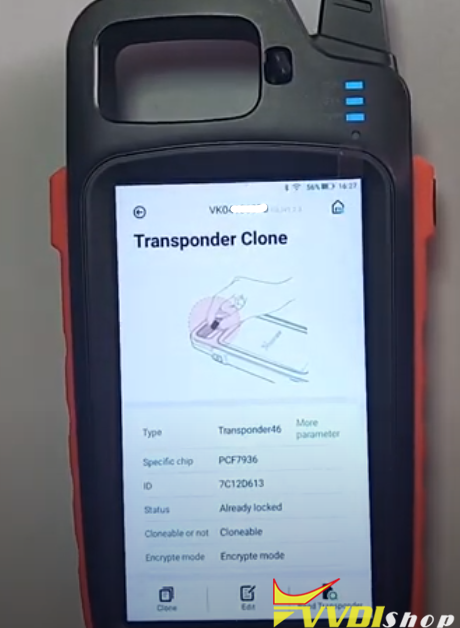
Autel XP400 pro,Autel XP400, VVDI prog, UPA prog, Orange5, Batronix, xprog…all programmers are very good at reeding eeprom mcu ( airbag, immobilizer, bcm , dash ).
Purpose: Looking for a best programmer to complete my workshop job: reed eeprom mcu ( airbag, immobilizer, bcm , dash ).
The possible working ECU programmers:
VVDI PROG or XP400 pro or Orange5
Any actual test reports:
VVDI prog…UPA prog…Orange5…Batronix…xprog…all that tools are very good…
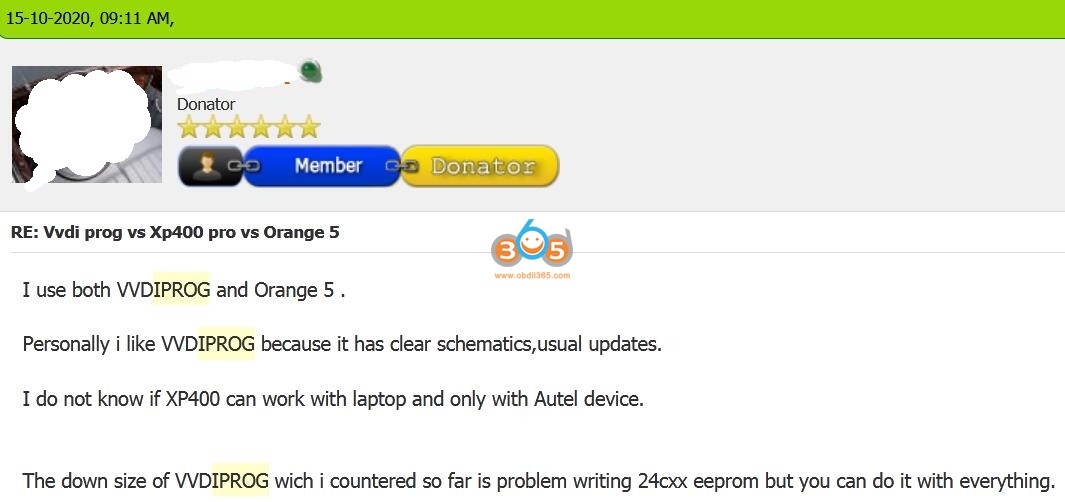
I use both VVDIPROG and Orange 5 . Personally I like VVDI PROG because it has clear schematics, usual updates. The down size of VVDIPROG which I countered so far is problem writing 24cxx eeprom but you can do it with everything.
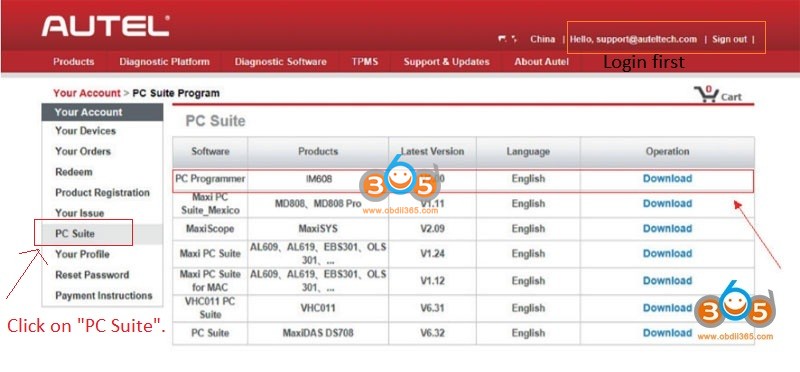
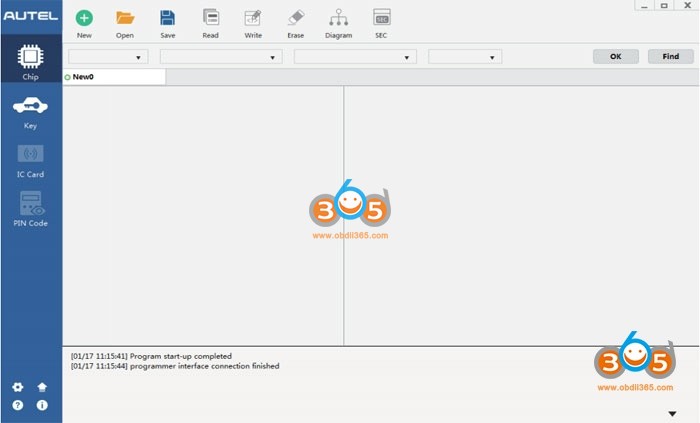
Both Autel XP400 Pro and XP400 work ok in PC , Autel have software “ATProgrammer” for pc too download in home page and works perfect.
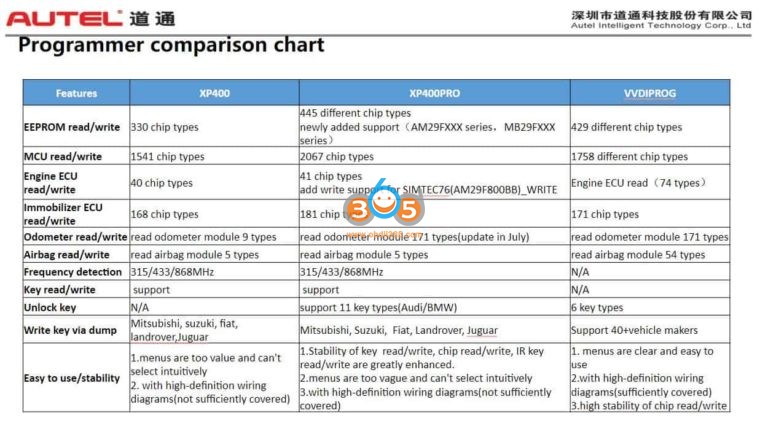
I make order for VVDIPROG ( on the ways ) I buy it only for Mercedes and some Eeprom. Autel XP400 pro work whit Pc and cover more Eeprom/MCU/Immobilizer that vvdi (check the picture ), for me its a powerful tool ( it will be my next purchase )
Keep on updating for the reviews…
As you read above, so far many users are using Xhorse VVDI Pro. In the near future, increasing number of ECU tunners will choose Autel XP400 Pro since it is a much more powerful programmer
The new Xhorse handheld programmer – MINI PROG is able to work as VVDI prog, it performs similar functions. incl: read ECU EEPROM/Flash, renew remote, import, and export files… Mini Prog has lots of EEPROM functionality. There is also an MCU reading capability list in the app
Let’s learn how to read EEPROM from VOLVO CEM with VVDI MINI PROG.
Steps: 1. Connect MINI PROG to VOLVO CEM via an adapter 2. Open Xhorse APP and connect MINI PROG to your smartphone via Bluetooth or WiFi 3. Select car manufacturer and model and choose EEPROM for the chip reading range 4. Start operation by clicking “continue” or pressing the “START” button on MINI PROG 5. Finish reading and save file
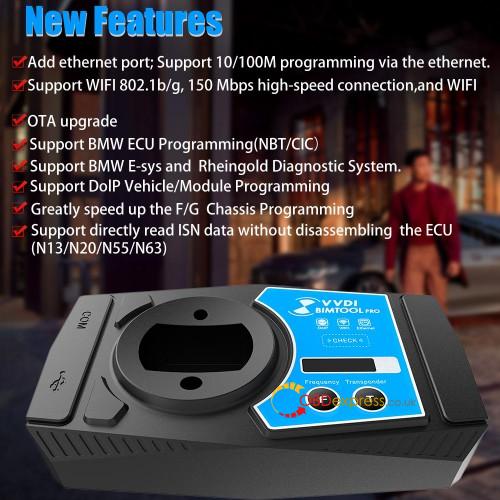
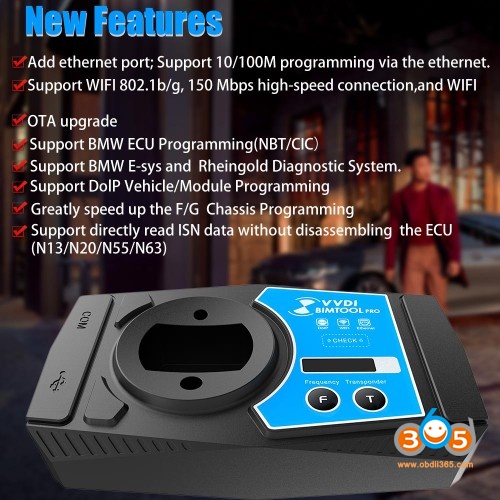
Before continuing reading the following paragraphs on VVDI BMW tool Reviews and using tips by a real user, please be informed: VVDI BMW tool is updated to Xhorse VVDI BIMTOOL PRO, it adds Ethernet port aside of USB port, which will speed up the programming/coding, usually it will only take several minutes to do advanced programming instead of dozens of hours when using the USB cable (When you prepare program/code BMW engineering software, connect the Ethernet cable; When you prepare the simple programming, connect the USB cable is okay.)
VVDI BMW tool works extremely well for E series 1, x1, 3, 5, and x5.
So for those who are thinking of buying one of these VVDI BMW tools. You connect it by ODB in the car, hit connect to gather the basic info on the car, CAS type, key frequency, VIN, bunch of other stuff. Then you should go to the next step, select the protocol which was also told to you after connect. Press “get key info” and hope for the best. If it displays the key info on the screen you are set, select a key slot, and prepare a key. The whole process should take less than 5 mins…if you can get the key data.
What I find odd about the process is how much is done for you, but then some other steps you have to do that would be quite easy for the application to simply do. For example, you load the app and you’re at Cas Info screen with car type set to auto-detect. Press connect and you get a good deal of info, one piece being which protocol to use. Now if you want to go further, you select key learn and for the car type, you should now switch auto-detect to what it said after you connected on the cas info screen. Auto-detect was designed to do a very quick scan and gives you all the answers you may have on the car. But it also knows what protocol to use as it just used it to gather the correct info.
I spent quite a few hours getting connection errors because auto-detect works within seconds to get your info but it won’t connect to read the EEPROM or key info. So when you open the app, hit connect and see what it says for car type. Then move on to the next screen and select that type, then connect again. Now you can get what you want from it. If I could have just one major change (other than it working with all cars as advertised) is to have a forced opening screen which has one button, connect. After it gathers the basic info, it should use that to configure itself to do everything it can without you having to do anything other than choosing a direction.
So now that my rant is over. I do like how fast this unit can make a key. If it worked with all E series cars it would be absolutely amazing. But it d oesn’t.
I have tried the following to make keys: 2006, 07, 08, 09, 11 E90 3 Series – Works 2007 E70 X5 – Works 2009 E88 135i – Works 2007 E60 525i – Works 2009 E60 535xi – Works 2012 E84 X1 – Works 2003 E65 745i – Doesn’t work 2004 E66 745Li – Doesn’t work 2006 E66 750Li – Doesn’t work 2008 E66 760Li – Doesn’t work 2010 F01 750i – Connects, shows basic info – I didn’t try to make a key but I will tomorrow.
ECU work: I’ve tried a number of things with MSV70 and MSV80’s in the car and on the bench, all work no issues.
Transmissions: It says that it can clear and make new the 8HP module. I’ve tested this on the 6HP transmission in the E90 and E65. Those are 6 speed older transmissions and the VVDI read them and was able to clear the units without question. E and F series programming: Loads in and works – can show and clear DTC’s. It can get complicated quick which is much further than I need to go, for now.
For the CAS cable:
I wanted to spend some time and confirm what I’m about to say.
For the CAS cable, they have two versions. Download the manual for the BMW VVDI and check the last few pages to see what the cable should look like inside. If it doesn’t match then you have a version one and you should mod it to match. Once it matches you should take the CAS covers off the cable and make sure that all pins are actually making it to the end of the connector. Mine had a few that were in halfway. Next without a CAS module plugged in, check for +12v on both large cable ends (you can check them all but 2 will do). Mine didn’t have +12v and even under-read, no 12v. I thought that maybe the cable used a switching fet that would apply 12v when you want to read the module, tested that, nothing. I found 12v on the ODB end of the cable, found where 12v from the CAS end comes into the cable, and simply moved the CAS wire over to 12v inside the ODB2 end. With 12v, I can read on the bench.
With a confirmed working cable, now comes the real kick in the ass. I can only read CAS1 on the bench. CAS2 modules from the E series (white case) from 3, 5, X series will read in the car perfectly but won’t read with the cable. So the cable is really a CAS1 bench cable. That should work fine for anyone trying to read CAS1 cars from 2000-2006 that don’t read in the car.
I just pulled the complete wiring harness out of an E90 2011 – I will see what on the CAN bus is needed to make this work on the bench. It will take time but I will have answers.
I had a chance to try the BMW F01 750i today. It uses a CAS4 system and it worked without any issues. The Key was made in under 5 mins.
A BMW 2014 X1 came in with a CAS3++ today, tried to read the information and it said that feature isn’t supported yet but soon. Went to Key learn and it said it had to flash this type of CAS, would take 10 mins. Didn’t really feel confident in that but went for it. Took 10 mins and it was able to make a key after the flash. In order to make a key for this CAS3++, it said it needed a real key to make it work. So you insert the real key into the programmer, then insert the new key and it was able to make it work. All keys lost wasn’t supported.
So for my needs, I needed to cover the E series from 2002 to 2010. So far the only car it won’t read is the BMW 760 E66. I guess they didn’t have one available to test with. I have another 760 coming in a week or two. When that gets here I plan to take a CAS1 from 2003 745 and attempt to change the VIN, KM, and codes to see if I can start the 760. This one 760 I have now has no fob, just the plastic valet key. The unit can read the ECU and basic info from the CAS so it should be possible to mod another CAS to allow the car to start. No harm in trying.
So far I do like the unit. If they would have had a bundle with a set of working cables, full detailed info like CAS1 needs to be read indirectly, I would have paid more to get it all one shot.
All right, one question: Is VVDI BMW a good tool to buy?
The only info you get from Xhorse is that it does it all – no problem. But once in hand, it’s not so simple. You need a host of special cables that they won’t mention until you find yourself stuck. It won’t one-click work as they advertise with all BMW’s.
Once you’ve tried a car, find out what you need to do, and are set up for it, then it’s easy. Buy every cable they offer for it and attachment. Then buy a bunch of spare key fobs and make a bunch of keys. I also intend to remake some of the cables using the real harness out of a junkyard car. The connectors they use are crap.
One more question: downgrade CAS3+, any risk? Many do it on the bench. For making key.
So far using the VVDI BMW tool, CAS3 will work in the car using ODB2. For CAS3++ which seems to be 2012-2017, some will do keys right away while others will require a patch. The patch is applied for you, just make sure your computer and car are plugged into a good power source and let the tool do it’s thing.
I’ve narrowed my trouble with this tool to a few variations of CAS1 units that Xhorse most likely hasn’t come across. For anyone making keys for newer cars from 2012 and up it seems to do it’s job well.
Last but not least, when you have VVDI BIMTOOL PRO, you will have a better user experience than VVDI BMW Tool. Of course, they share the same functions as the above user’s said.
Confirmed: VVDI BIMtool pro is able to program key for BMW CAS (CAS1/CAS2/CAS3/CAS3+/CAS4/CAS4+) via OBD, and Eprom program key for BMW EWS1/EWS2/EWS3/EWS4/CAS1/CAS2/CAS3 (include lost all key). In this post, you will have all details including operation instruction.
Part 1. OBD – CAS1/CAS2/CAS3/CAS3+/CAS4/CAS4+ main functions
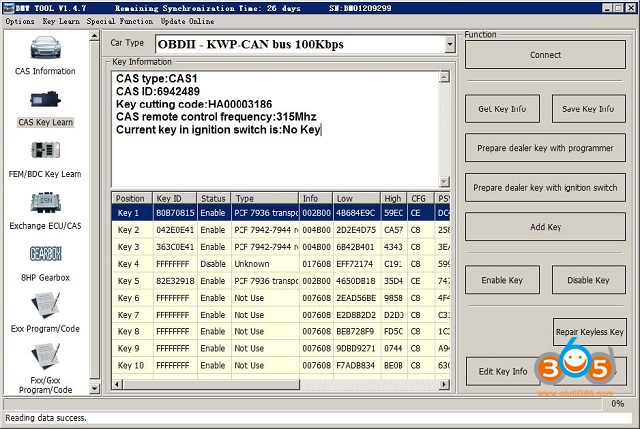
Key Learn interface like:
Mainly Function:
Key cutting code: Key This code can help make the key stick, you can use CONDOR Automatic Key Cutting Machine make the key stick directly (Lost All Key is very convenient, no need change cylinder)
CAS remote control frequency: You need select correct remote key accord this value, they must have same frequency. Of course you can test working key frequency with Remote Frequency Test( “F” button on VVDI – BMW device)
CAS key in ignition switch is: The position at immobilizer for ignition key.
Get Key Info: OBD read key cutting code, CAS remote control frequency, CAS key in ignition switch is, key info etc. You must read and backup original key info before OBD prepare key.
Save Key Info: Save the key info read by OBDII, the file is encrypted.
Prepare dealer key with programmer: After read key info success, select a key position, prepare dealer key with VVDI – BMW programmer.
Prepare dealer key with ignition switch: After read key info success, select a key position, prepare dealer key with ignition switch.
Add Key: Add the new prepared key to CAS system. Most of the car, the new prepared key can start engine directly without add key; there’s still a few car can’t identification new key, at this situation you need add key to CAS system, key should be placed in VVDI – BMW programmer.
Enable Key: Insert a working key to ignition switch, select key position which you want enable, press button Enable Key. If there’s a key for this position, it will start work again. Attention: Enable Key don’t need to read key info.
Disable Key: Insert a working key to ignition switch, select key position which you want disable, press button Disable Key. If there’s a key for this position, it will stop work, add key new at this position is also not work. Attention: Disable Key don’t need to read key info.
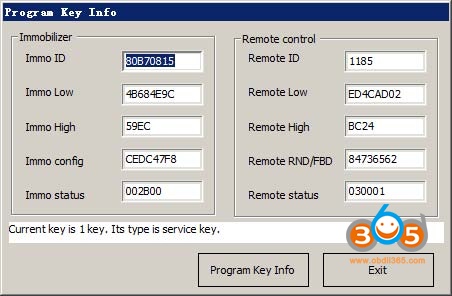
Edit Key Info: After you read key info or load key info, select a specify key item, run this operation to change detail item (PICTURE below). Attention: We don’t recommend general user run this operation, the working key will stop work if write error data.
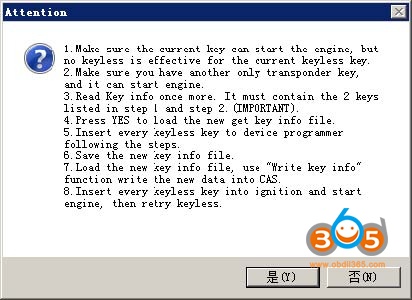
Repair Keyless Key: If the keyless key doesn’t have smart function after start engine. You can try this operation to fix it. Detail operation can follow (PICTURE below). Attention: you must have one un-keyless key and this key can start engine.
Write Key Info: Write the loaded key info to CAS system, it can use for restore original key info.
Xhorse vvdi BIMTOOL PRO Special note in OBD operation(Important !!!)
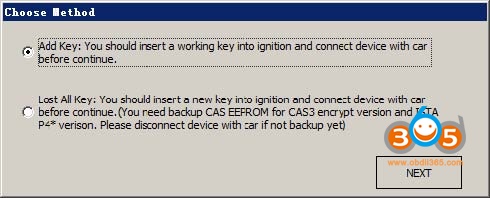
Under Get Key Info get window (image below): For CAS3+ encrypt version, must select add key or lost all key. For other CAS version, this 2 method is same, they don’t have lost all key mode, add key is always.
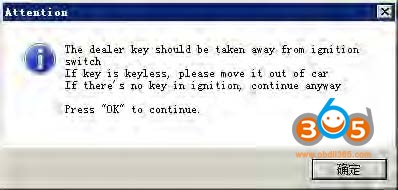
Under OBD operation get window (image below): If there’s key in ignition switch, take away. If the key is keyless key (smart key), move it out of car. If there’s no key in ignition, just press OK to continue.
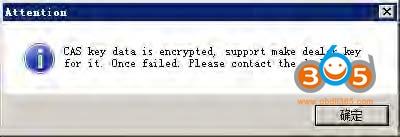
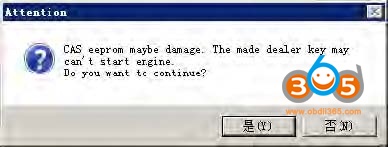
Under prepare dealer key get window (image below): Once you get this window, VVDI-BMW detect this CAS is CAS3+ encrypt version. If you are sure CAS is encrypt version, but there’s no this window while prepare dealer key, the made key may not start engine. You’d better choose “File Make Key” for the error detection CAS.
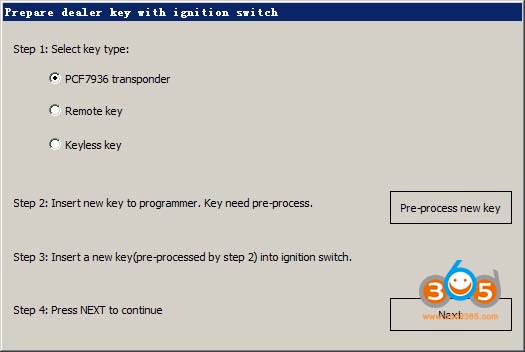
Under prepare dealer key with ignition switch get window (image below): Here we need pre-process new key. Just follow step1 to step4. Attention: You must insert new key into ignition switch before NEXT
Under prepare dealer key(File Make Key also have this) get window (image below): Please select correct type, if smart key select NO, the keyless function will not work.
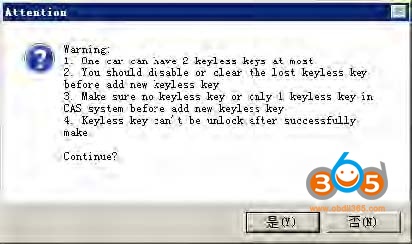
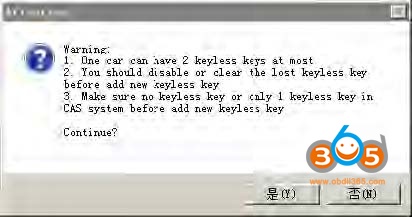
Under prepare a keyless key (File Make key also have this) get window (the following picture 1) or (the following picture 1): Make sure the car have 1 keyless key at most before add new keyless key. The lost keyless key should disabled or erased.
Attention: (the following picture 1)will come with add key, this situation keyless key don’t support unlock; (the following picture 2)will come with lost all key, here the keyless key can unlock by VVDI BMW.
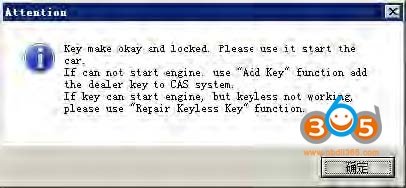
After make dealer key get window (image below): When you get this window, the key was made successfully. You can try to start engine directly. If not work, you need add this key to CAS system with Add Key. Keyless can fixed with Repair Keyless Key.
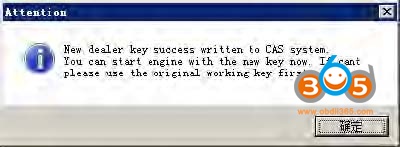
After add key to CAS get window (image below): When you get this window, the key was add to CAS system successfully. Key can start engine now. Sometimes add new key for CAS1/CAS2/CAS3 will cause car not start, you can follow chapter 4 Special Note 2.
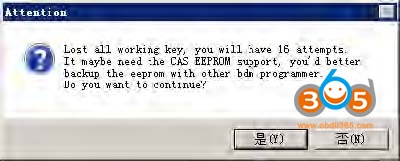
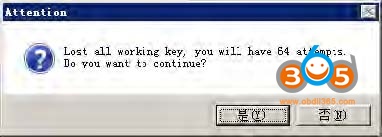
Under lost all key for CAS3+ encrypt version (File Make key also have this) get window (PICTURE 5.14) or (below image 1): For CAS3+ encrypt version, lost all key will have a special procedure to make working key (this procedure maybe need load EEPROM dump). By insert temp key to ignition and try start. (below image 1) is CAS3+ encrypt version (not ISTAP) window, at most 16 times try start. (below image 2) is ISTAP version window, at most 64 times try start
Attention: For ISTAP version, There is a few car can’t find useful combine data after 64 times try start, because the CAS lost some verify data, you need select File Make Key->Known ISN to make working key Attention: If you press “Yes” and get something like “Cannot find useful combine data, please check the EEPROM file”, means the CAS lost some verify data, you need select File Make Key->Known ISN to make working key.
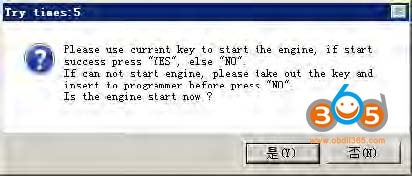
Under lost all key for CAS3+ encrypt version (File Make key also have this) get window (below image 1): In the title you can find “Try times 5” means this is the fifth try start. If can start, press “YES”,key made successfully. If cannot start, press “NO”, continue next try start For some reason cause not find start combine data after all try, the temp key is locked, you need unlock the key with EEPROM or key info before next time test.
Attention: when you get this window, you’d better try with this method: insert temp key to ignition switch, try start, if not start, take key off, then insert to ignition again, try start again, if still not start, take key off ignition and press “No” (In File Make Key you need place temp key in programmer) .
CAS3+ encrypt version (include ISTAP) make dealer key by OBDII
Add new key with working key
Attention: Under these steps, there will come some ASK or NOTE message,
Method 1 operation: This method support CAS3+ encrypt version (ISTAP not support). you can follow:
1) Read EEPROM with Read EEPROM in (PICTURE below) by OBDII 2) Make dealer key with File Make Key function.
Method 2 operation:
1) Insert a working key to car ignition and switch ON
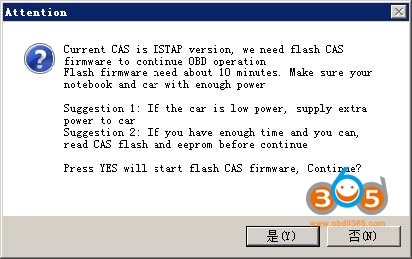
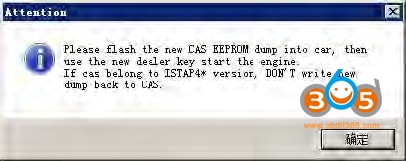
2) (The first image above), use Get Key Info read CAS immo data, cutting code, remote frequency and etc. (Remember: when you get window (below image), you need choose Add Key) Attention: The key info can read directly if CAS isn’t ISTAP version. If CAS belongs to ISTAP version, there will be update CAS flash window (below image) for the first time read key info. Upgrade CAS flash only need 10 minutes, after update flash turn to step 5). If the upgrade progress failed by some reason, you can fix it with Menu->CAS Repair->ISTAP4* version OBDII Repair. Repair with CAS ID (write in step2)). Detail can be found in chapter 9 CAS Repair
3) In (The first image above), use Save Key Info save the read key info
4) There’s 2 methods for make key:
Method 1: In (PICTURE below), select Prepare dealer key with programmer.
a) Input a new blank key to VVDI2 programmer.
b) Select a key position for new key (If the selected position have key already, must use Add Key to add new key to CAS system).
c) In (The first image above), press button Prepare dealer key with programmer wait procedure complete.
d) After make dealer key successful, try start directly. If can start engine, turn to step 7). If not work, add the made key to CAS system with Add Key in (The first image above).
e) After new key can start engine turn to step 7). Attention: Sometimes add new key for CAS1/CAS2/CAS3 will cause car not start, you can follow chapter 4 Special Note 2.
Method 2: In (The first image above), select Prepare dealer key with ignition switch, select key type and pre-process the blank key, insert to ignition switch and wait complete. After finish, turn to step 7). If you get failure here, you need unlock the key with key info before next make dealer key.
5) Complete.
Lost All Key
Attention: Under these steps, there will come some ASK or NOTE message, they all can be found in chapter 5.2.
Operation steps:
1) Active OBD communication with lost all key method.
2) In (The first image above), use Connect to detect CAS type and read CAS identification information (Remember: Write down CAS ID).
3) In use Get Key Info read CAS immo data, cutting code, remote frequency and etc.
(Remember: when you get window (PICTURE below), you need choose Lost All Key)
Attention: The key info can read directly if CAS isn’t ISTAP version. If CAS belongs to ISTAP version, there will be update CAS flash window (PICTURE below) for the first time read key info. Upgrade CAS flash only need 10 minutes, after update flash turn to step 5). If the upgrade progress failed by some reason, you can fix it with Menu->CAS Repair->ISTAP4* version OBDII Repair. Repair with CAS ID (write in step2)). Detail can be found in chapter 9 CAS Repair.
4) In (The first image above), use Save Key Info save the read key info.
5) In (The first image above), select Prepare dealer key with ignition switch, select key type and pre-process the blank key, insert to ignition switch and wait complete. The procedure will use try start method, if CAS belongs to ISTAP there will be at most 64 time try start, while the not ISTAP version have at most 16 times try start. Once the engine start, turn to step 7). If you get failure here, you need unlock the key with key info before next make dealer key.
6) After success start engine, you will get window (PICTURE below). Remember: Don’t take away the key from ignition switch. Synchronize DME-CAS at least 10 times. Once you get “Don’t synchronize when you have working key” continue. If you got sync failed, don’t worry about this, the sync command is send. If you don’t complete this procedure, your new key may not start engine for second time.
7) Complete
Special note in File Make Key (Important!!!)
Prepare dealer key, keyless key, lost all key for CAS3+ encrypt version have some note in chapter 5. 2 Special note in OBD operation (Important!!!)
Load CAS EEPROM dump get window (PICTURE below): If the dump is read by BDM programmer, you can ignore this window. That means VVDI2 – BMW detected verify error in CAS system. Usually CAS3+ encrypt version have this window
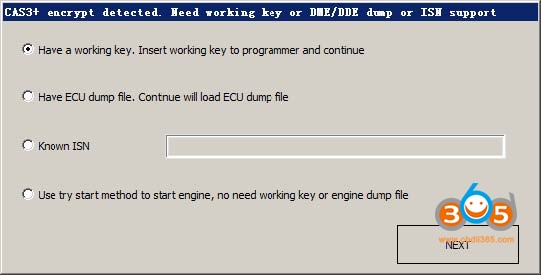
Under make dealer key for CAS3+ encrypt version get (PICTURE below):
-Add key with working key select Have a working key.
-Lost all working key, there are 3 methods:
1) Have ECU dump file, load ECU dump file to continue
2) Known ISN, input 16 bytes ISN to continue
3) Use try start method, try start method don’t need OBD communication, only require the original CAS EEPROM dump
Under make dealer key for CAS4 encrypt version get (PICTURE below):
– Add key with working key select Have a working key.
-Lost all working key, there are 3 methods:
1) Have ECU dump file, load ECU dump file to continue
2) Known ISN, input 16 bytes ISN to continue
About remote function not work in CAS1/CAS2/CAS3/CAS3+: Remote not work caused by synchronization codes not same between key and CAS, just need do the synchronize operation: Press any button on new key, now remote function not work, start engine with this key for several seconds, switch off ignition, try remote again, works.
About write back new dump after make key for CAS1/CAS2/CAS3/CAS3+:
File make key not detected the key is disabled or not. If your key not work, you’d better enable the new key position with working key(Direct enable key without get key info).
If select a blank position for new key, usually don’t require write back new dump. If not work,test write back method.
If select a used position for new key, you must write new dump back to CAS.
Please don’t choose 10th key for CAS3+ encrypt version.
Under lost all key for CAS3+ encrypt version get window (PICTURE below): This window will come after first time write key. When you get this window, first try data was written to temp key. Here will save a new dump contain temp key ID. Insert temp key can switch on ignition (you can try for twice, only for cluster show), don’t write new dump back (CAS3+ encrypt version with new key in blank position don’t need write back). If you try several times still can’t switch on, need write back new dump. Note: make sure the new key position is not disabled.
EPROM-EWS1/EWS2/EWS3/EWS4/CAS1/CAS2/CAS3 (include lost all key)
Attention: Under these steps, there will come some ASK or NOTE message, they all can be found in chapter 6.1
Lost all key have same method with add key with working key.
Menu->File Make Key ->select right EWS/CAS type, load EEPROM dump file(BIN file)
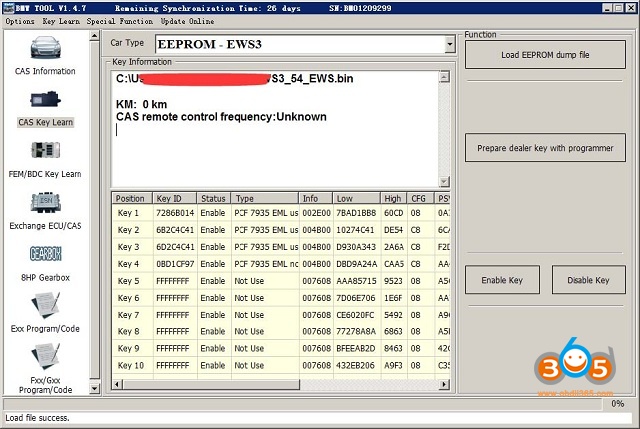
The following image is File Make Key window after load EWS3 EEPROM dump. Key Type show with “PCF 7935 EML used” means there already have a key; show with “PCF 7935 EML not use” mean this position doesn’t have key. Select a key position, input blank PCF7935 transponder, press button “Make Dealer Key” and wait complete. The key can start engine without write new dump back, so we don’t have new dump for save.
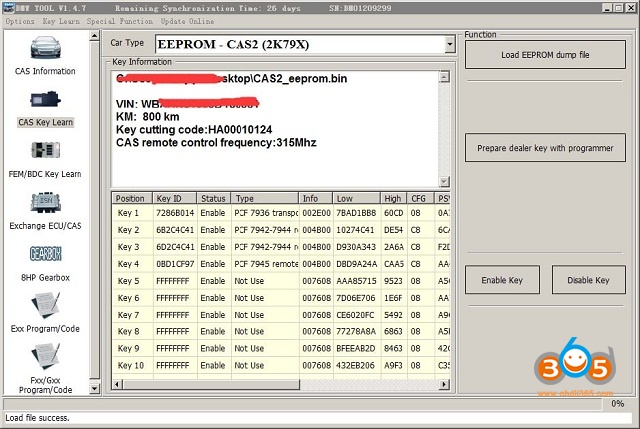
The following image is File Make Key window after load CAS2 EEPROM dump (CAS1, CAS3 is same). Key ID show “FFFFFFFF” means this position not use; show with other values mean there already have a key. Select a key position, input a blank transponder (HITAG2), press button “Make Dealer Key” and wait complete. After finish will save a new dump file. About the write new dump file back you can find in chapter 6.1 About write back new dump after make key for CAS1/CAS2/CAS3/CAS3+.
Used VVDI MB on a 2008 W906 Sprinter to program BE key, starts & runs. But can’t get remote to lock/unlock. Finally solved by changing the frequency TO 433MHZ. Read the details below.
Have managed to program BE key, starts & runs. But can’t get remote to lock/unlock.
Have tried Insert key into Ign Remove key Within 10 secs press & hold the lock button Press the Unlock button 5 times Press the boot release button Release all buttons Not working
How to do next?
After ignition on, remote work, maybe change frequency to 433MHZ with VVDI.
Finally! Solved!
Now works 433MHZ. Strange tho, the only other working key says frequency is ‘Control frequency by resistance control’ Is an older BE key
Good to know:
With XHORSE BE keys you can change frequency using VVDI MB while other BE usually have a resistor to control frequency. Since your sprinter has an IR EIS – you are not in the US and your frequency will be 434.
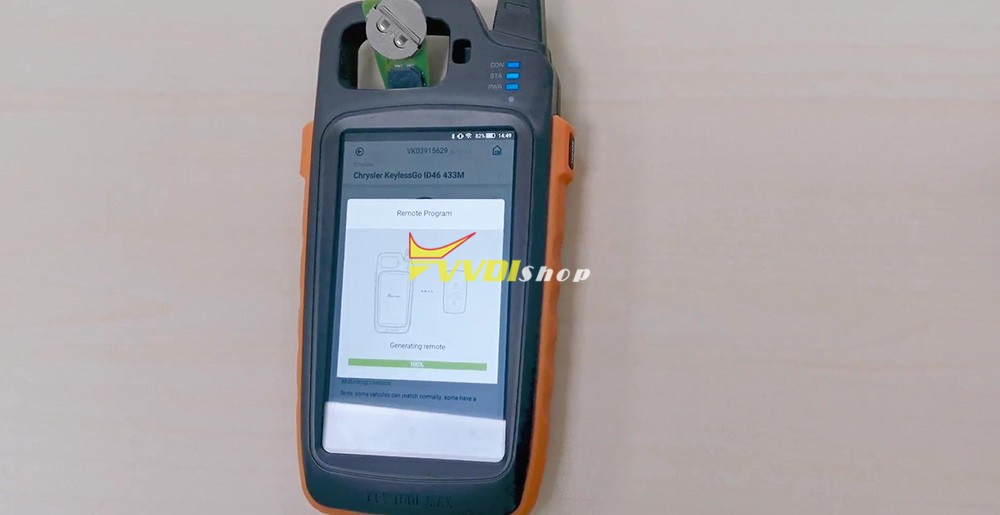
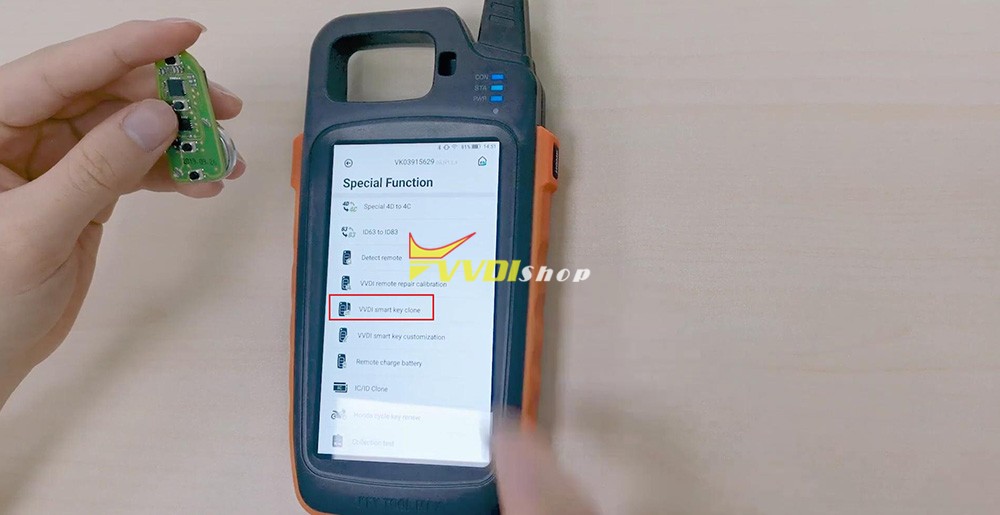
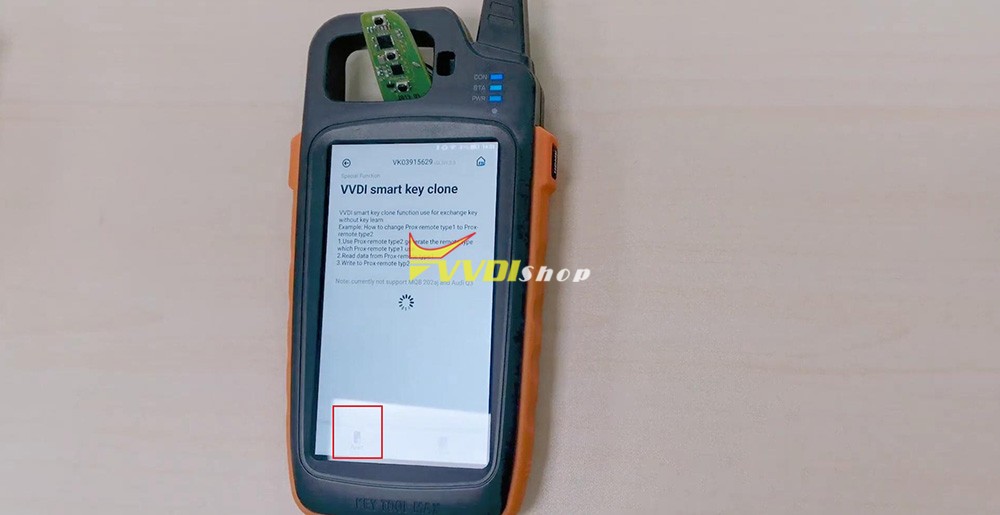
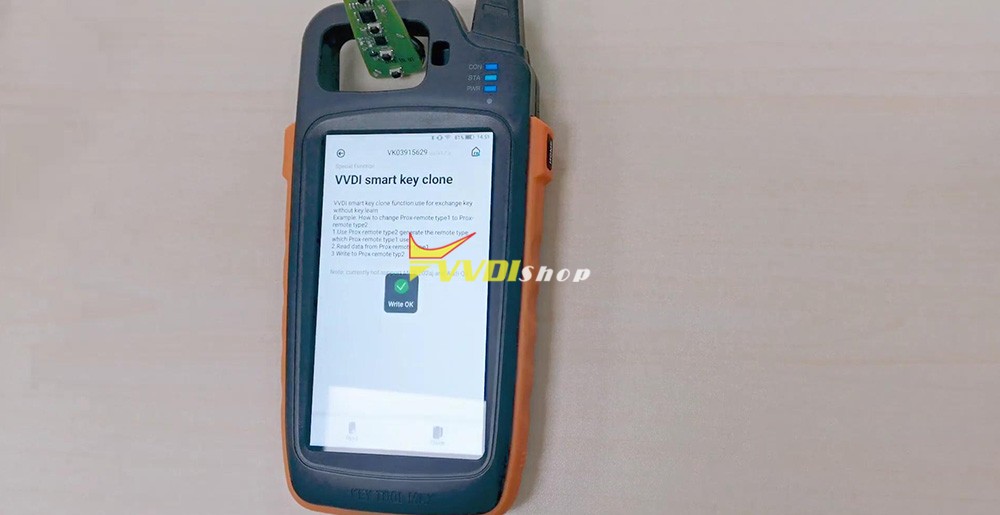
Anyone know how to use Xhorse Key Tool Max “VVDI smart key clone” option? This article will be available with the whole operation procedure. (Read first: If the car has been matched with a type of Smart Remote before, but now the owner wants to change a new type of smart remote, just copy it directly instead of learning the key again. Note: “VVDI smart key clone” option is only for smart remote that have been matched with vehicle by VVDI key tool max and mini obd. )
What I will test is a Chrysler KeylessGo ID46 433M, for the other remote key types, please follow in the same method.
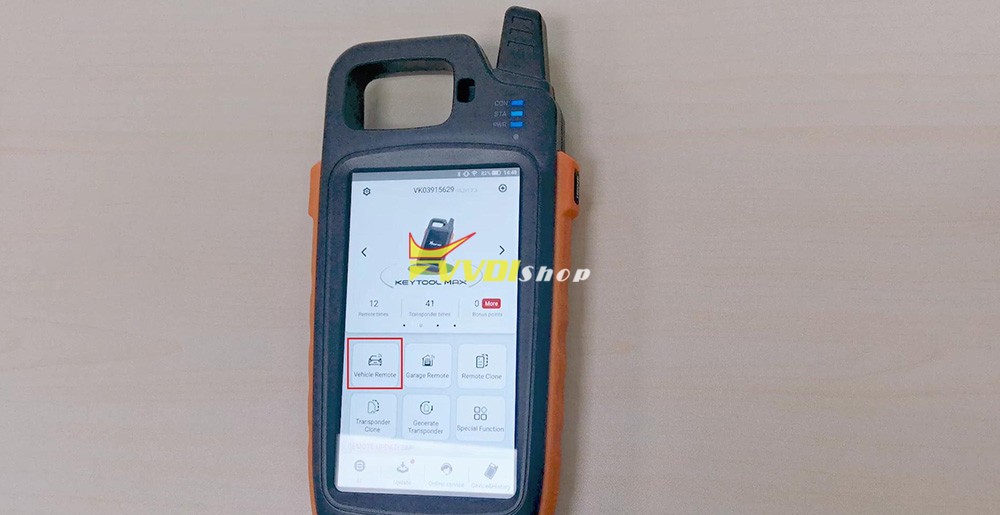
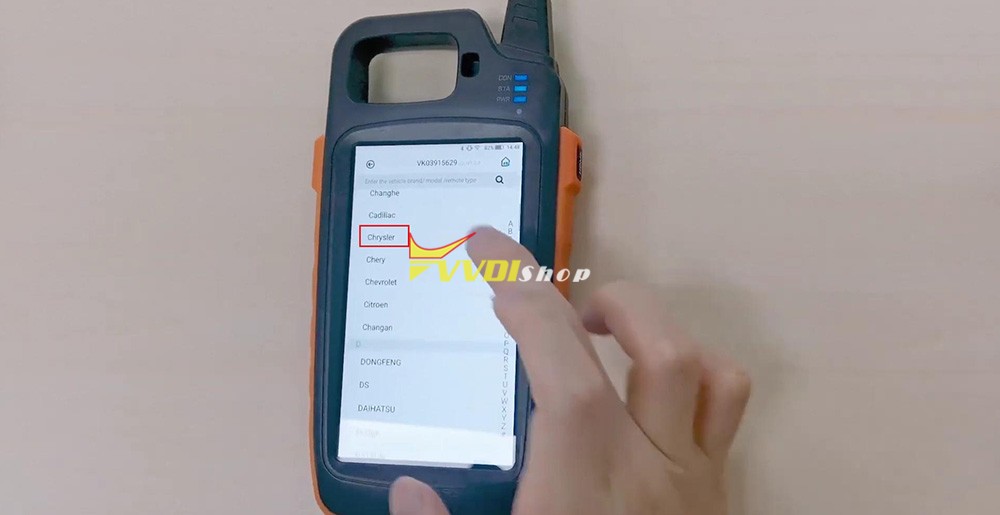
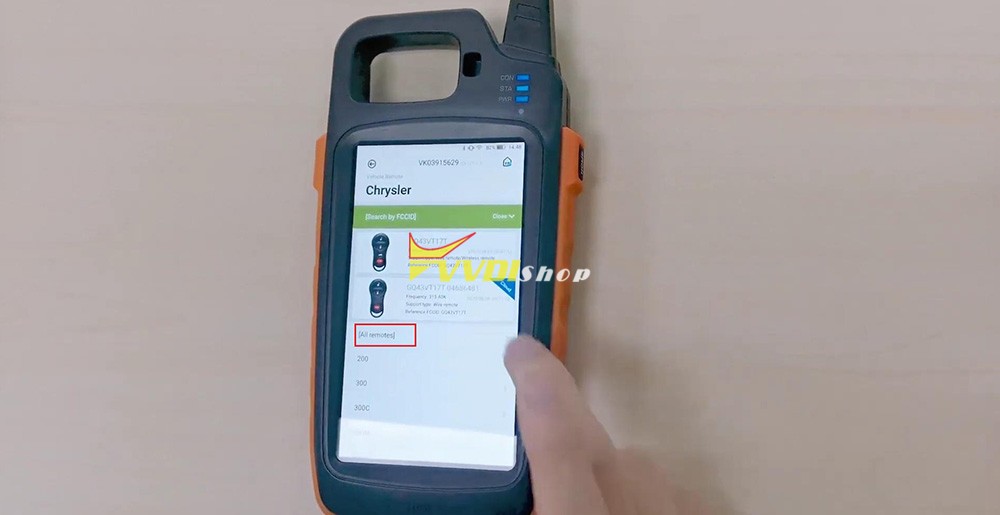
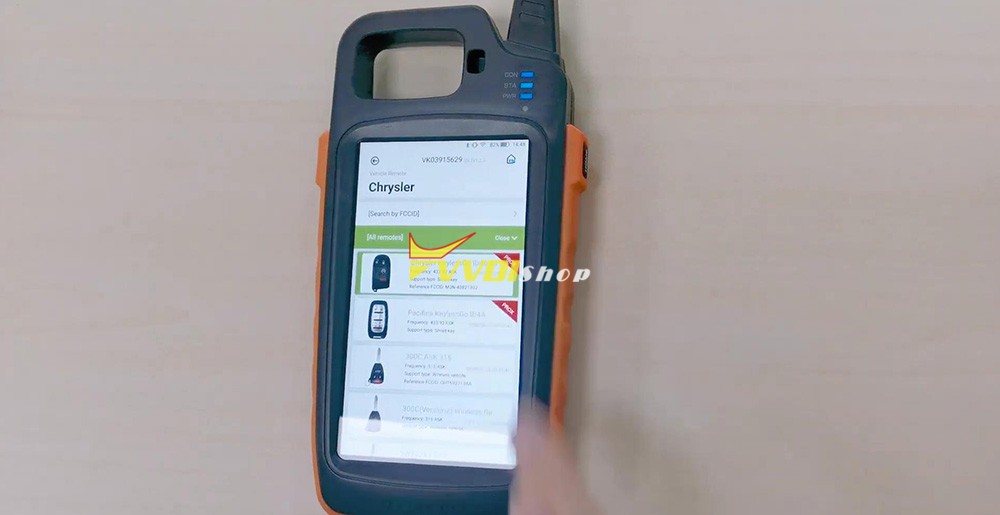
4 steps to follow: Step 1. In the key tool max home menu, select “Vehicle Remote” -> “Chrysler” -> “All Remotes” -> Chrysler KeylessGo ID46 433M.
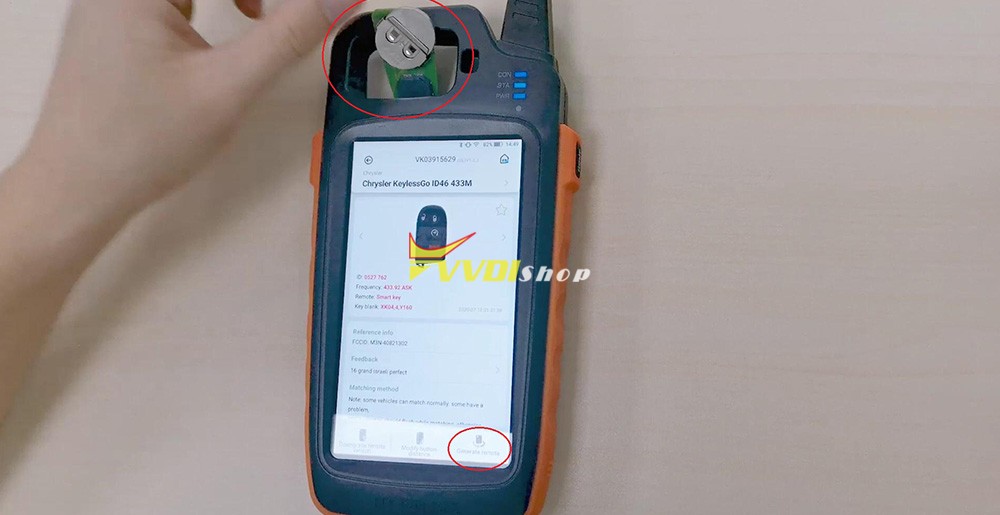
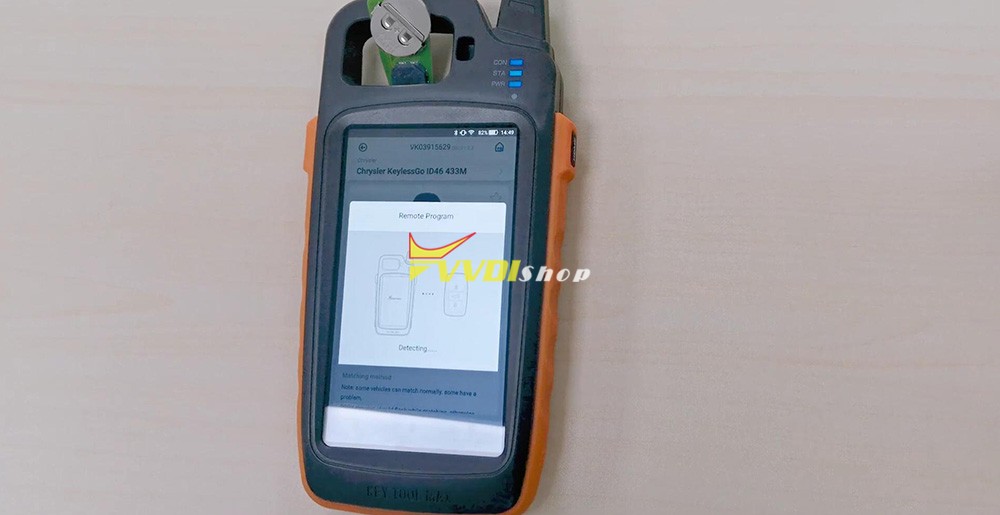
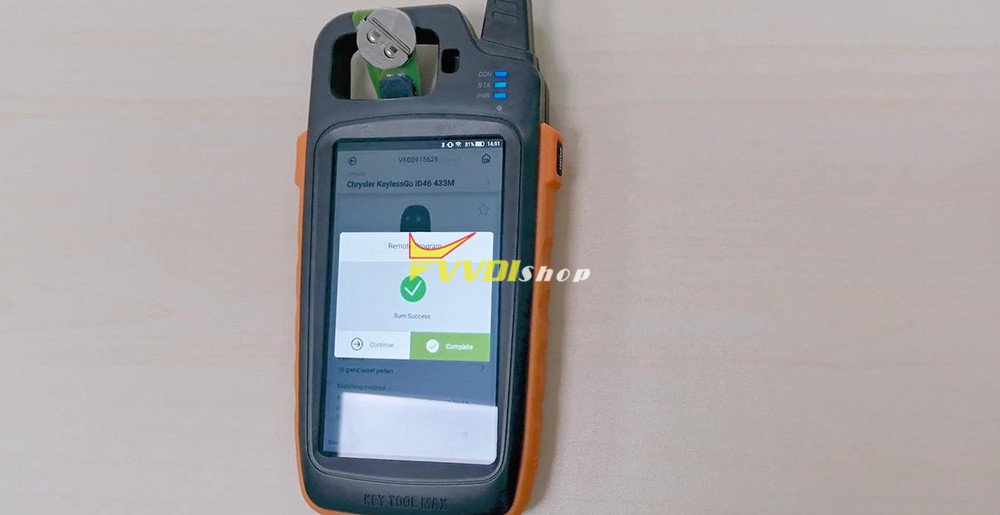
Step 2. In the slot put the smart key you want to program, select “Generate Remote” and wait until you see “Burn success”, it will take only 1-2 minutes.
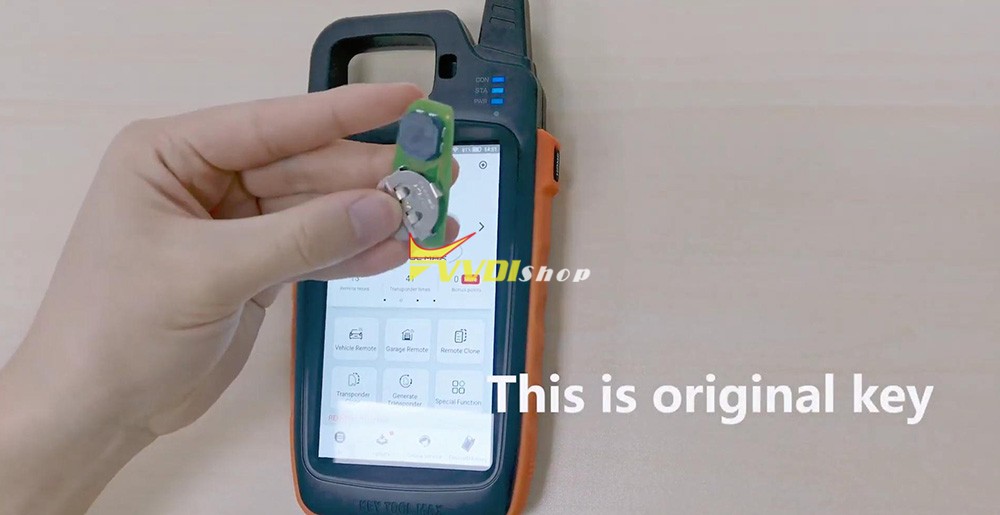
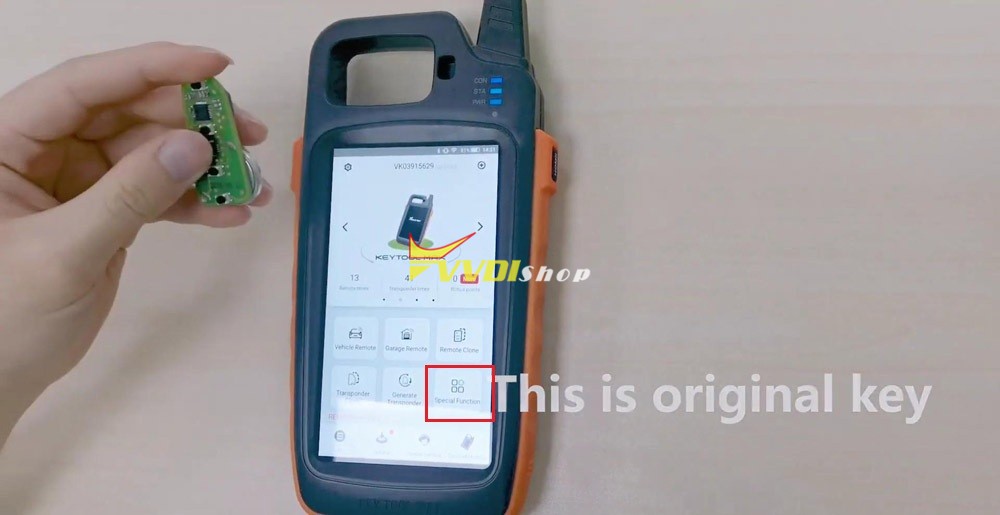
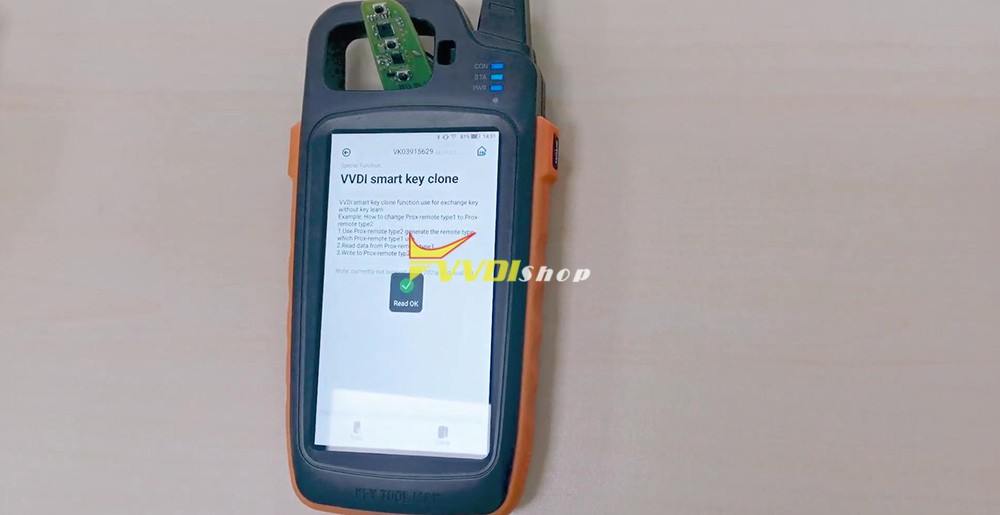
Step 3. Take the programmed smart key out of the slot, prepare the original key. Back to vvdi key tool max home menu, select “Special Function” -> “VVDI smart key clone“, put the original smart key into the slot, select ” Read” and wait until OK.
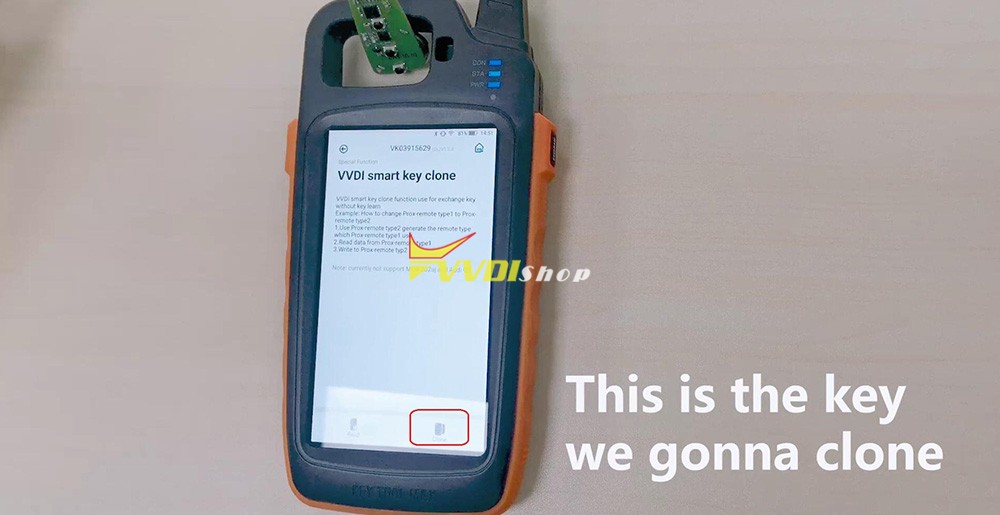
Step 4. Again take the original key out of the slot, put the smart remote key to clone, select “Clone” and soon you will see ” Write OK”.
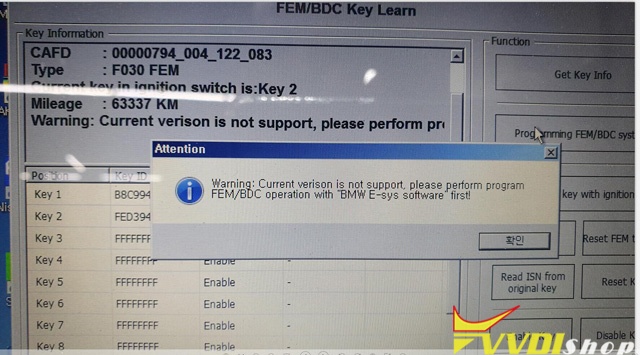
Q: I wanna use VVDI2 to add key for BMW f30 2017 320d, but it shows error “Warning:Current version is not support,please perform program FEM/BDC operation with E-SYS softeware first!”
any ideas?
Solution by VVDISHIO.COM engineer:
VVDI2 can not support BMW f30 FEM, you should E-Sys software from BMW to program FEM.
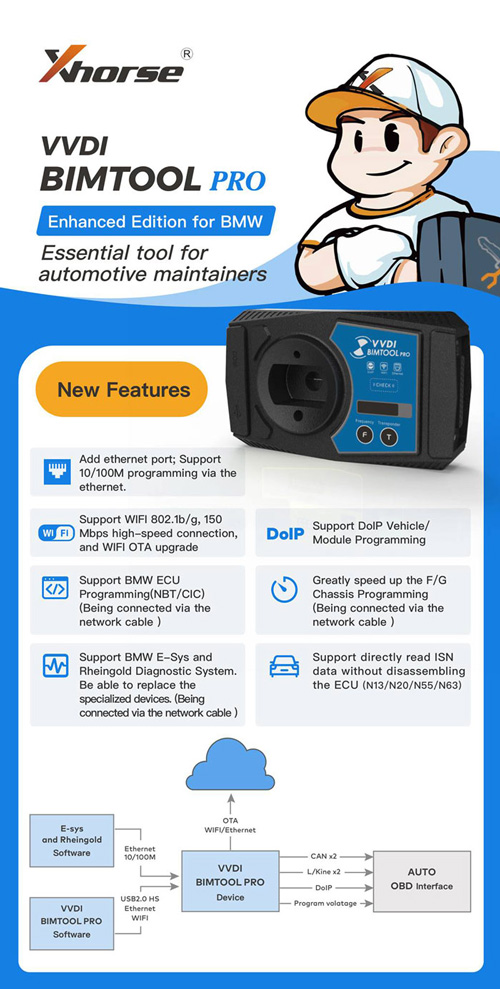
Or you can use Xhorse new tool – BIMTOOL PRO, it supports BMW E-sys and Rheingold Diagnostic System.
Xhorse VVDI BIM Tool Pro Enhanced Edition is Update Version of VVDI BMW Features Add ethernet port, Support 10/100M programming via Ethernet. Support WIFI 802.1b/g, 150Mbps high-speed connection, and WIFI OTA upgrade Support DoIP Vehicle/Module Programming Support BMW ECU programming (NBT/CIC) (connect via network cable) Greatly speed up the F/G Chassis programming (connect via network cable) Support BMW E-sys and Rheingold Diagnostic System. Able to replace the specialized devices. (connect via network cable) Support directly read ISN data without disassembling the ECU (N13/N20/N55/N63)
Now we have a new set of DME, CAS4 and a working key from a working Series 6 640i 2013. After fitting all these the dashboard is working fine even central lock, but car can’t start.
Solution:
Even if it starts with wrong VIN in DME and CAS – EGS ISN also need to be corrected. But in that case it will start and won’t go off Parking position, so it will come next.
The easiest option for you is to read ISN from old CAS4 and swap it to new CAS and DME, then you don’t need to bother with gearbox which is never too exciting. Just backup all data, change ISN and VIN in both modules either by VVDI or by uploading here.
First thing to check after you change VIN and ISNs if car crank won’t start – cas dme sync by ISTA.
If it’s CAS4 – not crypted and you can extract ISN. CAS4+ is crypted and you will need working key (which I understood you have) to extract ISN. Well, I didn’t really understand why you are bothering with new CAS, if you can just swap ISN from your CAS4 to the DME.
Credits to@ g5n14.
Good to know:
Upload old CAS dump or ISN read by VVDI, VIN and DME eeprom to @ sales@VVDIShop.com will be sorted by the tech support.
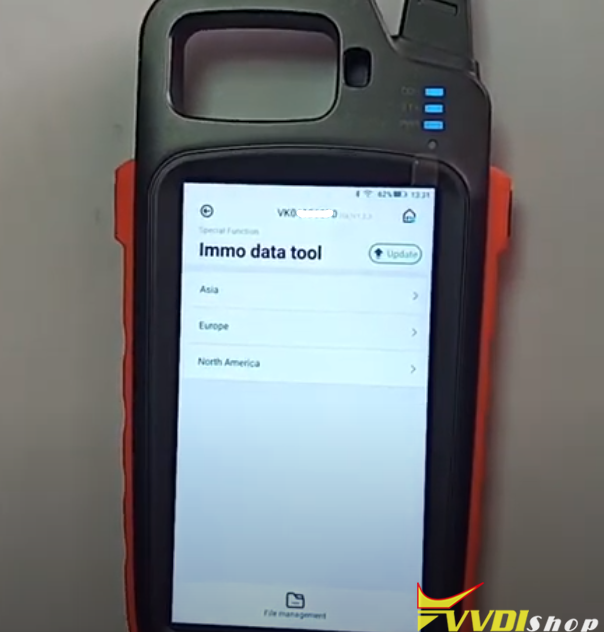
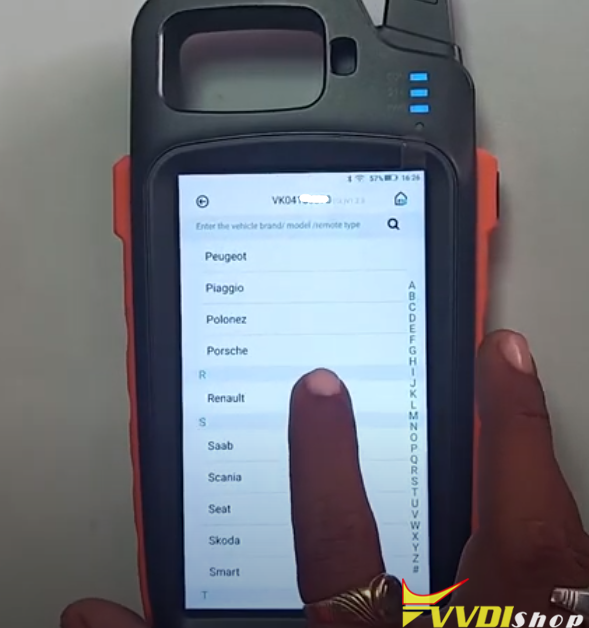
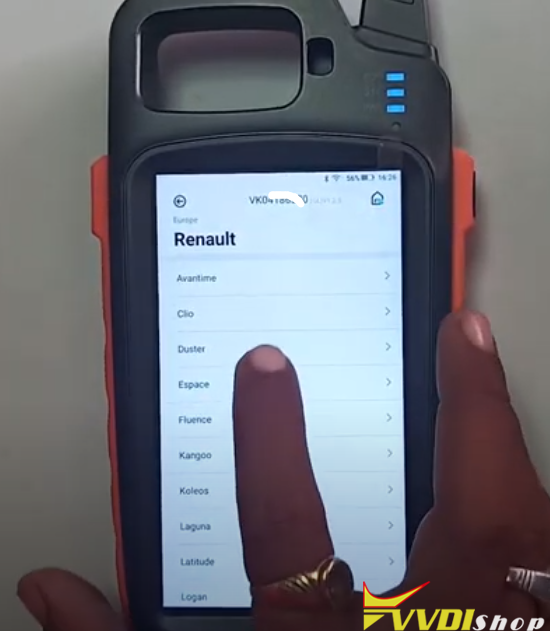
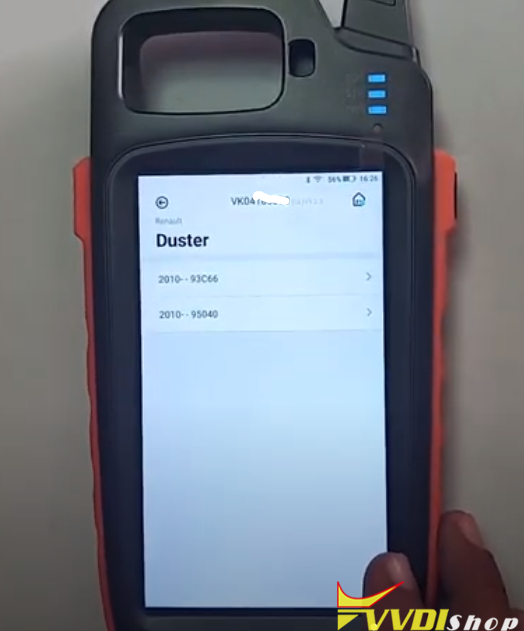
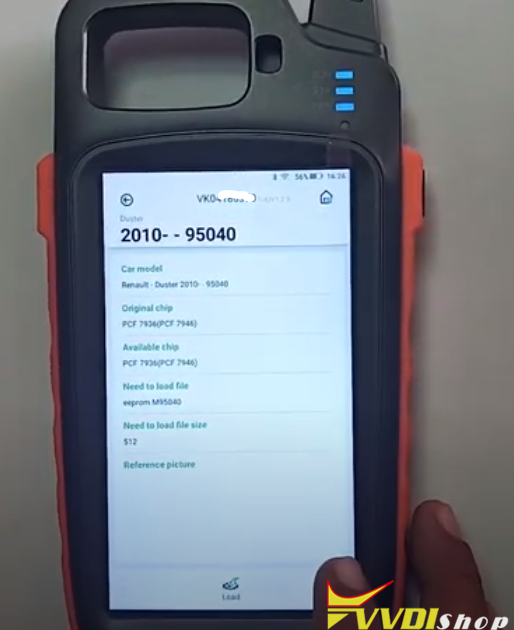
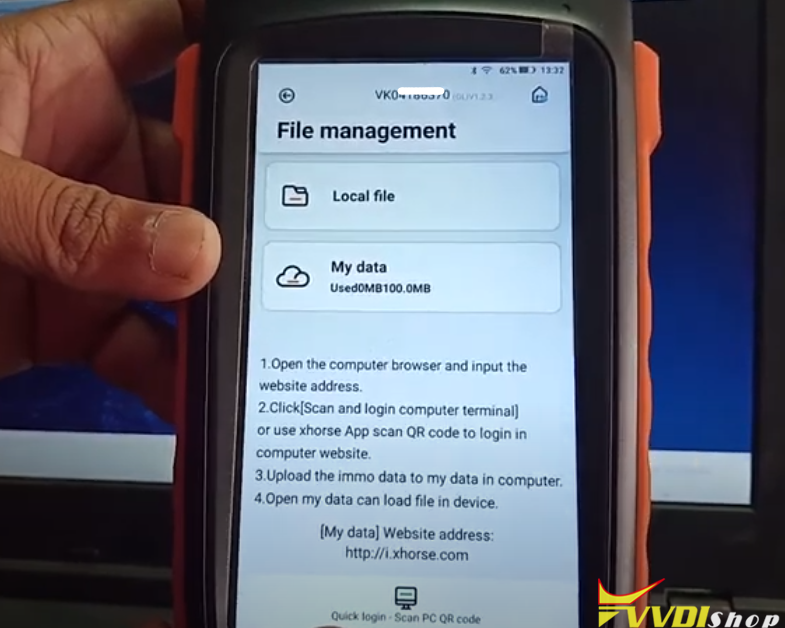
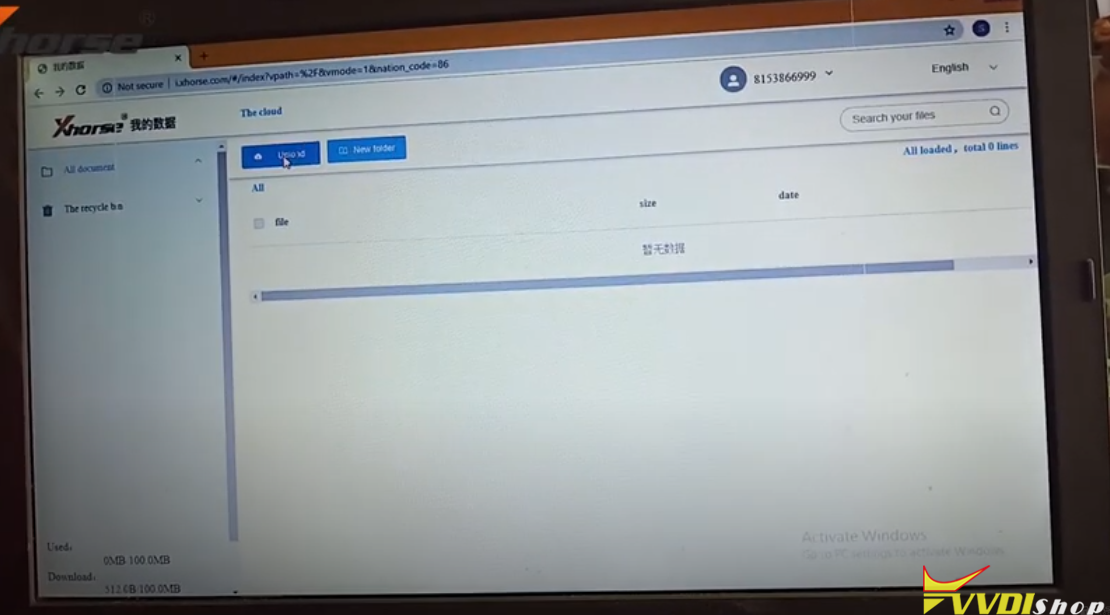
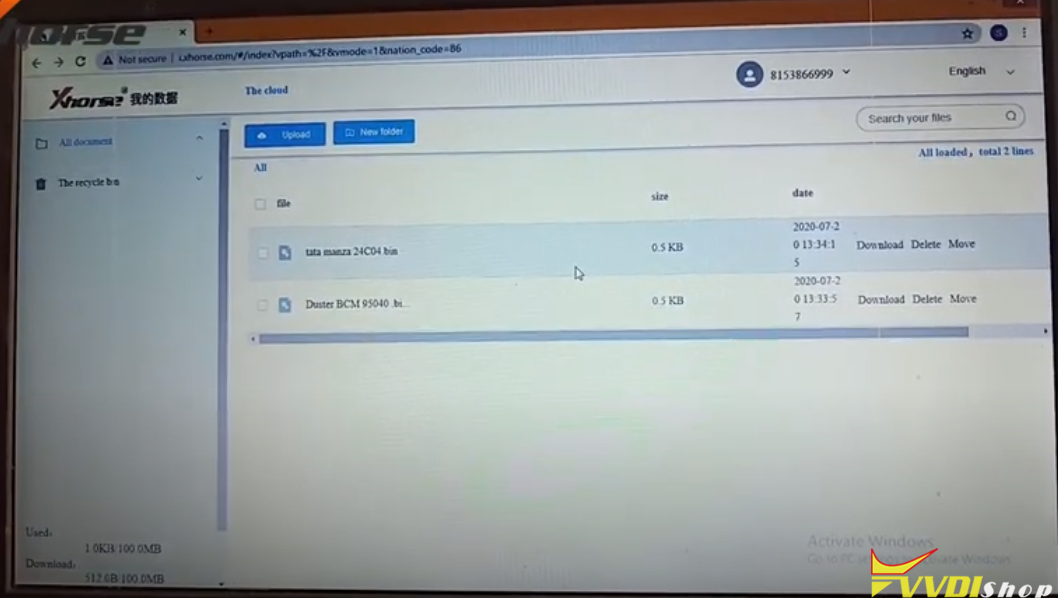
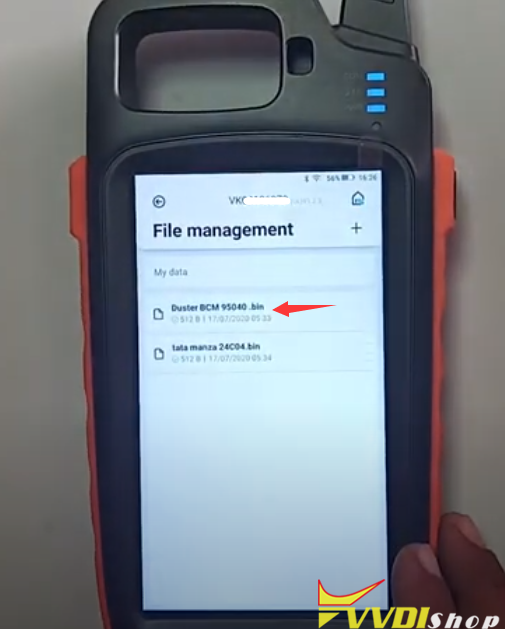
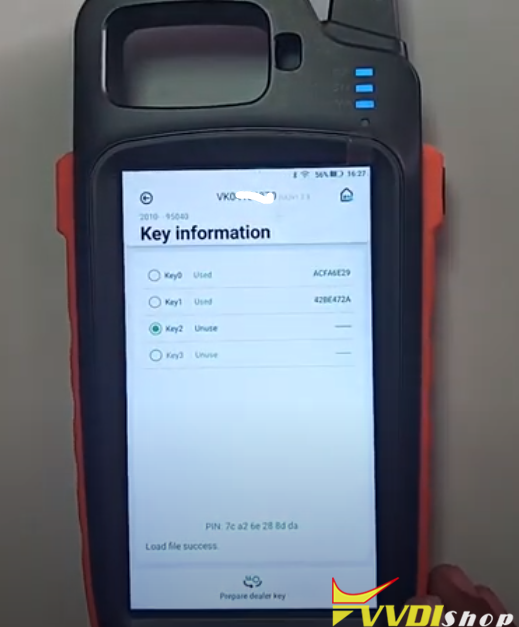
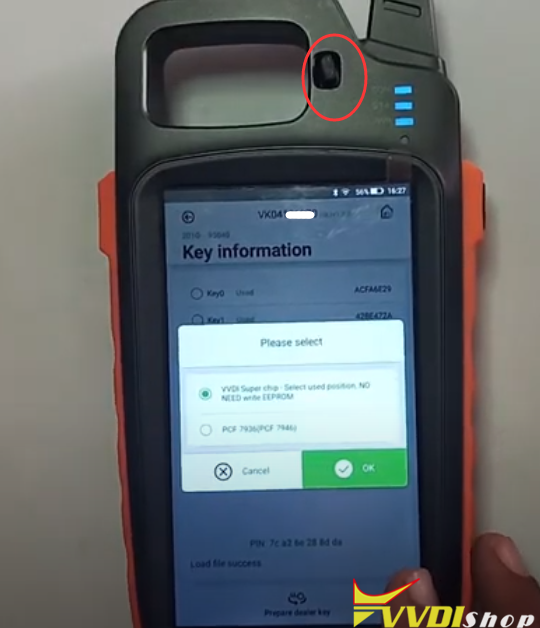
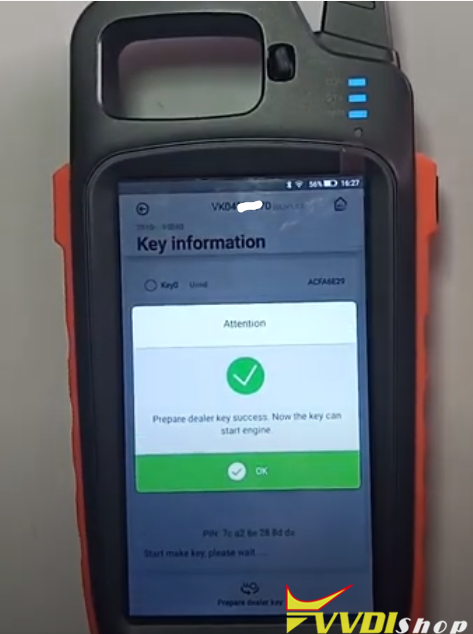
First of all, read and save Duster 95040 eeprom dump data with vvdi prog. In Key Tool Max, select Special Function->Immo data Tool->Europe->Renault->Duster->2010 up 95040 Now you will see File Management menu Open windows browser on PC and login “My Data”, website address http://i.xhorse.com or scan PC QR code to quick login Upload Duster 95040 data from your computer to Xhorse data center You can see Duster dump in key tool max file management Select Duster BCM 95040.bin Select an unused key position Press Prepar dealer key Choose VVDI super chip to be programmed and insert xt27 chip into induction coil, press OK to make dealer key Prepare dealer key success. The key can start engine now. Check transponder key information. Done.

 xhorse vvdi key tool max