VVDI Mini Key Tool read write chip, generate remote wired / wireless

VVDI Mini Key Tool Overview: available with Wireless remote generation, Wired remote generation, Chip generation, the method to change the language and view the newest version number.

First connect VVDI Mini Key Tool

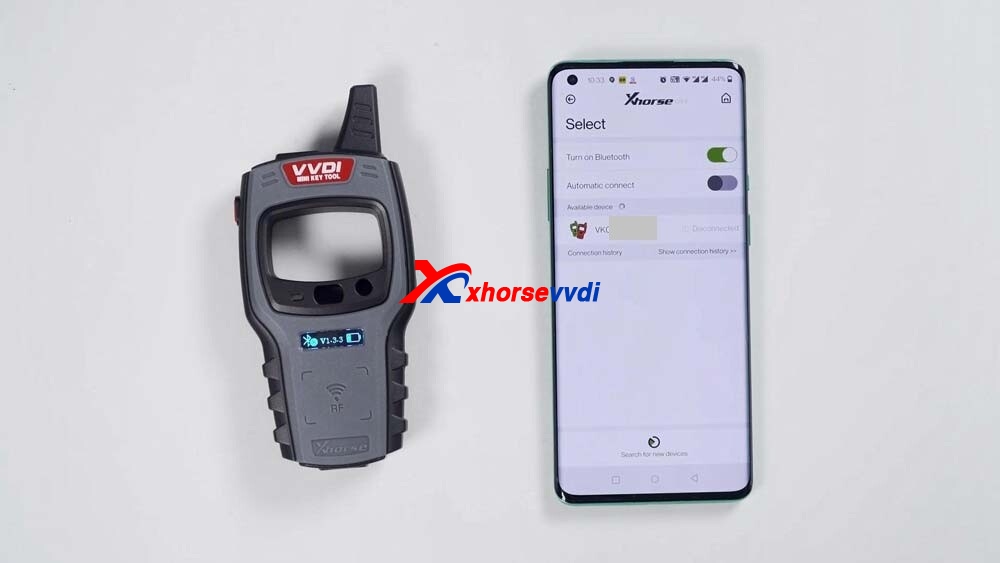
Click “Select”, and it will search for devices.

Long press the power button of the Mini Key Tool, and you can see the serial number on the screen, which means it has been turned on.

Meanwhile, you can see the icon of Mini Key tool in the Xhorse APP, tap the device icon to connect the device.

You will hear two beeps, it means it has been connected.
vvdi-mini-key-tool-unboxing-01

Next, let’s demonstrate how read and generate the chip.

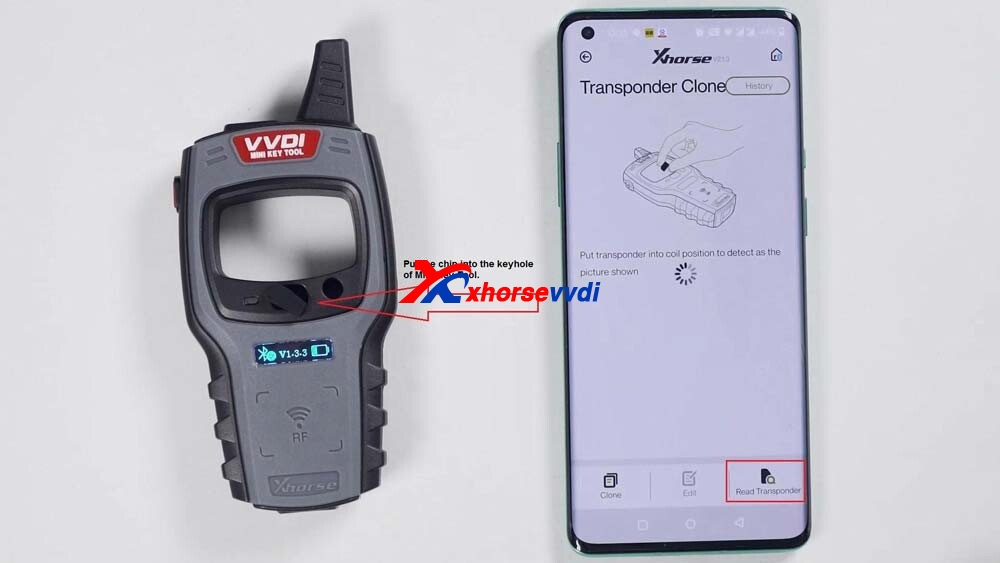
Put the chip into the keyhole of Mini Key Tool.

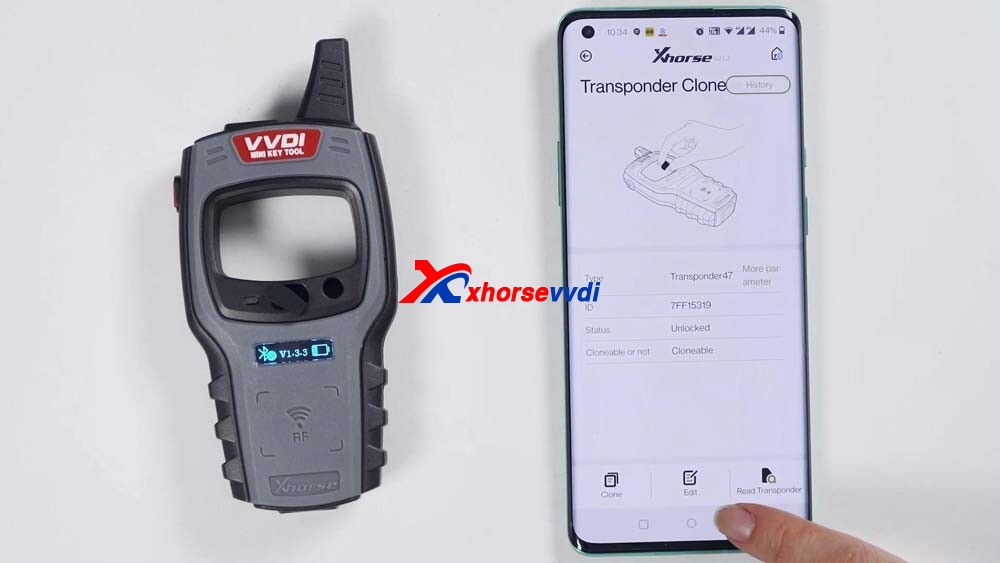
Click on “Read transponder”.

Okay, now the chip is recognized.

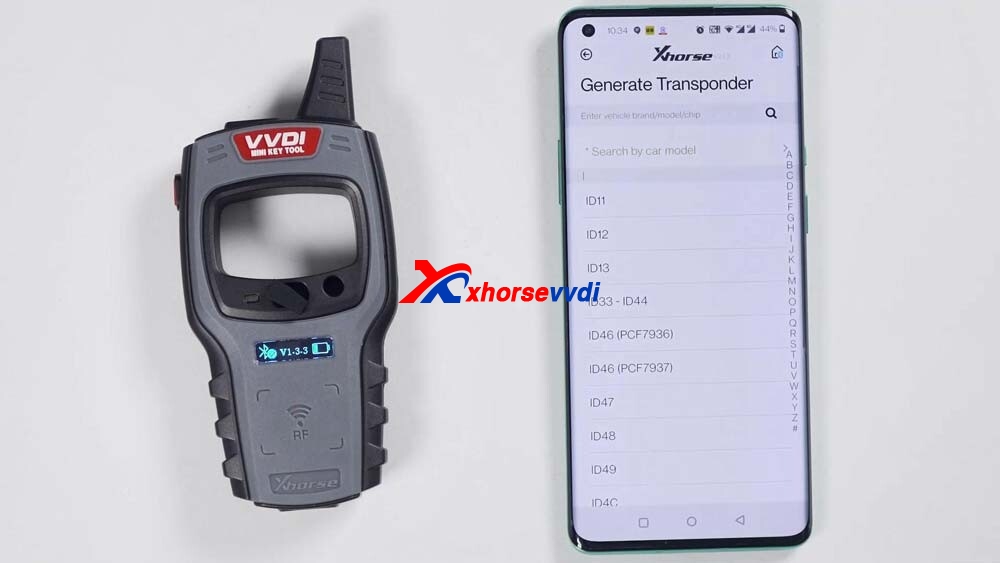
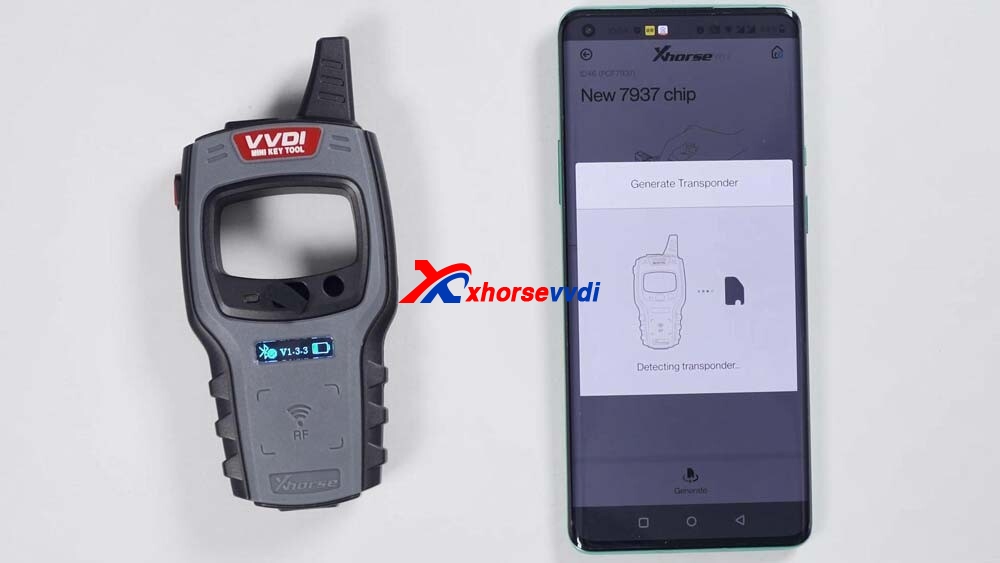
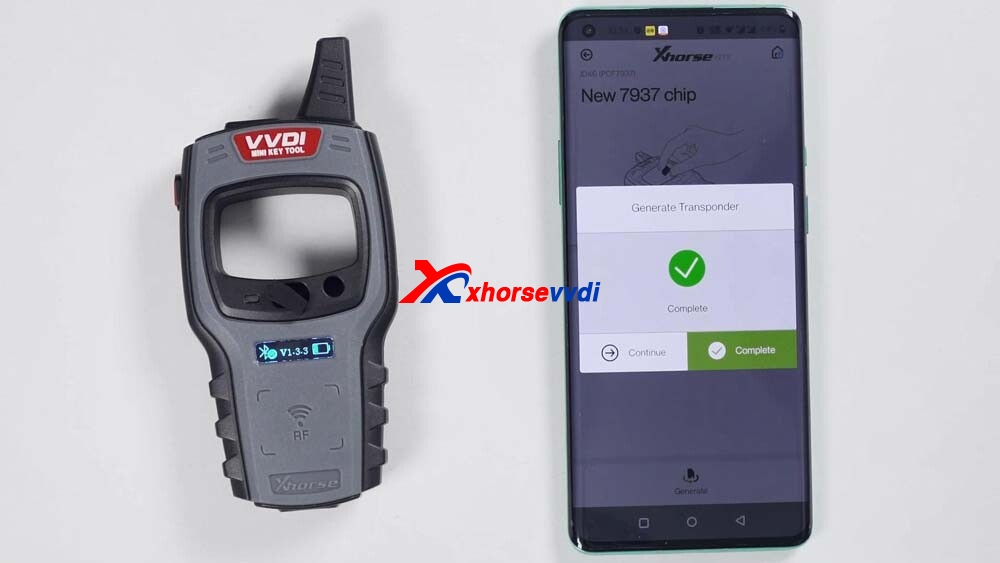
Then click on “Generate Transponder”.

Choose a chip type to be generated, for example, generate ID46 chip, soon, the chip is generated successfully. Go back to click on “Read transponder” to read this chip, it is already the 46 chip that is generated just now.
vvdi-mini-key-tool-unboxing-02
vvdi-mini-key-tool-unboxing-03
vvdi-mini-key-tool-unboxing-04
vvdi-mini-key-tool-unboxing-05
vvdi-mini-key-tool-unboxing-06
vvdi-mini-key-tool-unboxing-07

Next, generate wireless remote.

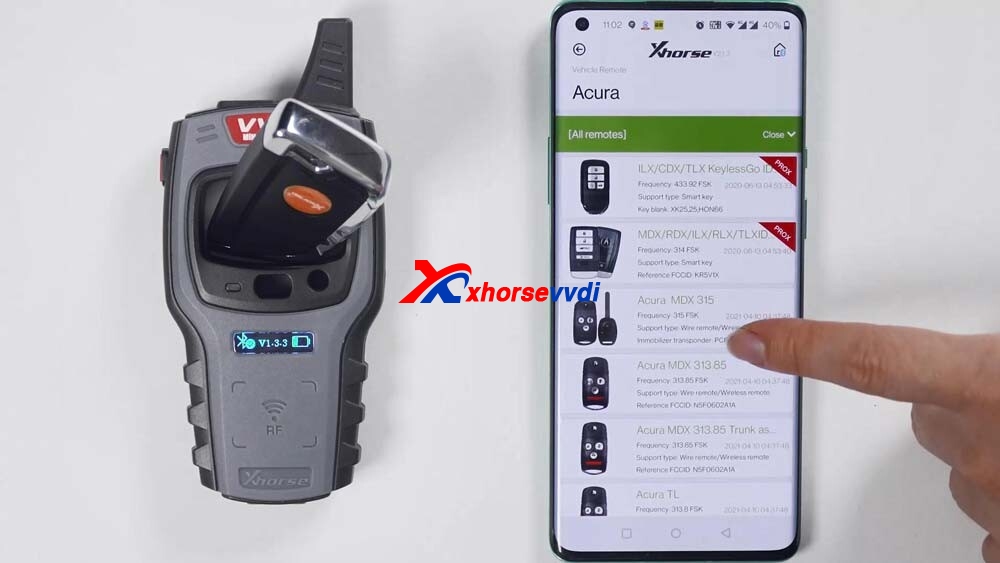
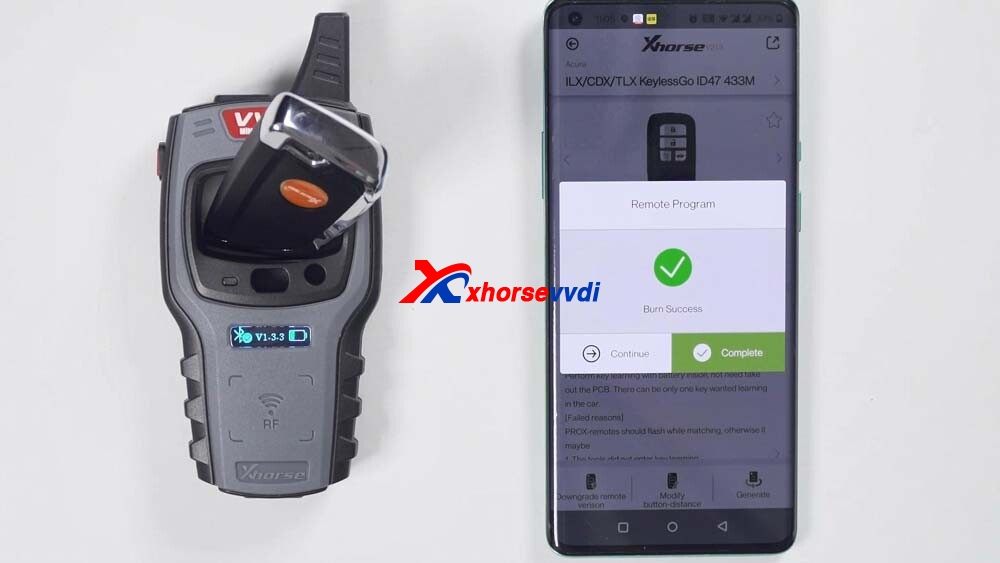
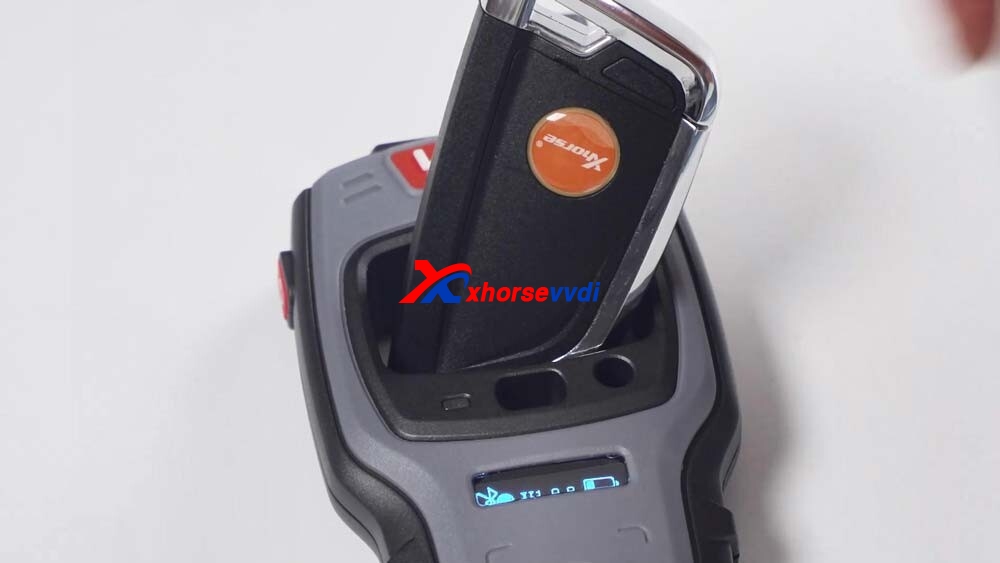
This is a wireless remote, put it into the keyhole of the Mini Key Tool.

Then select the car model you want to generate.

I have smart card so it will generate smart remote.

If it prompts failed to generate, please adjust the position of wireless smart remote, because the coil position may not be able to sense the chip.

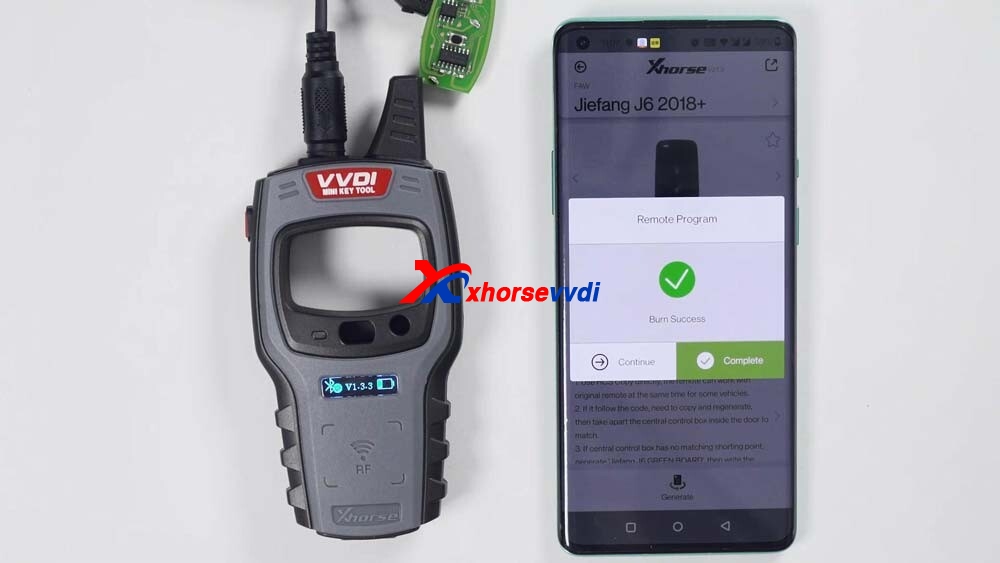
Ok, generation succeed.
vvdi-mini-key-tool-unboxing-08
vvdi-mini-key-tool-unboxing-09
vvdi-mini-key-tool-unboxing-10
vvdi-mini-key-tool-unboxing-11

Next, generate wired remote.

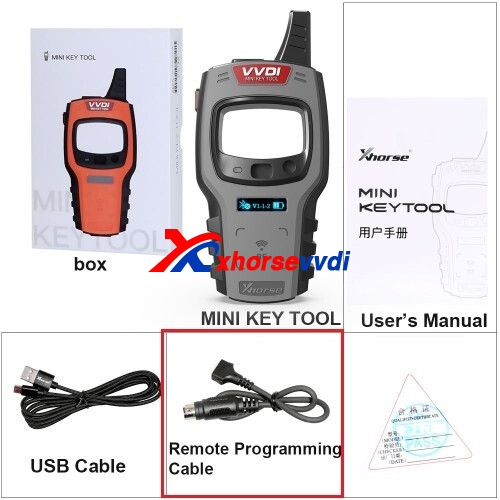
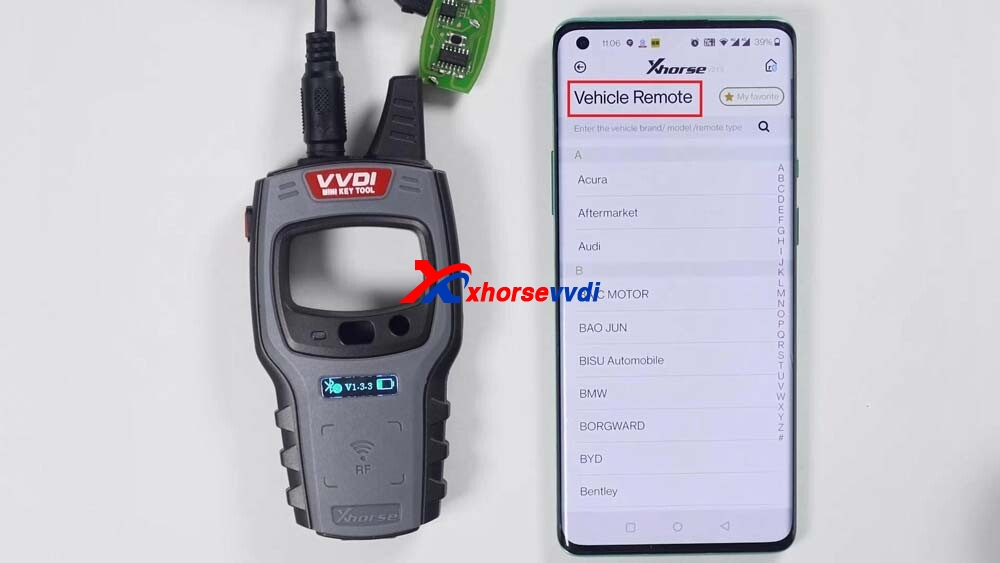
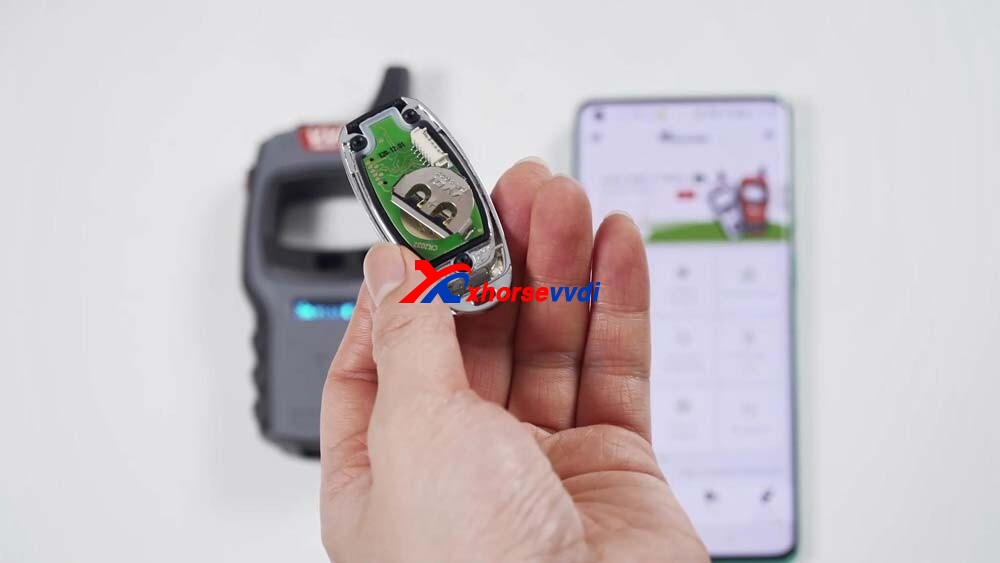
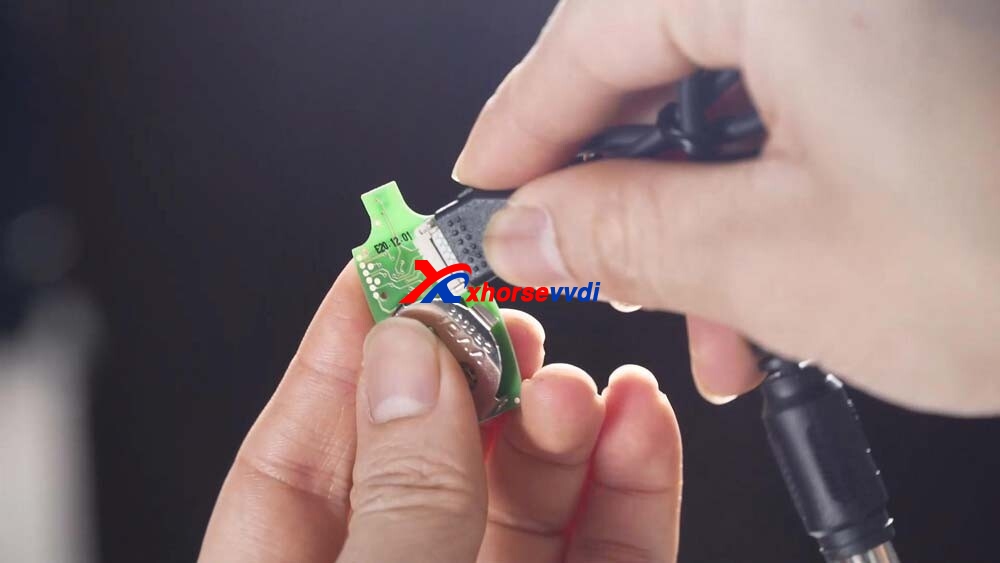
This is a wired remote, just remove its cover and you will see that there is a chip interface which can be connected to this remote programming cable.

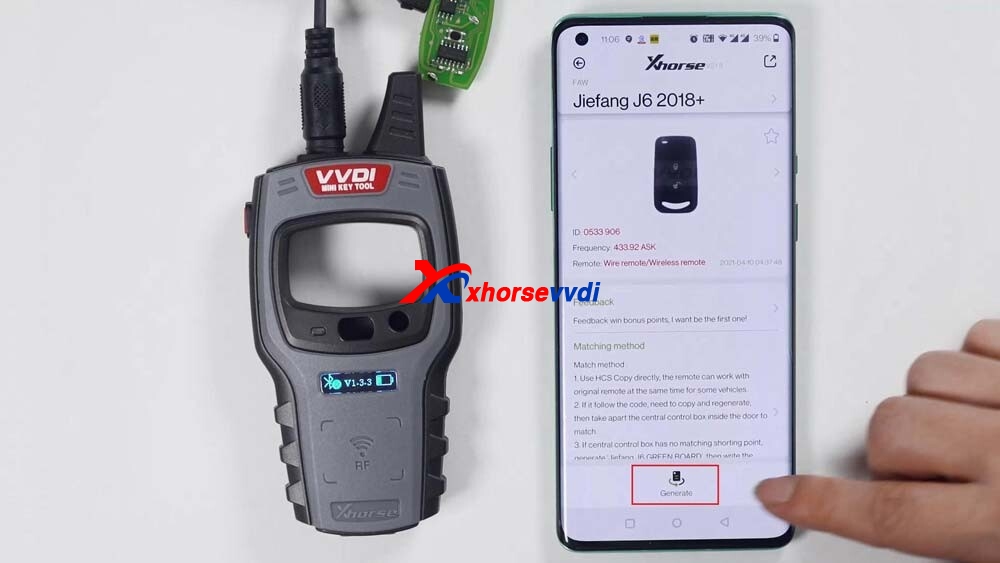
Then you can generate keys by selecting “Vehicle remote”, select the model you want to generate, click “generate”, after the generation is complete, click OK.
vvdi-mini-key-tool-unboxing-11
vvdi-mini-key-tool-unboxing-12
vvdi-mini-key-tool-unboxing-13
vvdi-mini-key-tool-unboxing-14
vvdi-mini-key-tool-unboxing-15
vvdi-mini-key-tool-unboxing-16
vvdi-mini-key-tool-unboxing-17
vvdi-mini-key-tool-unboxing-18

Finally, check the version and change the language

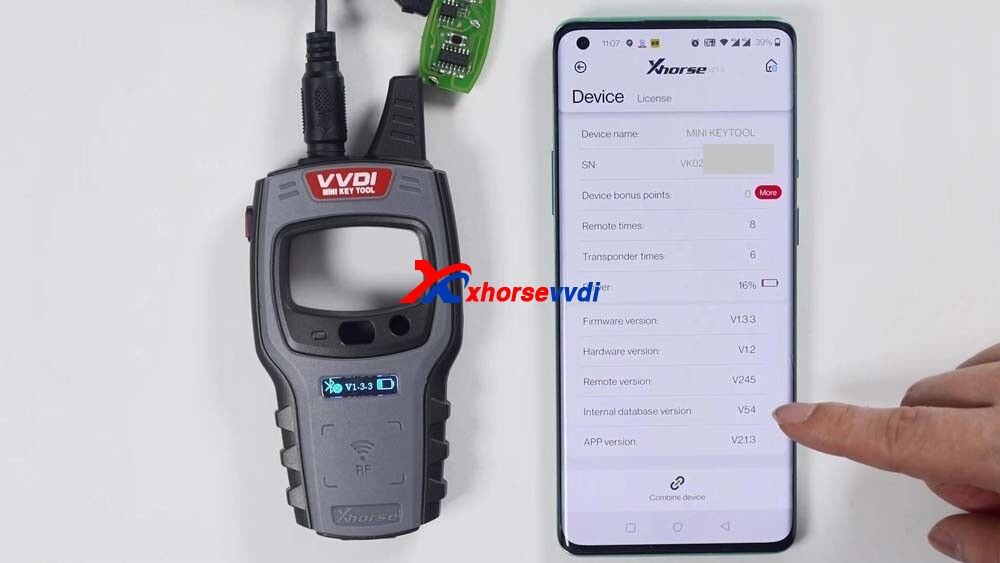
Just click “Device information” to view the latest version.

If there is the latest version, it will let you update as soon as you open the software and you do not need to enter “Device information” to update.

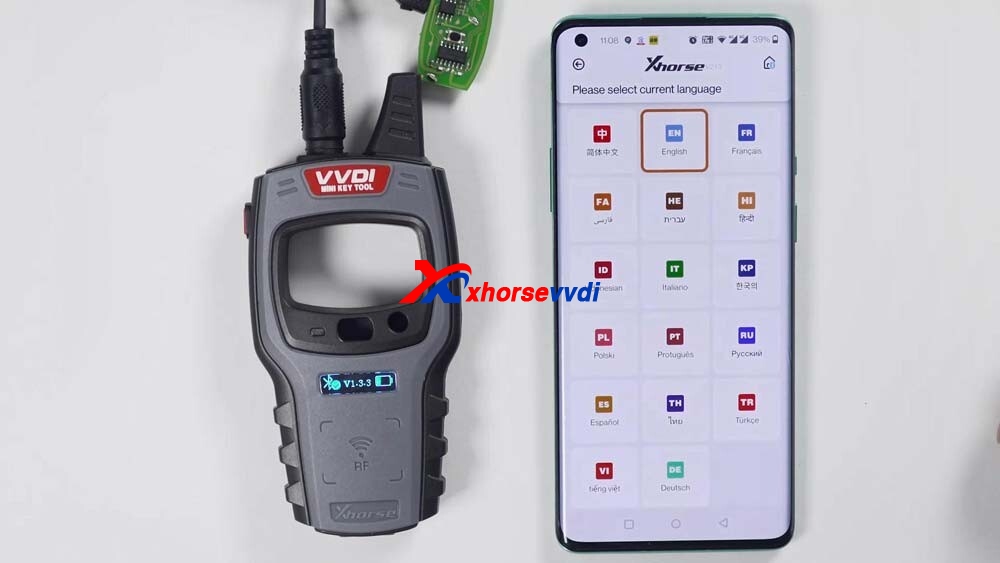
How to change the language: Click “Select” and then “Language” to change the language you want.
vvdi-mini-key-tool-unboxing-19
vvdi-mini-key-tool-unboxing-20

Enjoy!

www.xhorsevvdi.com

Using Xhorse MINI PROG Solder-free Programmer Read BMW CAS4+ and Land Rover RFA

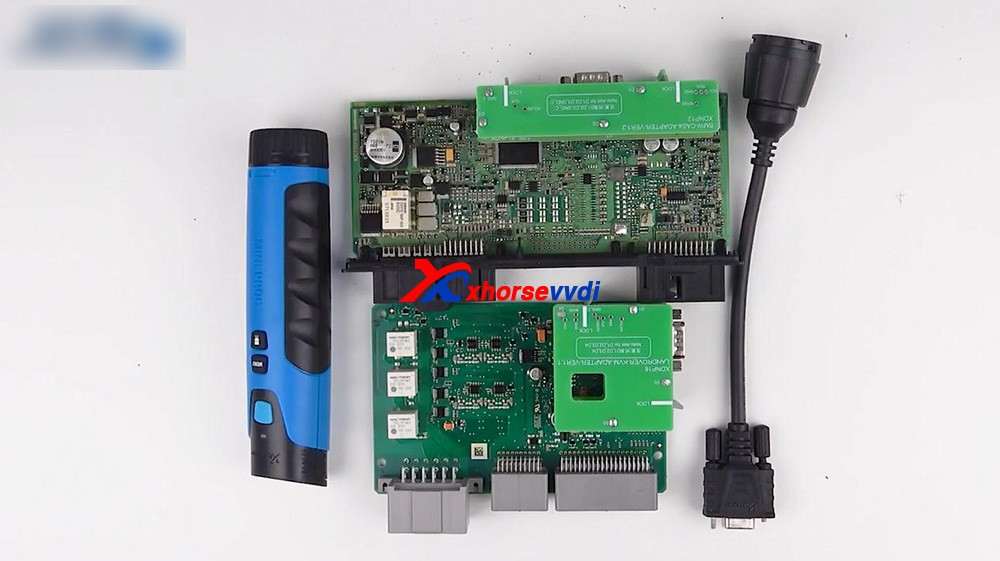
 As known, we already released multiple adapters for Xhorse Mini PROG, let’s have a look at what they look take BMW CAS4+ and Land Rover RFA for example. And then demonstrate how easy Mini Prog is used.


Here we go:
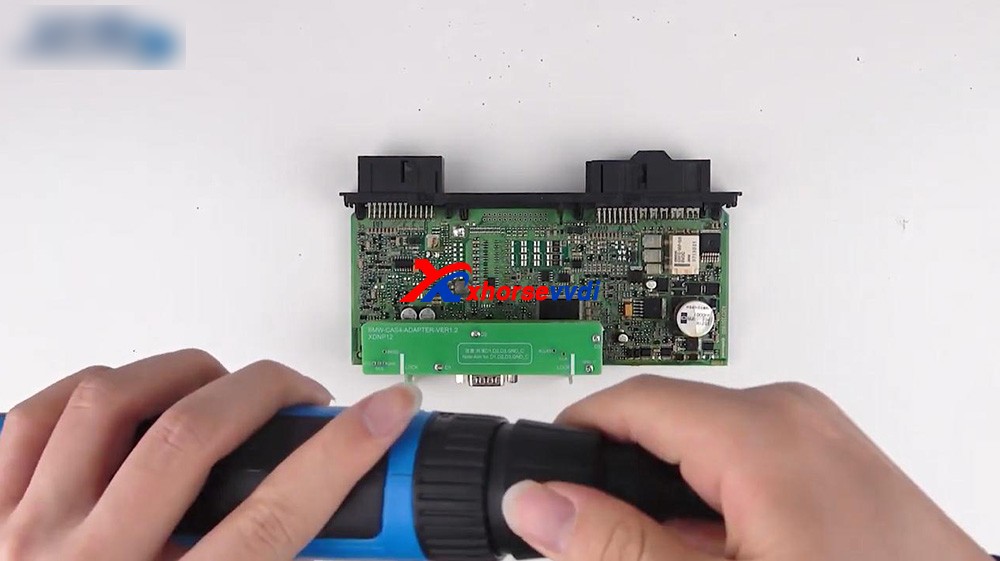
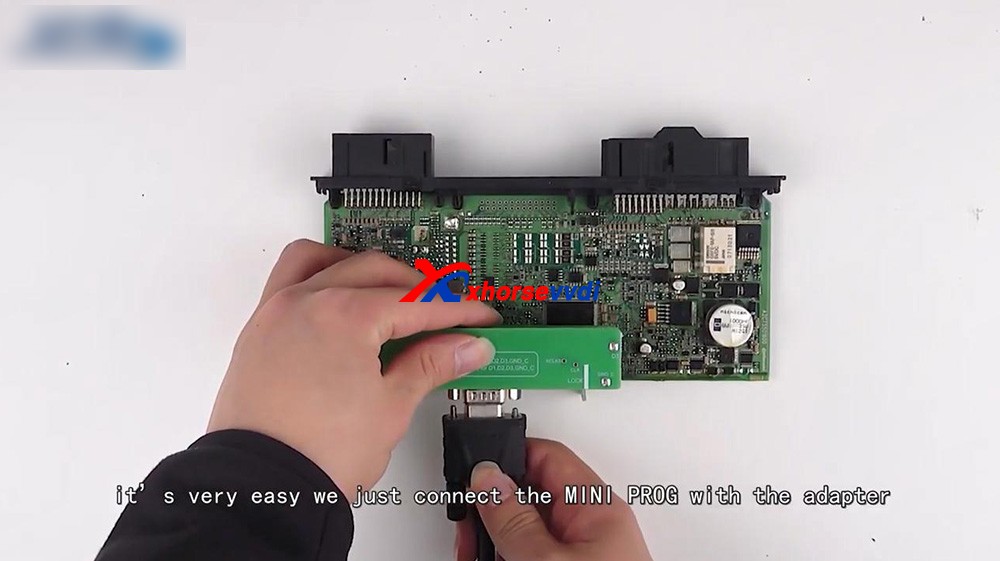
Connect Mini Prog and the cable, after inserting it, just roll Mini Prog to lock it.


1. Firstly, read the CAS4 in BMW by Mini Prog.
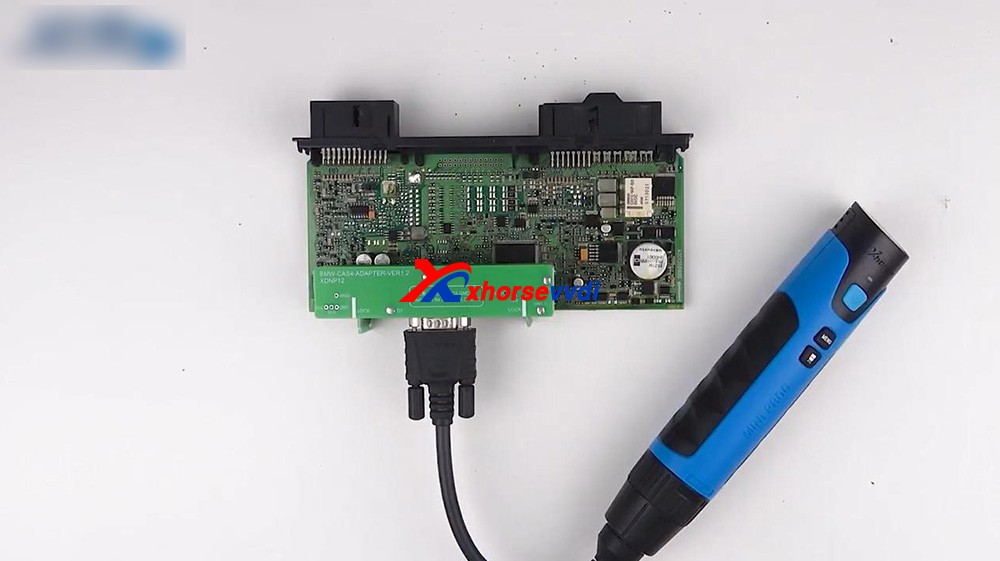
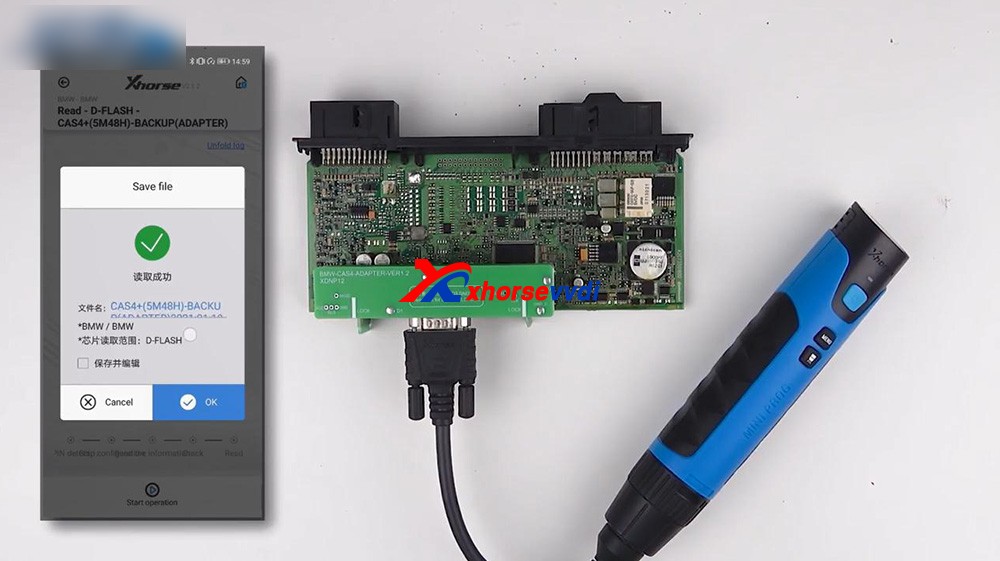
It is very easy, just connect Mini Prog with the BMW CAS4+ adapter via cable and pay attention to the position of plug.


After that, we operate in Xhorse Application.
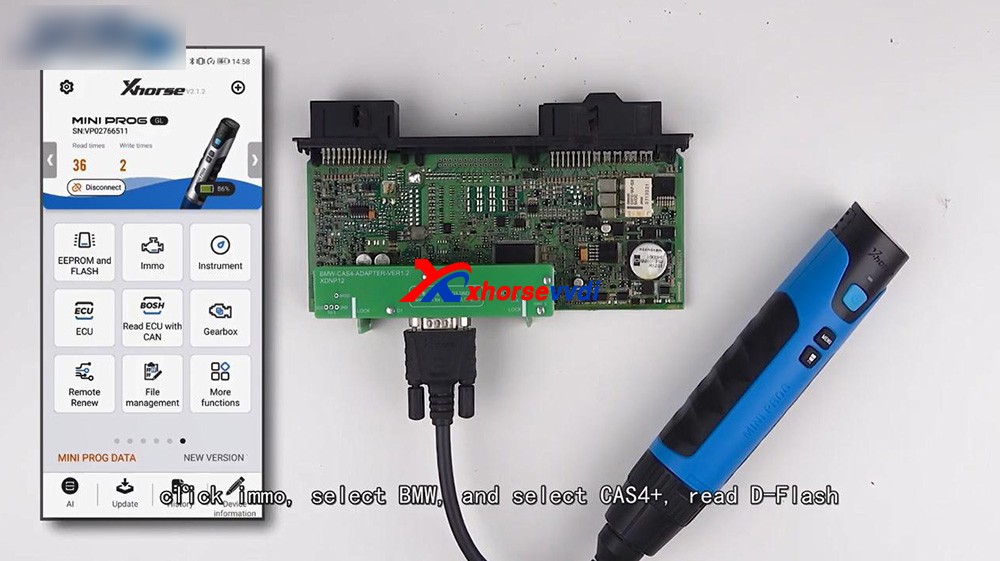
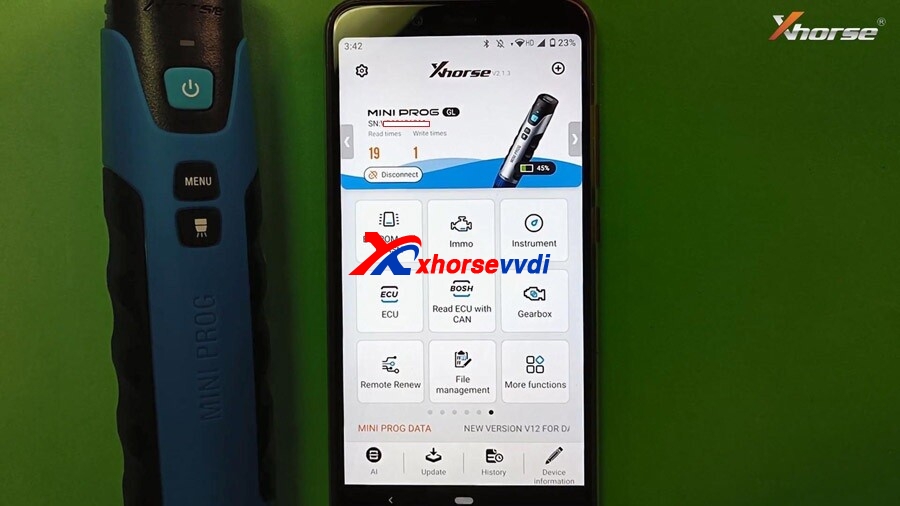
Connect Mini Prog to phone via Bluetooth.

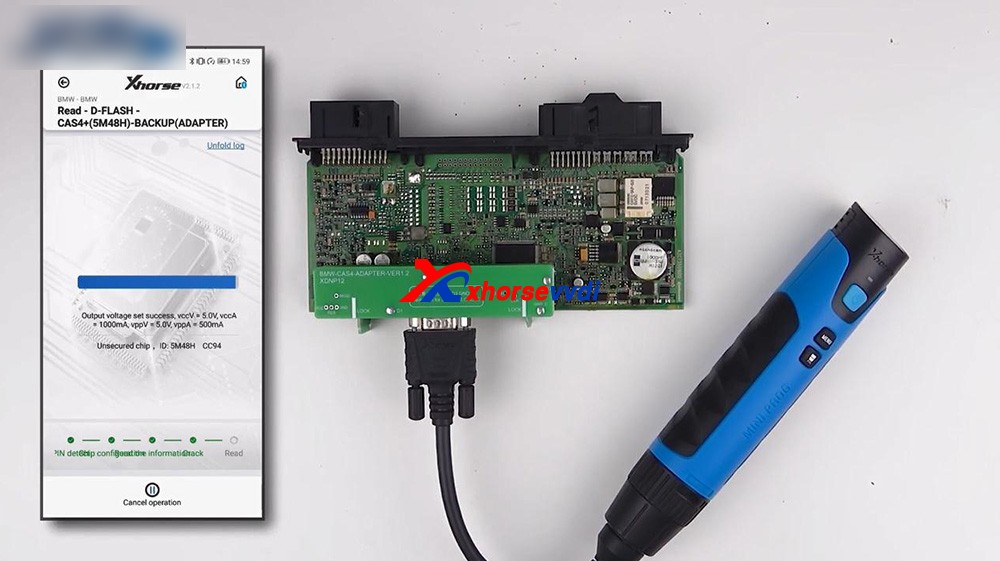
Click on “Immo”, select “BMW” and select “CAS4+” to read D-flash.


Okay, you can rename the file and find it in file management.


After we get the data, we can load it to VVDI2 which will help us program the key.
For your information, if all keys lost you should get ISN from the engine.

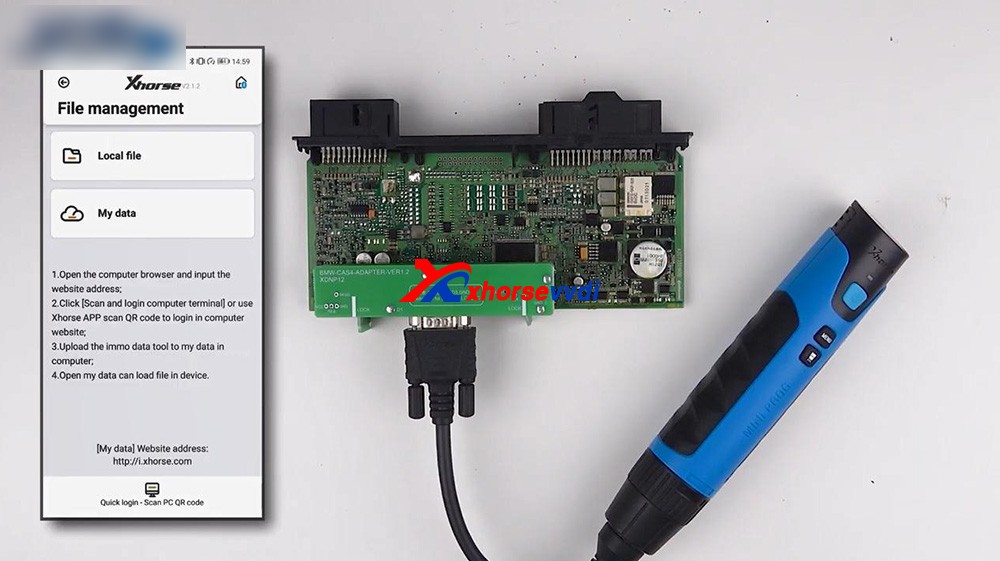
Next is back to Mini Prog menu and select “File management”, click on “Local File”, and then “Mini_Prog” folder, then “CAS4 df.bin” is contained.


2. Next one is the RFA of Land Rover.
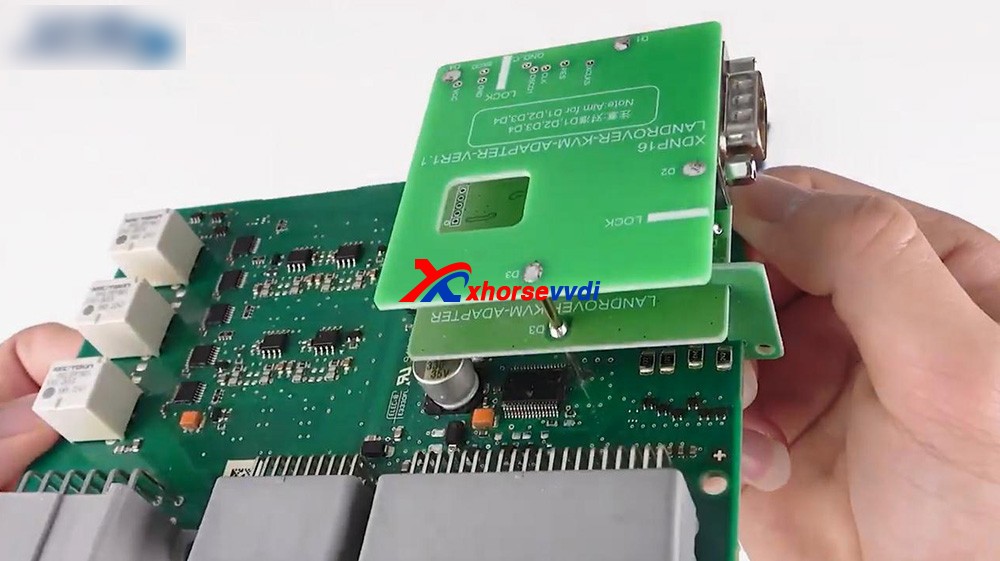
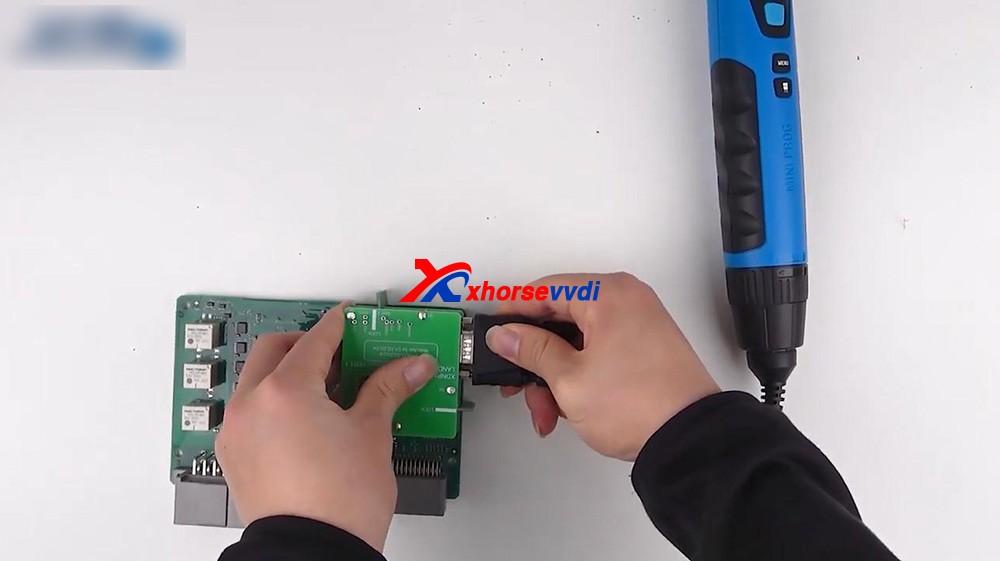
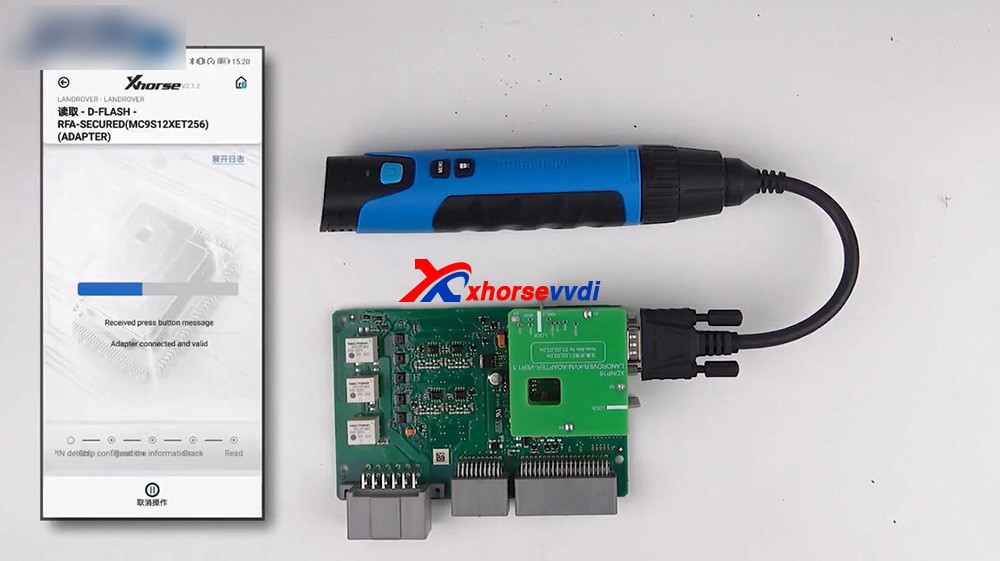
Let’s take a look at the Land Rover RFA adapter connected to the PCB, it’s very stable.


Then connect Mini Prog to the adapter.


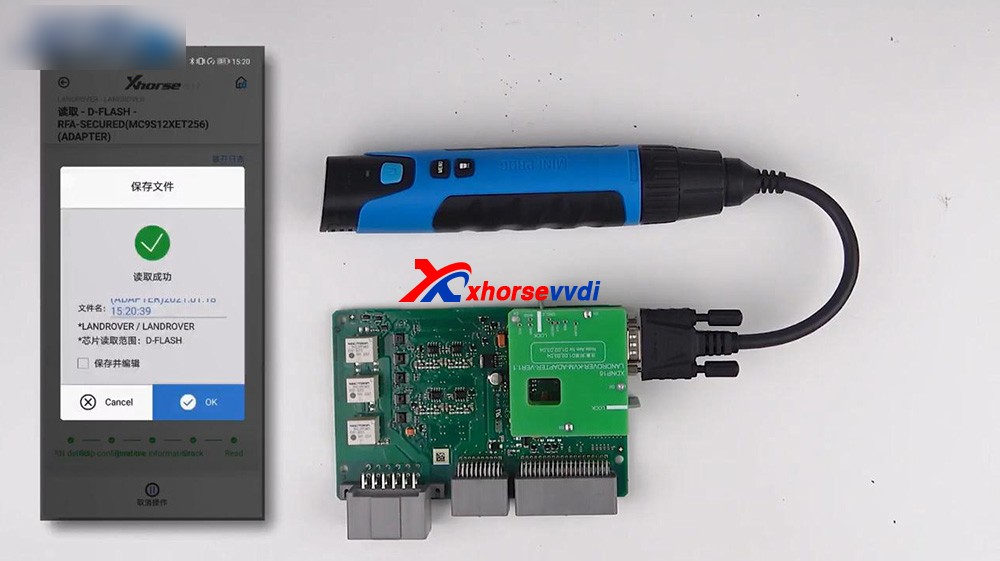
Click on “Immo”, select “Land Rover” and select RFA, read the D-FLASH and EEPROM.
Now we have the D-flash data of Land Rover.


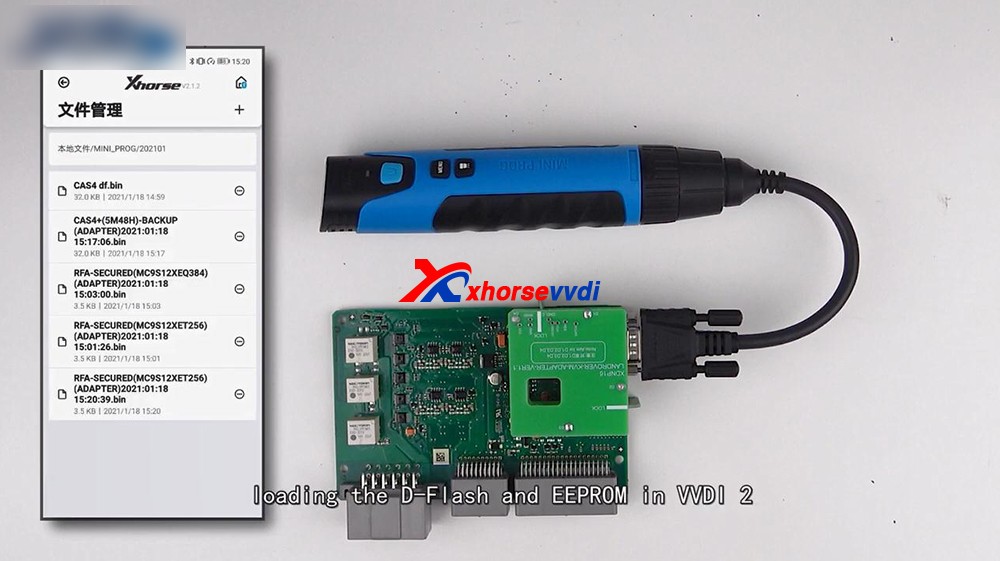
We can also find the file in “File Management”.

3. Loading the D-flash and EEPROM in VVDI2, and you can program the key for Land Rover.


Alright, thanks.

http://blog.xhorsevvdi.com/how-to-use-mini-prog-bmw-cas4-adapter-and-land-rover-rfa/

Possible to use VVDI prog to renew Opel/Vauxhall keys?

Yes, Xhorse VVDI Prog is able to renew Opel/vauxhall keys,here you are:
Free download GM renew file for Xhorse VVDI Prog:https://mega.nz/file/ruhSxb5A#Rm9CKc2jwMkhPMcpnv3to3j3bl1j9jv0wcov83nqS3sUse to renew Opel/vauxhall keys (Delphi, valeo and Siemens types)Different number key does not matter if it’s another number the file is the same. How to use Xhorse VVDI Prog to Reset/ renew/ virgin PCF7941 Opel Zafira B/ Astra H?Connection…

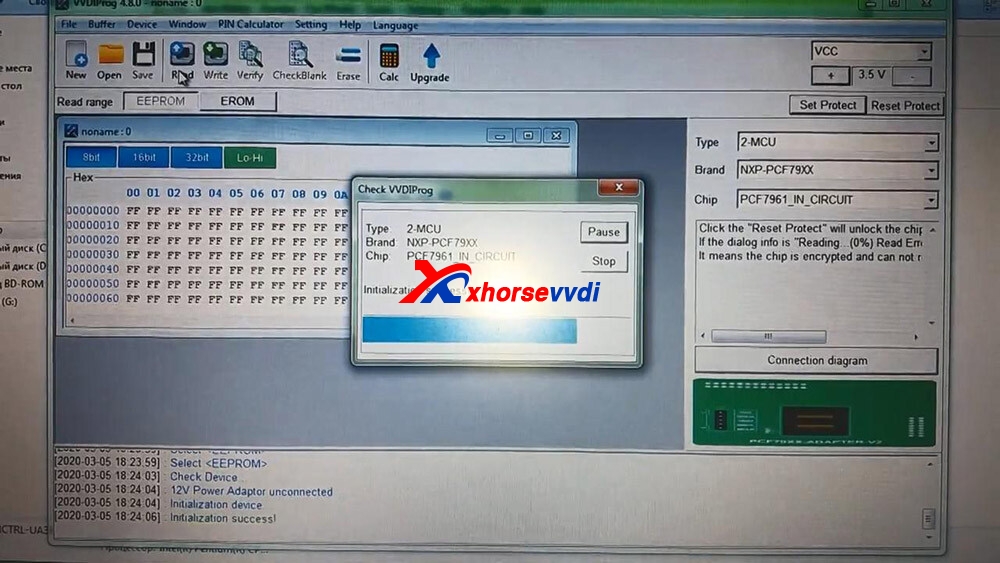
xhorse-vvdi-prog-renew-renew-gm-opel-key-01

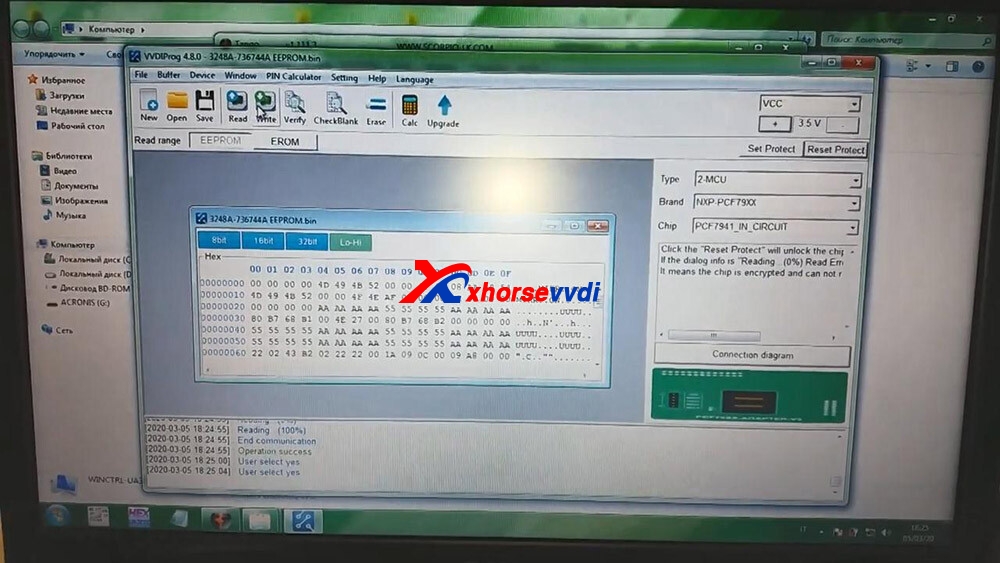
 Open VVDI Prog and select chip “PCF7961_IN_Circuit”.

xhorse-vvdi-prog-renew-renew-gm-opel-key-02

 Click on “Read”.

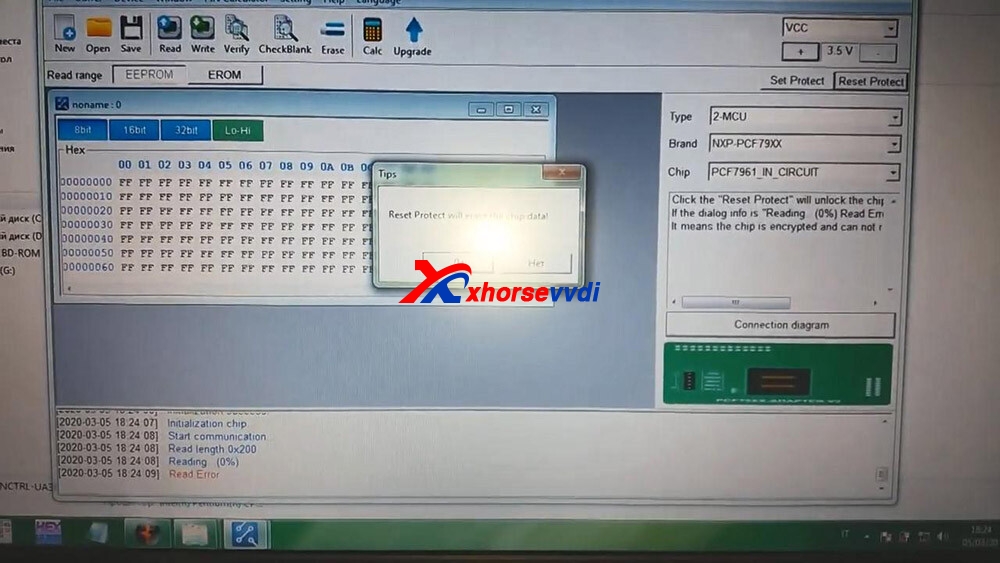
xhorse-vvdi-prog-renew-renew-gm-opel-key-03

 Click on “Reset Protect”.

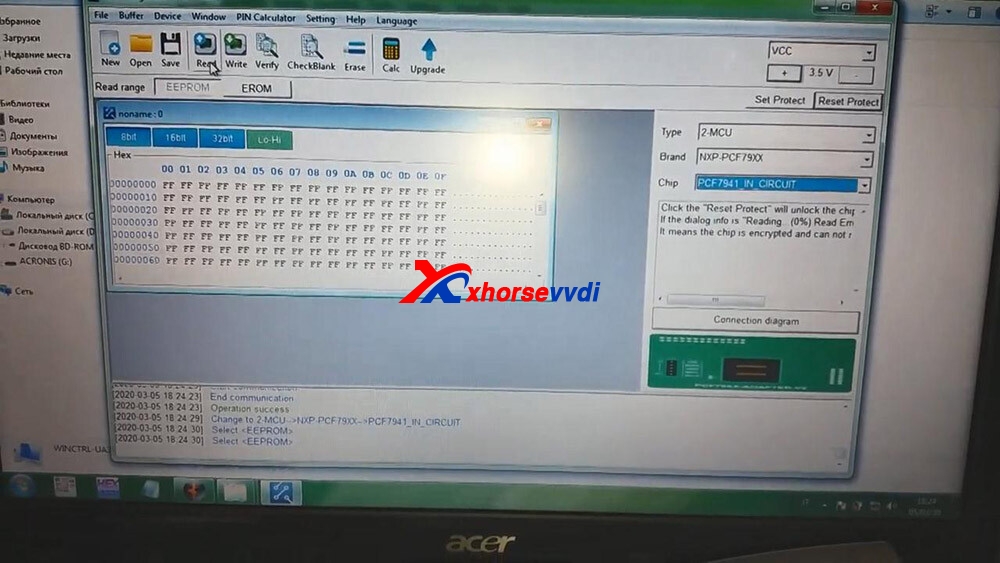
xhorse-vvdi-prog-renew-renew-gm-opel-key-04

 Click on “PCF7941_IN_Circuit” and then “Read”.

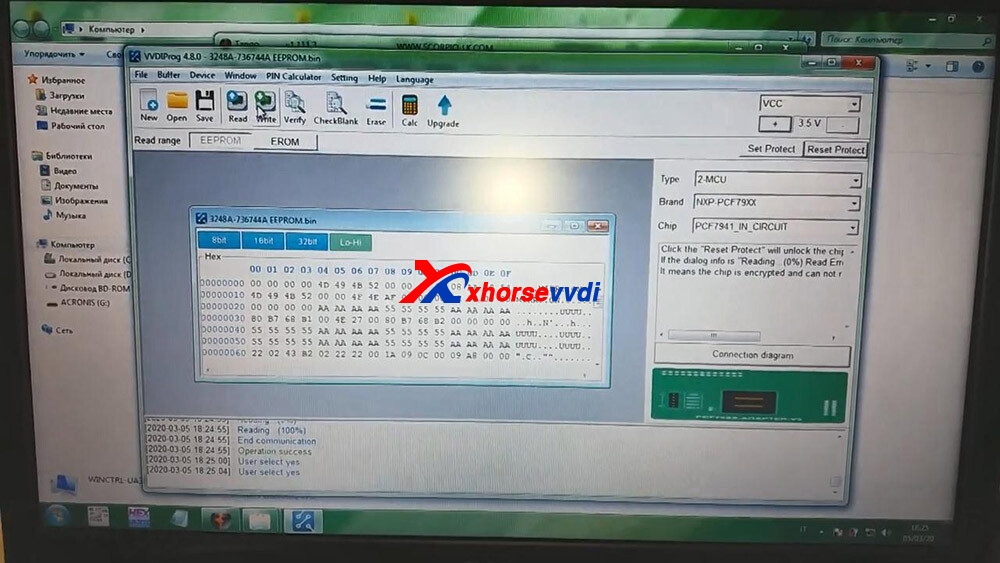
xhorse-vvdi-prog-renew-renew-gm-opel-key-05

 Click on “Open” to choose the bin file.and then click on “Write”.

xhorse-vvdi-prog-renew-renew-gm-opel-key-06

 Click on “Set Protect”.

xhorse-vvdi-prog-renew-renew-gm-opel-key-07

 Alright, renew successfully and input the PCF7941 chip into the Key programmer to program the key. Enjoy!
https://xhorsesupport.blogspot.com/

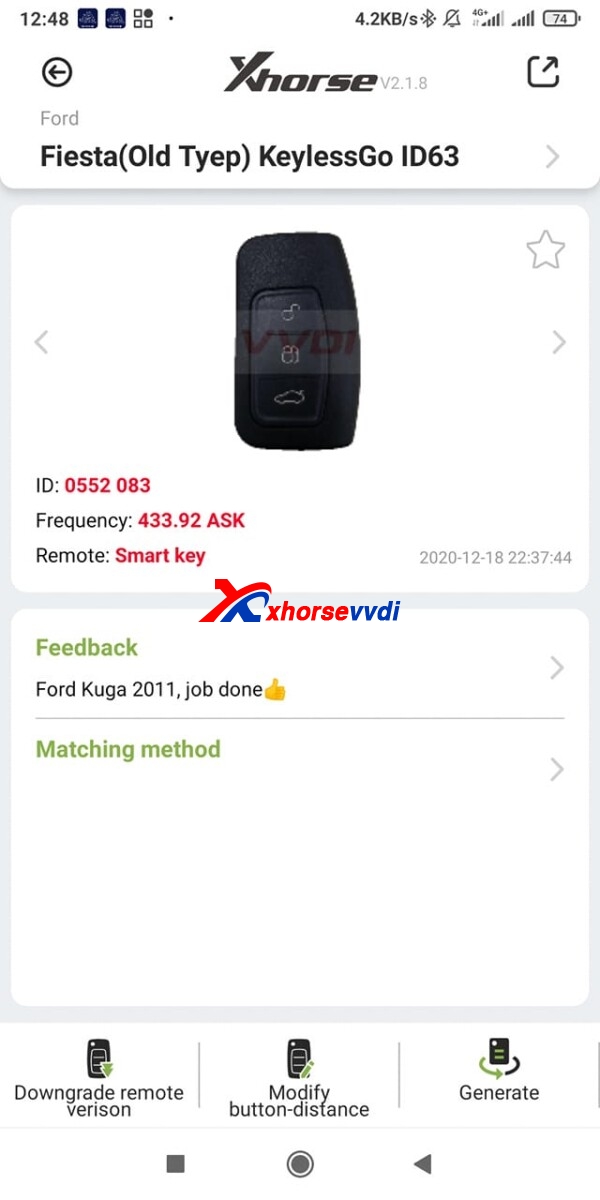
How to generate Fiesta (Old Type) KeylessGo ID63 remote?

Trying to generate Fiesta (Old Type) KeylessGo ID63 remote using Xhorse universal smart key and smart key, But once generated it, still reads as id46 no change .

Fiesta (Old Type) KeylessGo ID63 remote

Advice:

You need a separate transponder in the key, the remote function is the keyless part transponder is emergency blade for start.

Just program remote and leave them with a HU101 key blank cut with transponder inside for emergency start.

Finally, it worked

Just added chip first them added remote works fine, just no emergency start as no place to put chip in remote.

They have old key with emergency blade and chip anyway as was remote that was playing up

So he’s was happy.

Hope it helps!

www.xhorsevvdi.com

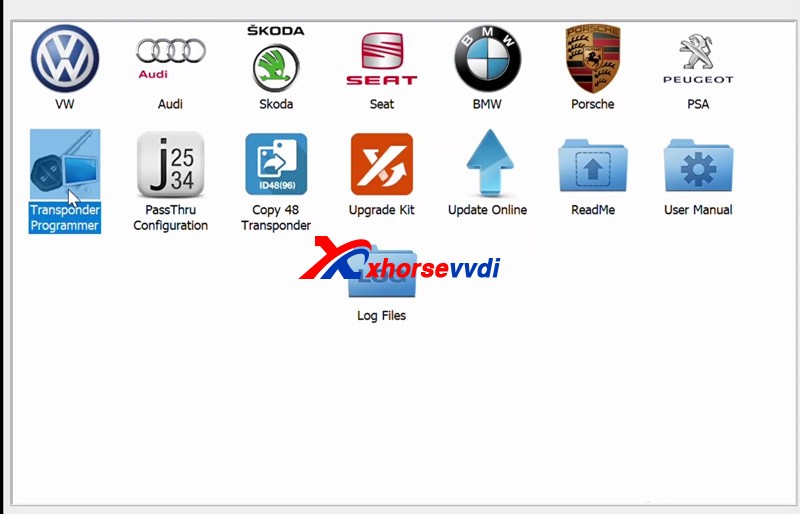
Xhorse VVDI2 & VVDI PROG program 2007 Saab 9-3 add key

Today, we took 2007 Saab 9-3 add a spare key as an example , show you how to use Xhorse VVDI2 and VVDI PROG work together ,Some users struggle to obtain the PIN for Saab’s and cannot program via OBD so we show you the method that will overcome this problem.

  • VVDI Prog can read the EEPROM dump file
  • VVDI2 transponder programmer software program chip.

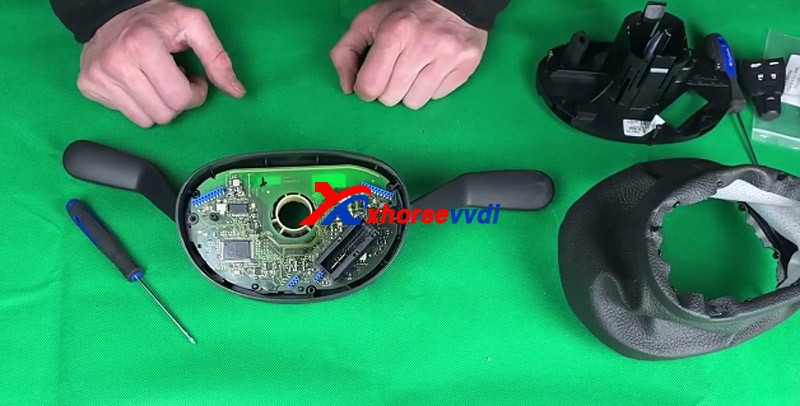
Need: Removed the CIM unit from this Saab 9-3
2007-Saab-9-3-Spare-via-xhorse-vvdi2-vvdi-prog-01
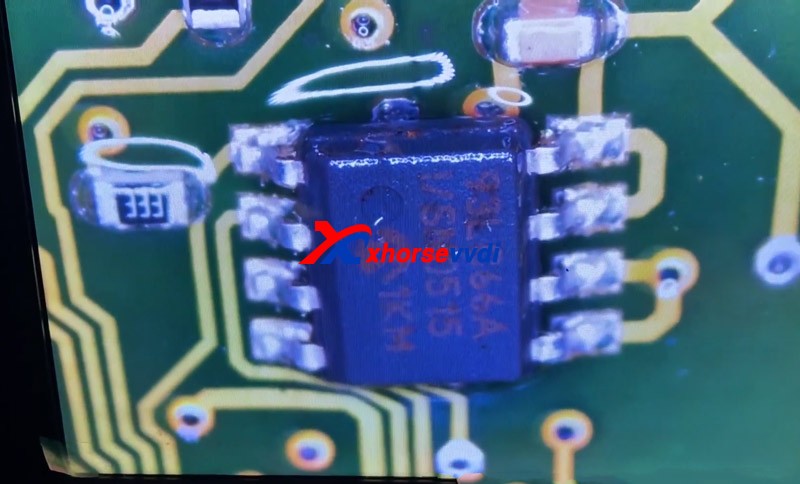
To identify the chip that needed reading
2007-Saab-9-3-Spare-via-xhorse-vvdi2-vvdi-prog-02
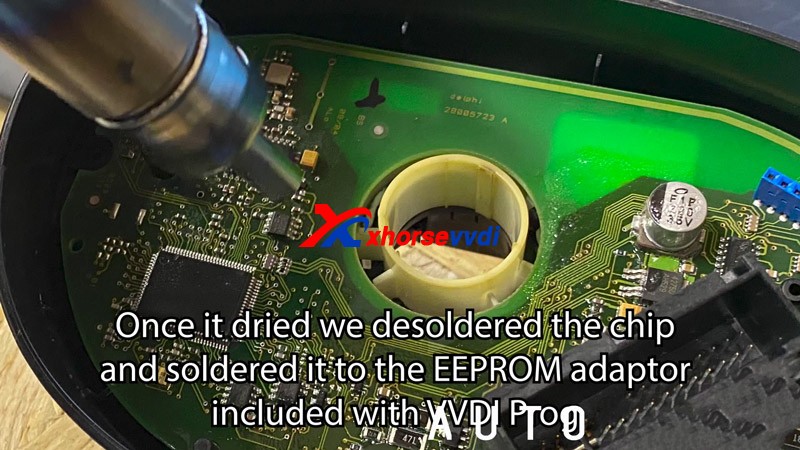
if we couldn’t see what number chip it was,spaying the chip with some brake cleaner did the trick, and don’t worry, this is safe and won’t cause any damage
once it dried we desoldered the chip and soldered it to the eeprom adaptor included with VVDIProg
2007-Saab-9-3-Spare-via-xhorse-vvdi2-vvdi-prog-03
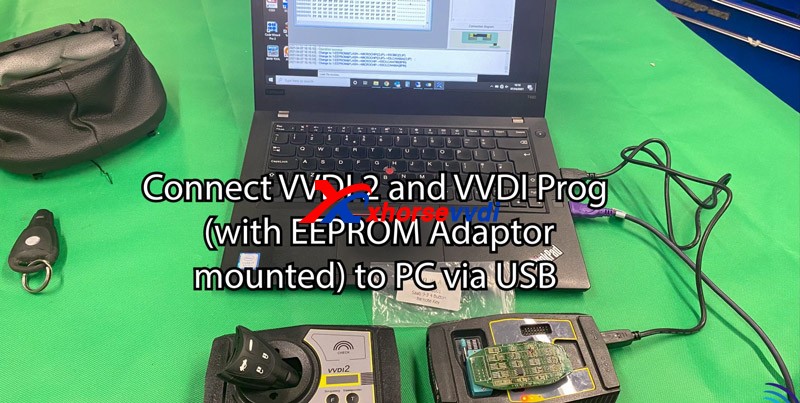
Connect vvdi2 and VVDI prog (with EEPRO Adaptor mounted) to PC by USB
2007-Saab-9-3-Spare-via-xhorse-vvdi2-vvdi-prog-04
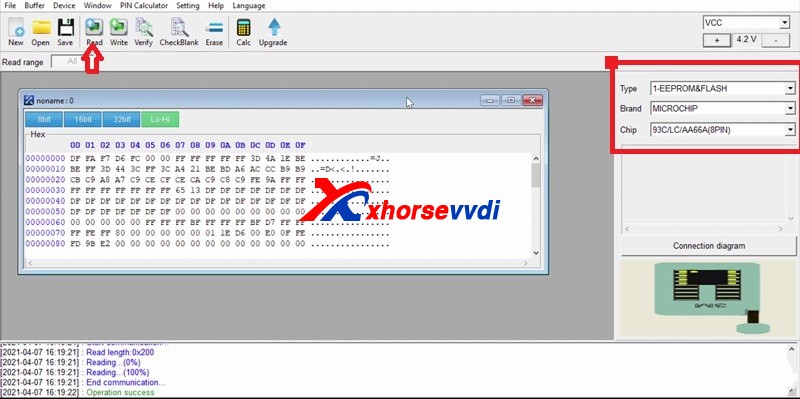
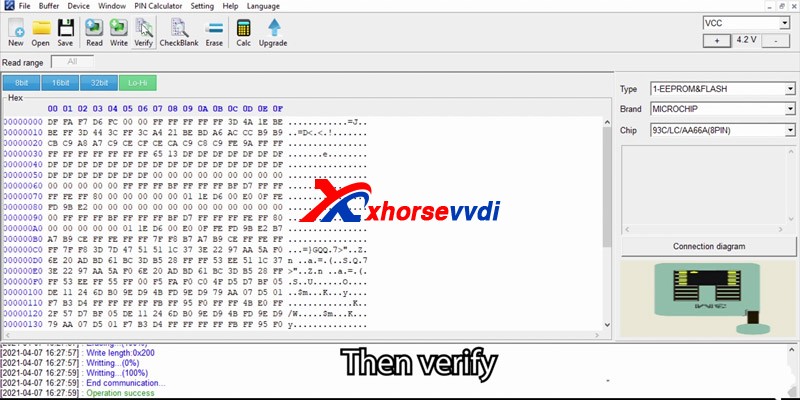
Change type to “1-EEPROM & Flash” >>Change brand “MICROCHIP”>>
Change Chip to 293/lc/AA66A (8PIN)
Then click read 05
2007-Saab-9-3-Spare-via-xhorse-vvdi2-vvdi-prog-05
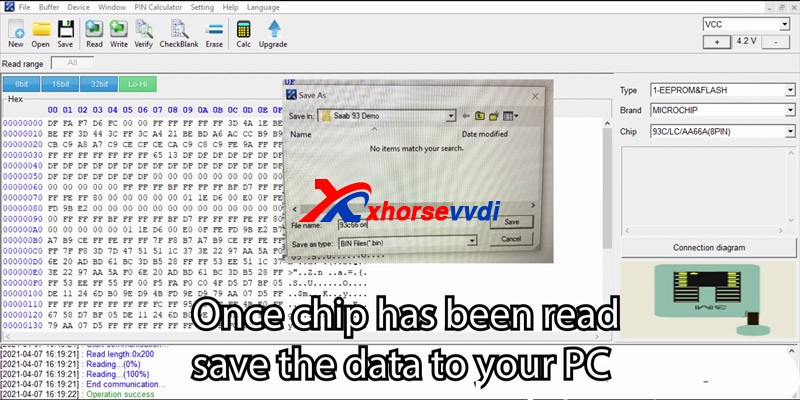
Once the chip has been read save the state your PC
2007-Saab-9-3-Spare-via-xhorse-vvdi2-vvdi-prog-06
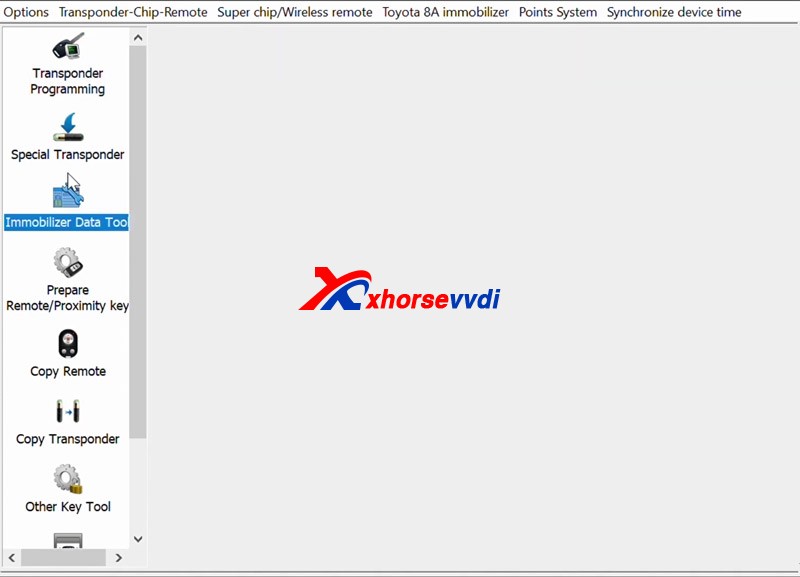
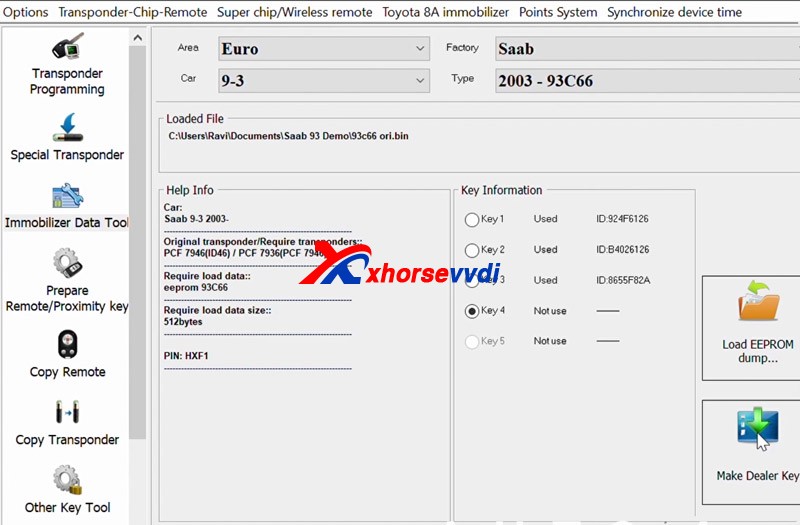
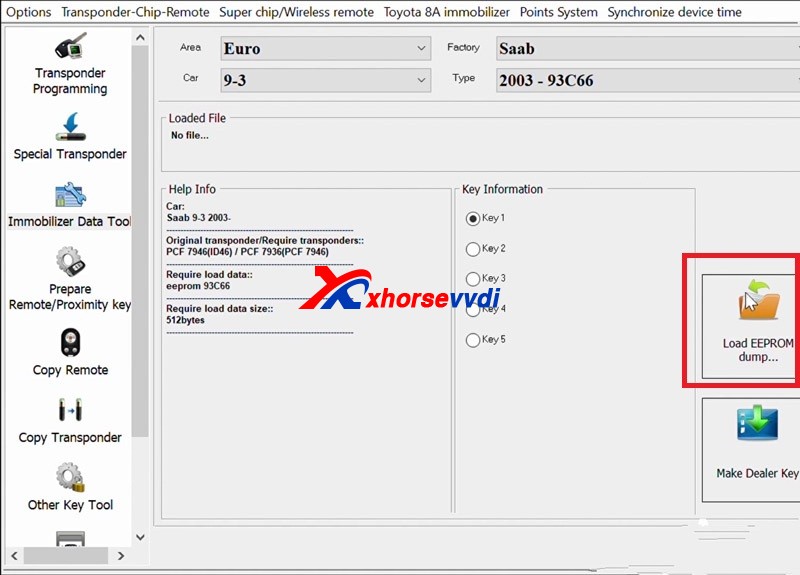
Select vehicle by changing area factory car and type
load the file that you saved Prior to this step
select key destination
2007-Saab-9-3-Spare-via-xhorse-vvdi2-vvdi-prog-072007-Saab-9-3-Spare-via-xhorse-vvdi2-vvdi-prog-082007-Saab-9-3-Spare-via-xhorse-vvdi2-vvdi-prog-09
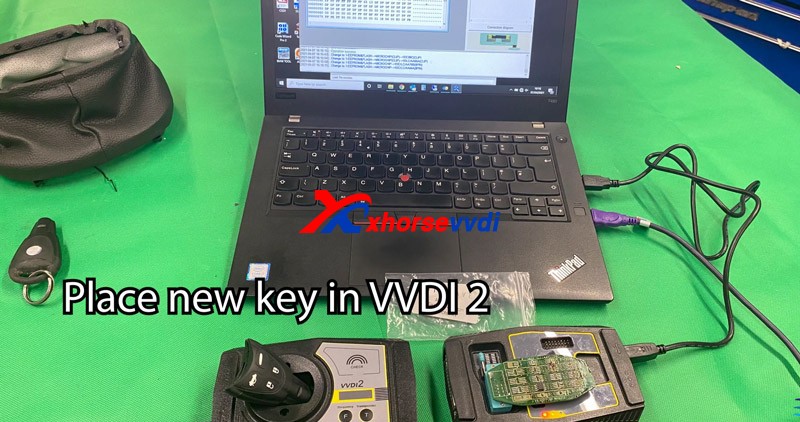
Place the new key in VVDI2
2007-Saab-9-3-Spare-via-xhorse-vvdi2-vvdi-prog-10Make dealer key
2007-Saab-9-3-Spare-via-xhorse-vvdi2-vvdi-prog-11
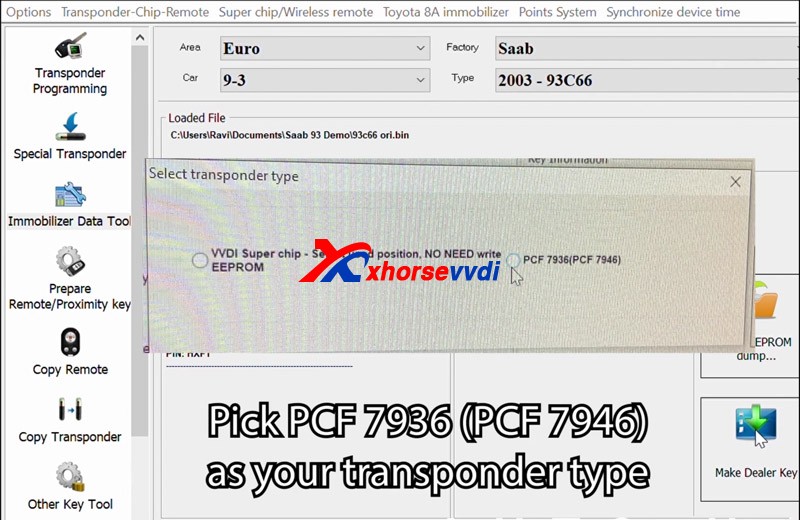
Pick PCF 7936(PCF 7946) as your transponder type
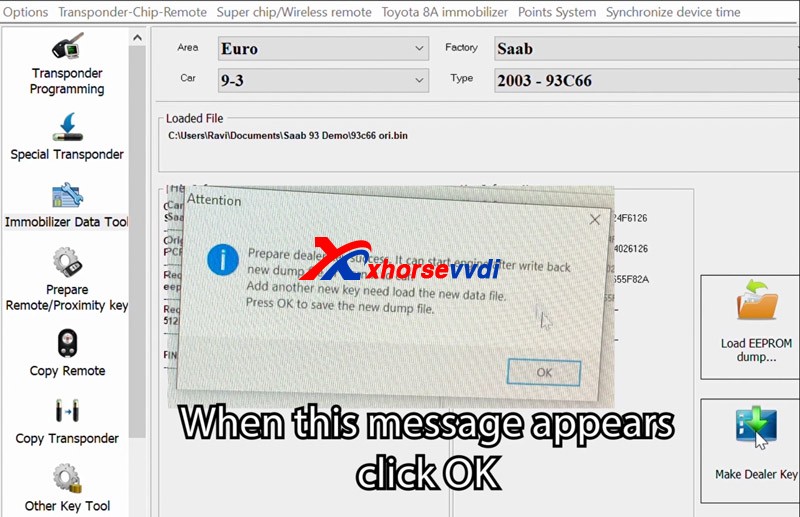
2007-Saab-9-3-Spare-via-xhorse-vvdi2-vvdi-prog-12 when this message appears,click ok
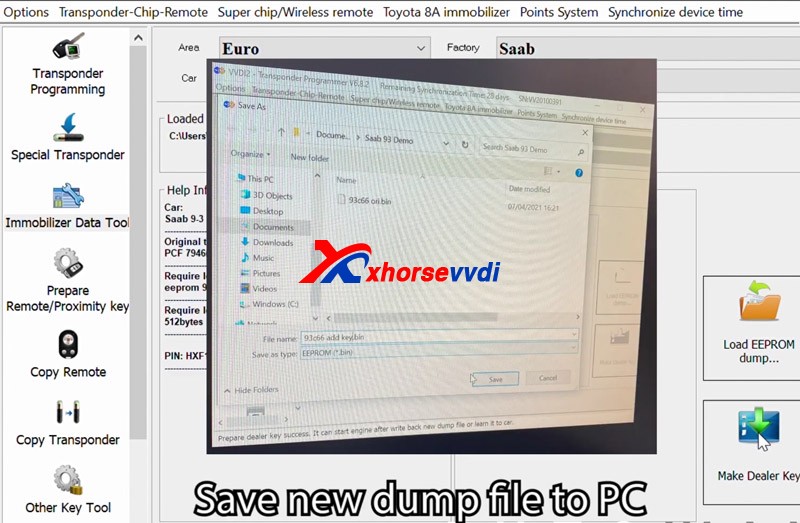
2007-Saab-9-3-Spare-via-xhorse-vvdi2-vvdi-prog-13Prepare dealer key success, it can start engine after write back new dump file or learn it to car
Add another new key need load the new data file,
Press OK to save the new dunmp fileSave new dump file to PC
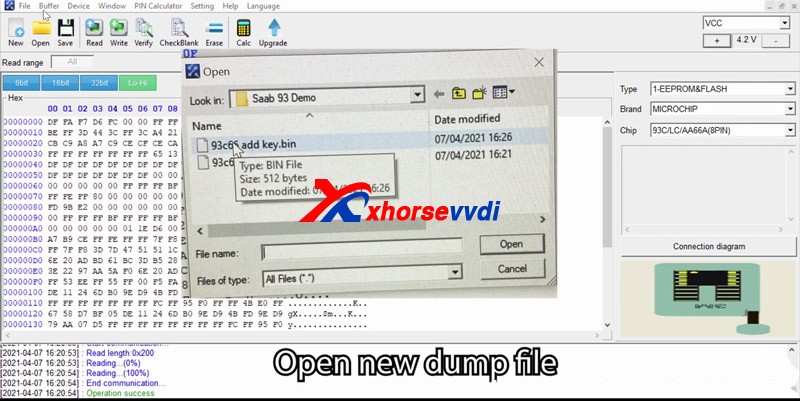
2007-Saab-9-3-Spare-via-xhorse-vvdi2-vvdi-prog-14Open new dump file
2007-Saab-9-3-Spare-via-xhorse-vvdi2-vvdi-prog-15
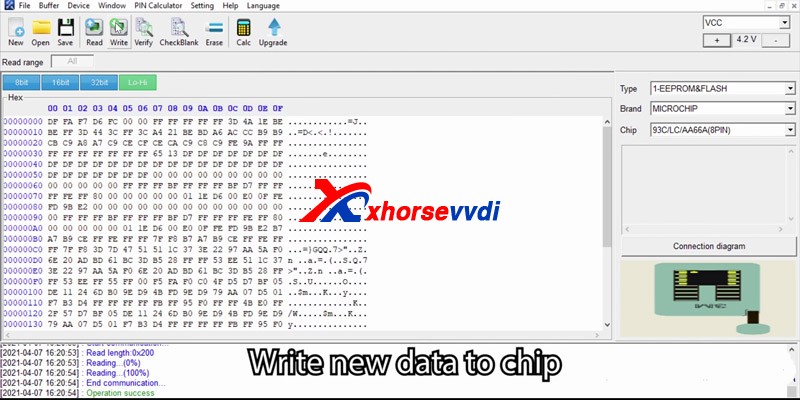
Write new data to the chip2007-Saab-9-3-Spare-via-xhorse-vvdi2-vvdi-prog-16
after Operation success, then verify
check success2007-Saab-9-3-Spare-via-xhorse-vvdi2-vvdi-prog-17
Resolder EEPROM to CIM, reassemble CIM unit and install back into the car, once complete reconnect the battery
Check the spare key, it worksXhorse vvdi2 and VVDI prog program 2007 Saab 9-3 add keys successfully! https://www.xhorsevvdi.com/

How does Xhorse Solder-free Adapter work on VVDI Key Tool Plus?

 Xhorse Solder-free Adapters will help key tool plus / mini prog  to read BMW CAS, Porsche BCM, Landrover KVM, Volvo KVM/CEM, etc IMMO data reading without soldering. 
Today, Xhorsevvdi will share you how to use it on VVDI keytool Plus Pad, Take the LANDROVER FOR KVM-ADAPTER as exmaple
Have Jaguar / Land Rover KVM 2015-2018 with all keys lost, don’t worry, Xhorse VVDI Key Tool Plus is the decent solution with one extra XDNP16 Land Rover KVM adapter. This article demonstrate how to program a new key in step by step

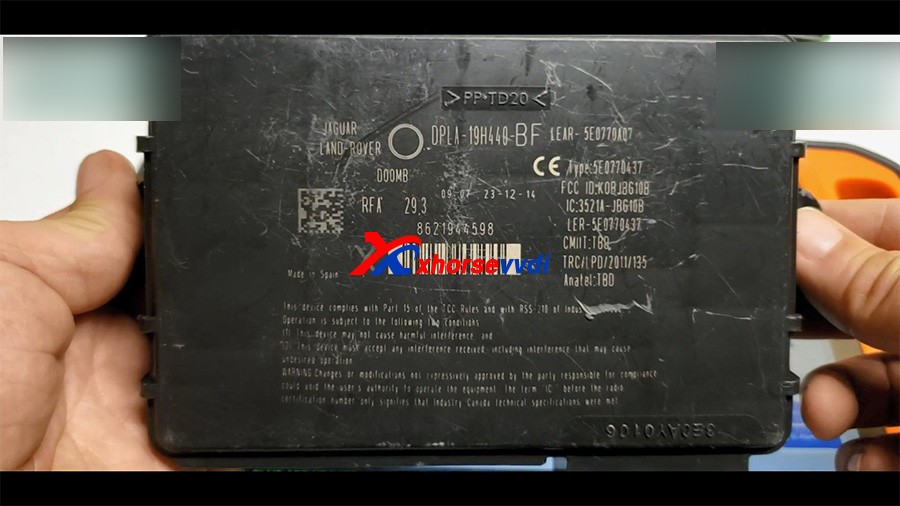
Look at the KVM module removed from Jaguar / Land Rover.
vvdi-key-tool-plus-program-land-rover-kvm-2015-2018-akl-01

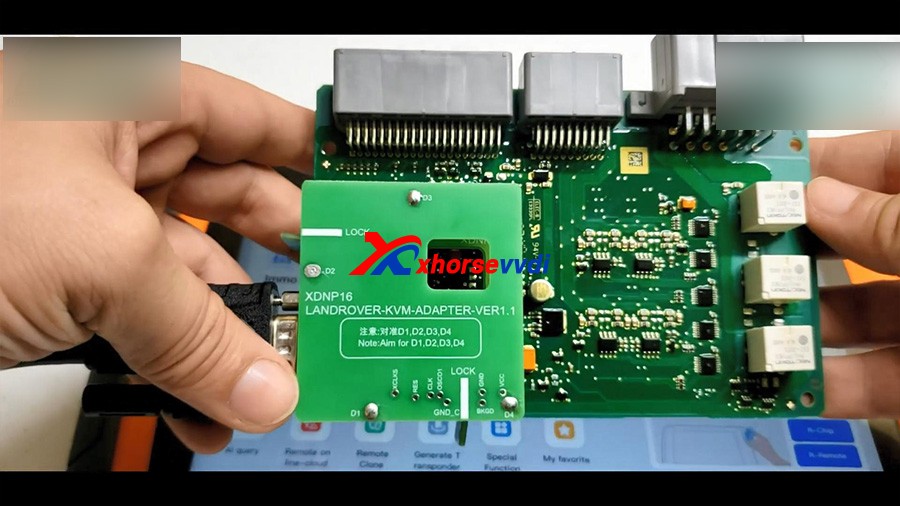
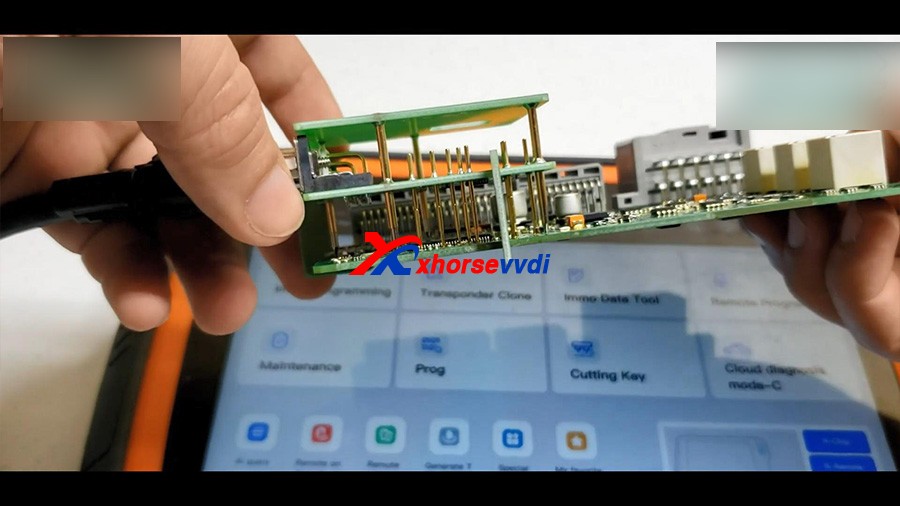
Look at the Xhorse XDNP16 Land Rover KVM adapter (Additional purchase)
vvdi-key-tool-plus-program-land-rover-kvm-2015-2018-akl-02
vvdi-key-tool-plus-program-land-rover-kvm-2015-2018-akl-03

Plug the adapter to Xhore VVDI Key Tool Plus.

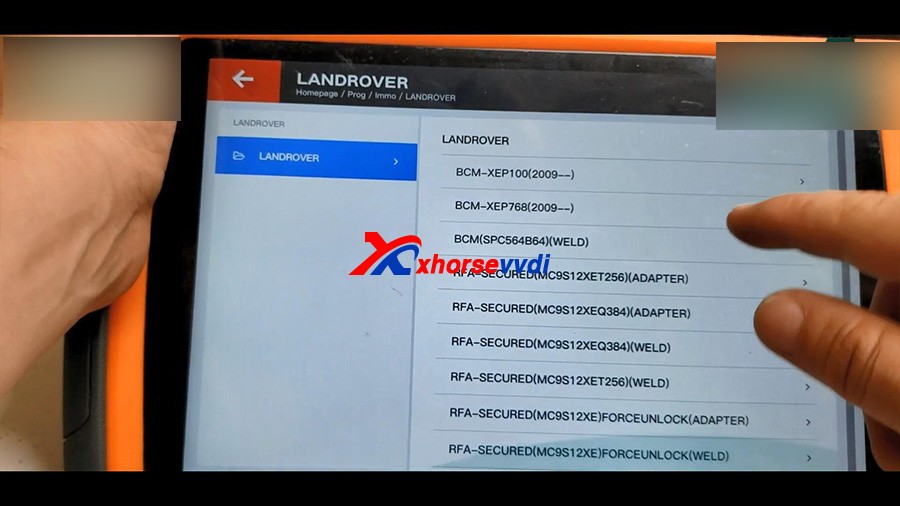
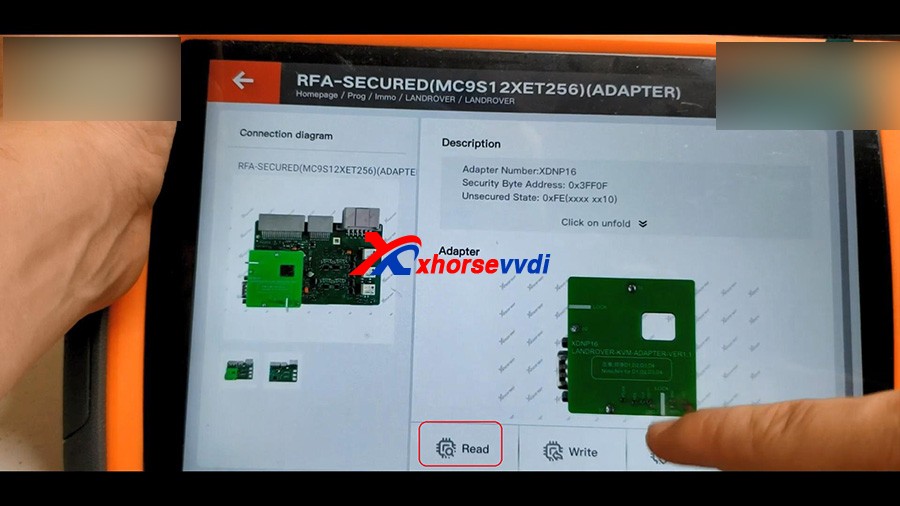
Tap “Prog” -> IMMO -> Land Rover -> RFA -Secured (MC9S12XET256) (Adapter)
vvdi-key-tool-plus-program-land-rover-kvm-2015-2018-akl-4


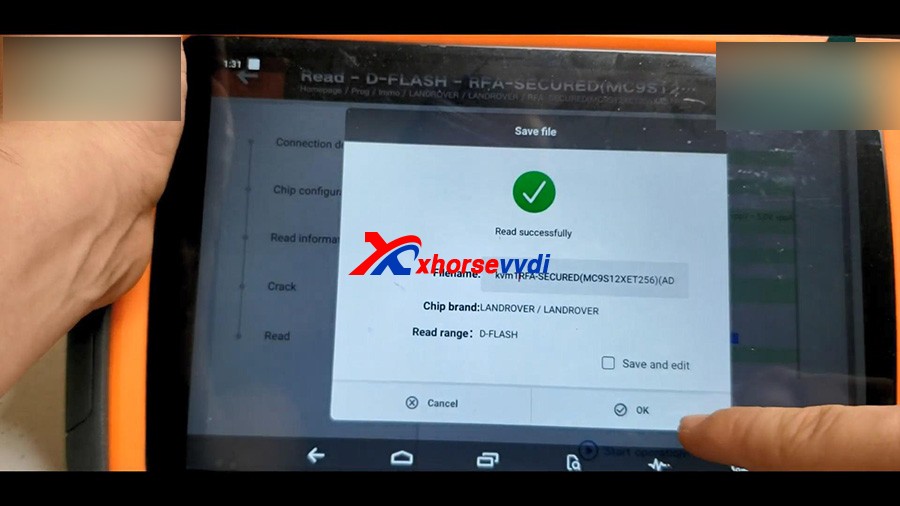
1. Read D-FLASH
Read -> select “D-FLASH” -> Begin -> Read successfully and save file.
vvdi-key-tool-plus-program-land-rover-kvm-2015-2018-akl-5
vvdi-key-tool-plus-program-land-rover-kvm-2015-2018-akl-6
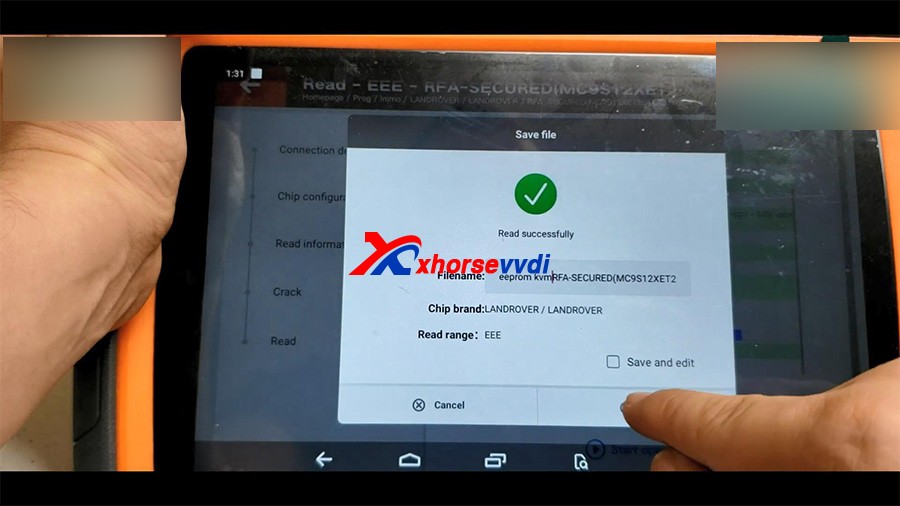
2. Read EEE
Select “EEE” -> Begin -> Read successfully and save file.
vvdi-key-tool-plus-program-land-rover-kvm-2015-2018-akl-7
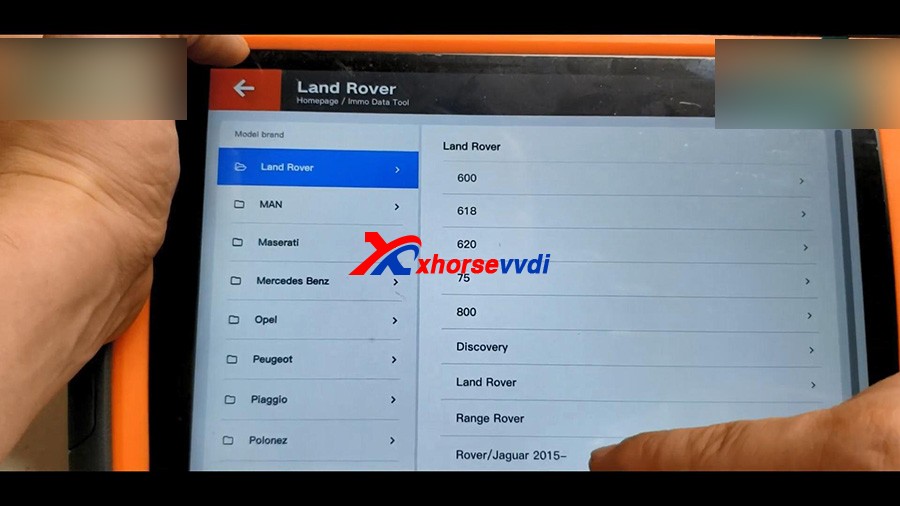
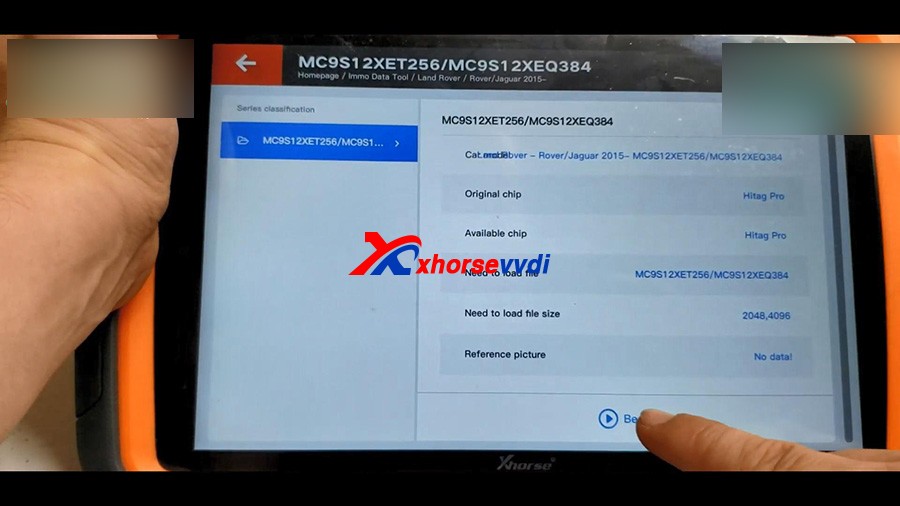
Back to the home menu of key tool plus, click on “Immo Data Tool” -> Europe -> Land Rover -> Rover / Jaguar 2015 – MC9S12XET256 / MC9S12XEQ384 – Begin.
vvdi-key-tool-plus-program-land-rover-kvm-2015-2018-akl-8
vvdi-key-tool-plus-program-land-rover-kvm-2015-2018-akl-09
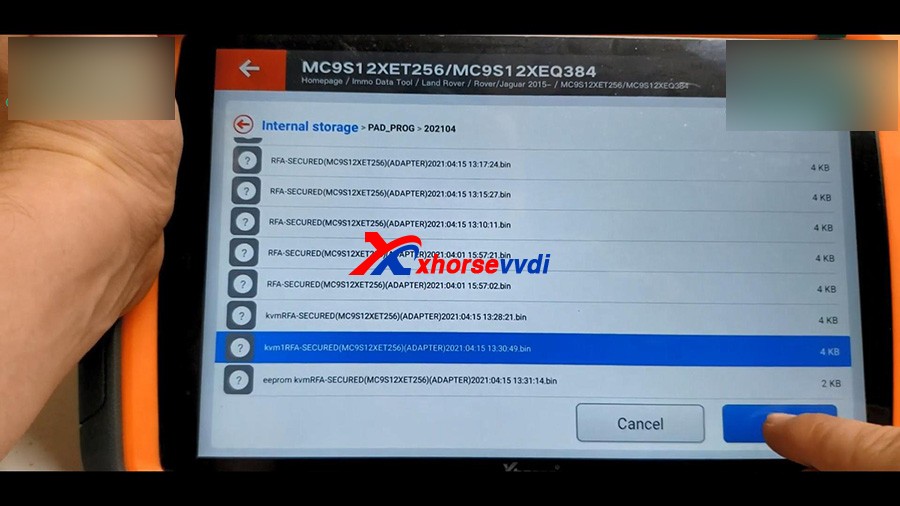
Please load FRA DFLASH, click OK to continue.
Select the D-FLASH data that is read above and load it. 
vvdi-key-tool-plus-program-land-rover-kvm-2015-2018-akl-10
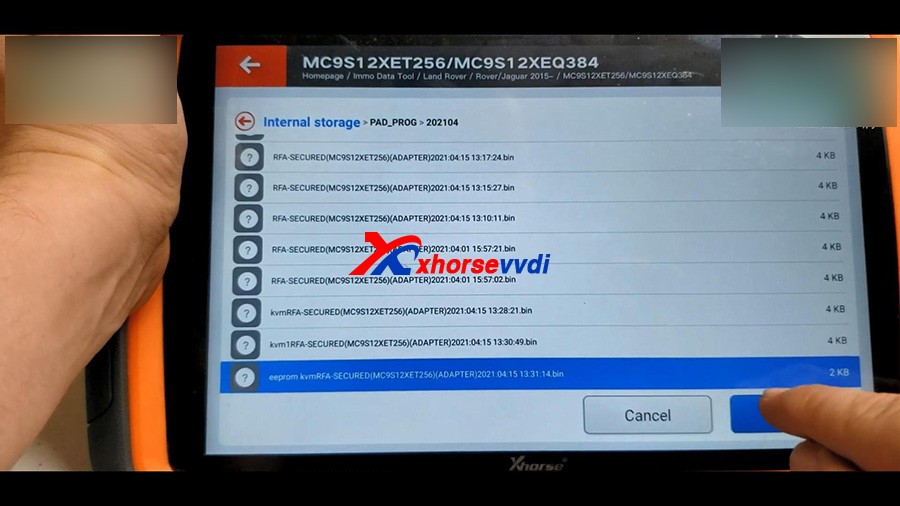
Next is to load RFA EEPROM.
vvdi-key-tool-plus-program-land-rover-kvm-2015-2018-akl-11
It prompts : Do you want to load BCM DFLASH?
If not update this file, the emergence start in CJB/BCM will not work when new key without battery, we click on “No” .

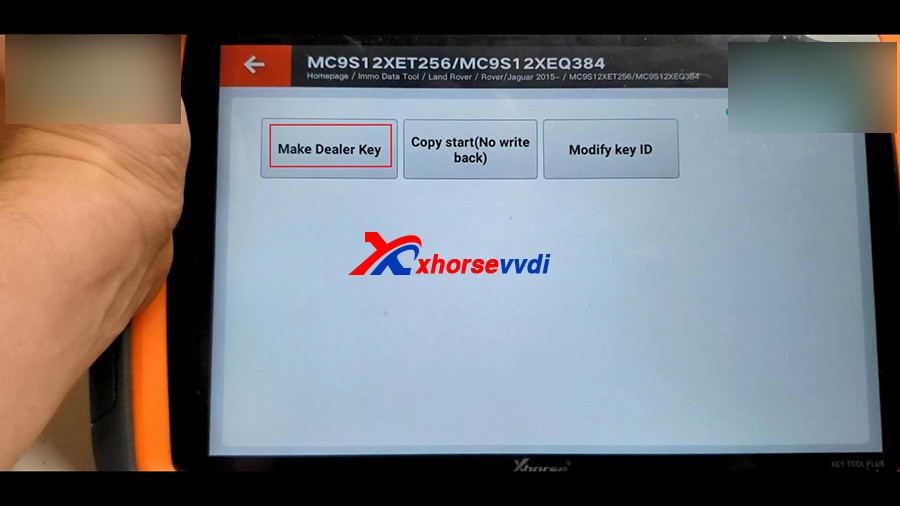
Next is to Make dealer key.
Tap “Make dealer key”.
vvdi-key-tool-plus-program-land-rover-kvm-2015-2018-akl-12
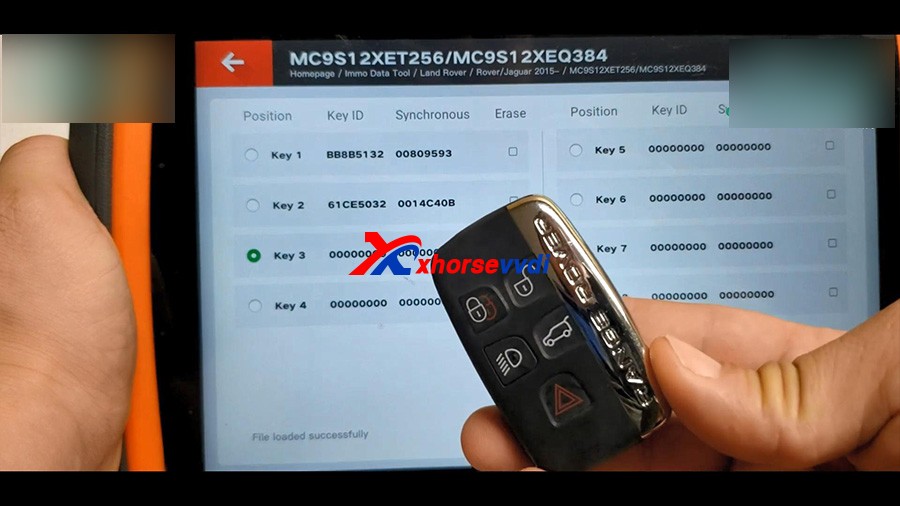
Tick off “Key 3” and put the new key into the keyhole of Key Tool Plus.
Start to make key…
Then select “Save here”.
vvdi-key-tool-plus-program-land-rover-kvm-2015-2018-akl-13
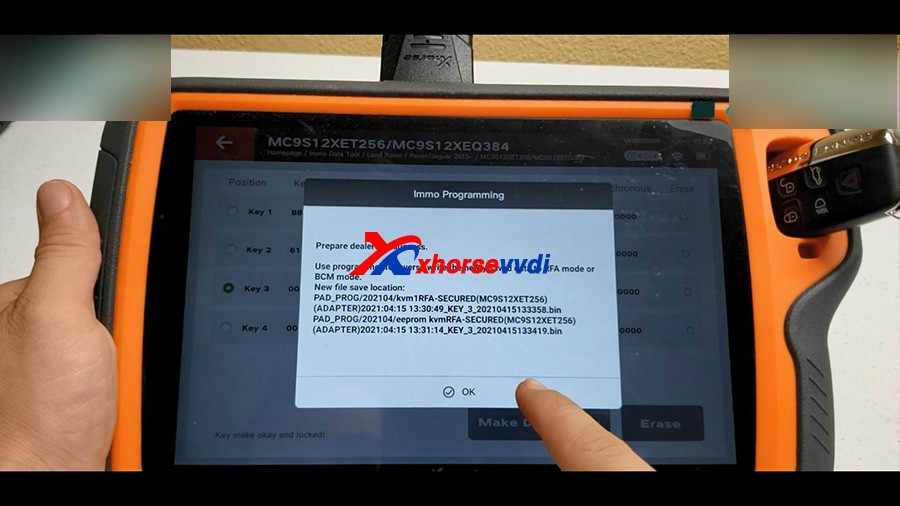
Prepare dealer key success.
Use programmer to reverse write the newly saved data to RFA mode or BCM mode.
vvdi-key-tool-plus-program-land-rover-kvm-2015-2018-akl-14
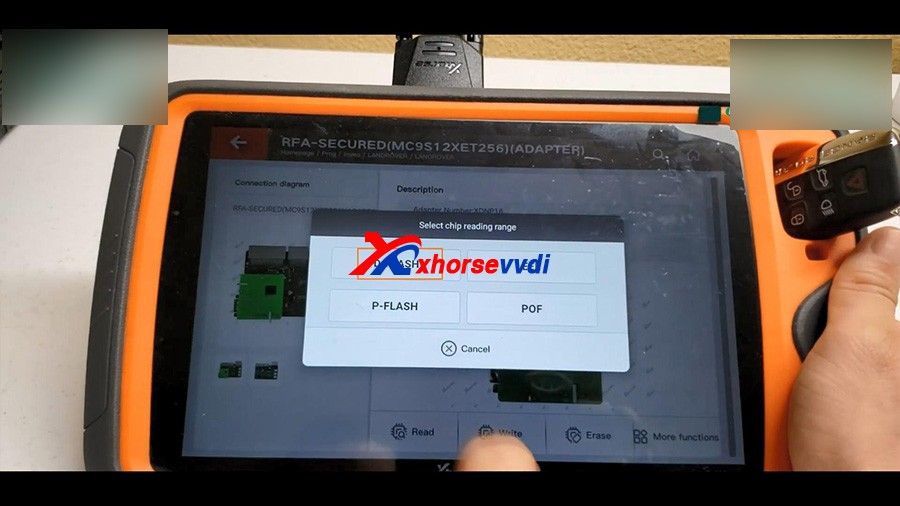
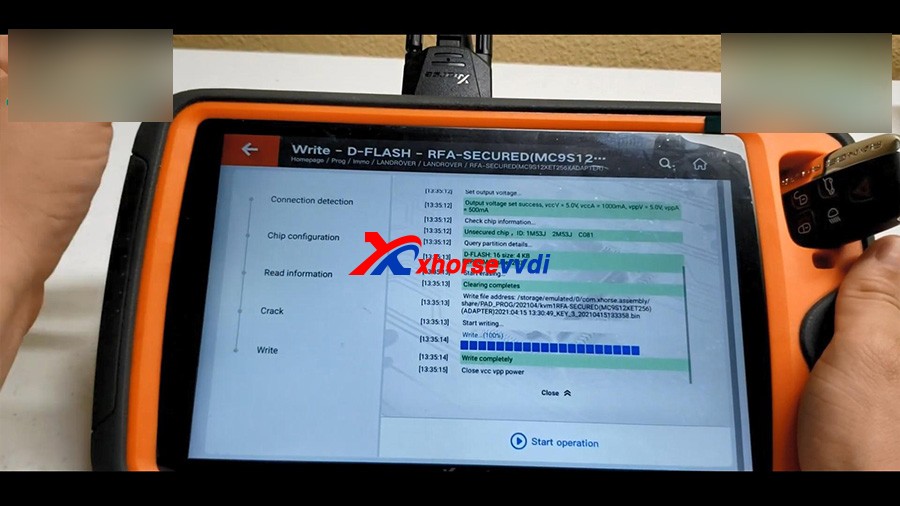
Back to the home menu of the pad, click on “Prog” -> Immo -> Land Rover -> RFA -Secured (MC9S12XET256) (Adapter) ->Write ->D-FLASH -> Begin -> select and write -> Write complete. 
vvdi-key-tool-plus-program-land-rover-kvm-2015-2018-akl-15
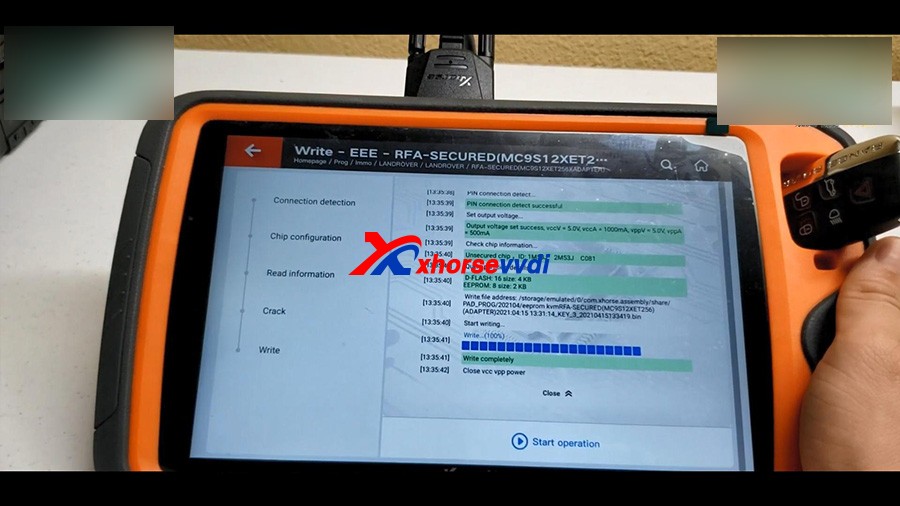
In the same method, to write EEE.
vvdi-key-tool-plus-program-land-rover-kvm-2015-2018-akl-16
Alright, the job is done!

We have a new working key.

https://www.xhorsevvdi.com/

Mazda CX5 Smart Key program via Xhorse VVDI KEY TOOL PLUS -No Issue

Used VVDI KEY TOOL PLUS and Xhorse universal smart key to add Mazda CX5 Smart Key successfully, firstly “remote program” and then “Immo programming”, finally test whether the key can start the car, the whole process is simple, easy and pleasant.

Prepare:

Plug VVDI KEYTOOL PLUS into the OBD2 port of Mazda CX5, and then turn on igniton.

Login the personal account.

vvdi-keytool-plus-add-mazda-cx5-smart-key-00

Step 1. remote program

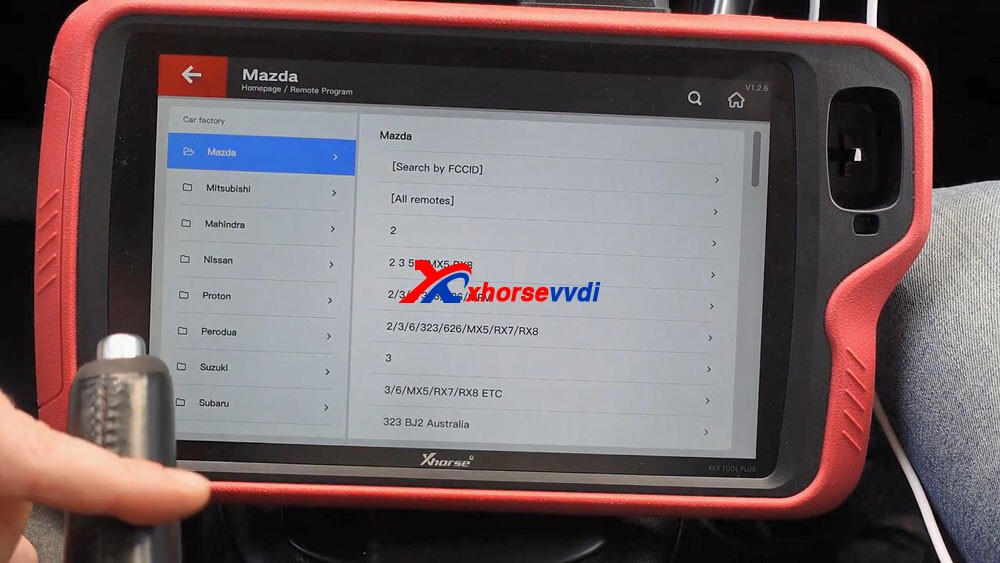
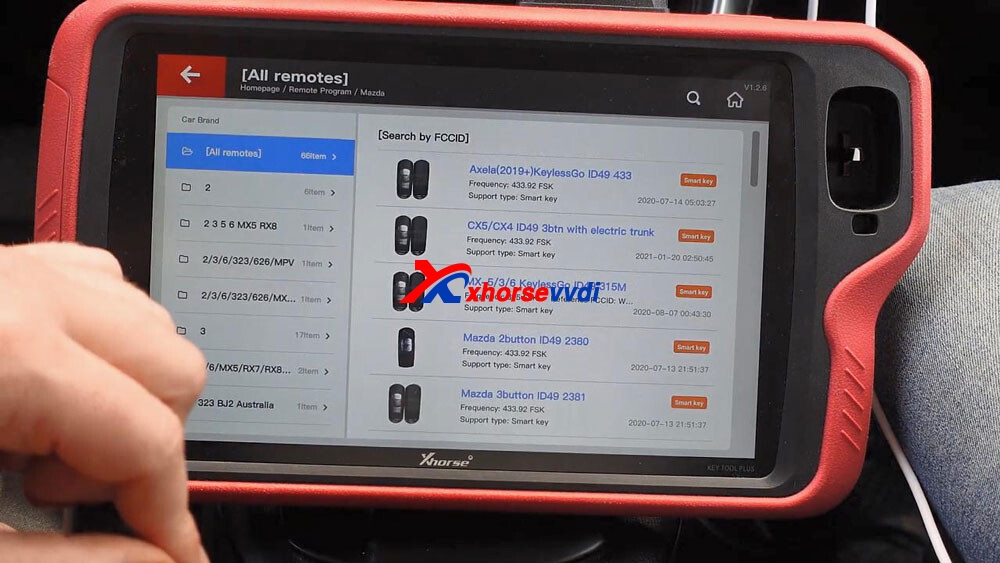
Select ” Remote Program” -> Asia -> Mazda -> All remotes -> Mazda 2button ID49 2380

vvdi-keytool-plus-add-mazda-cx5-smart-key-02
vvdi-keytool-plus-add-mazda-cx5-smart-key-03

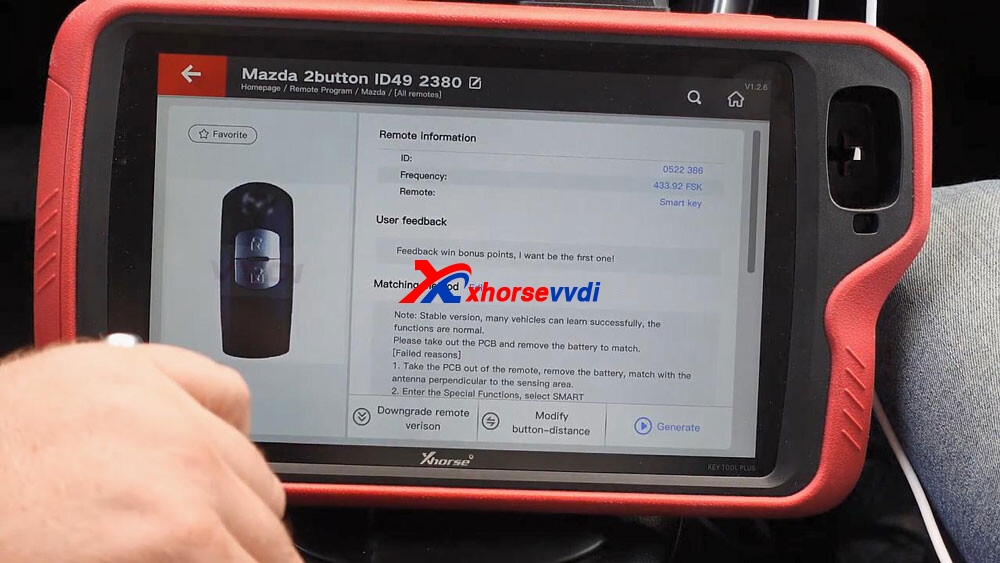
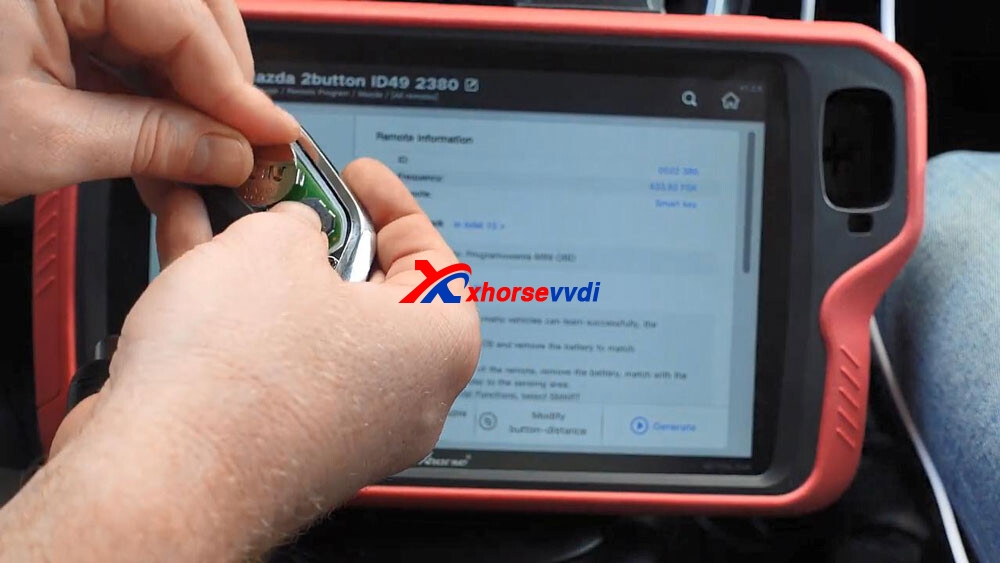
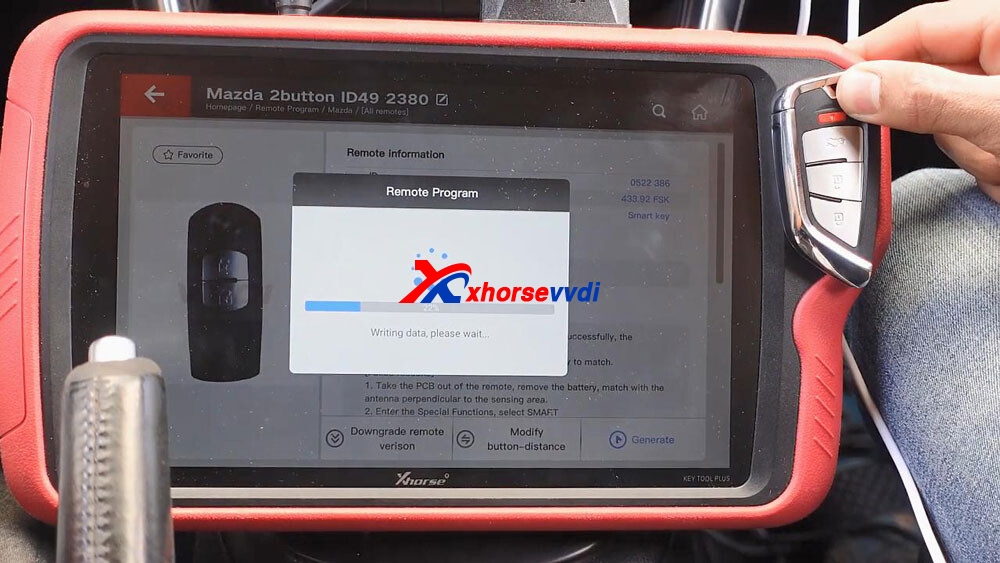
Have remote information (ID: 0522 386, Frequency: 433.92 FSK, Remote: smart key), and then it tells the matching method: Please take out the PCB and remove the battery to match.

vvdi-keytool-plus-add-mazda-cx5-smart-key-04
vvdi-keytool-plus-add-mazda-cx5-smart-key-05
vvdi-keytool-plus-add-mazda-cx5-smart-key-06

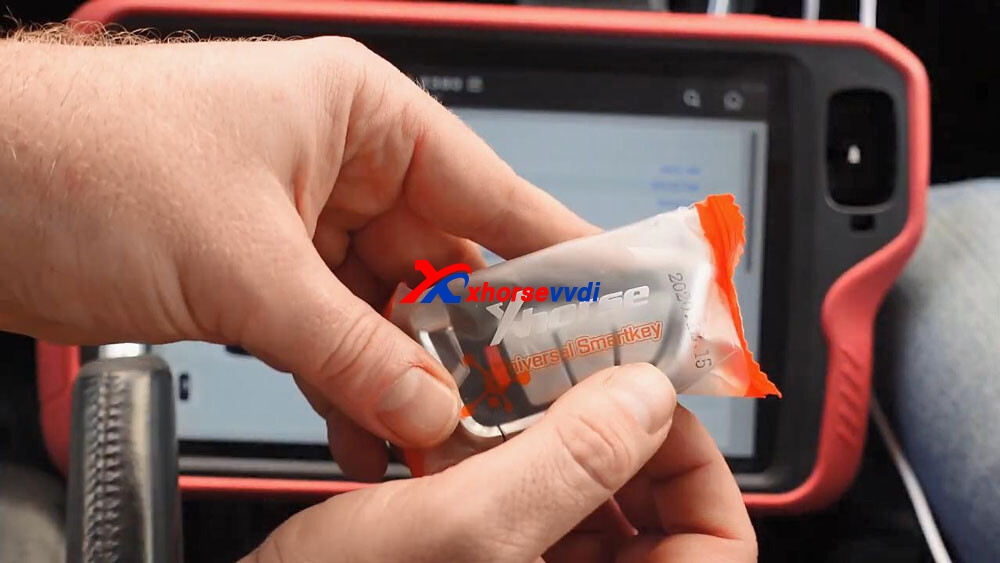
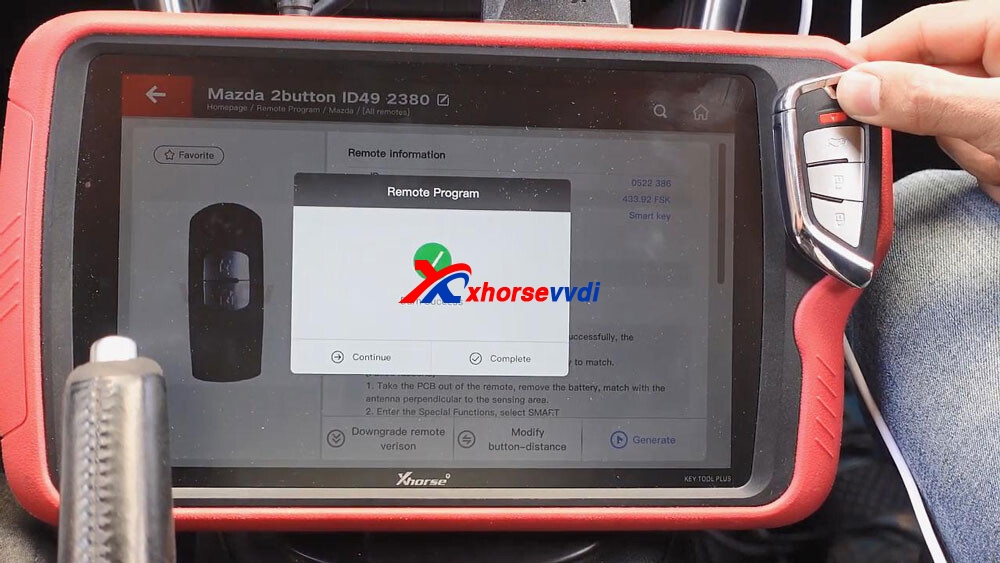
Keep Xhorse universal smart key close to the coil of key tool plus and it will write the data, wait until it reads 100% and burn success.

vvdi-keytool-plus-add-mazda-cx5-smart-key-07
vvdi-keytool-plus-add-mazda-cx5-smart-key-08

Step 2. Immo programming

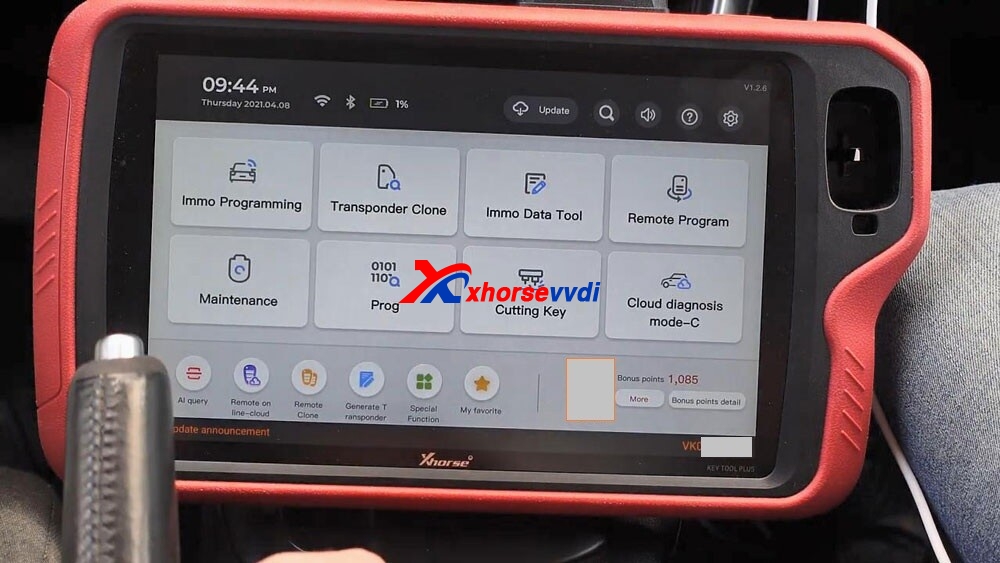
Back to the home menu and select “ Immo programming“.

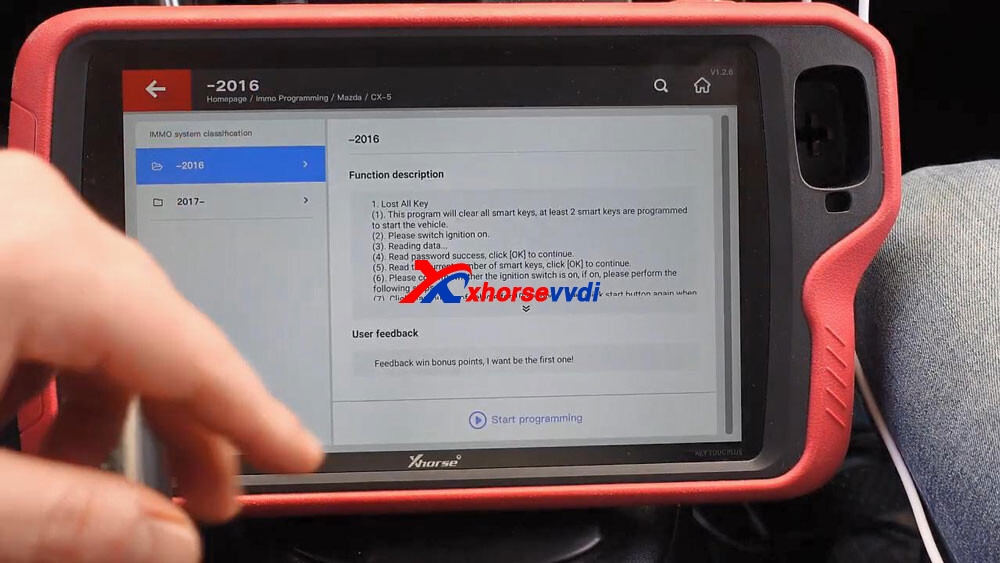
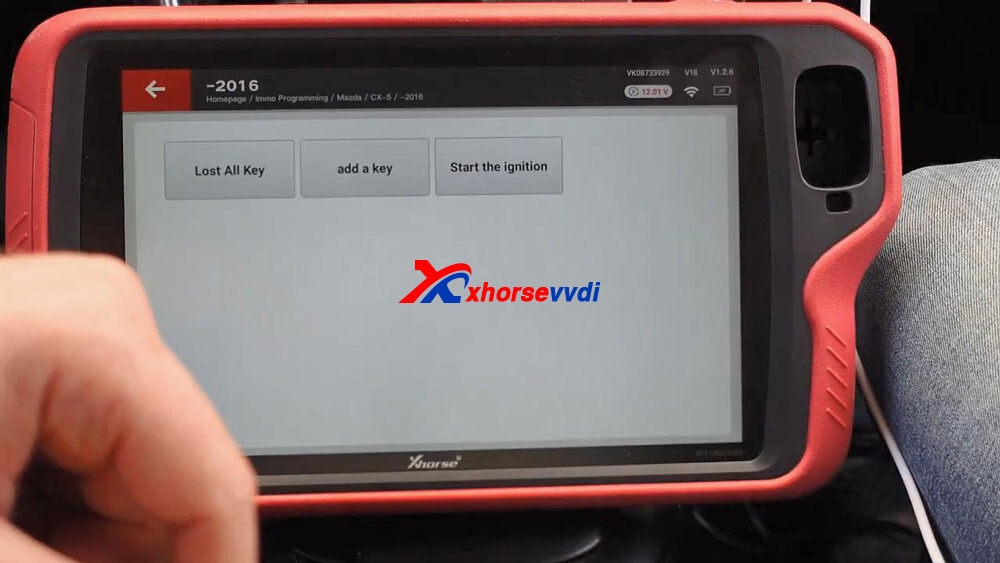
Select Asia -> Mazda -> CX5 -> -2016 -> Start programming -> add a key.

vvdi-keytool-plus-add-mazda-cx5-smart-key-09
vvdi-keytool-plus-add-mazda-cx5-smart-key-10

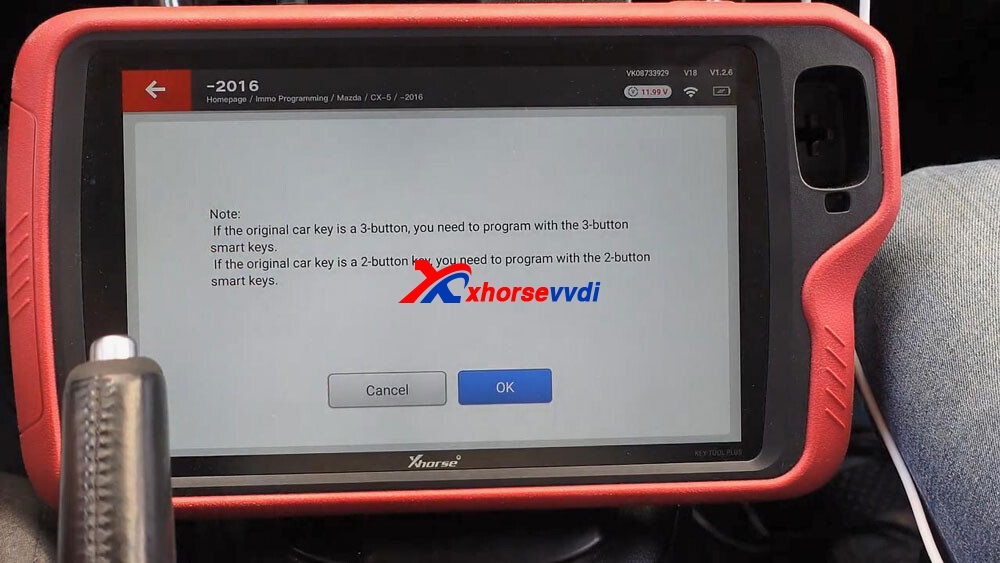
Click on “OK” to confirm the original car key is a 2-button key and you need to program with the 2-button smart key.

vvdi-keytool-plus-add-mazda-cx5-smart-key-11

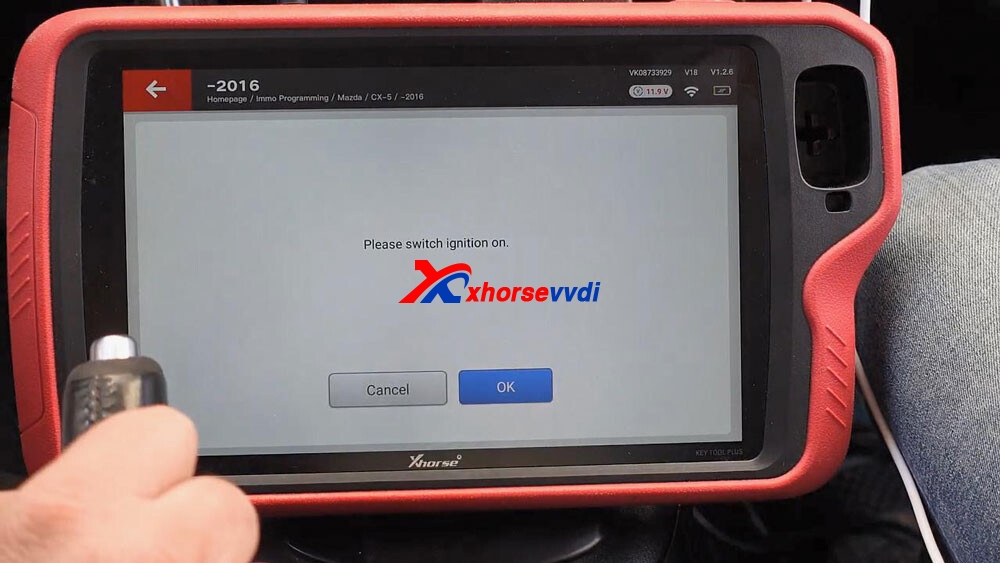
Please switch ignition on.

vvdi-keytool-plus-add-mazda-cx5-smart-key-12

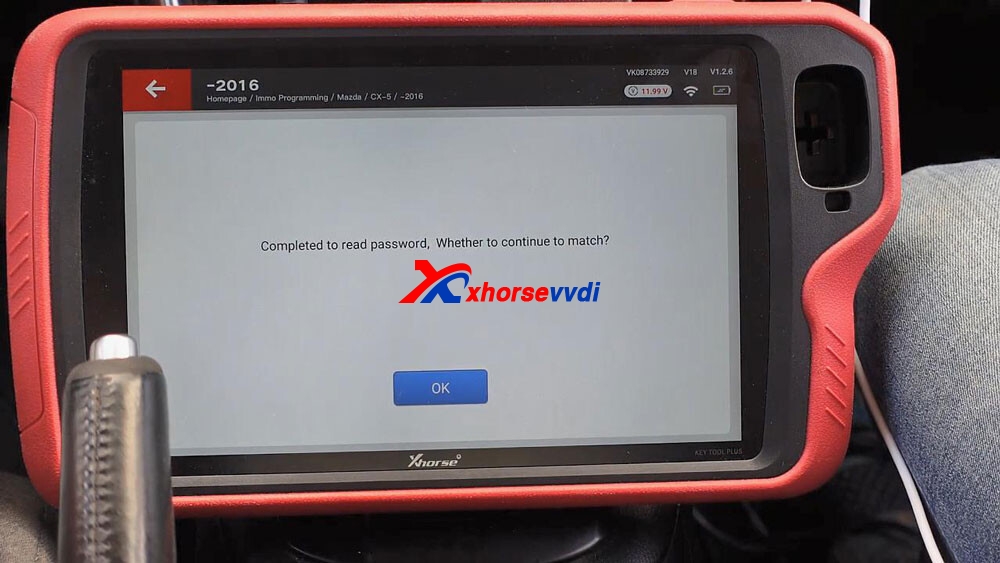
Reading data… wait a few seconds and you can see “Completed to read password…”, tap “OK” to continue.

vvdi-keytool-plus-add-mazda-cx5-smart-key-13

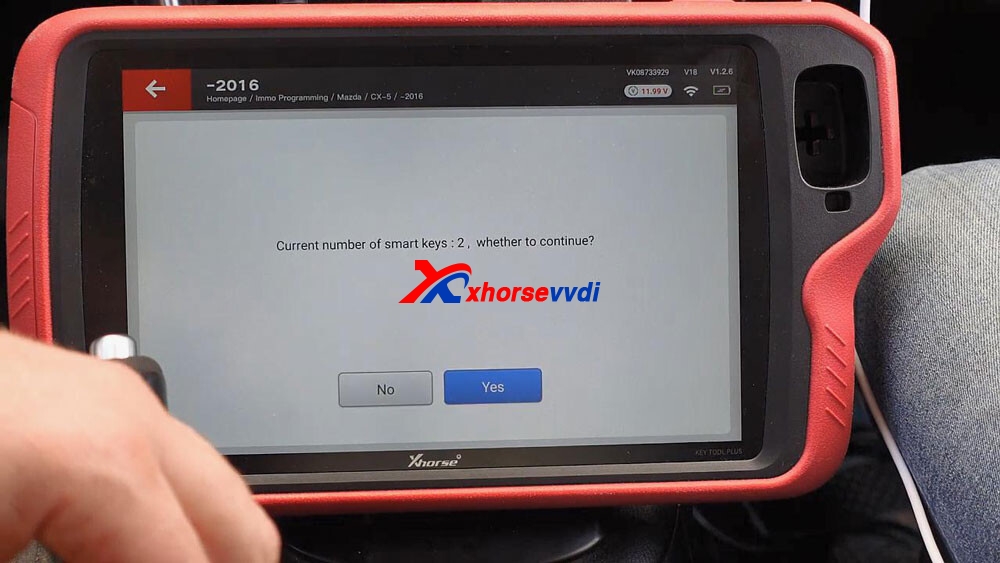
Current number of smart keys:2, tap “Yes” to continue.

vvdi-keytool-plus-add-mazda-cx5-smart-key-14

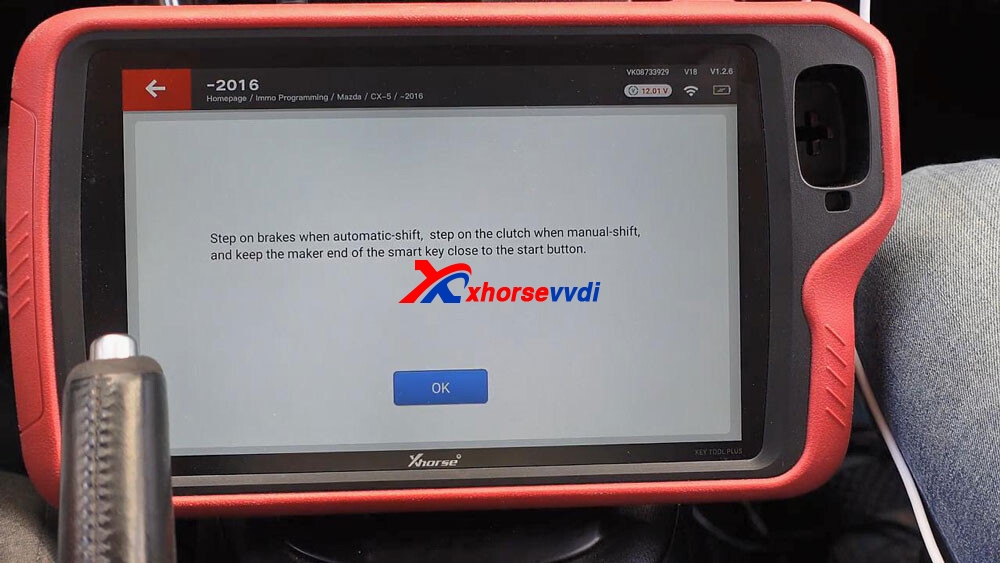
Step on brakes when automatic-shift, step on the clutch when manual-shift, and keep the maker end of the smart key close to the start button.

vvdi-keytool-plus-add-mazda-cx5-smart-key-15

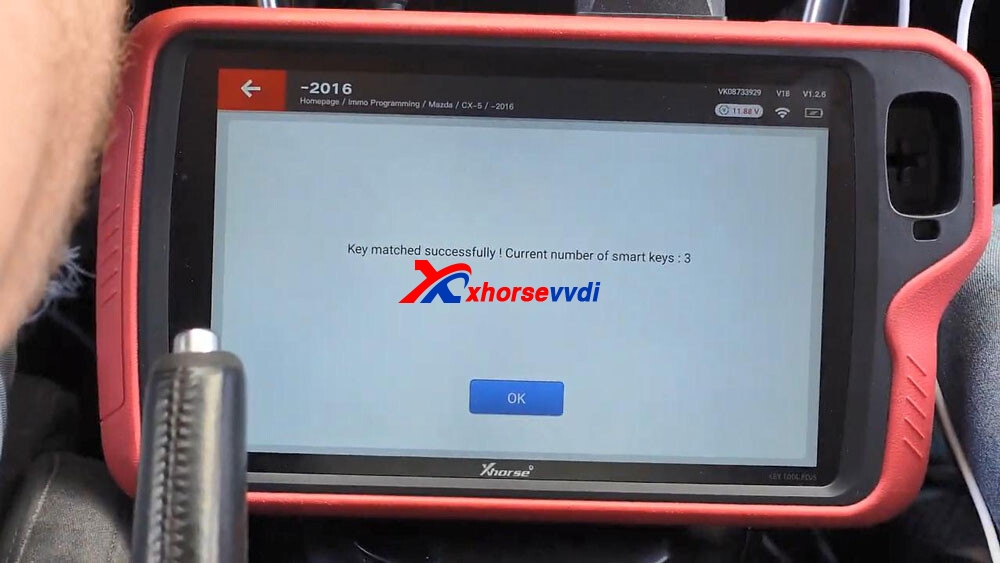
Alright, key matched successfully, current number of smart keys: 3, click “Ok” to confirm.

vvdi-keytool-plus-add-mazda-cx5-smart-key-16

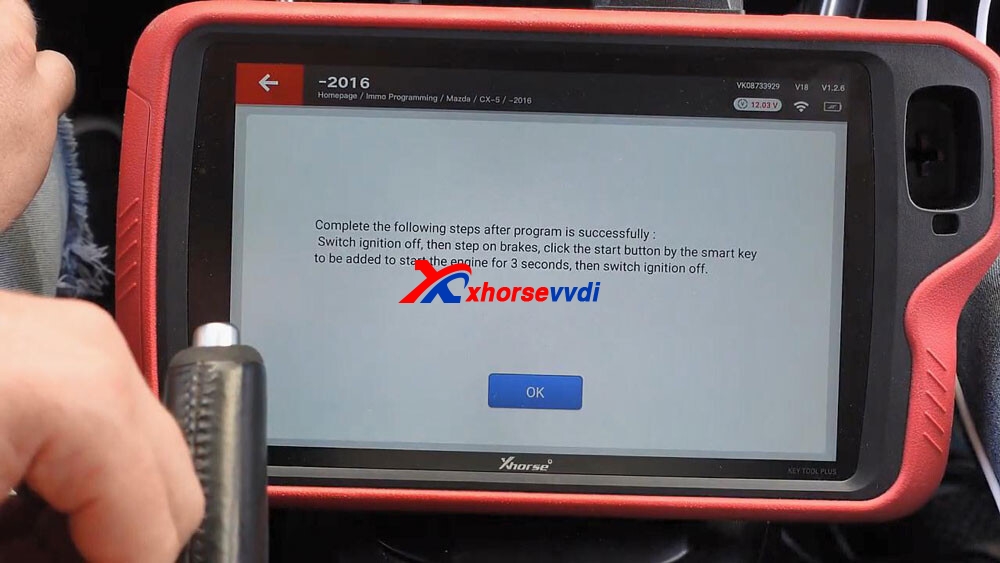
Complete the following steps after program is successfully:

Switch ignition off, then step on brakes, click the start button by the smart key to be added to start the engine for 3 seconds, then switch ignition off.

vvdi-keytool-plus-add-mazda-cx5-smart-key-17

Step 3. Test whether the new key can start the car.

vvdi-keytool-plus-add-mazda-cx5-smart-key-18

Alright, the job is done.

Thumb up VVDI KEY TOOL PLUS and Xhorse universal smart key.

Source:http://blog.xhorsevvdi.com/xhorse-vvdi-keytool-plus-add-mazda-cx5-smart-key/

Xhorse VVDI Key Tool Plus BGA Password Calculation Token

Good news! Xhorsevvdi provide BGA Password Calculation Tokens for  Xhorse VVDI Key Tool Plus  PAD

KEY TOOL PLUS BGA TOKEN

Source:https://www.xhorsevvdi.com/wholesale/key-tool-plus-bga-token.html

Kindly notice:

*No real shipping
*After payment, pls offer us your SERIAL NUMBER of VVDI MB BAG Tool or Key Tool Plus. If your VVDI bound to condor, pls note us
*We will add the tokens to your machine soon within 24 hours. (except the weekends and holiday)1. OverviewPassword calculation can get key password through EIS and working key (online)CAN protocol EIS all support password calculationSupport BGA keys and other NEC keysSupport calculate the password for NEC v51, v57 keys. No soldering, safe method.Data acquisition time depends on the key version. It needs about 3.5 – 13 minutesBGA version need about 5 minutes, some versions only need 3.5 minutes

Calculate time in server: 30 seconds – 1 minute

2.Support typeW164W164 2009-W166, 197, 212, 218, 246W169, 209, 211W172, 204, 207W216W221W639 2009- 3. FunctionsMode: OBD and IR adaptor, mode use for communicate with EISChassis: Select chassis number, you can detect it with auto detect in EIS ToolsData Acquisition:Press“Data Acquisition”, it will continue with following steps automatically1) Insert working key to ignition, waiting 15 seconds2) Insert working key to device IR reader, verify key and car3) Data acquisition4) Insert working key to ignition, waiting 30 seconds5) Insert working key to device IR reader, wait end…6) Save acquisition dataUpload Data: Upload saved acquisition data to server for calculate password.
Attention:Once success calculate password for one SSID, the server will not accept calculate the acquisition data with same SSID in 2 hours. After 2 hours, acquisition data with same SSID upload to server will start with a new taskQuery result: Query server calculation result. The password will fill in key password area automatically after success calculation. Use “Copy” copy password to clipboard
Auto reflash: Program will auto re-flash server result until there’s no task for this device.You can start data acquisition once more while auto reflash startingStop acquisite after success: If you are run data acquisition while auto reflash running,program will stop the acquisition progress when find correct password 4. About query result statusQuery result support query calculation result in 24 hours, others don’t support Query result will display Time, SSID, Status, Filename (name when upload to server)Status has the following types:1) Queuing: number x, require about y minutes, means your task need y minutes2) Processing: requires 1 minutes, means your task need 1 minute to finish3) Password: xxxxxxxxxxxxxxxx (Free), means success find password, “Free” show this task is calculated for free or this task already success calculated before4) Discard: Once you success calculate the password, in 2 hours, the upload acquisition data with same SSID will discard5) Already upload: means the server already have this file in queuing6) Pay for password calculation before upload: means your device doesn’t have authorize for calculation. Contact your dealer and pay for password calculation7) Failed: means this task failed to get password, you can run data acquisition again.Failed task is always free

How to see the BGA Password Calculation Tokens?

BGA Password Calculation Tokens

If you have any problem, please feel free to contact us.Skype: xhorsevvdi.com
Whatsapp: +86-13983756354
Live Support: Chat with us online
Email: sales@xhorsevvdi.com https://www.xhorsevvdi.com/

How to Calibrate Xhorse Dolphin XP007 Clamp?

Hi,guys,Xhorsevvdi shows your How to use Xhorse Dolphin XP007 Key Cutting Machine to calibrate Clamp, and to make key here

Step-by-step:
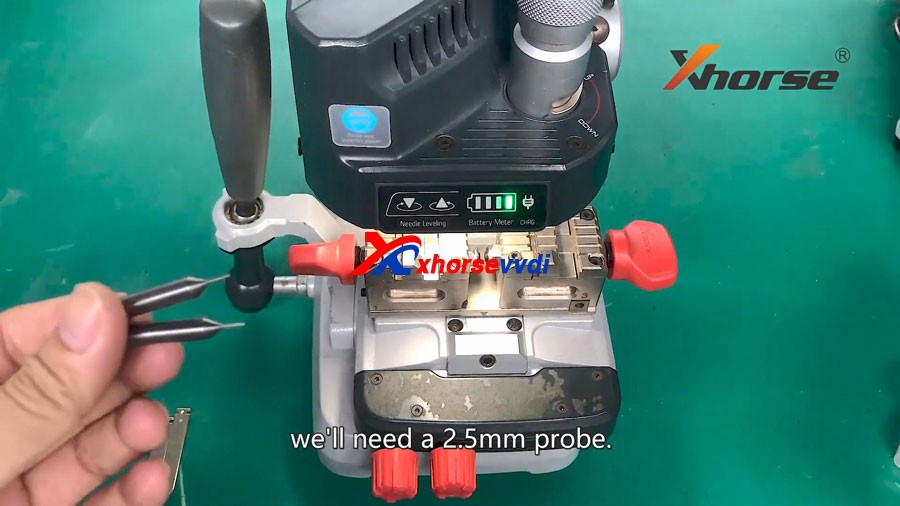
To calibrate the clamp of Xhorse dolphin XP007 manual key cutting machine, you will need 2.5mm probe.


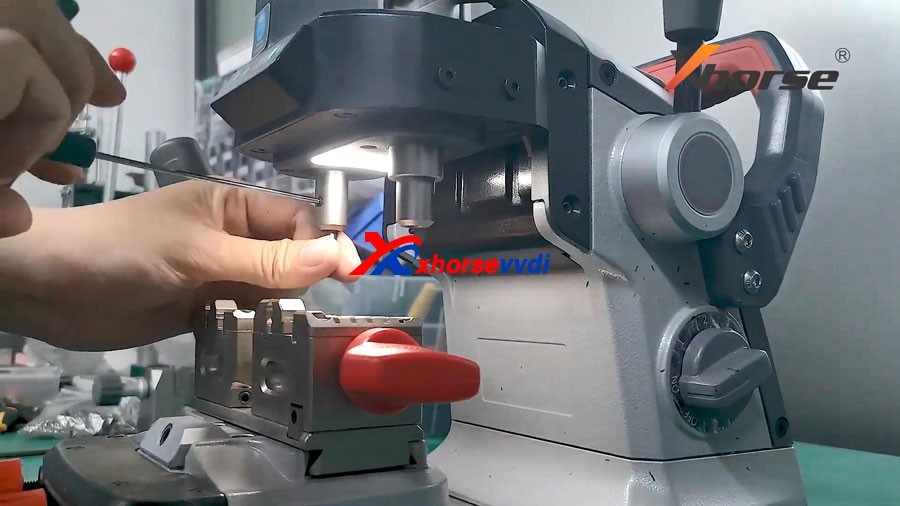
Now stick the probe in and tighten up.


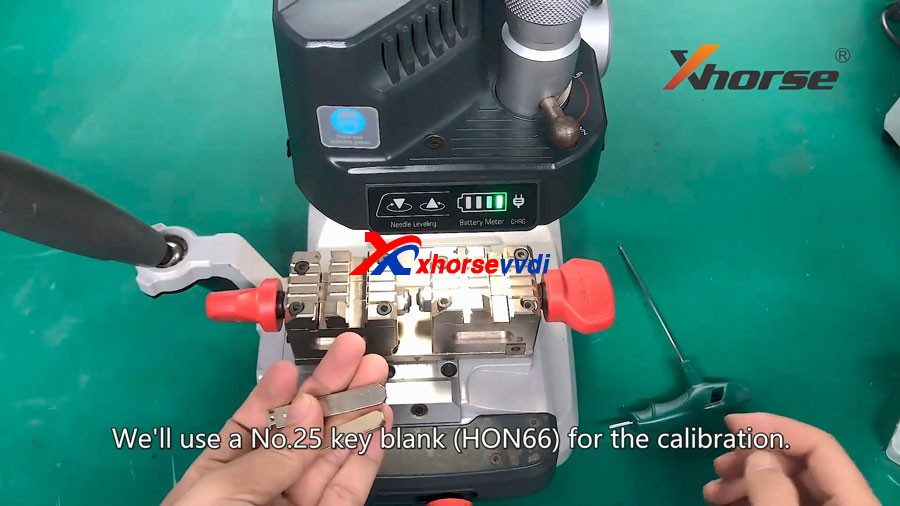
we use a No.25 key blank (HON66) for the calibration.

Insert the key into the clamp and tighten up.

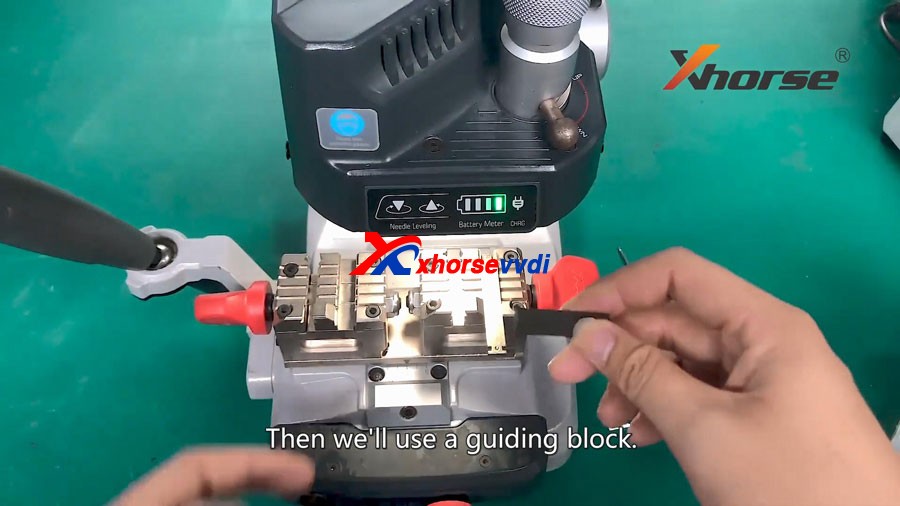
Then we will use a guiding block.


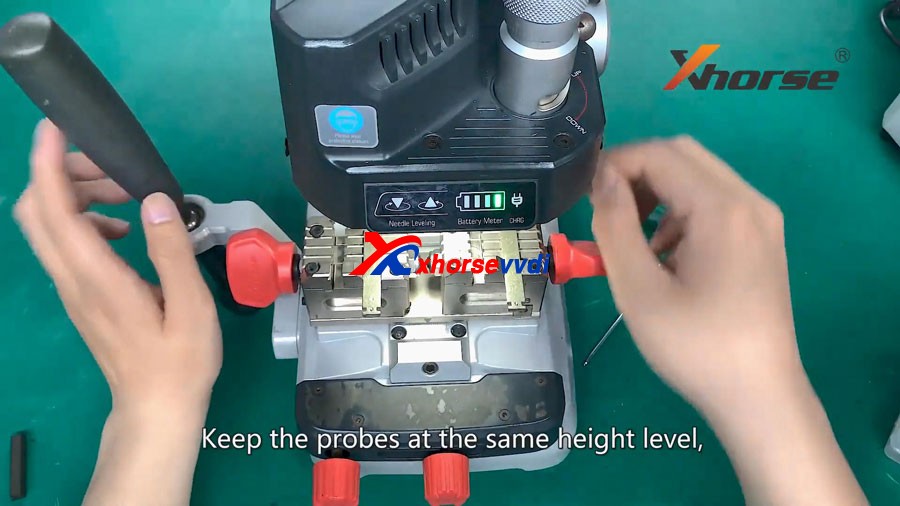
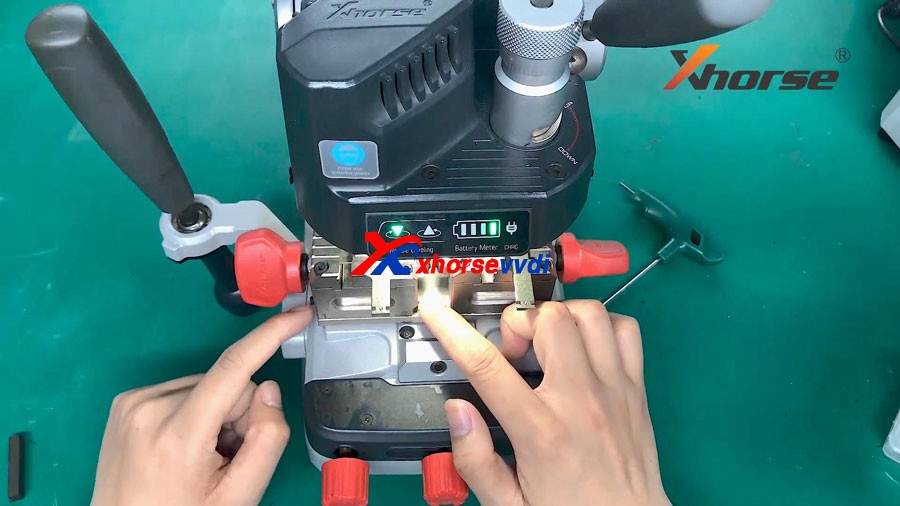
After that, we will need to pay attention to this two indicator lights (needle leveling and battery meter), this is a prepositioning switch knob, if it’s down, you can move the probe.

If it is up, the probe is stationary.

Keep the probes at the same height level.

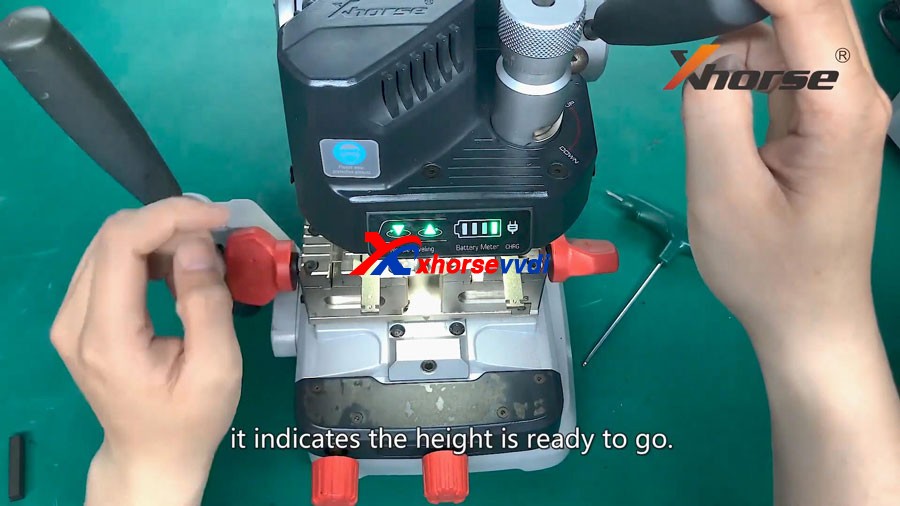
Roll down the handle to see if the two lights are on simultaneously.

This knob is used for Micro-adjustment.

Turn the knob counter-clockwise, it will go down, clockwise will lead to going-up.

if the two lights go on at the same time, it indicates the height is ready to go. 


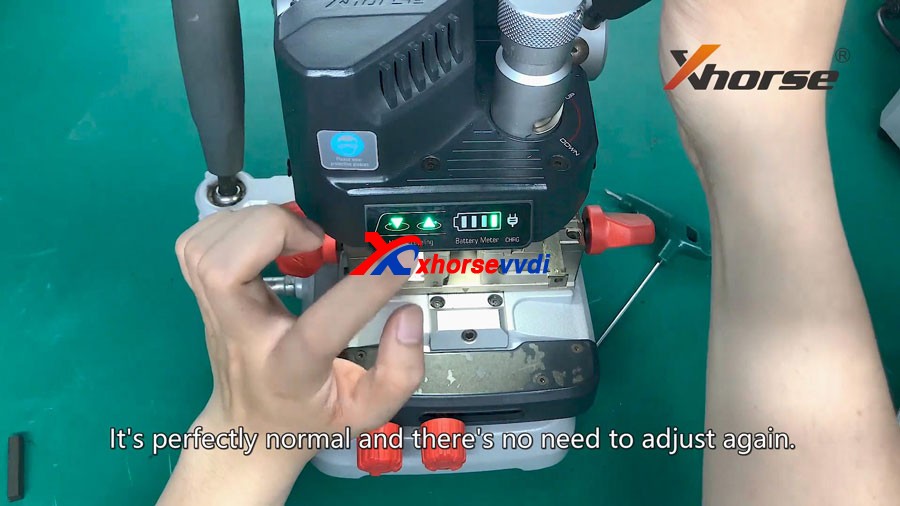
You can also try to press different positions, if one light is out, but now you press harder, it’s on. It is perfect normal and there’s no need to adjust again.


Now we will turn to horizontal collaboration.

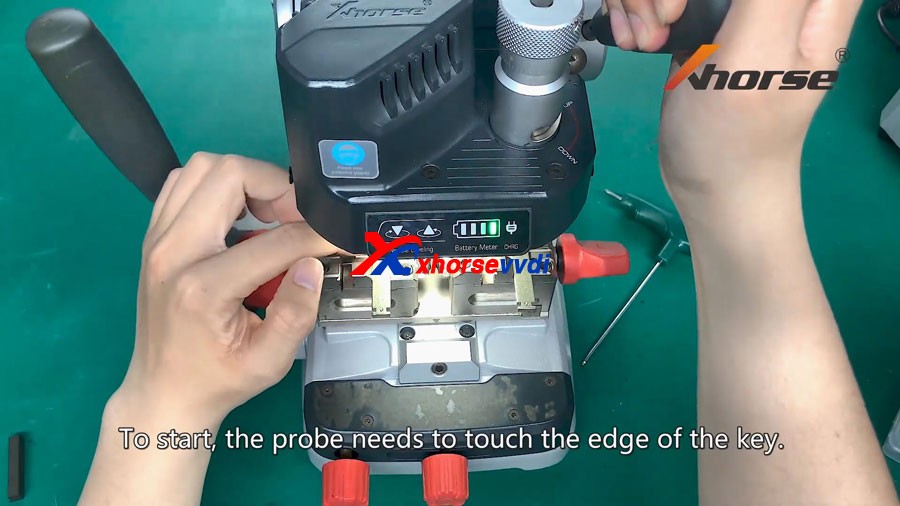
And we’ll do X-Axis calibration first, to start, the probe needs to touch the edge of the key.


If the needle leveling light is out, roll down the handle and rotate the handle clockwise.

There are two screws in position 1 and position2 and we need to adjust the screw.


Now the battery meter light is out, we need to tighten the screw in position 2, if the l needle leveling light is out, we will need to tighten the screw in position 1.


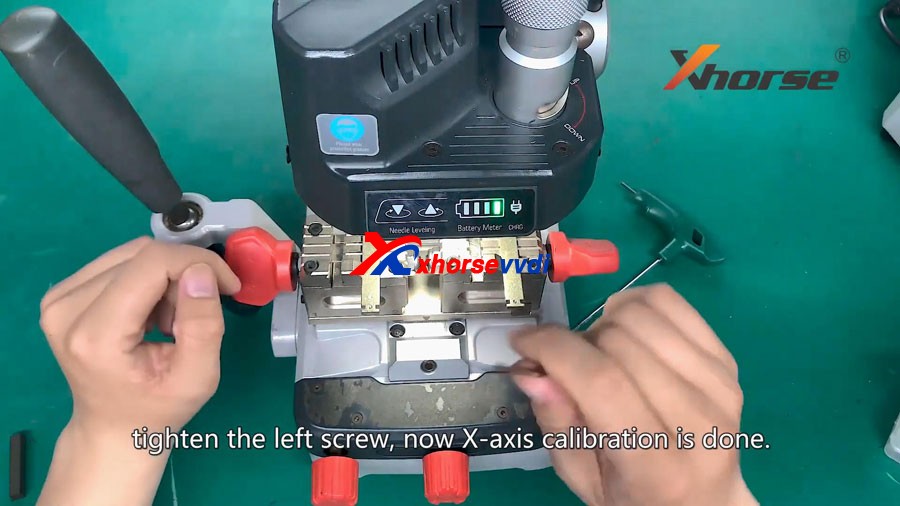
Now try to slide the jaw.

Both lights are on, tighten the left screw, now X-axis calibration is done.


Next we move to y-axis calibration.

Keep the handle fixed for y-axis calibration, we will need to adjust the position 3 and position 4.


Now the needle leveling light is out, we’ll need to loosen position3 and tighten position 4.


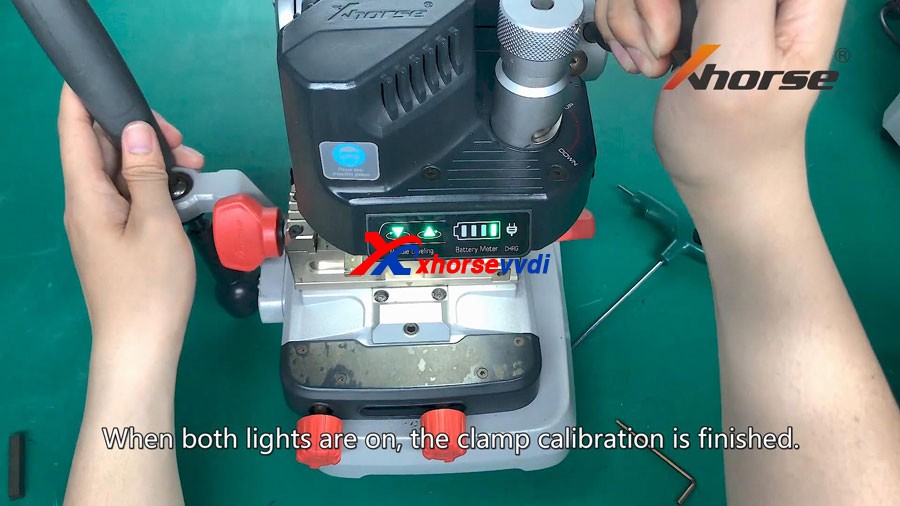
When both lights are on, the clamp calibration is finished.


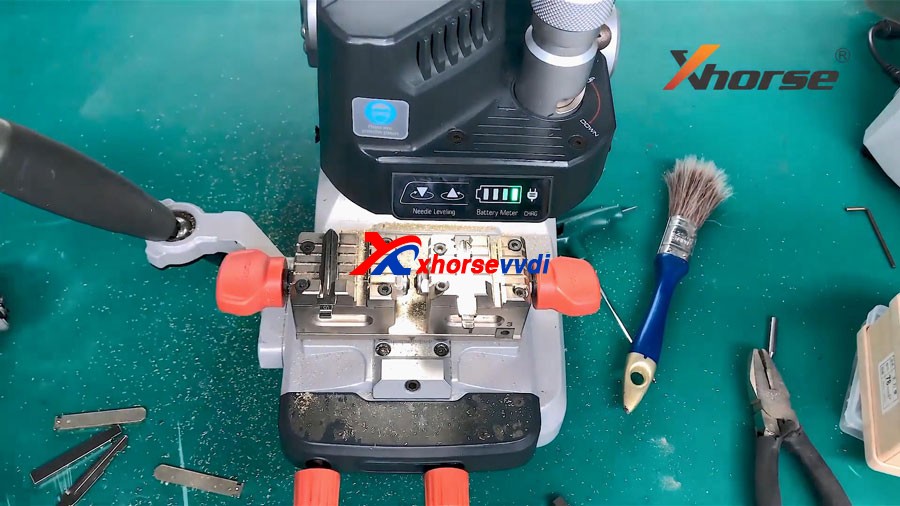
After calibration,we will try to duplicate the key for you guys and demonstrate how Dolphin XP007 works.


Enjoy!
http://blog.xhorsevvdi.com/

Xhorse MINI PROG Read AT24C04 EEPROM

Xhorse VVDI MINI Prog is able to read & write EEPROM/ECU data (i,e 24Cxx, 93cxx, 95xxx, 25xxx etc, about 95% eeprom types in market), meanwhile it allows the user to upload the data to one computer, to share with other Xhorse devices i.e Key Tool Max after login with the same Xhorse account , or to send the data to WhatsApp / Wechat QQ etc.

Vvdi Mini Prog Move Share Data 01

Video reference:https://www.youtube.com/embed/W2bb0G3ulfc

VVDI MINI Prog read EEPROM AT24C04 (pressure) for example.

Look at the AT24C04 chip set.

Vvdi Mini Prog Move Share Data 02
  1. Read the data using VVDI MINI Prog.

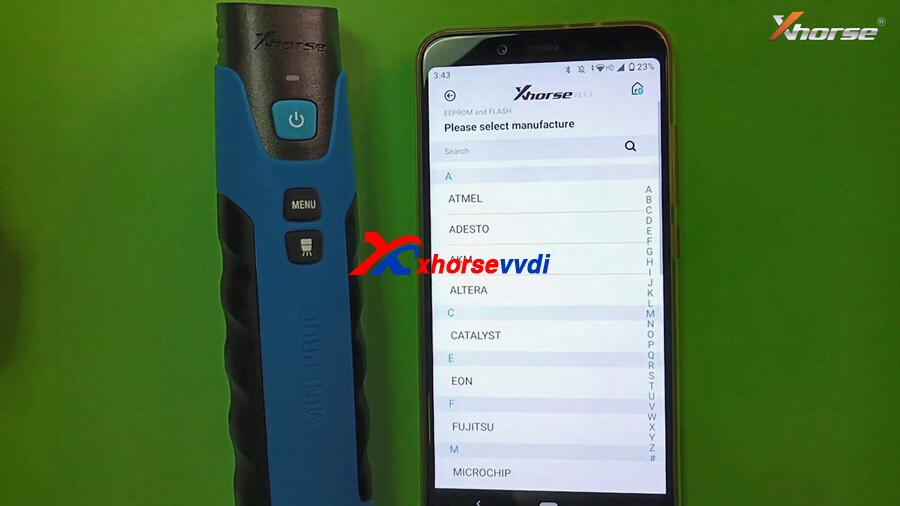
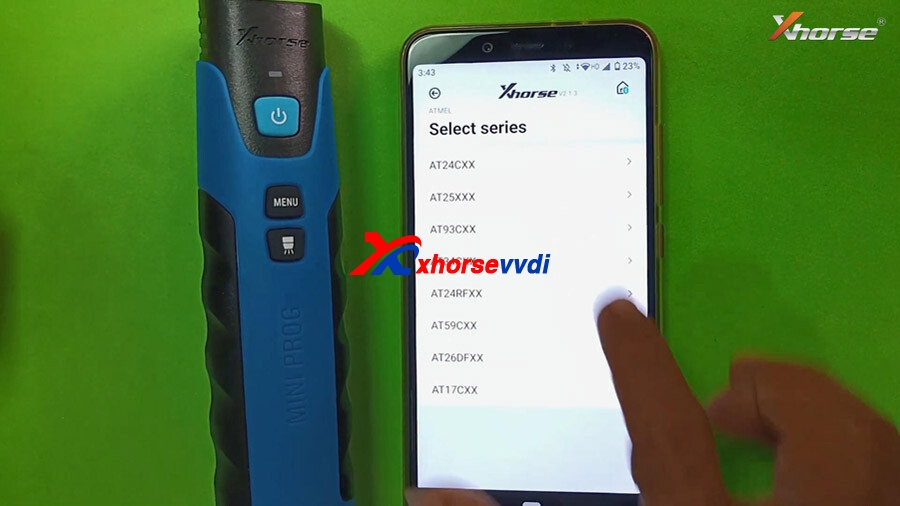
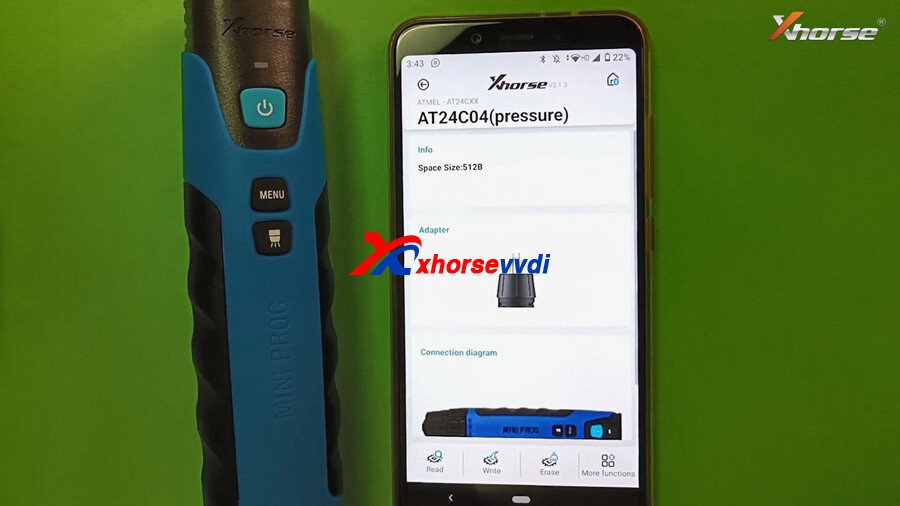
Select “EEPROM and FLASH” -> select manufacture ATMEL -> Select series (AT24CXX) -> Select model AT24C04 (pressure).

Vvdi Mini Prog Move Share Data 03
Vvdi Mini Prog Move Share Data 04
Vvdi Mini Prog Move Share Data 05

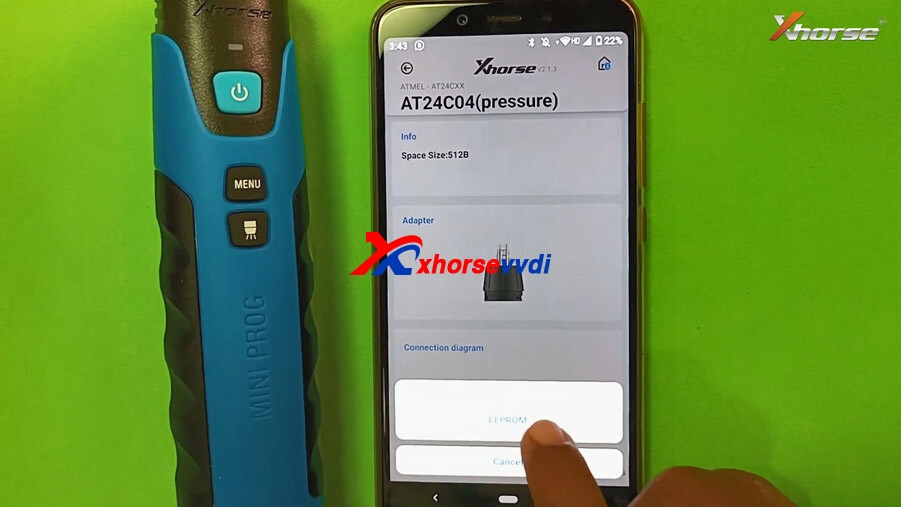
It will display its information, adapter outlook and connection diagram. Tap “Read and then EEPROM”.

Vvdi Mini Prog Move Share Data 06
Vvdi Mini Prog Move Share Data 07

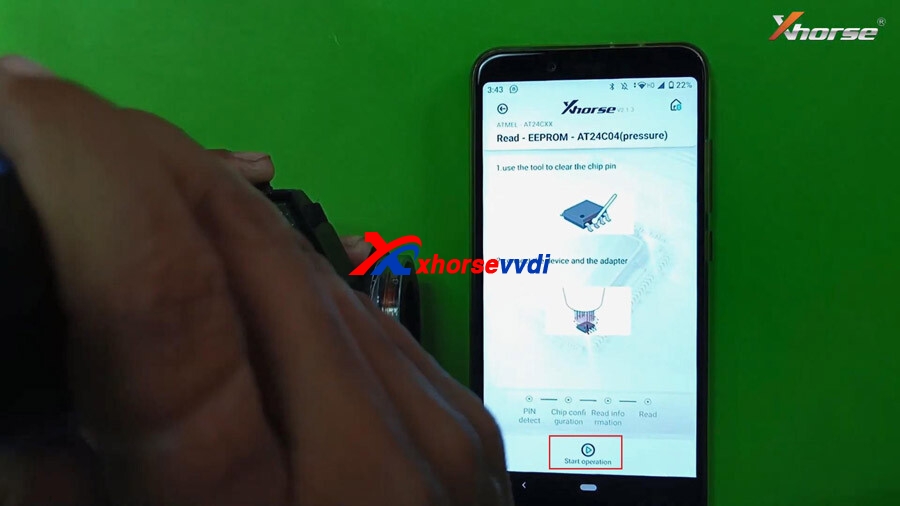
Next, 1. use the tool to clear the chip pin, 2. Connect the device and the adapter.

Vvdi Mini Prog Move Share Data 08

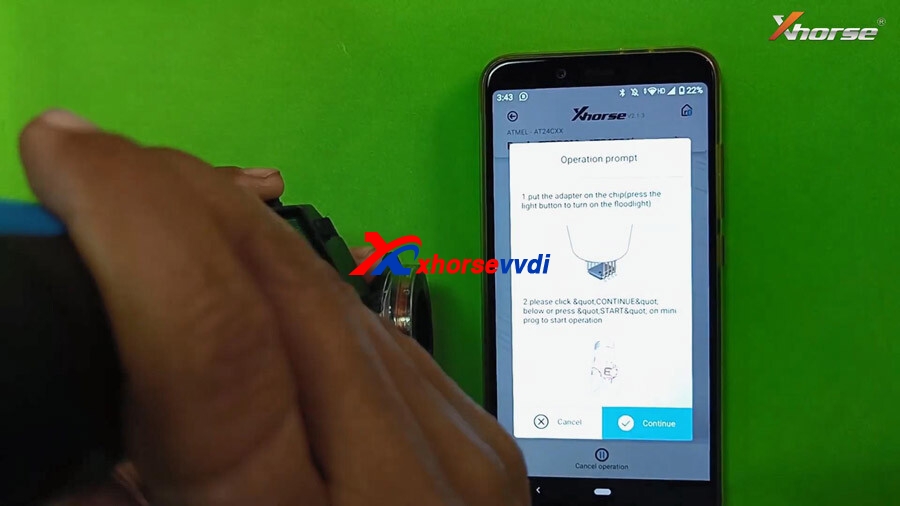
Then tap“Start Operation”, there are 2 tips to follow:

1.Put the adapter on the chip (Press the light button to turn on the floodlight)

  1. Please click & continue below or press START on MINI Prog to start operation.
Vvdi Mini Prog Move Share Data 09

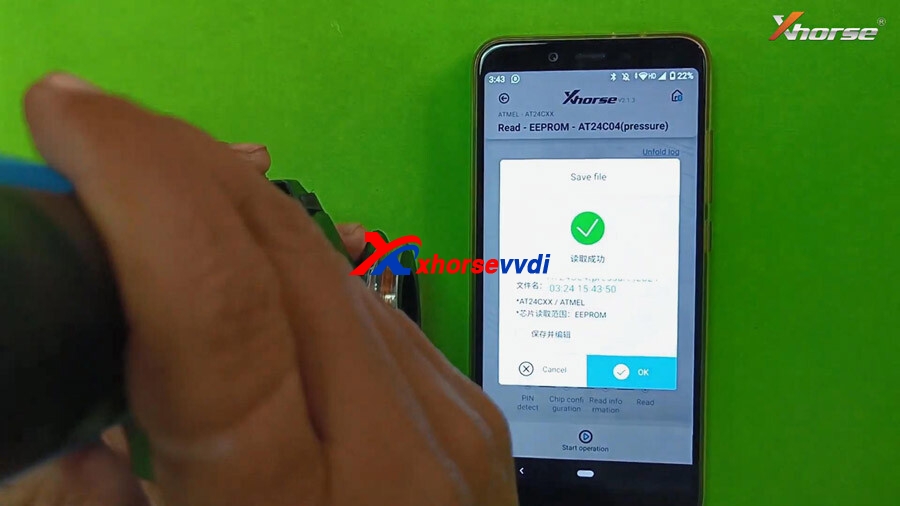
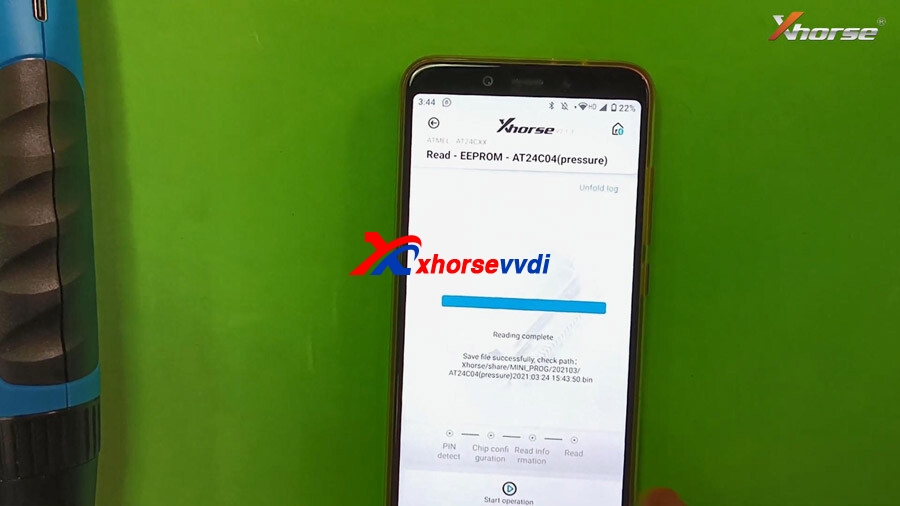
EEPROM AT24C04 (pressure) reading successfully. click on “OK” to save the data. Meanwhile the green indicator on Mini Prog will lit up. It will tell you where the data is located.

Vvdi Mini Prog Move Share Data 10
Vvdi Mini Prog Move Share Data 11
  1. Transfer the eeprom data from VVDI Mini Pro to one computer.

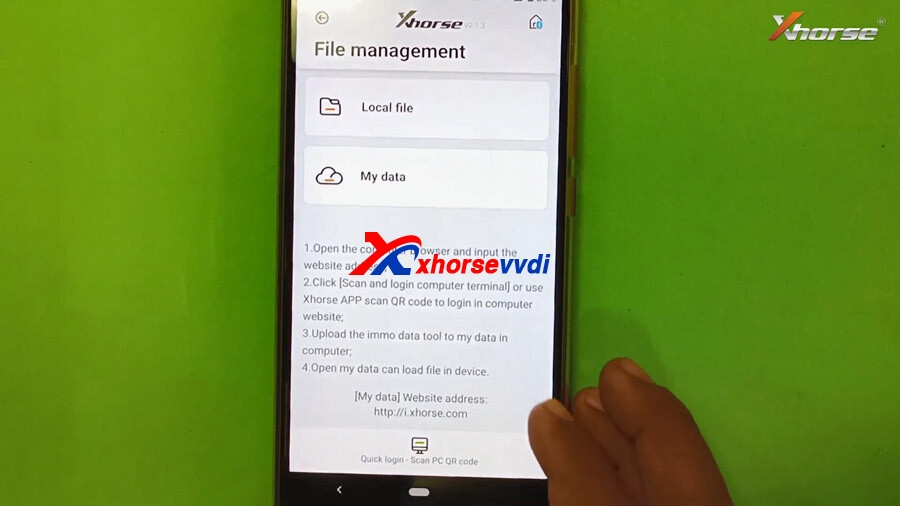
Back to the home menu of Mini Pro, select “File Management” , there are two options : Local file and My data.
Vvdi Mini Prog Move Share Data 12

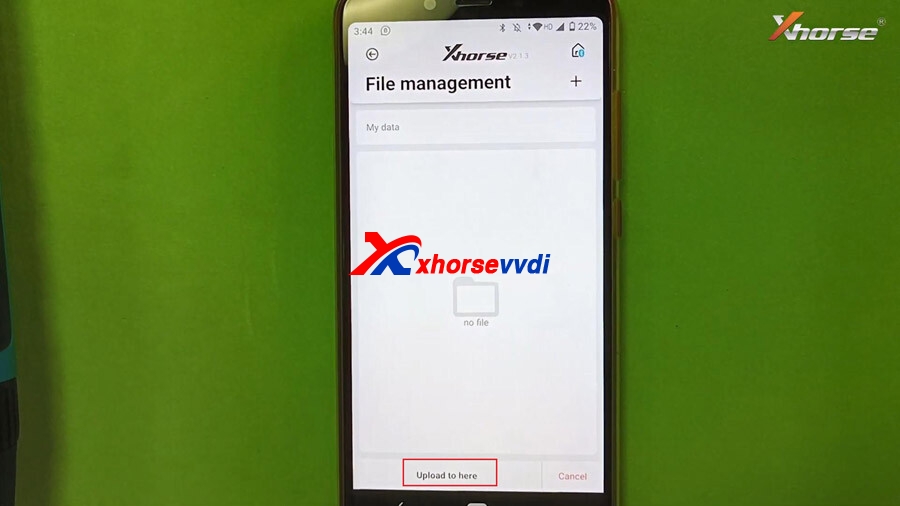
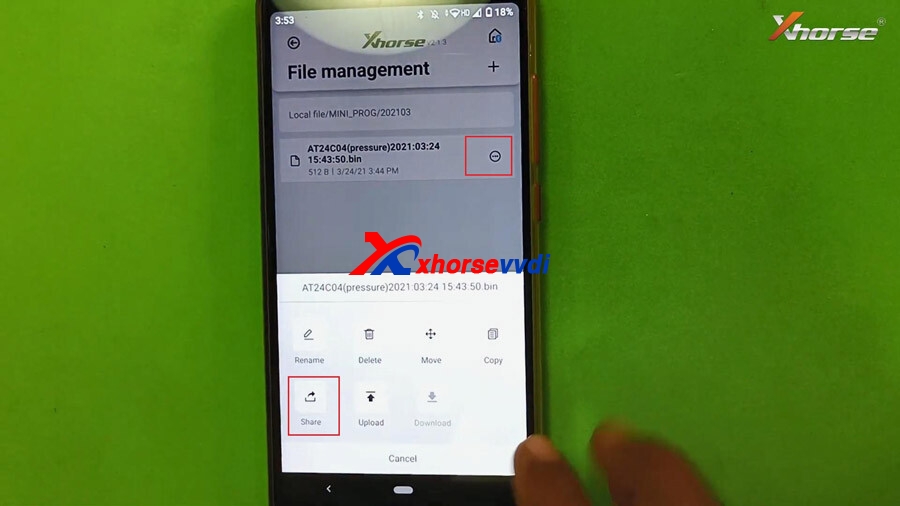
Select ” Local file” -> Mini -Prog -> AT24C04 (pressure). Tap the “…” and there will be options Move, share, upload etc, just tap “Upload” and then “Upload here” to my data, it will show “Upload successfully” and you can also back to “My data” to check if it contains the data file.

Vvdi Mini Prog Move Share Data 14

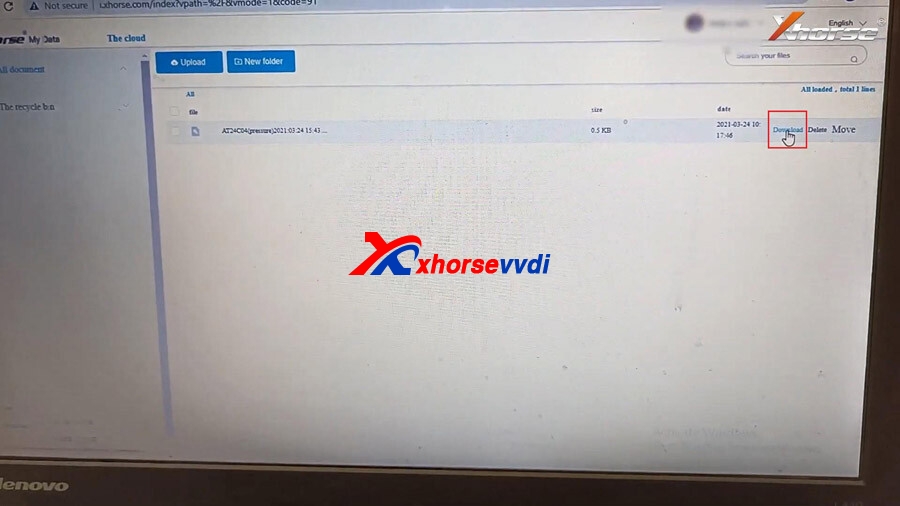
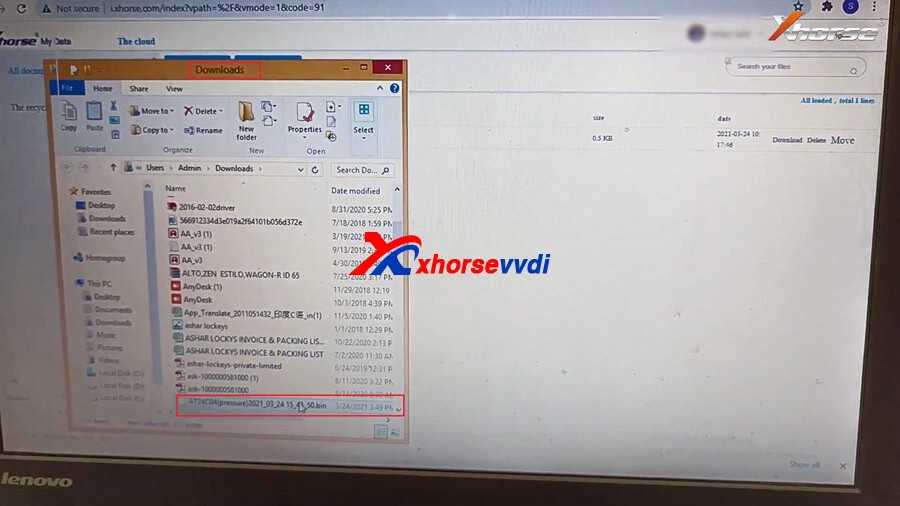
Next, follow the 4 steps to transfer the data to the computer:

  1. Open the computer browser and input the website address http://i.xhorse.com/
  2. Click [Scan and login computer terminal] or use Xhorse APP to scan QR code to login in computer website.
  3. Upload the immo data tool to my data in computer.
  4. Open my data can load file in device.
Vvdi Mini Prog Move Share Data 15
Vvdi Mini Prog Move Share Data 16
  1. Share the eeprom data from VVDI Mini Pro to WhatsApp Wechat QQ

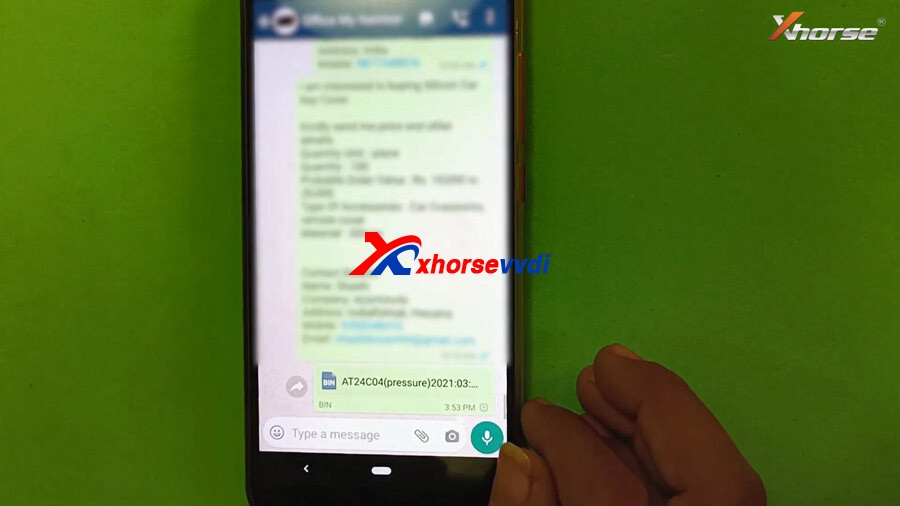
Back to ” Local file” -> Mini -Prog -> AT24C04 (pressure). Tap the “…”, select “Share” and then Send to WhatsApp, so that the Xhorse engineer will be able to assist you.

Vvdi Mini Prog Move Share Data 17
Vvdi Mini Prog Move Share Data 18
  1. Share the eeprom data to other Xhorse devices i.e Key Tool Max

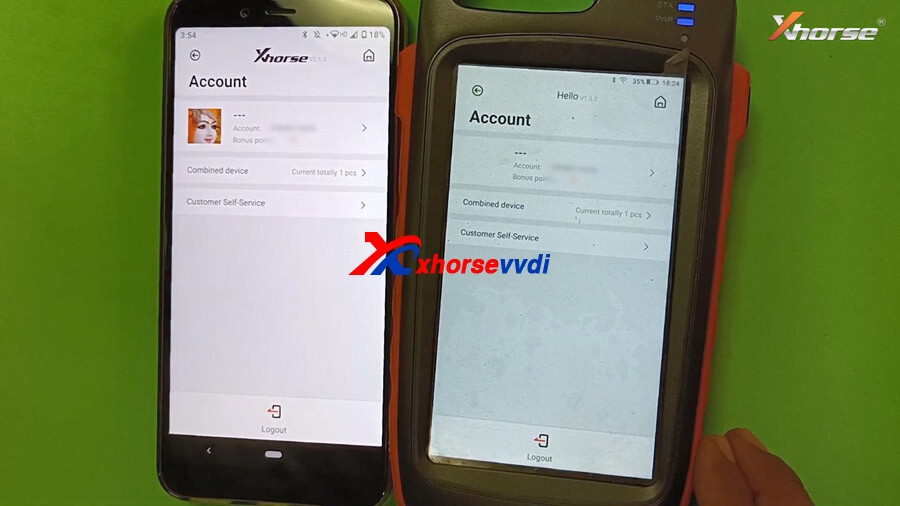
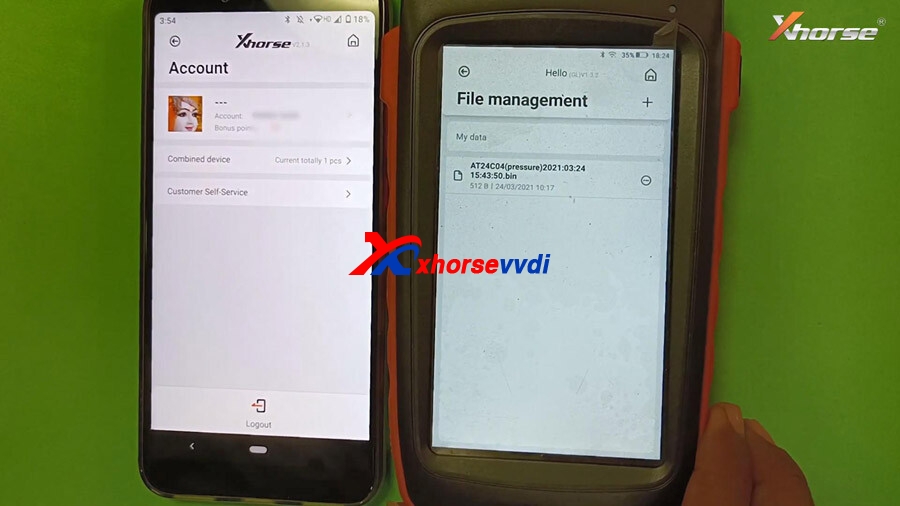
Before transferring the data from Mini Pro, please combine your xhorse devices and login Xhorse account.

With Key Tool Max, enter “File Management” then “My Data” and you will see T24C04 (pressure) eeprom data, that is shared with Mini Prog (Login the same account).
Vvdi Mini Prog Move Share Data 19
Vvdi Mini Prog Move Share Data 20

Good to know:

So far, VVDI Mini Prog, VVDI Key Tool MaxKey Tool Plus support transferring /sharing data to other devices.
Coryright http://blog.xhorsevvdi.com/

Design a site like this with WordPress.com
Get started